'%20d='M0%208a8%208%200%200%201%208-8h24a8%208%200%200%201%208%208v24a8%208%200%200%201-8%208H8a8%208%200%200%201-8-8V8Z'/%3e%3cpath%20fill='%23fff'%20d='M32.576%206C12.293%206%208.776%2025.887%207.424%2034H9.1c.45-2.977%203.493-14.748%2010.899-20.287%200%200-5.633%206.976-6.572%2015.051%203.426-.652%2013.845-3.372%2016.056-12.927l-3.84-.61c1.352-1.351%204.909-5.17%206.931-9.226V6Z'/%3e%3cdefs%3e%3clinearGradient%20id='reapit-lettings__a'%20x1='20.702'%20x2='20.702'%20y1='.351'%20y2='31.228'%20gradientUnits='userSpaceOnUse'%3e%3cstop%20stop-color='%235573FD'/%3e%3cstop%20offset='.575'%20stop-color='%234E56EA'/%3e%3c/linearGradient%3e%3c/defs%3e%3c/svg%3e)
2Apply Inspection Code
This article will cover how to create and use the 2Apply inspection code in Reapit Lettings.
2Apply Inspection Code
This article will cover how to create and use the 2Apply inspection code in Reapit Lettings.
The processes in this article include:
- Set up the Inspection Code
- How to Use the Inspection Code Merge Field
2Apply Inspection Code
The Inspection Code merge field can be used if your agency only allows prospective tenants to apply for a property after attending a viewing
Note: If your agency uses an external application provider, this merge field will not function.
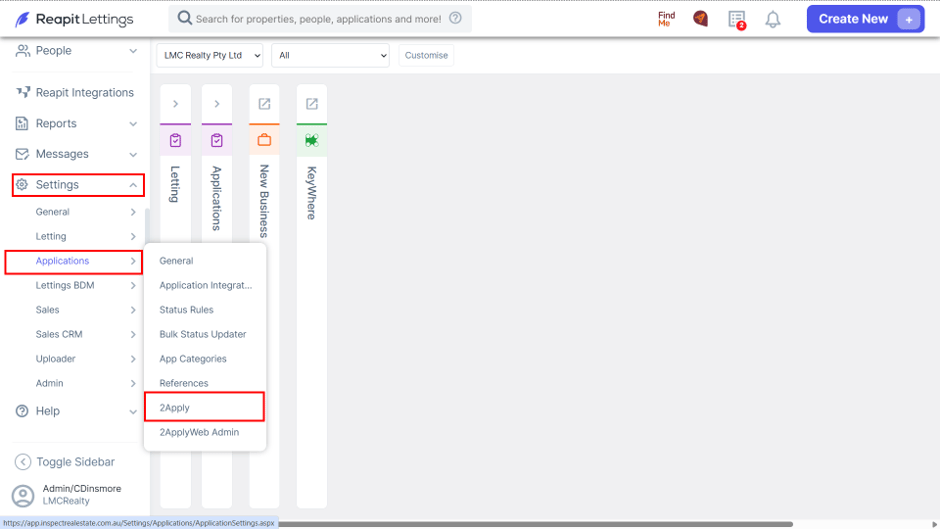
- To set up the Inspection Code, navigate to Settings.
- Click Applications.
- Click 2Apply.
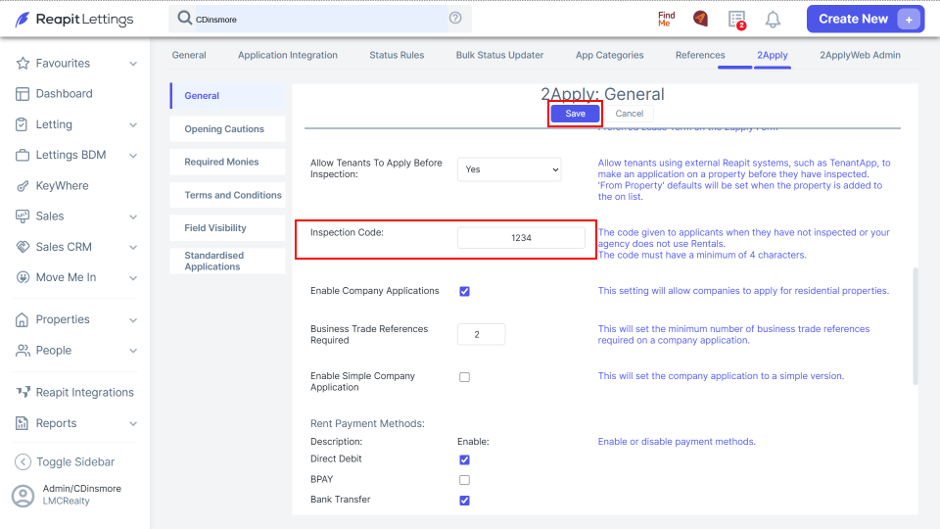
- Proceed to the Inspection Code text box and enter a value.
- Click Save.
How to Use the Inspection Code Merge Field
- Navigate to Messages.
- Click Letting.
- Click Inspected Tenants.
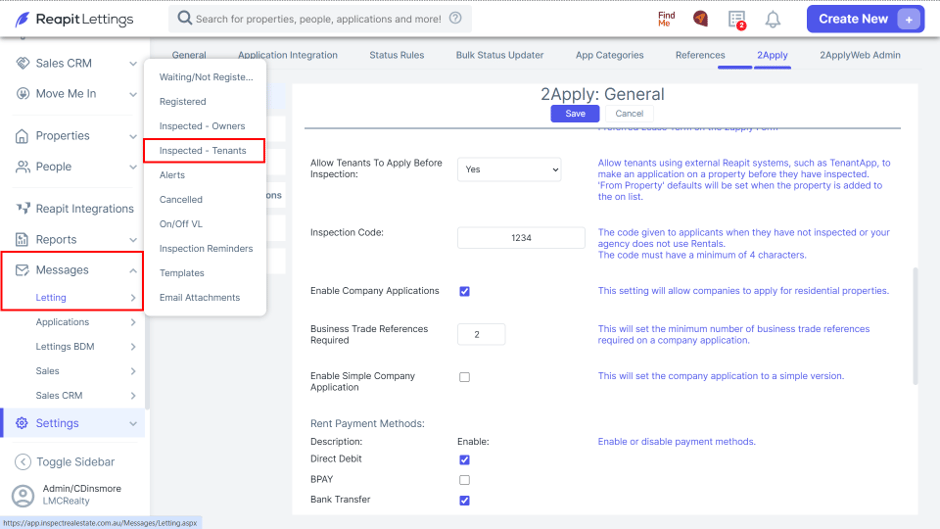
Note: The Inspection Code merge field is only available in a select group of inspected tenant messages, not across all message types.
- Open the desired message template.
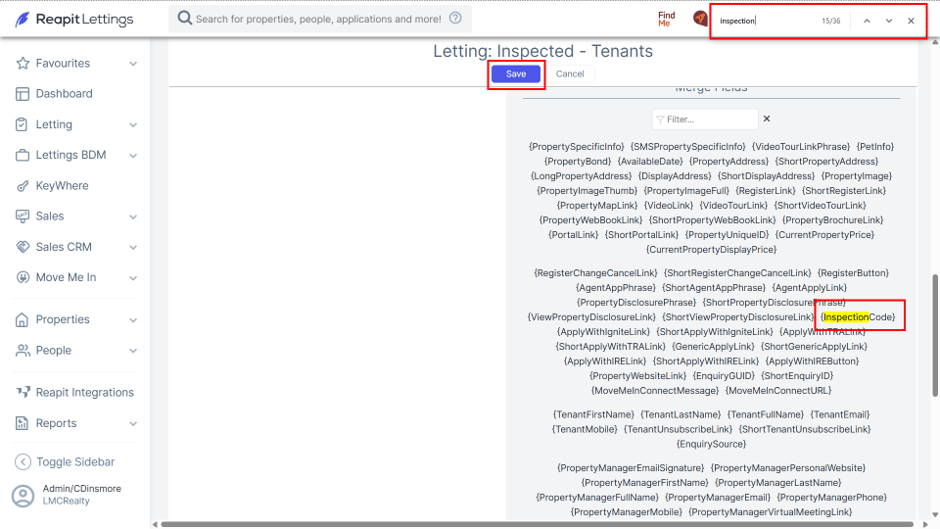
- Locate the InspectionCode merge field (or use CTRL + F to search for “inspection”).
- Click and insert the merge field where you would like the code to appear.
- Click Save.