'%20d='M0%208a8%208%200%200%201%208-8h24a8%208%200%200%201%208%208v24a8%208%200%200%201-8%208H8a8%208%200%200%201-8-8V8Z'/%3e%3cpath%20fill='%23fff'%20d='M32.576%206C12.293%206%208.776%2025.887%207.424%2034H9.1c.45-2.977%203.493-14.748%2010.899-20.287%200%200-5.633%206.976-6.572%2015.051%203.426-.652%2013.845-3.372%2016.056-12.927l-3.84-.61c1.352-1.351%204.909-5.17%206.931-9.226V6Z'/%3e%3cdefs%3e%3clinearGradient%20id='reapit-lettings__a'%20x1='20.702'%20x2='20.702'%20y1='.351'%20y2='31.228'%20gradientUnits='userSpaceOnUse'%3e%3cstop%20stop-color='%235573FD'/%3e%3cstop%20offset='.575'%20stop-color='%234E56EA'/%3e%3c/linearGradient%3e%3c/defs%3e%3c/svg%3e)
Managing Video Tour Link and Video Link to a Property
This article will run through how to manage the video tour link and video link to a property within Reapit Lettings. The process in this article include: How to Add an External Video Tour Link to a Property (e.g. Youtube link) How to Add a Video Link to a Property How to Add a Video Tour Link to a Property in Reapit Viewings
Managing Video Tour Link and Video Link to a Property
This article will run through how to manage the video tour link and video link to a property within Reapit Lettings.
The process in this article include:
- How to Add an External Video Tour Link to a Property (e.g. Youtube link)
- How to Add a Video Link to a Property
- How to Add a Video Tour Link to a Property in Reapit Viewings
How to Add an External Video Tour Link to a Property (e.g. Youtube link)
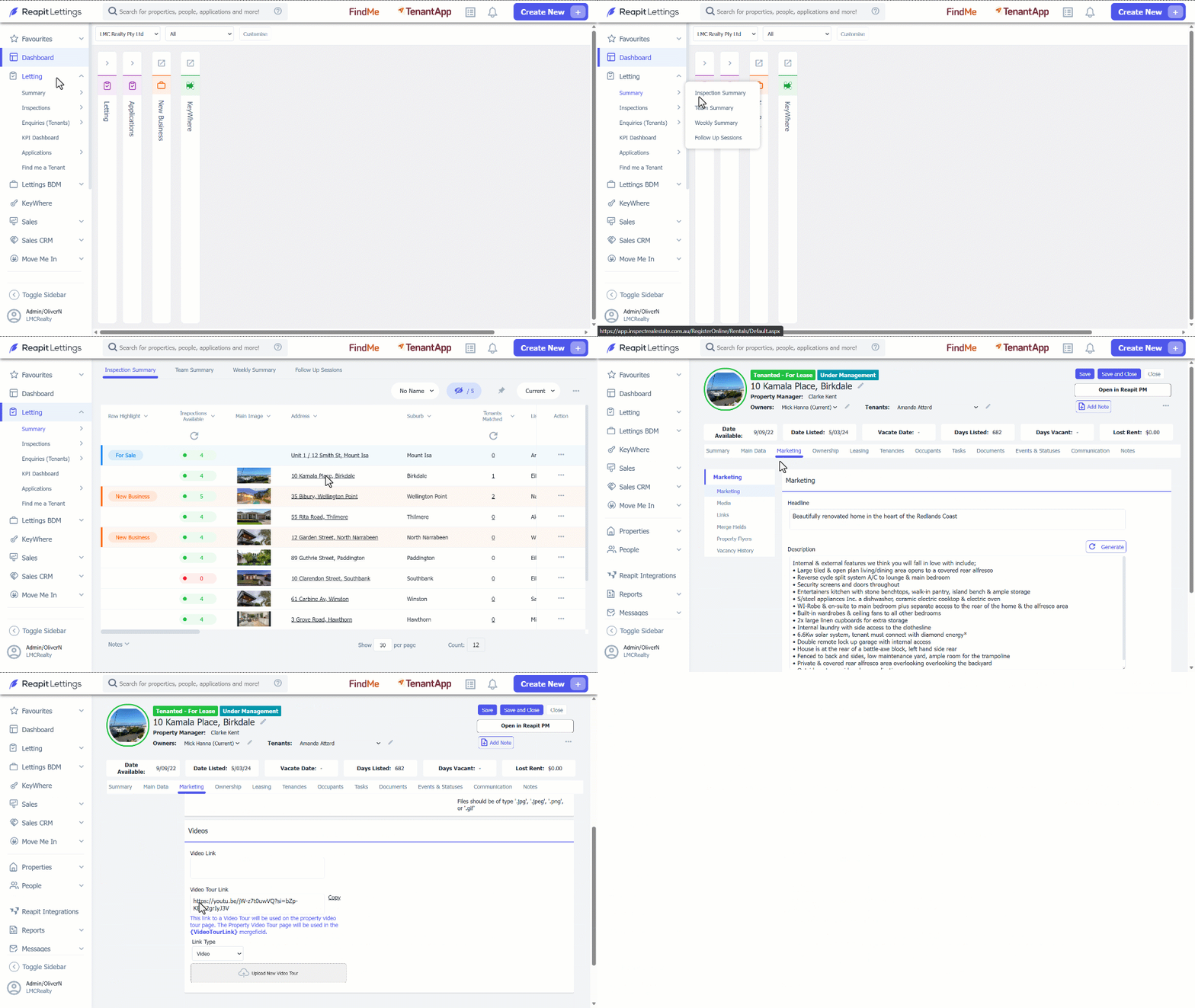
This link to a Video Tour will be used on the property video tour page. The Property Video Tour page will be used in the {VideoTourLink} mergefield.
- Click on Letting.
- Click on Summary.
- Click on Inspection Summary.
- Select the property from the Inspection Summary Page.
- Navigate to Marketing.
- Navigate to Media.
- Paste the video link into the Video Tour Link section.
Note:
- If you intend to have a video for all your properties, then you can alter the over-all office templates to include the merge field.
- If you do not intend to have a video for all your properties, it's a good idea to alter the messages on a per property bases.
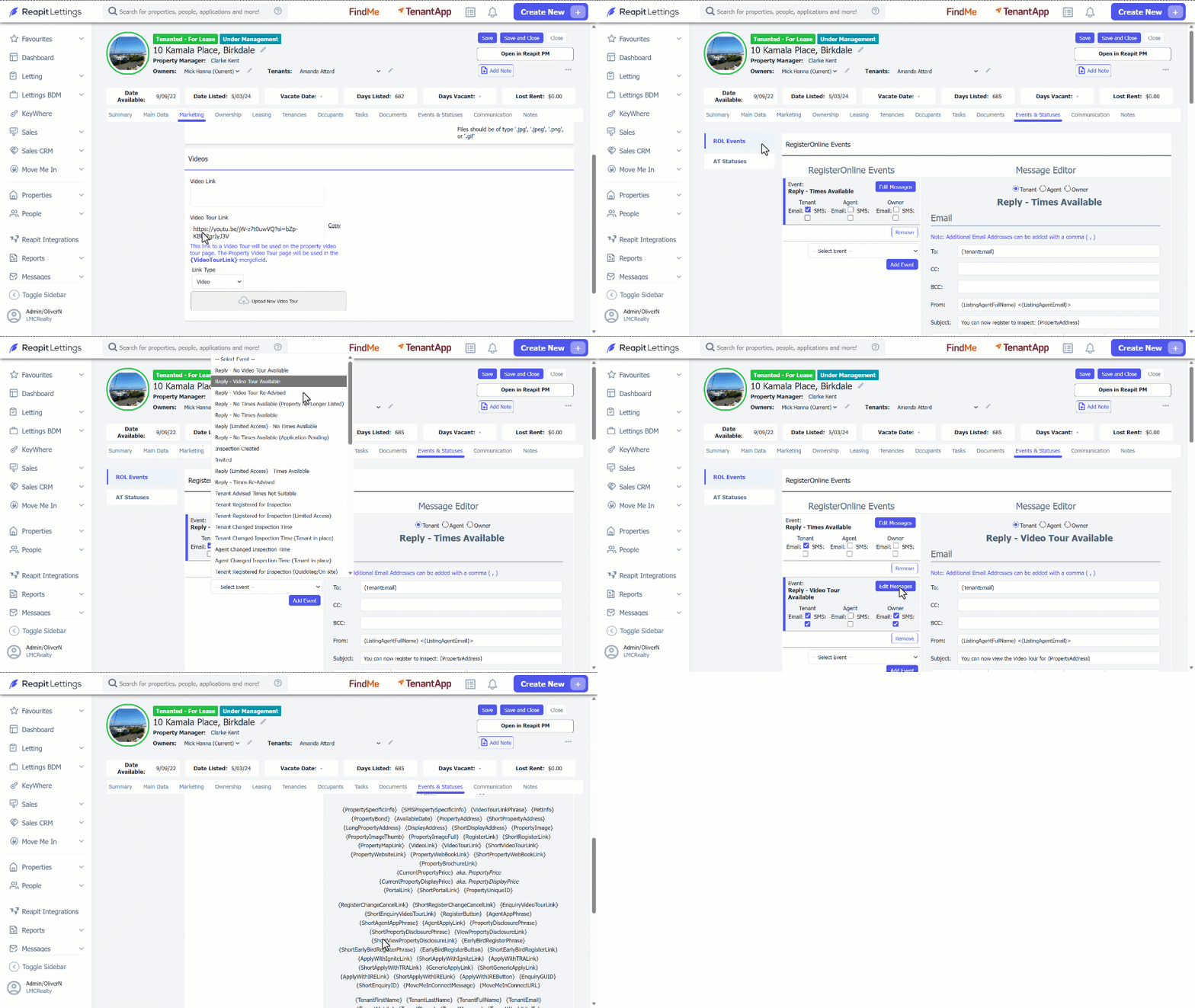
- Once you have added the link against the property, you then need to ensure the video merge field {VideoTourLink} is included in the messages that go out, otherwise the video won't be visible. You can add the video merge field by proceeding on Step 8 onwards.
- Click on Events & Statuses.
- Navigate to ROL Events.
- Select Event from the dropdown box.
- Click on Add Event.
- Click on Edit Messages.
- Select Tenant, Agent or Owner.
- Edit the Email or SMS and add the merge field {VideoTourLink}.
- Click on Save.
How to Add a Video Link to a Property
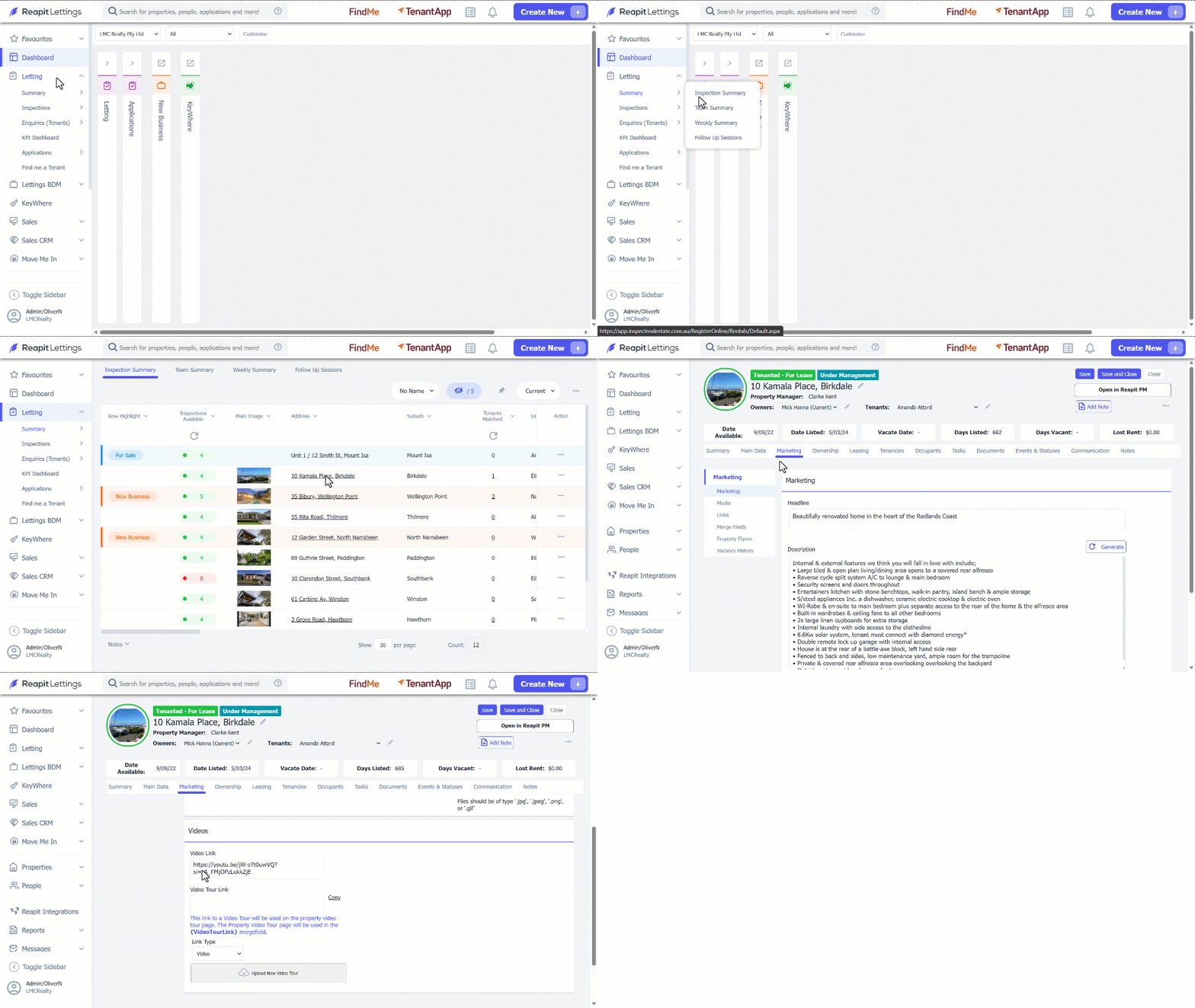
- Click on Letting.
- Click on Summary.
- Click on Inspection Summary.
- Select the property from the Inspection Summary Page.
- Navigate to Marketing.
- Navigate to Media.
- Paste the video link into the Video Link section.
- Click on Save.
How to Add a Video Tour Link to a Property in Reapit Viewings
- Select Video Tour Link.
- Search for the property listing.
- Click on Select Video and choose the file from your device.
- Click on Ok.
- Wait for the video to be uploaded.