'%20d='M0%208a8%208%200%200%201%208-8h24a8%208%200%200%201%208%208v24a8%208%200%200%201-8%208H8a8%208%200%200%201-8-8V8Z'/%3e%3cpath%20fill='%23fff'%20d='M32.576%206C12.293%206%208.776%2025.887%207.424%2034H9.1c.45-2.977%203.493-14.748%2010.899-20.287%200%200-5.633%206.976-6.572%2015.051%203.426-.652%2013.845-3.372%2016.056-12.927l-3.84-.61c1.352-1.351%204.909-5.17%206.931-9.226V6Z'/%3e%3cdefs%3e%3clinearGradient%20id='reapit-lettings__a'%20x1='20.702'%20x2='20.702'%20y1='.351'%20y2='31.228'%20gradientUnits='userSpaceOnUse'%3e%3cstop%20stop-color='%235573FD'/%3e%3cstop%20offset='.575'%20stop-color='%234E56EA'/%3e%3c/linearGradient%3e%3c/defs%3e%3c/svg%3e)
New Loan in Mobile App for Keywhere
This article will run through how to create a new loan in the mobile app for Keywhere
New Loan in Mobile App for Keywhere
This article will run through how to create a new loan in the mobile app for Keywhere.
The New Loan page is where you can reserve or loan keys on the phone app.
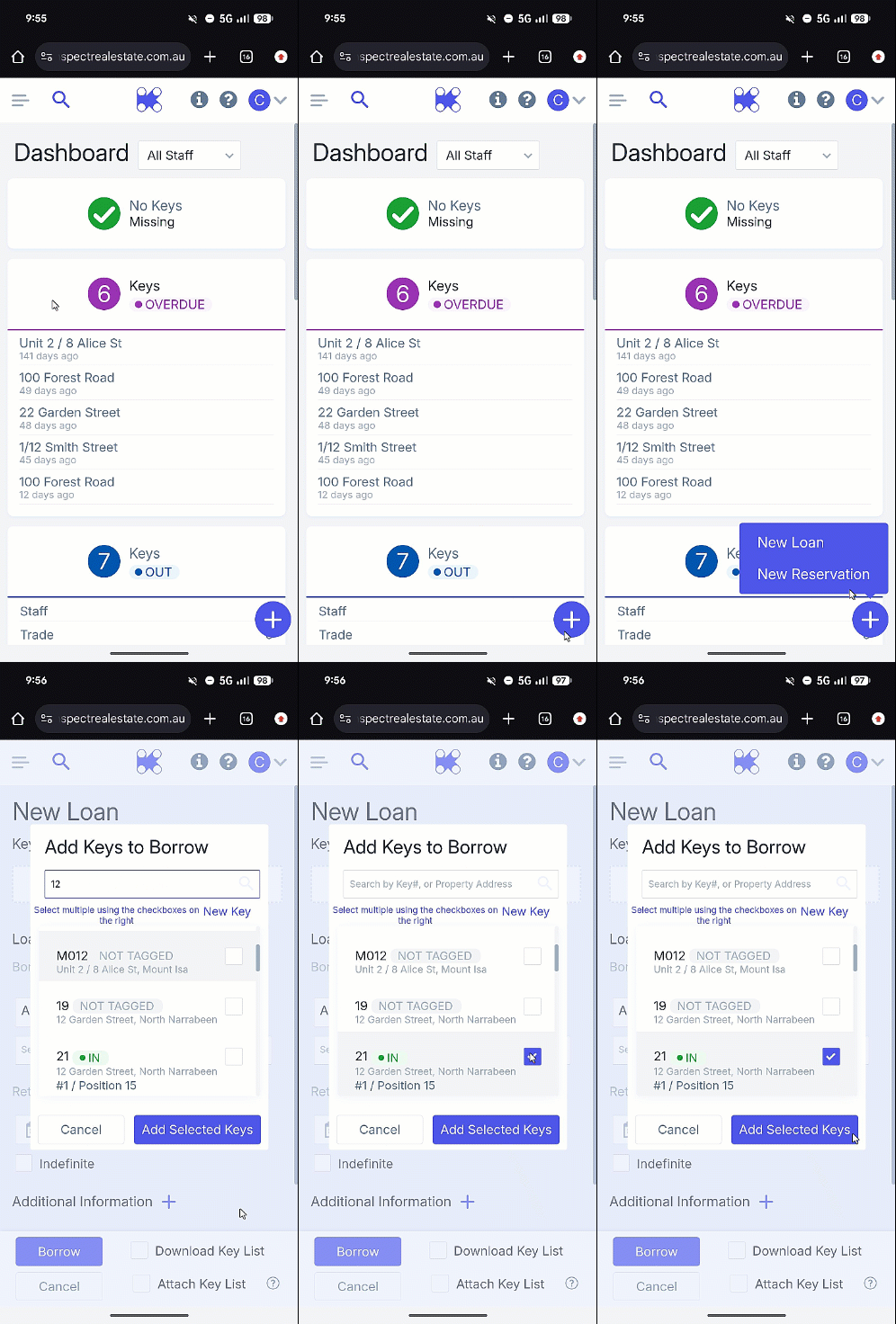
- From the KeyWhere app dashboard, click the + Icon
- Click New Loan.
- On the New Loan screen, enter either key number or property address, click the checkbox adjacent to the key number.
- Click Add Selected Key.
- Select a borrower from the dropdown menu, click the calendar icon to choose an appropriate return date, as well as a time by utilising the slider icon (if required, click the 'indefinite' checkbox).
- Click the '+' icon next to 'Additional Information' if you wish to provide a reason for the key loan.
To set a reminder for key return, select the 'Send a reminder' checkbox and specify the number of hours after which the reminder should be sent to the borrower.
To send a collection message, select the 'Send collected message' checkbox for the relevant notification to be sent.
Click Borrow once completed.
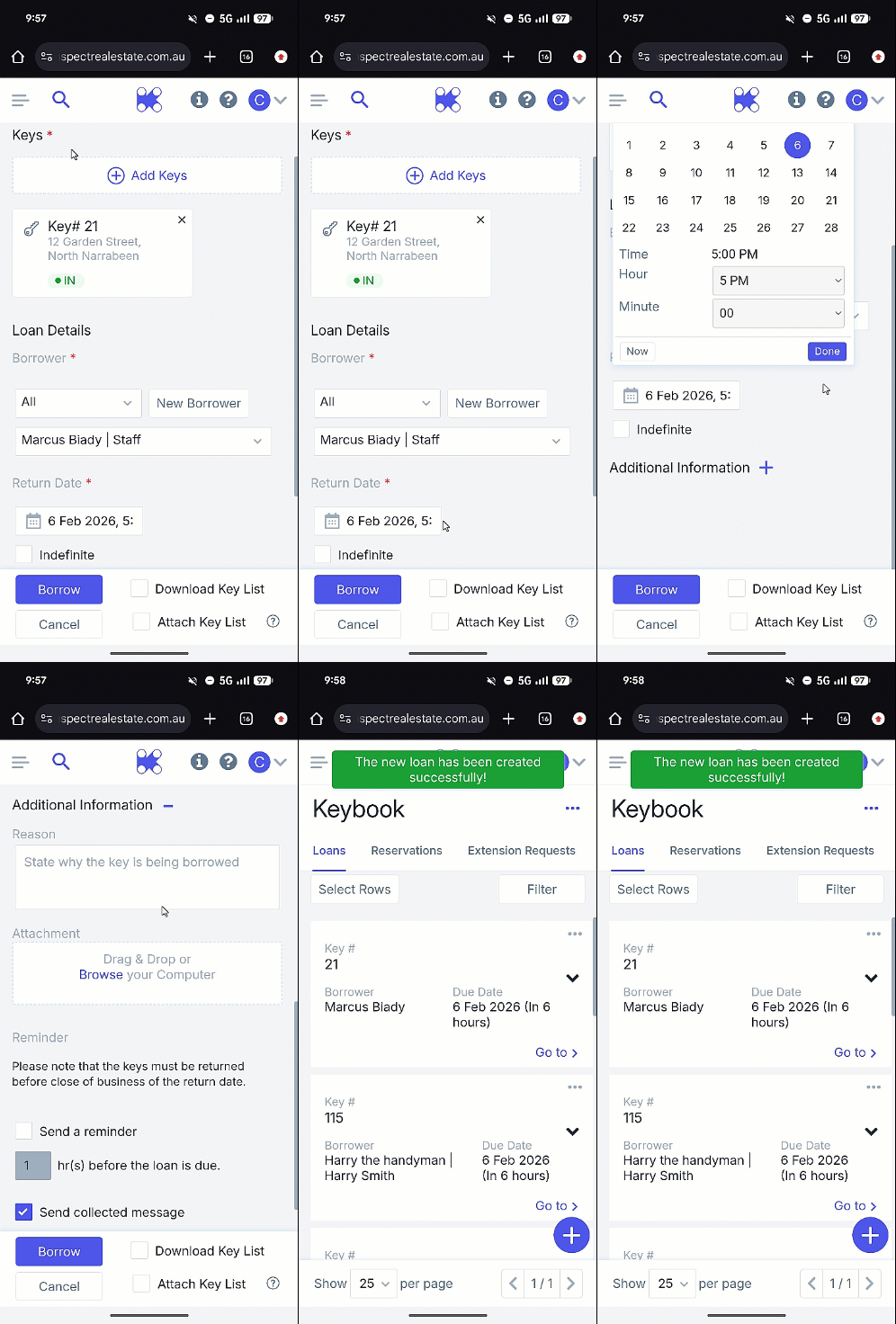
Note: A confirmation pop-up will appear to verify the new loan. The status will now be 'Checked Out,' indicated by a flashing blue icon.