'%20d='M0%208a8%208%200%200%201%208-8h24a8%208%200%200%201%208%208v24a8%208%200%200%201-8%208H8a8%208%200%200%201-8-8V8Z'/%3e%3cpath%20fill='%23fff'%20d='M32.576%206C12.293%206%208.776%2025.887%207.424%2034H9.1c.45-2.977%203.493-14.748%2010.899-20.287%200%200-5.633%206.976-6.572%2015.051%203.426-.652%2013.845-3.372%2016.056-12.927l-3.84-.61c1.352-1.351%204.909-5.17%206.931-9.226V6Z'/%3e%3cdefs%3e%3clinearGradient%20id='reapit-lettings__a'%20x1='20.702'%20x2='20.702'%20y1='.351'%20y2='31.228'%20gradientUnits='userSpaceOnUse'%3e%3cstop%20stop-color='%235573FD'/%3e%3cstop%20offset='.575'%20stop-color='%234E56EA'/%3e%3c/linearGradient%3e%3c/defs%3e%3c/svg%3e)
How to Assign Keys in Bulk in KeyWhere
This article covers how to assign keys in bulk with KeyWhere.
Overview
How to Assign Keys in Bulk in KeyWhere
This article covers how to bulk assign keys to the KeyWhere panel using the desktop software. This process can be used when wanting to assign keys in bulk or in groups from a starting number in a consecutive order.
Note: Diamond Level User Process
- Navigate to Settings.
- Scroll down to Setup and select Tag Keys.
- Select the In Bulk tab.
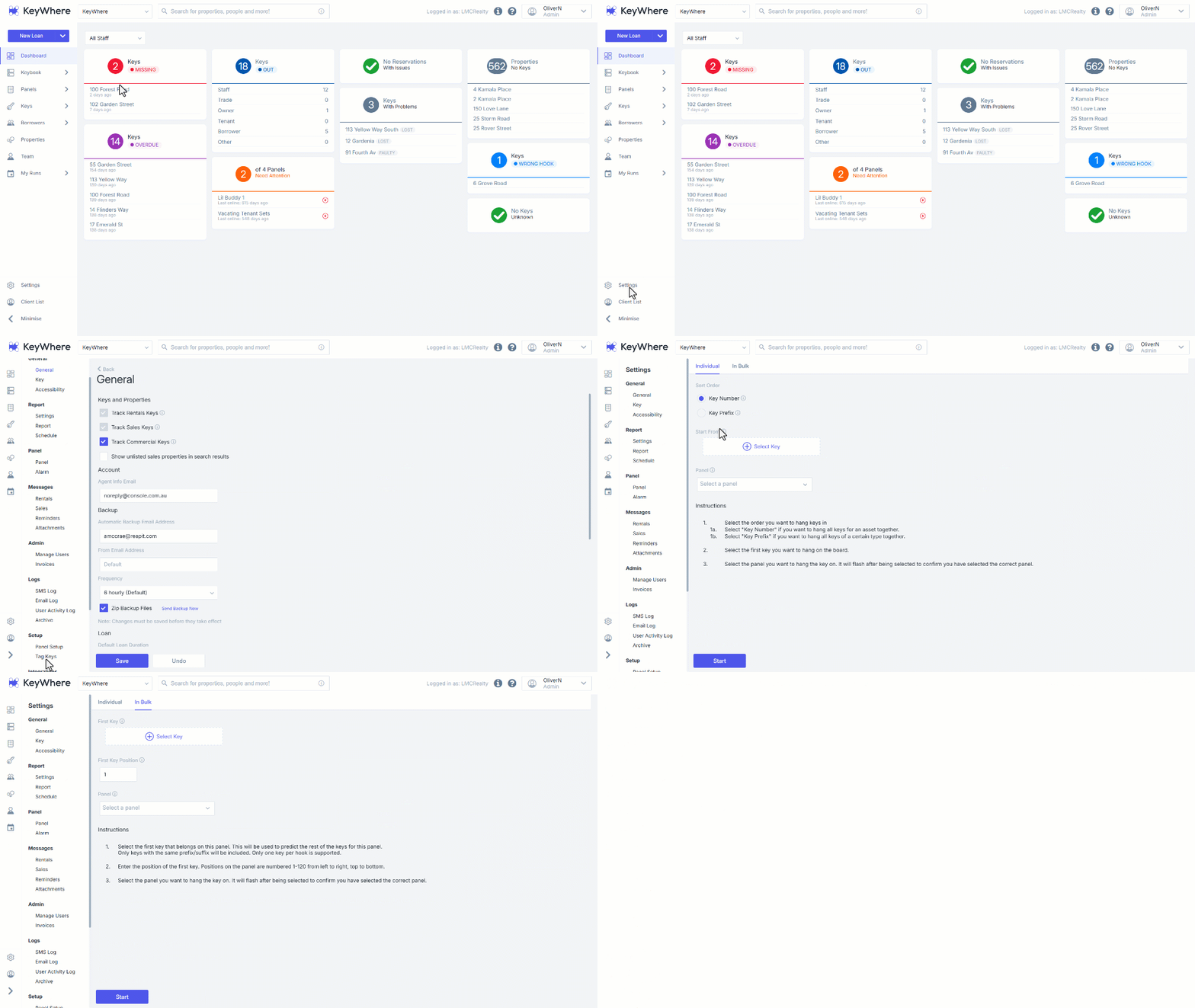
- Click on Select Key.
- Enter then select the required starting number.
- Enter the desired First Key Position.
- Select the Panel to assign to.
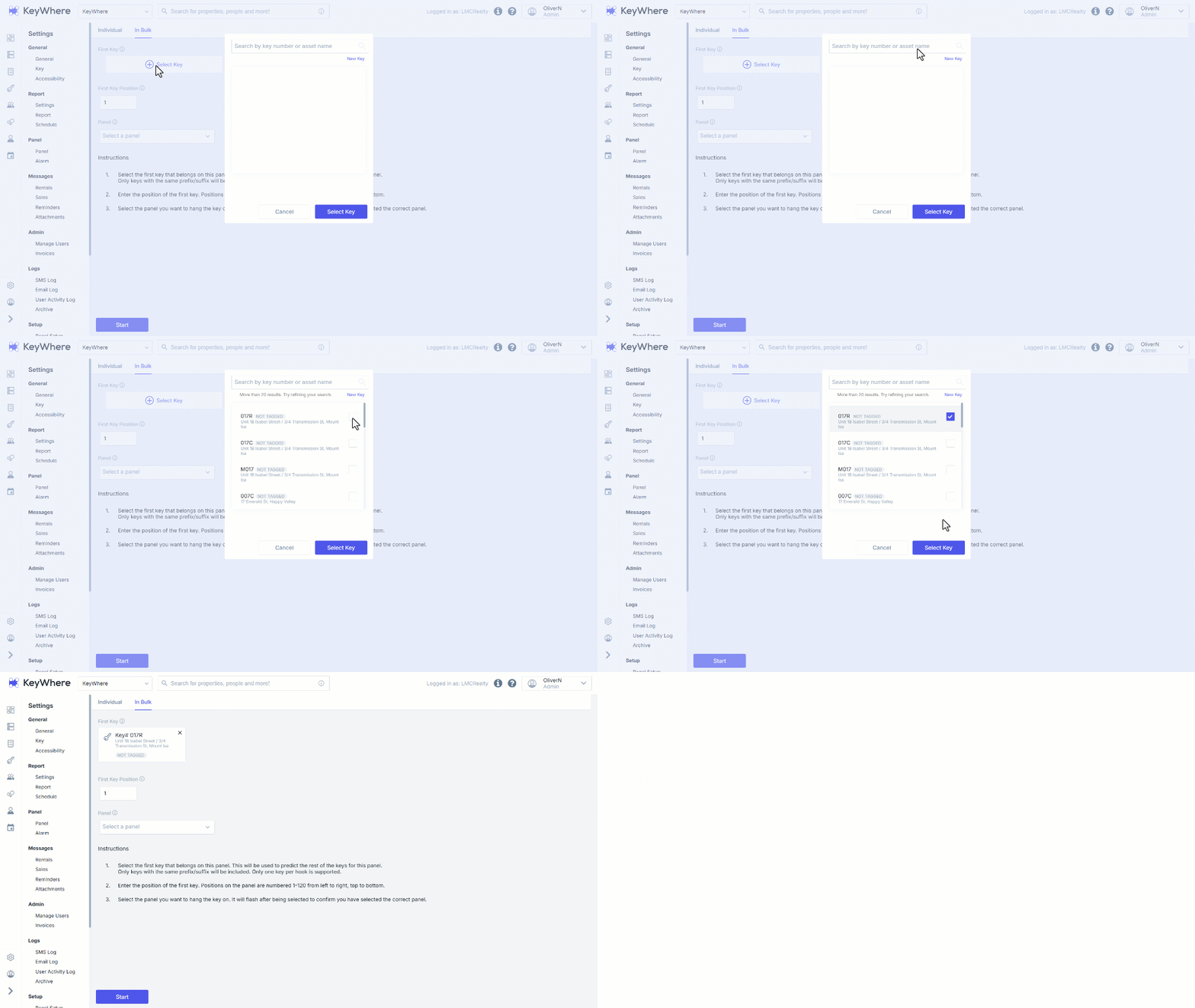
- Click on Start.
- Confirm the keys to be allocated list and click on Next.
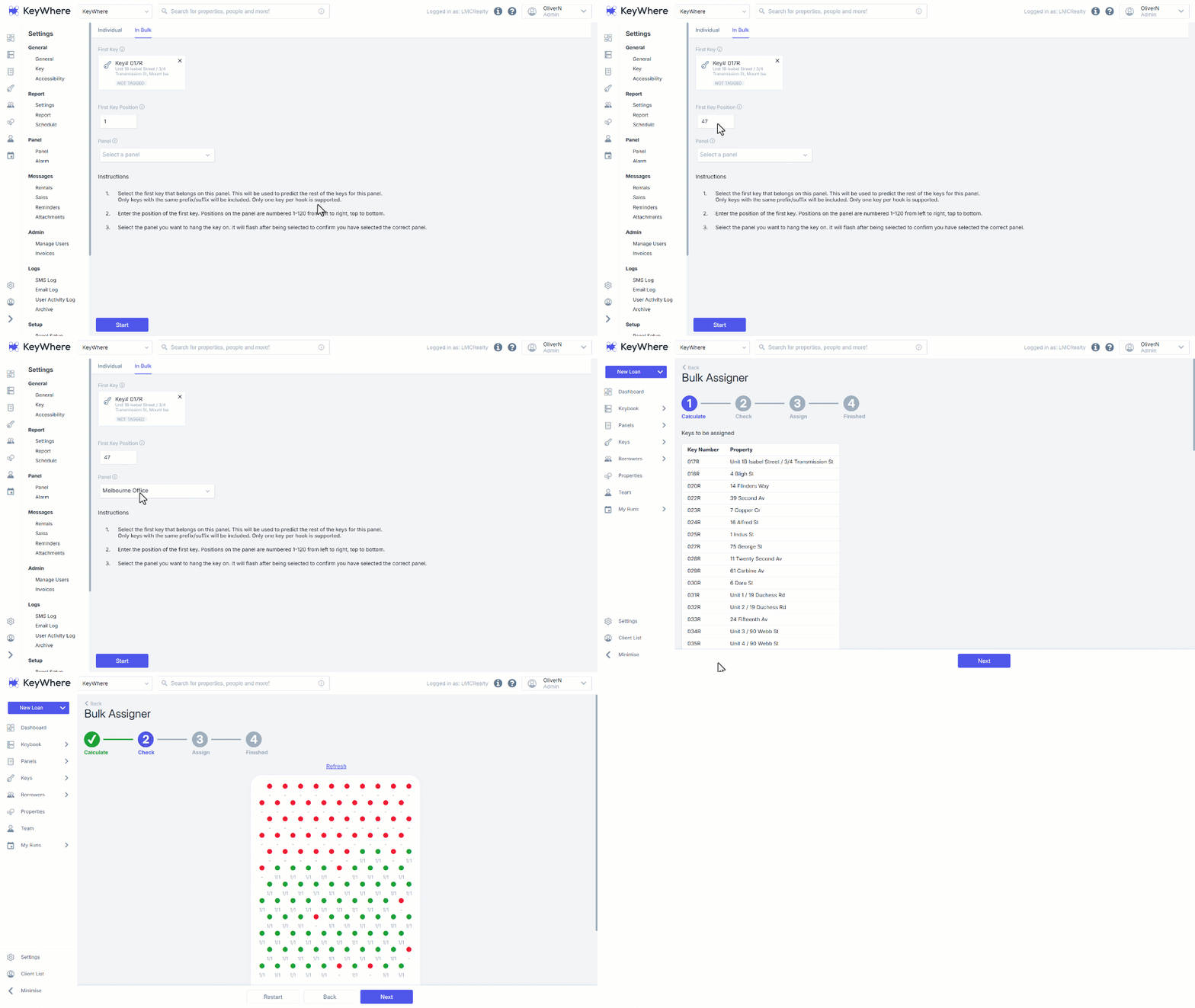
- Head to your panel and hang all your keys.
- The check screen will update in live time as you hang the keys on the panel. Colour change from flashing red to solid green. All should be green before clicking on Next finalise the assigning of keys to the panel.