'%20d='M0%208a8%208%200%200%201%208-8h24a8%208%200%200%201%208%208v24a8%208%200%200%201-8%208H8a8%208%200%200%201-8-8V8Z'/%3e%3cpath%20fill='%23fff'%20d='M32.576%206C12.293%206%208.776%2025.887%207.424%2034H9.1c.45-2.977%203.493-14.748%2010.899-20.287%200%200-5.633%206.976-6.572%2015.051%203.426-.652%2013.845-3.372%2016.056-12.927l-3.84-.61c1.352-1.351%204.909-5.17%206.931-9.226V6Z'/%3e%3cdefs%3e%3clinearGradient%20id='reapit-lettings__a'%20x1='20.702'%20x2='20.702'%20y1='.351'%20y2='31.228'%20gradientUnits='userSpaceOnUse'%3e%3cstop%20stop-color='%235573FD'/%3e%3cstop%20offset='.575'%20stop-color='%234E56EA'/%3e%3c/linearGradient%3e%3c/defs%3e%3c/svg%3e)
Leads Files Tab
This article shows how to manage Leads Files Tab in Reapit Lettings. The Leads File Tab provides an easily accessible location to store files and documents related to the Lead. Accepted file types: .csv, .doc, .eml, .gif, .jpeg, .jpg, .msg, .pdf, .png, rtf, .txt, .zip. The processes in this article include: How to Add a File to a Lead How to View or Delete a File
Leads Files Tab
This article shows how to manage Leads Files Tab in Reapit Lettings.
The Leads File Tab provides an easily accessible location to store files and documents related to the Lead.
Accepted file types: .csv, .doc, .eml, .gif, .jpeg, .jpg, .msg, .pdf, .png, rtf, .txt, .zip.
The processes in this article include:
- How to Add a File to a Lead
- How to View or Delete a File
How to Add a File to a Lead
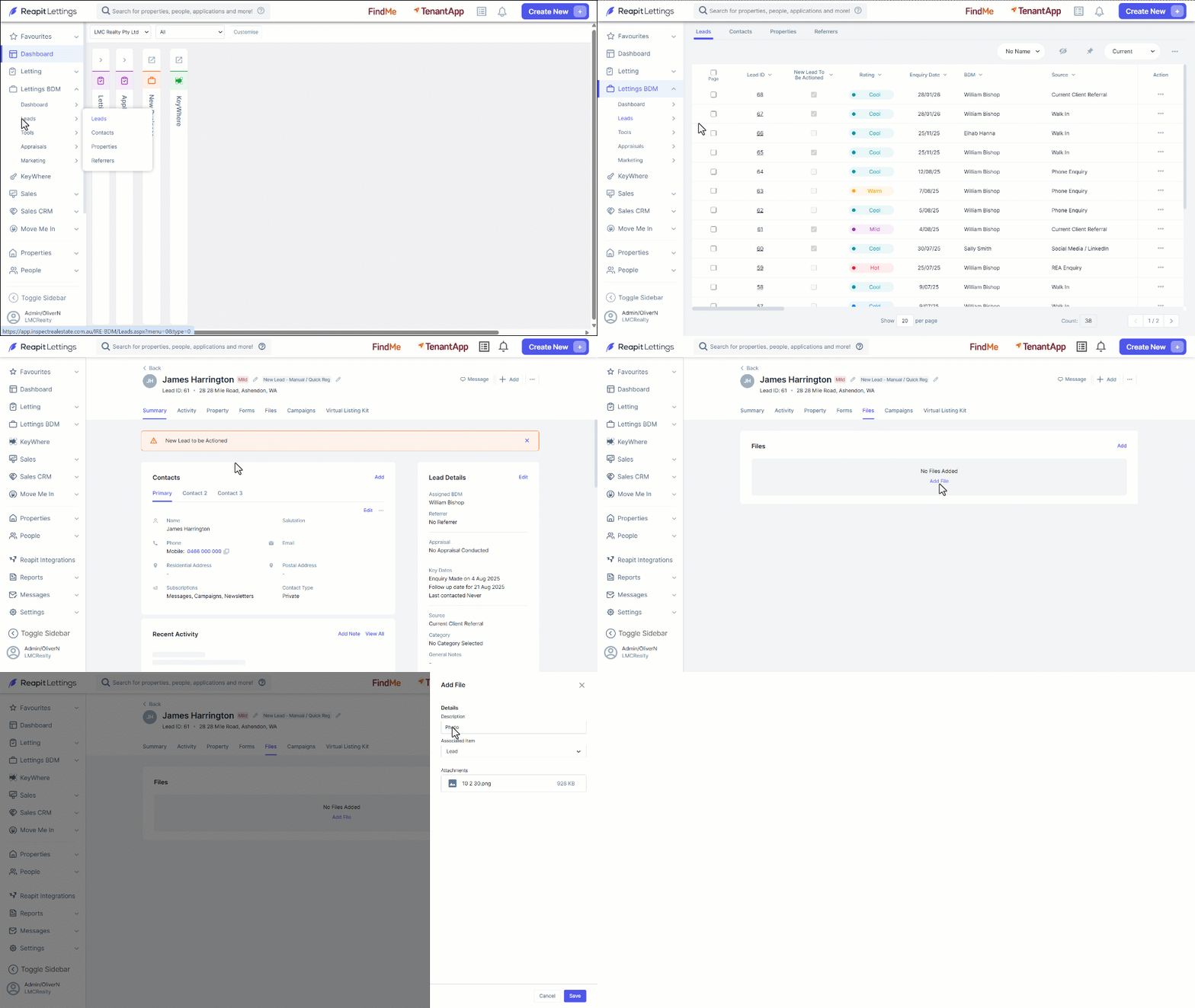
- Click on Lettings BDM
- Click on Leads.
- Click on ****Leads.
- Click on the Lead ID from the leads grid.
- Select the Files Tab.
- Click on Add to open the Add File Drawer.
- Enter a Description.
- Choose the Associated Item - Lead or Property Address. Then either drag and drop the file to the blue area in the drawer. Alternatively, click on browse files to locate and add files from your computer.
- Click on Save.
- A green message will appear when the file has been added successfully. Click Cancel to close the Add File drawer.
How to View or Delete a File
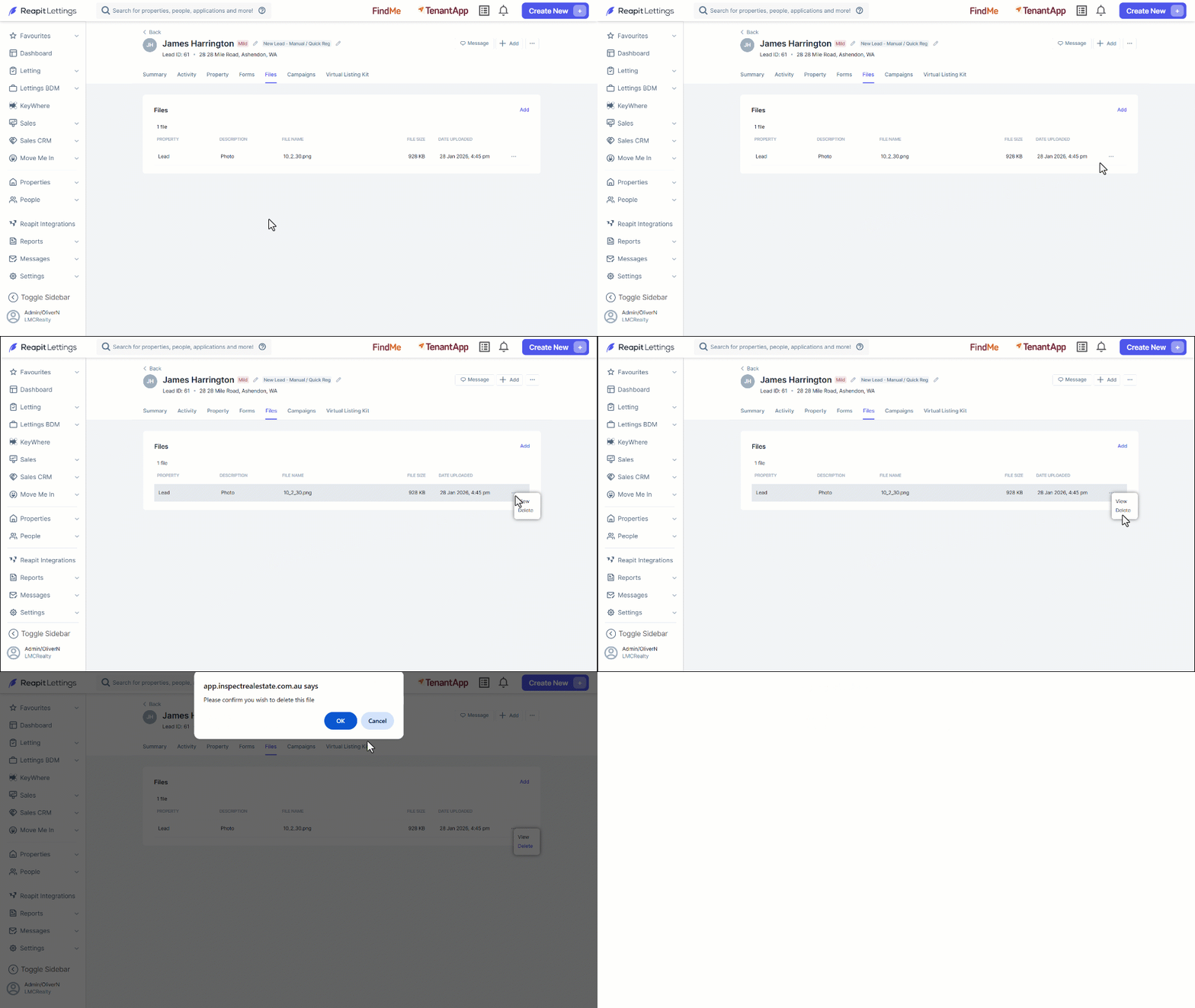
- Click on the 3-dot icon.
- When View is selected, depending on the file type, it will load in a pop-up screen or download via your browser.
- Select Delete, the OK.