'%20d='M0%208a8%208%200%200%201%208-8h24a8%208%200%200%201%208%208v24a8%208%200%200%201-8%208H8a8%208%200%200%201-8-8V8Z'/%3e%3cpath%20fill='%23fff'%20d='M32.576%206C12.293%206%208.776%2025.887%207.424%2034H9.1c.45-2.977%203.493-14.748%2010.899-20.287%200%200-5.633%206.976-6.572%2015.051%203.426-.652%2013.845-3.372%2016.056-12.927l-3.84-.61c1.352-1.351%204.909-5.17%206.931-9.226V6Z'/%3e%3cdefs%3e%3clinearGradient%20id='reapit-lettings__a'%20x1='20.702'%20x2='20.702'%20y1='.351'%20y2='31.228'%20gradientUnits='userSpaceOnUse'%3e%3cstop%20stop-color='%235573FD'/%3e%3cstop%20offset='.575'%20stop-color='%234E56EA'/%3e%3c/linearGradient%3e%3c/defs%3e%3c/svg%3e)
Uploader General Settings
This article will cover the general uploader settings available in Reapit Lettings.
1. Navigate to Settings.
2. Navigate to Uploader.
3. Click General.
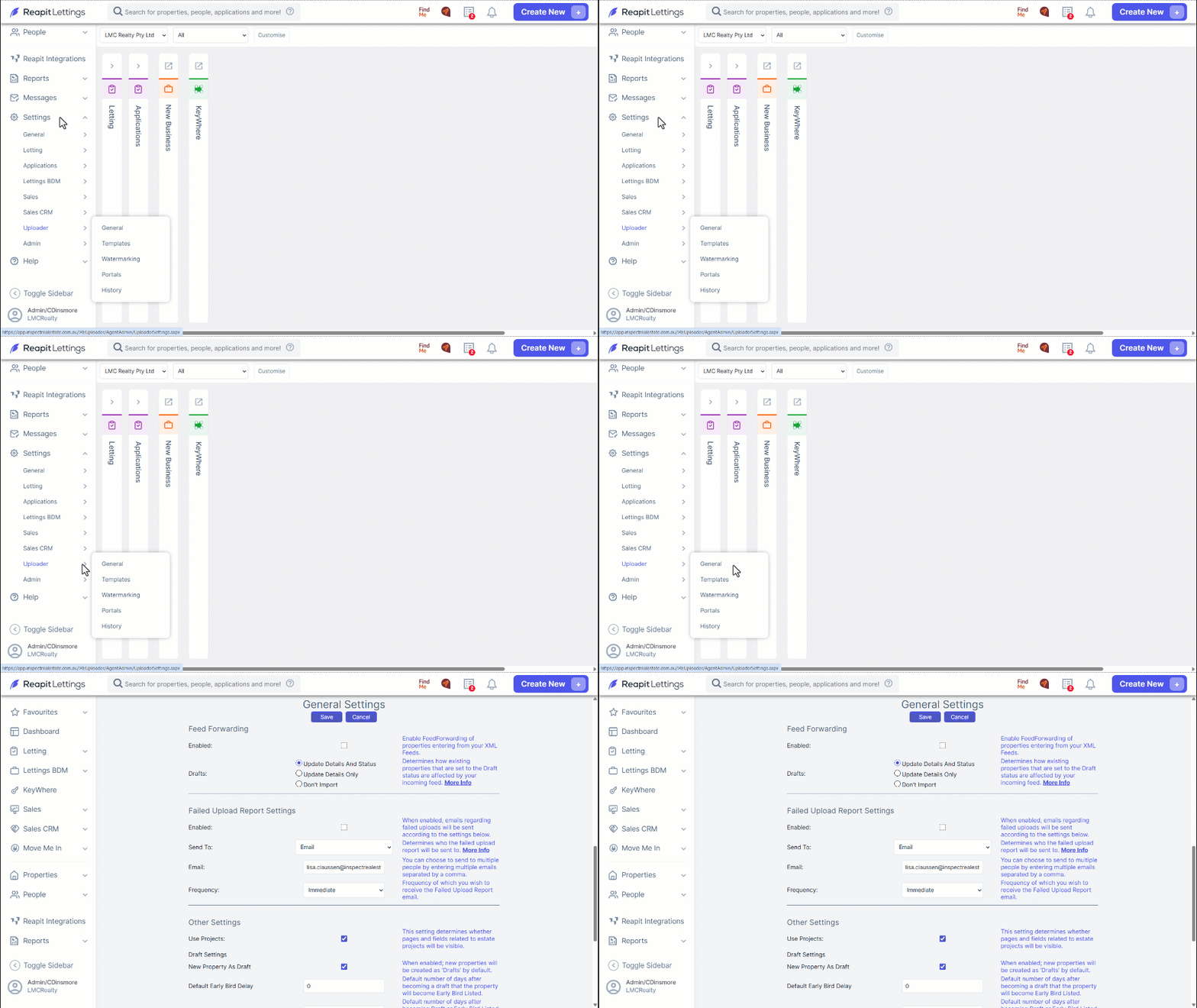
4. Below is a list of the available settings, along with a description for how they work:
Portal Enquiry Capture Emails
| Rental Portals Email | These email addresses determine where the enquiry emails created by portals will be sent to. If left blank, the enquiry emails will be sent directly to the email addresses of the selected listing agents. |
| Sales Portals Email | |
| Rental Portal Phone | If set, this phone number will be advertised on all portals. If left blank, the Listing Agent's contact details will be advertised. |
| Sales Portal Phone |
Inspection Settings
| Advertise Rental Open Inspections By Default | This determines whether new open inspections will be set to advertise on portals by default for Rental Properties. |
| Advertise Sale Open Inspections By Default | This determines whether new open inspections will be set to advertise on portals by default for Sales Properties. |
| Set Deposit Taken on Application Pending | When enabled, deposit taken will be automatically checked when applications are pending. |
Bond Calculation Preferences
| Auto Calculate Bond | When enabled, bond will be automatically calculated when rent changes on the edit property page and calculated bond will be used when uploading to your portals. |
| Bond Multiplier | Bond multiplier used when manually or automatically calculating bond on the property page (in weeks). |
| Bond Multiplier Range | This determines whether the Required Monies section displays and calculates the bond value in weeks or months. |
| Rent Threshold | When the rent of a property is greater than or equal to this value, the Rent Threshold Multiplier will be used to calculate bond. |
| Rent Threshold Multiplier | The multiplier value used when the rent of the property exceeds the rent threshold supplied. |
| Rent Threshold Multiplier Range | This determines whether the Required Monies section displays and calculates the rent threshold value in weeks or months. |
Fee Forwarding
| Enabled | Enable FeedForwarding of properties entering from your XML Feeds. |
| Drafts | Determines how existing properties that are set to the Draft status are affected by your incoming feed. |
Failed Upload Report Settings
| Enabled | When enabled, emails regarding failed uploads will be sent according to the settings below. |
| Sent To: | Determines who the failed upload report will be sent to. |
| You can choose to send to multiple people by entering multiple emails separated by a comma. | |
| Frequency | Frequency of which you wish to receive the Failed Upload Report email. |
Other Settings
| Use Projects | This setting determines whether pages and fields related to estate projects will be visible. |
| New Property As Draft | When enabled; new properties will be created as 'Drafts' by default. |
| Default Early Bird Delay | Default number of days after becoming a draft that the property will become Early Bird Listed. |
| Default Marketing Delay | Default number of days after becoming Draft or Early Bird Listed status that the property will become Listed. |
| Allowed Listing Types | This setting determines what options will be visible when creating or clarifying a property as well as the available menus in Uploader. When only a single type is selected you will not be prompt when creating or clarifying a property and the selected type will be used by default. |
| Frequency Use Default Portals when Relisting | When enabled; Relisting a property will reset its Portals to your default Uploader Portals. |