'%20d='M0%208a8%208%200%200%201%208-8h24a8%208%200%200%201%208%208v24a8%208%200%200%201-8%208H8a8%208%200%200%201-8-8V8Z'/%3e%3cpath%20fill='%23fff'%20d='M32.576%206C12.293%206%208.776%2025.887%207.424%2034H9.1c.45-2.977%203.493-14.748%2010.899-20.287%200%200-5.633%206.976-6.572%2015.051%203.426-.652%2013.845-3.372%2016.056-12.927l-3.84-.61c1.352-1.351%204.909-5.17%206.931-9.226V6Z'/%3e%3cdefs%3e%3clinearGradient%20id='reapit-lettings__a'%20x1='20.702'%20x2='20.702'%20y1='.351'%20y2='31.228'%20gradientUnits='userSpaceOnUse'%3e%3cstop%20stop-color='%235573FD'/%3e%3cstop%20offset='.575'%20stop-color='%234E56EA'/%3e%3c/linearGradient%3e%3c/defs%3e%3c/svg%3e)
Adding the Book Appraisal Link to Email Signature
This article will run through how to add the book appraisal link to email signature in Reapit Lettings.
Adding the Book Appraisal Link to Email Signature
This article will run through how to add the book appraisal link to email signature in Reapit Lettings.
The processes in this article include:
- Setting up a new Status in Message Editor
- Hyperlinking Appraisal Link into email signature in Reapit Lettings
- Hyperlinking Appraisal Link into email signature in Outlook
- Hyperlinking Appraisal Link into email signature in Gmail
You can use the Link builder function to build a link to add to your signature in Lettings, or our email signature in Outlook, Gmail and Office365.
Setting up a New Status in Message Editor
Before you go in and build a link, we recommend adding a new Status in the Status Messages, naming this “New Lead – Book Appraisal Request via Email Signature”
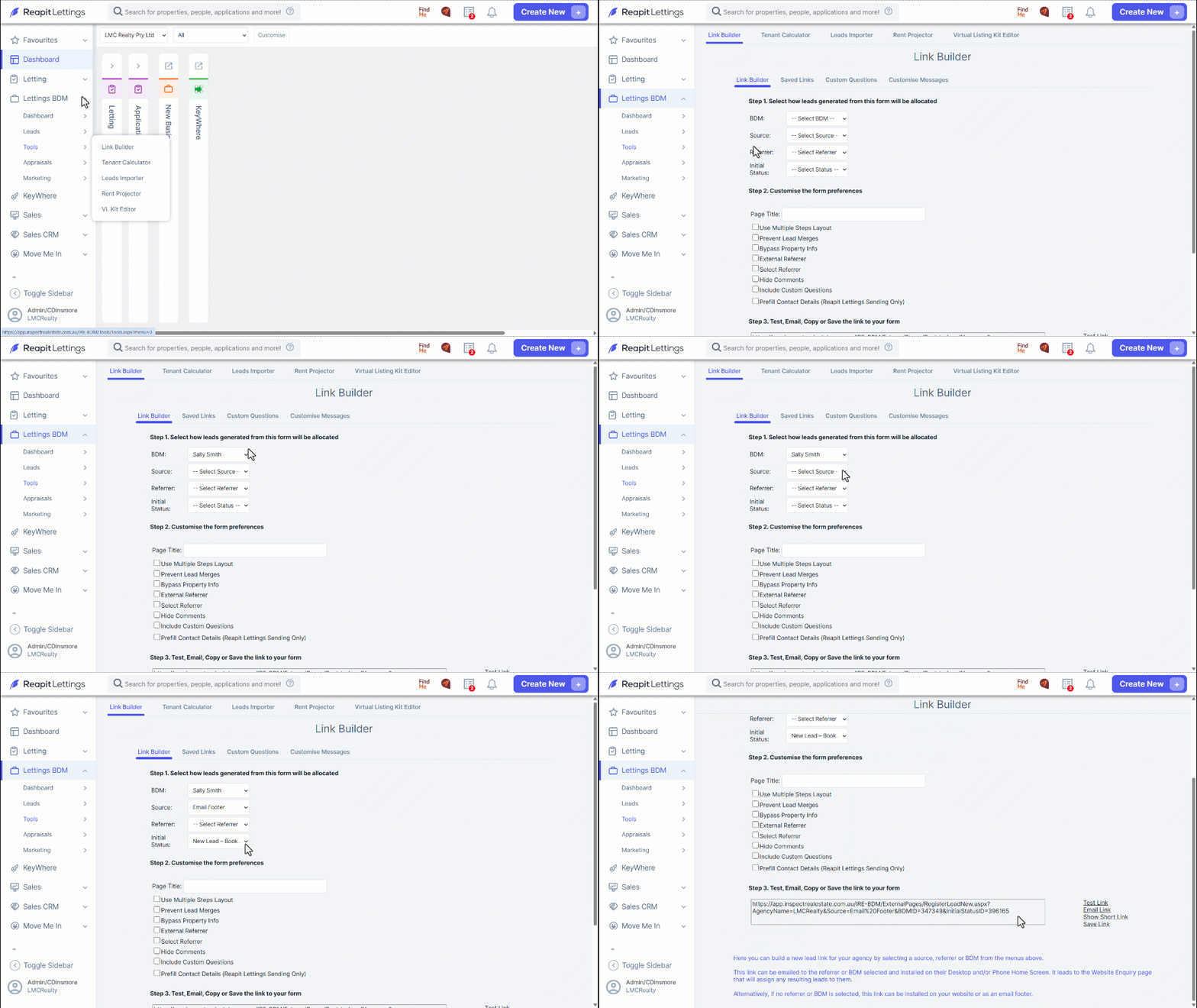
- Once you have created the new status, navigate to Lettings BDM.
- Click Tools
- Click Link Builder.
- Select the BDM that you are building the link for their signature.
- Select the source Email Footer.
- Select the initial status created “New Lead – Book Appraisal Request via Email Signature”.
Note: Keep the Referrer empty in this space as it affects the webform which the lead will fill out.
- You will notice that the Link Built is unique to these specifications.
- When the lead completes the webform, they will then be prompted at the end to either Book Appraisal or Submit Another Enquiry
Please note you do have to have the Appraisal Feature turned on for the Appraisal Link to prompt the lead to book in. Click here to set up the Appraisal Feature.
Hyperlinking Appraisal Link into email signature in Reapit Lettings
- To get to your Lettings email signature, navigate to People.
- Click Team
- Click BDM.
- Click on the team member you wish to set the Book Appraisal Link up for.
- Once the signature, write the agencies preferred message, for example, "Want to know what your property is worth? Book and Appraisal with us!"
- Highlight the Appraisal Phrase and then click the hyperlink button.
- Insert the link you have just created from link builder against the URL.
- Click Save.
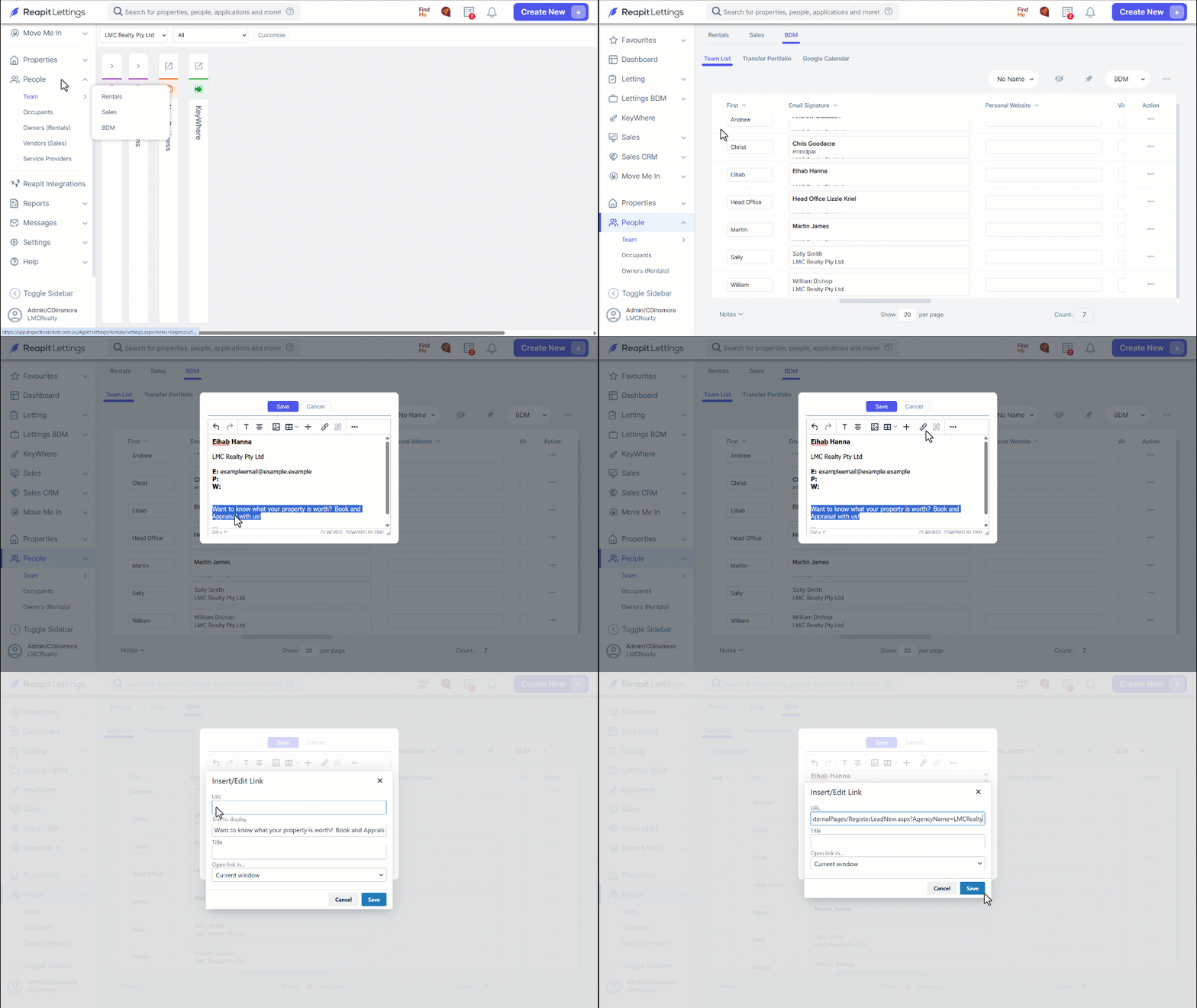
- This will display on all your messages coming out of IRE products with the Appraisal Phrase Hyperlinked.
Hyperlinking Appraisal Link into email signature in Outlook
- To hyperlink the Appraisal link into your Outlook signature, open up a new Email.
- Select Signatures in the Signature drop-down menu to edit your current Signatures.
- Add in your Appraisal Phrase and highlight this, then select the hyperlink button.
- In the Address field insert the link you built and click ok.
- Now your email signature in Outlook will have your hyperlinked Appraisal Phrase
Hyperlinking Appraisal Link into email signature in Gmail
- To Hyperlink your Appraisal Link into your email signature in Gmail, click on the settings cog at the top right corner and select Settings.
- Scroll down to the signatures section, add in your Appraisal Phrase, and click the hyperlink icon.
- Insert the link you have built into the Web Address and click OK.
- Save your changes at the bottom of the Settings page, and then your email signature will now have your Appraisal Phrase hyperlinked.