'%20d='M0%208a8%208%200%200%201%208-8h24a8%208%200%200%201%208%208v24a8%208%200%200%201-8%208H8a8%208%200%200%201-8-8V8Z'/%3e%3cpath%20fill='%23fff'%20d='M32.576%206C12.293%206%208.776%2025.887%207.424%2034H9.1c.45-2.977%203.493-14.748%2010.899-20.287%200%200-5.633%206.976-6.572%2015.051%203.426-.652%2013.845-3.372%2016.056-12.927l-3.84-.61c1.352-1.351%204.909-5.17%206.931-9.226V6Z'/%3e%3cdefs%3e%3clinearGradient%20id='reapit-lettings__a'%20x1='20.702'%20x2='20.702'%20y1='.351'%20y2='31.228'%20gradientUnits='userSpaceOnUse'%3e%3cstop%20stop-color='%235573FD'/%3e%3cstop%20offset='.575'%20stop-color='%234E56EA'/%3e%3c/linearGradient%3e%3c/defs%3e%3c/svg%3e)
Archived/Deleted Records
This article covers archived / deleted records in KeyWhere. The information in this article includes: Why use the archived Logs? Navigating the Archived Logs Finding & Interpreting an Archived Record Restoring an Archived Record
Archived/Deleted Records
This article covers archived / deleted records in KeyWhere.
The information in this article includes:
- Why use the archived Logs?
- Navigating the Archived Logs
- Finding & Interpreting an Archived Record
- Restoring an Archived Record
Why use the archived Logs?
Archived logs are used to record deleted data, such as deleted keys, deleted team members, and deleted properties. These records are never truly deleted, and can be restored using the archive.
Archive gives more information about that archived record. Including the ability to restore the record if it was removed by mistake.
Navigating the Archived Logs
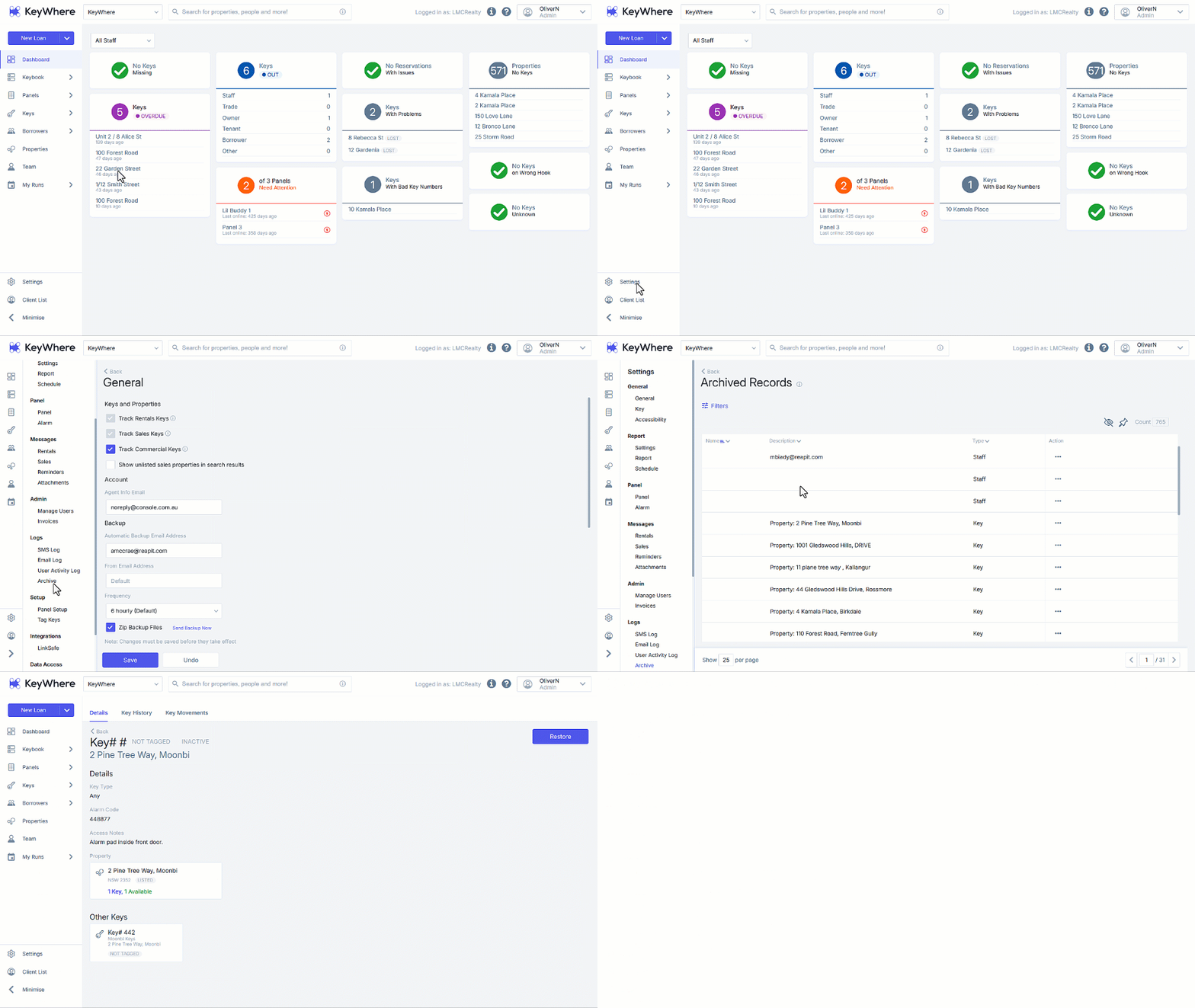
- Click on Settings
- Navigate to the Logs section and select Archive.
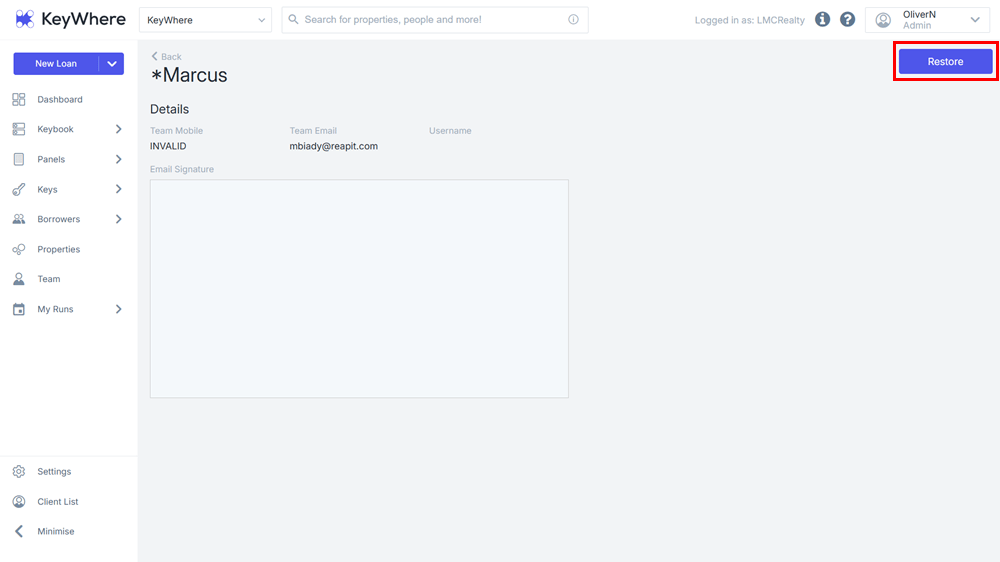
- Click on the required record.
Finding & Interpreting an Archived Record
- When information is deleted, it is sent to the archive. The archive holds information on:
Keys,
Properties/Assets,
Staff, and
Borrowers.
In the archive, every record has 4 fields: Office (visible when logged in to a parent account), Name, Description, and Type. You can click on a field's name to sort the archive by that field, or click on the caret dropdown menu to search within that field.
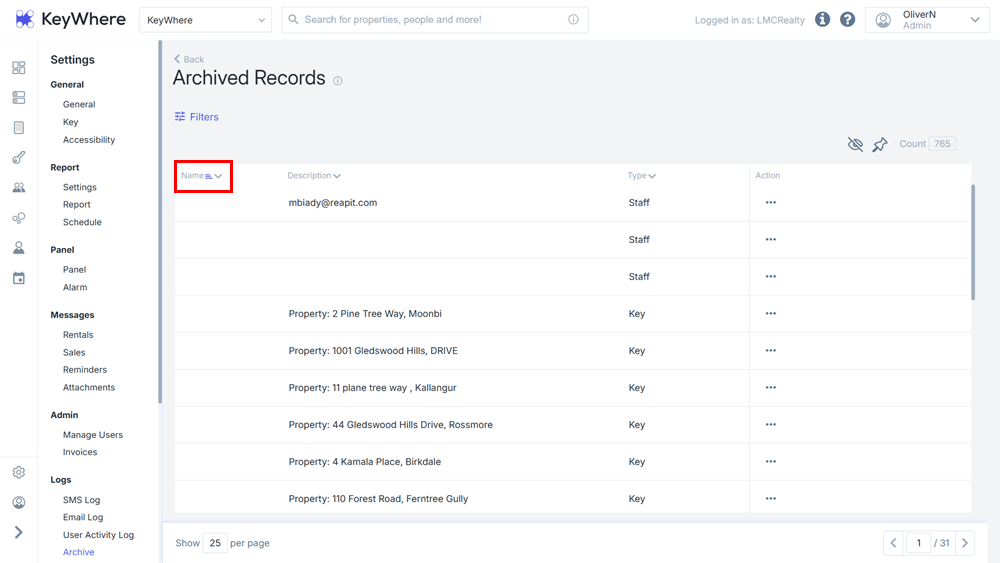
Below is a guide on interpreting the fields:
The "Office" field shows which office archived the record;
The "Type" field shows the type of the record (either Key, Property/Asset, Staff, or Borrower);
The "Name" field shows the name associated with record (for properties, this will be their address); and
The "Description" field is different for different types of records:
For Borrowers and Staff, it will show their contact information (email if provided, otherwise phone number),
For Properties, it will show the property description, and
For Keys, it will show the associated property address.
Restoring an Archived Record
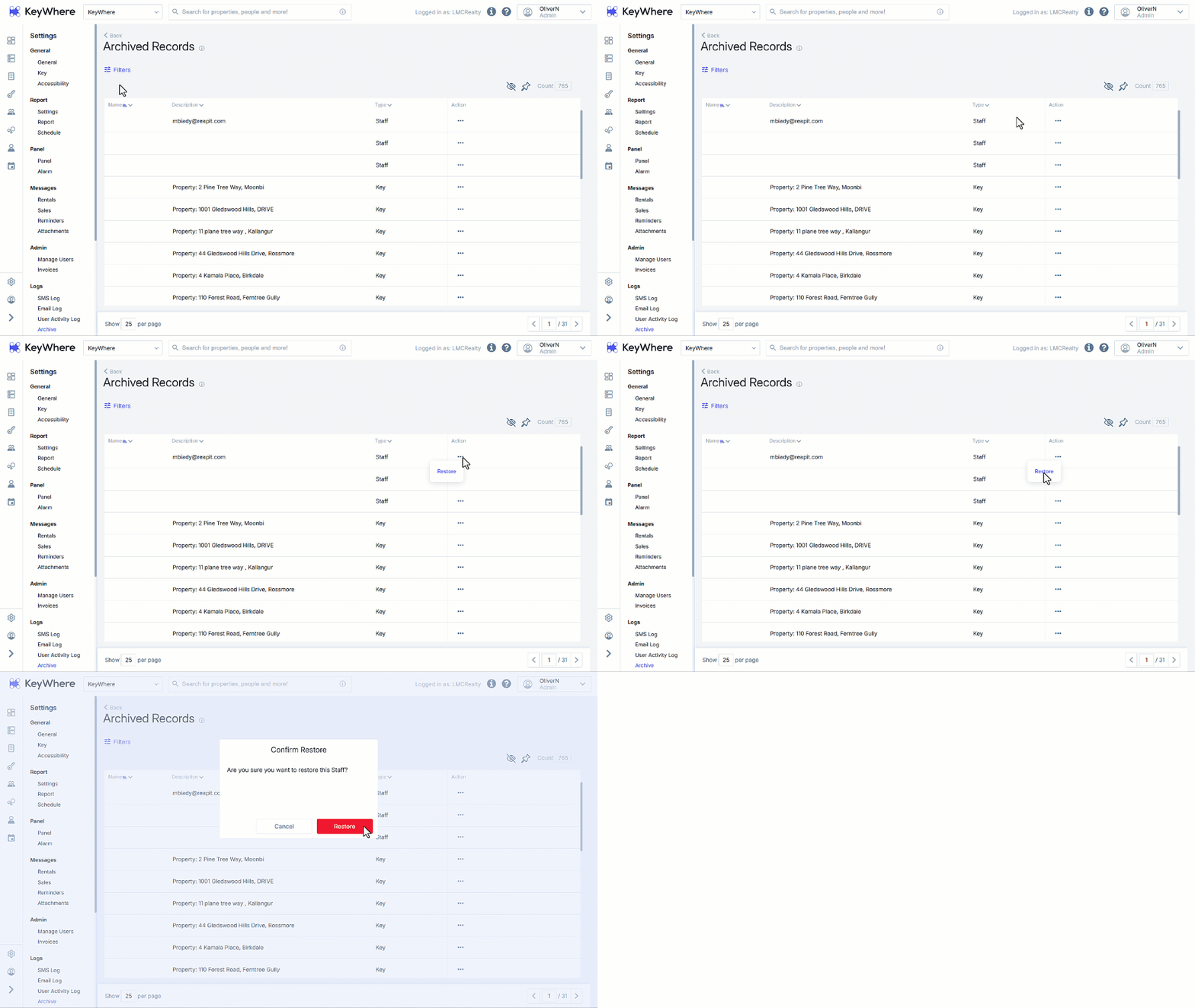
- Once in the archived Records, you can restore a record by clicking on the 3-dots next to the record, then click Restore.
- Alternatively, you can click on the record to access more information. You can then restore the record by clicking Restore in the top right corner.