'%20d='M0%208a8%208%200%200%201%208-8h24a8%208%200%200%201%208%208v24a8%208%200%200%201-8%208H8a8%208%200%200%201-8-8V8Z'/%3e%3cpath%20fill='%23fff'%20d='M32.576%206C12.293%206%208.776%2025.887%207.424%2034H9.1c.45-2.977%203.493-14.748%2010.899-20.287%200%200-5.633%206.976-6.572%2015.051%203.426-.652%2013.845-3.372%2016.056-12.927l-3.84-.61c1.352-1.351%204.909-5.17%206.931-9.226V6Z'/%3e%3cdefs%3e%3clinearGradient%20id='reapit-lettings__a'%20x1='20.702'%20x2='20.702'%20y1='.351'%20y2='31.228'%20gradientUnits='userSpaceOnUse'%3e%3cstop%20stop-color='%235573FD'/%3e%3cstop%20offset='.575'%20stop-color='%234E56EA'/%3e%3c/linearGradient%3e%3c/defs%3e%3c/svg%3e)
Lettings BDM Dashboard
This article will cover the areas within the Lettings BDM Dashboard in Reapit Lettings.
1. To access the dashboard, navigate to Lettings BDM.
2. Click Dashboard.
3. The Lettings BDM Dashboard will appear.
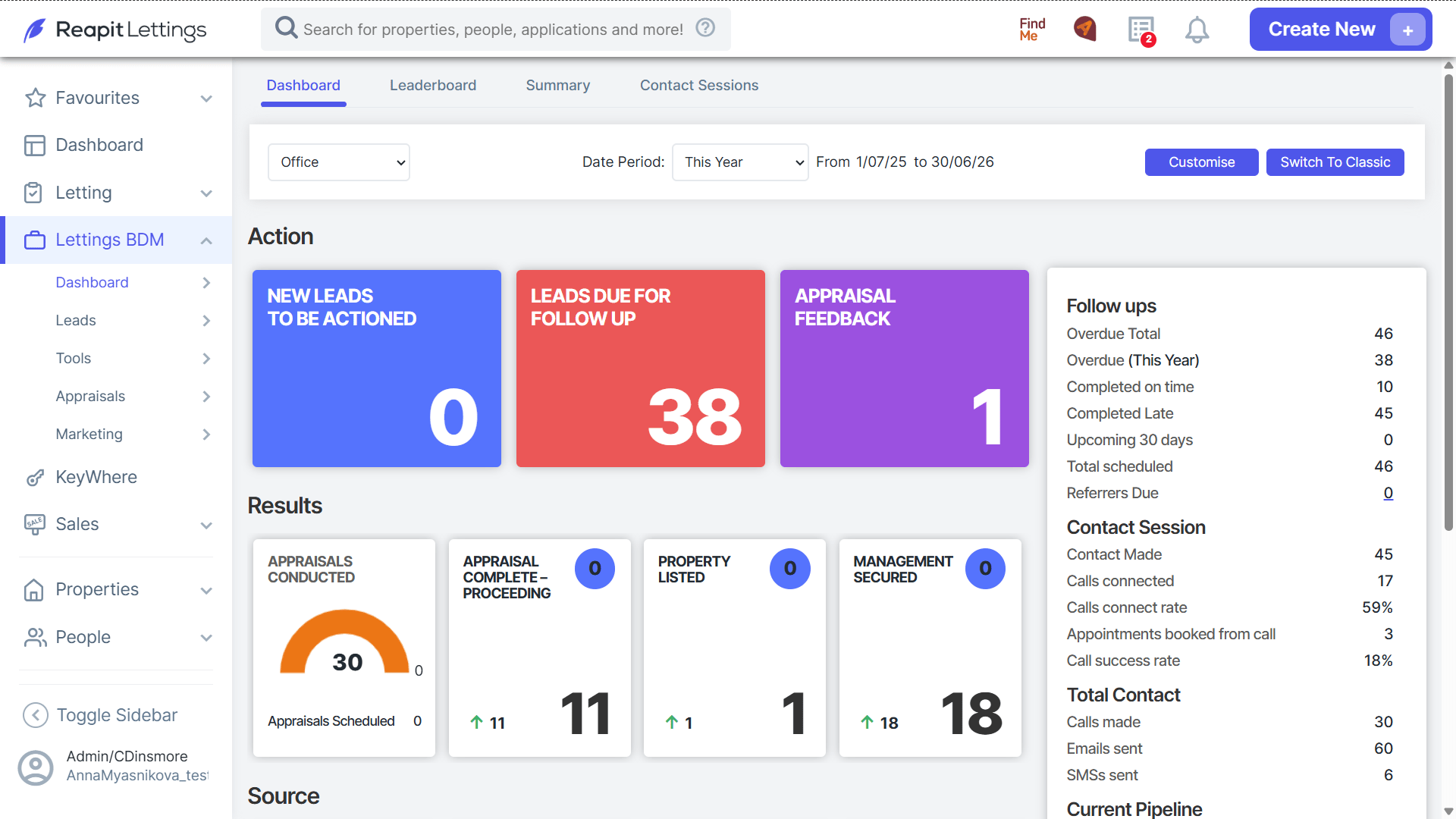
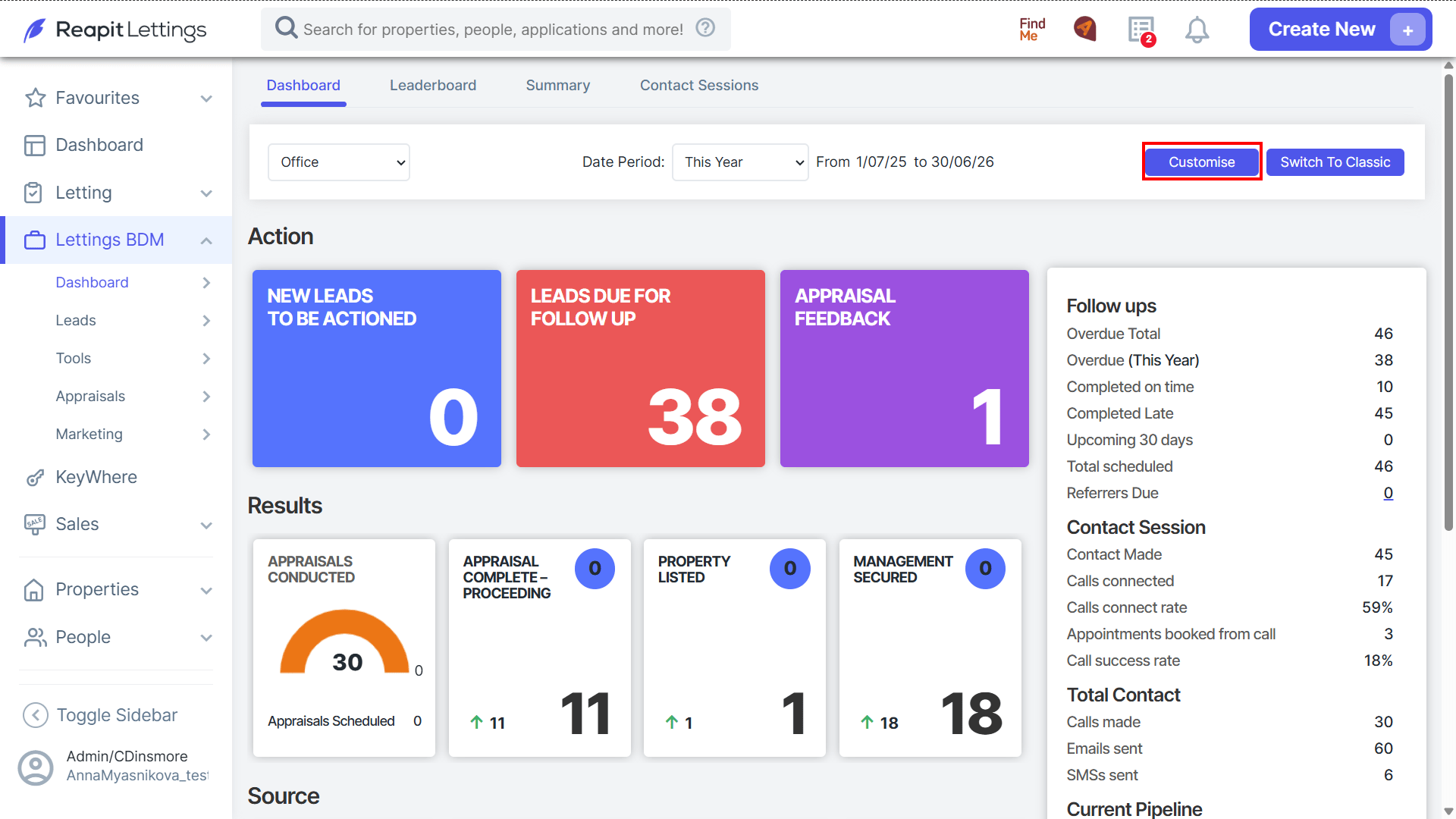
4. The Office drop-down will allow you to view your BDM users from an overview as the office, or selecting specific BDM users.
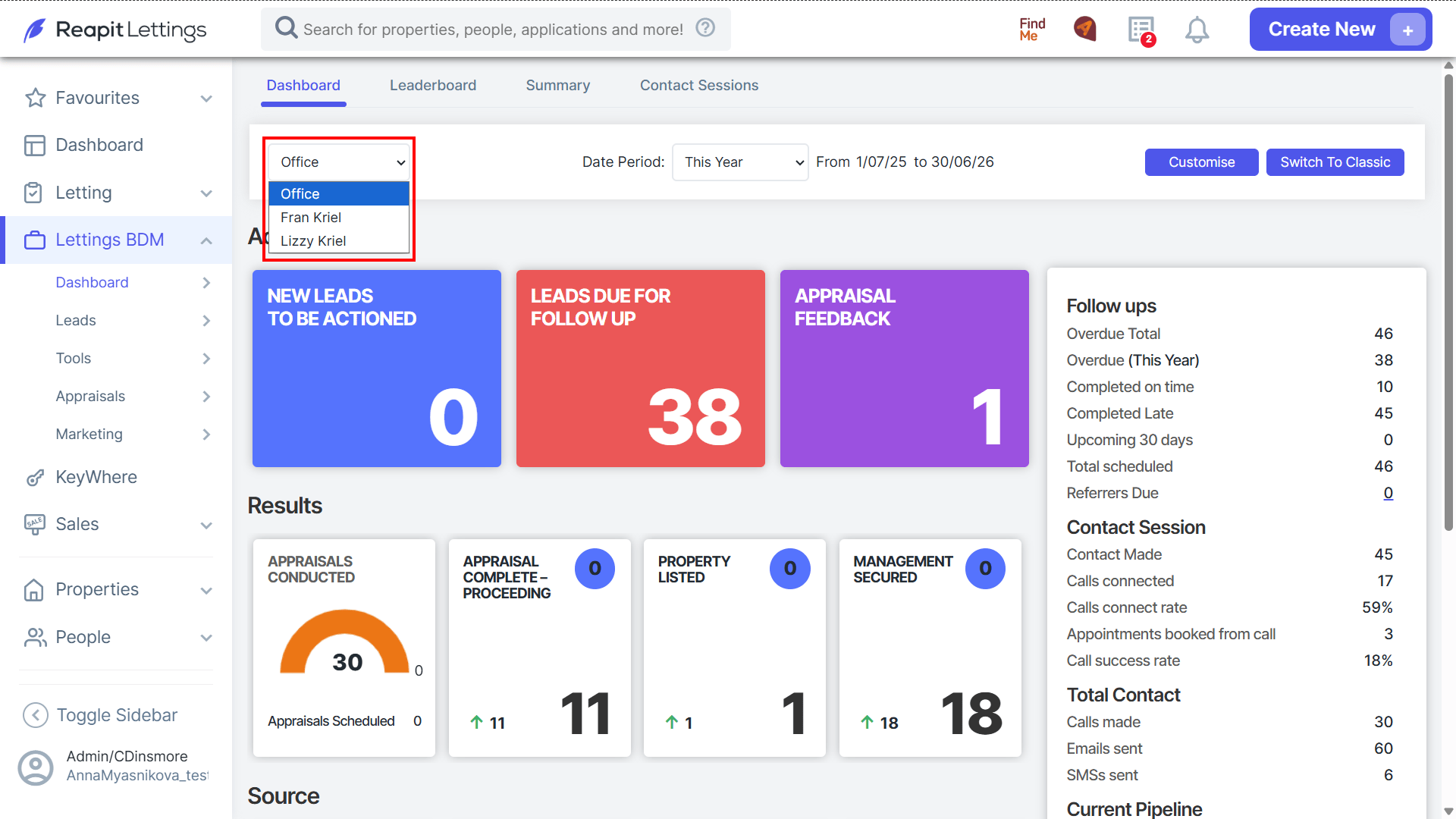
5. The Date Period drop-down will allow you to view the databoard data based on today, this week, month, year, custom data range, or month to now.
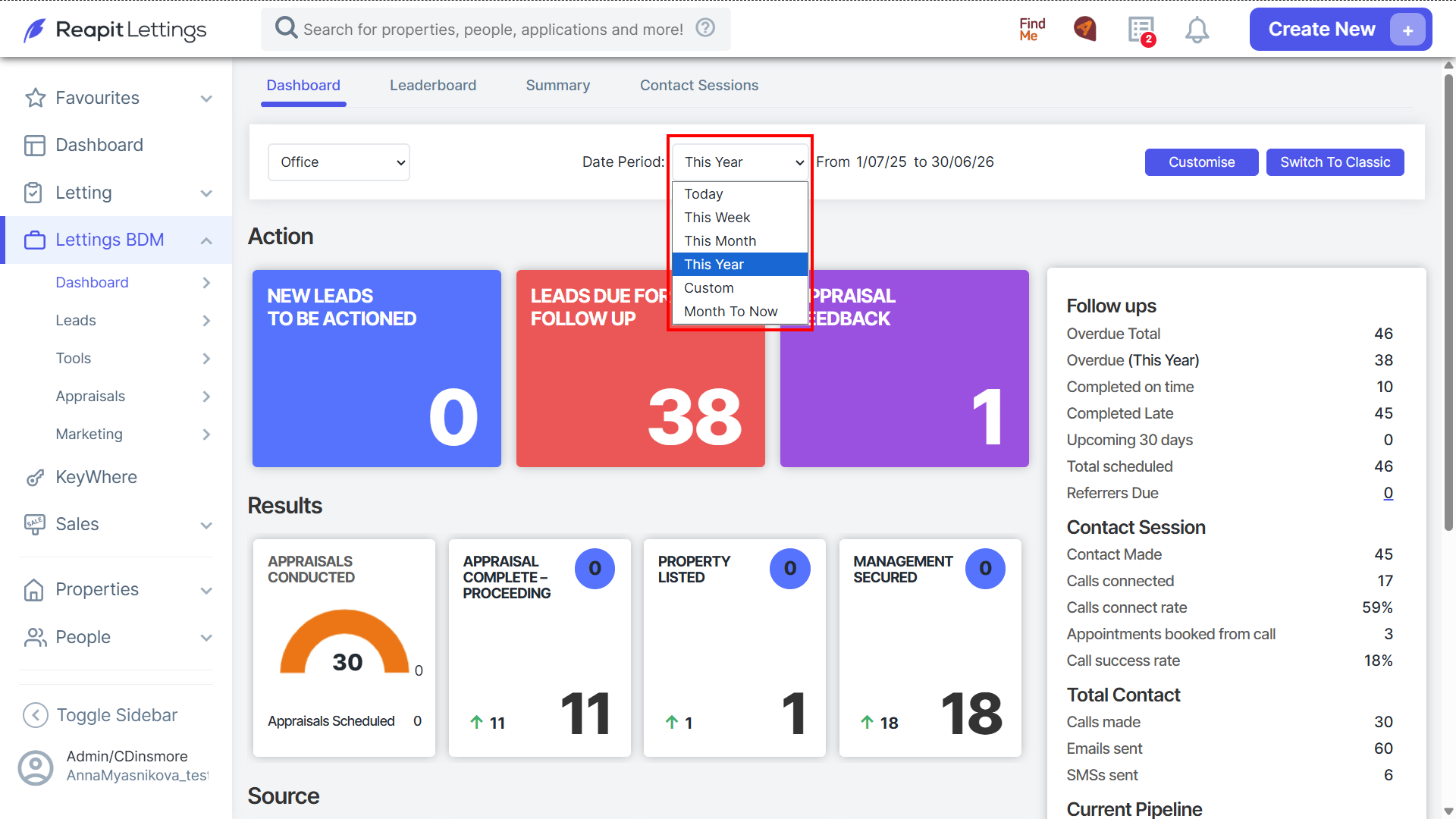
6. To make changes to the Dashboard display or views, click Customise.
7. The Dashboard Settings will appear, allowing you to update the dashboard colours to the source items, rename the action tiles, and re-arrange the results and side panel arrangement. Be sure to click Save after making any changes.
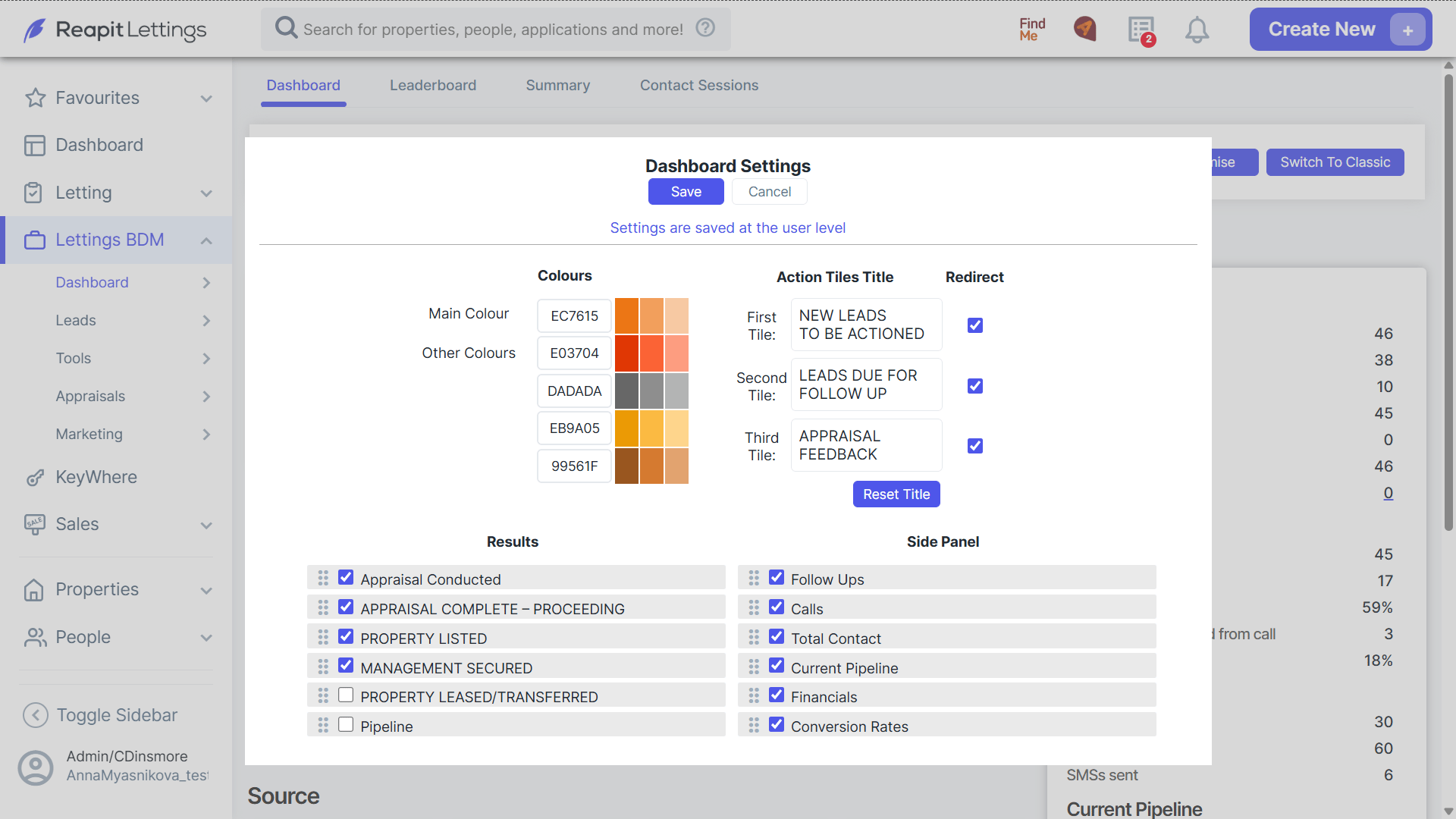
Note: Customisation of the dashboard will be user-based.
8. Results and Source will display data fields pulling information based on the office, BDM agent, and date range selected, including fields for:
RESULTS
Appraisals Conducted
Appraisal Complete Proceeding
Property Listed
Management Secured
SOURCE
Total Lead Source
Lead Source Management Secured
Referrers All Current
Referrers Management Secured
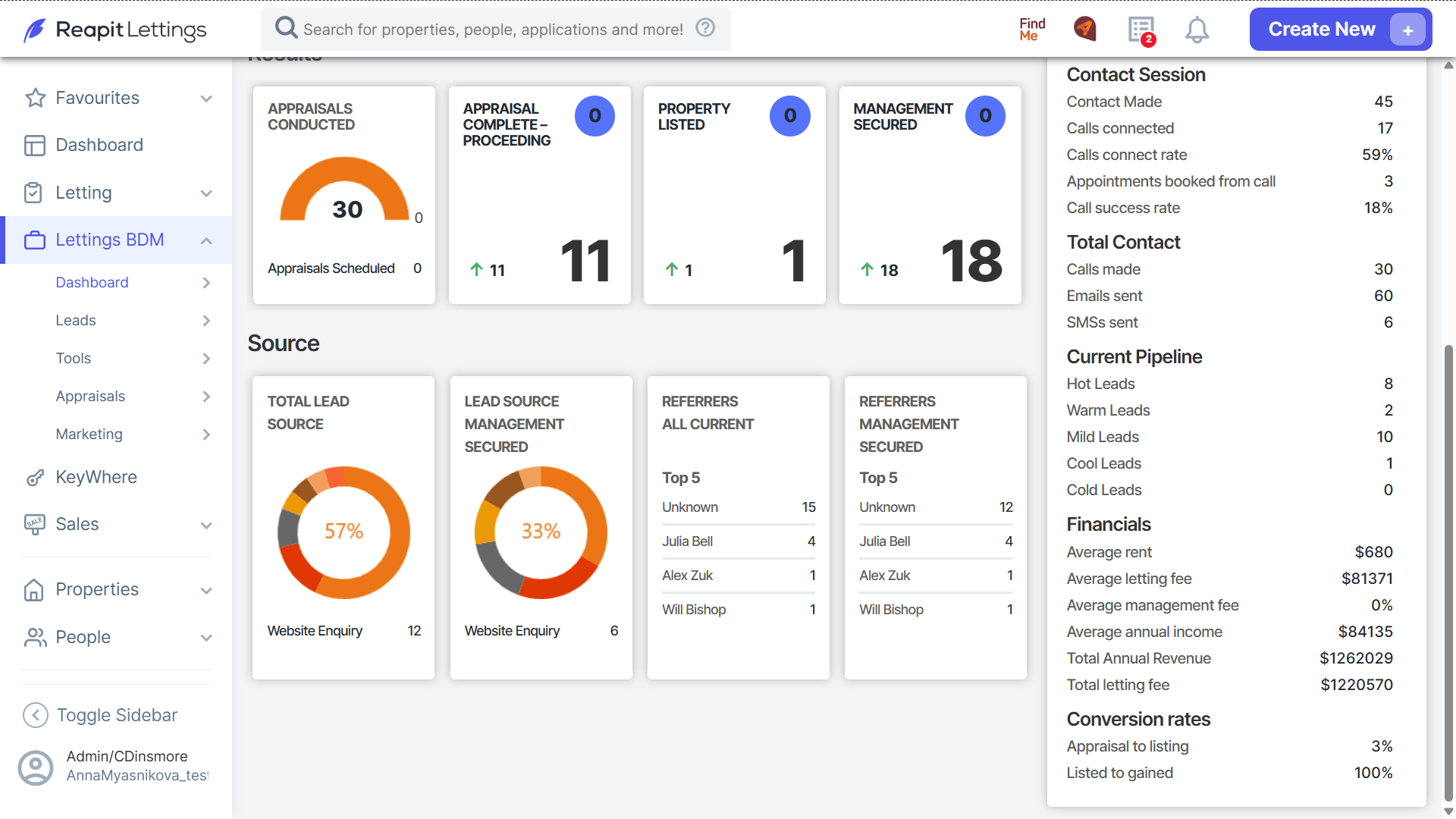
9. The Side panel will display data fields pulling information based on the office, BDM agent, and date range selected, including fields for:
- Contact Session
- Total Contact
- Current Pipeline
- Financials
- Conversation Rates
10. The Leaderboard will display the BDM agents within the date period selected and their performance under the data fields for:
- New Leads
- Contact Made
- Appraisals Booked
- Appraisal Complete - Proceeding
- Property Listed
- Management Secured
- Property Leased/Transferred
- Appraisal Conversation.
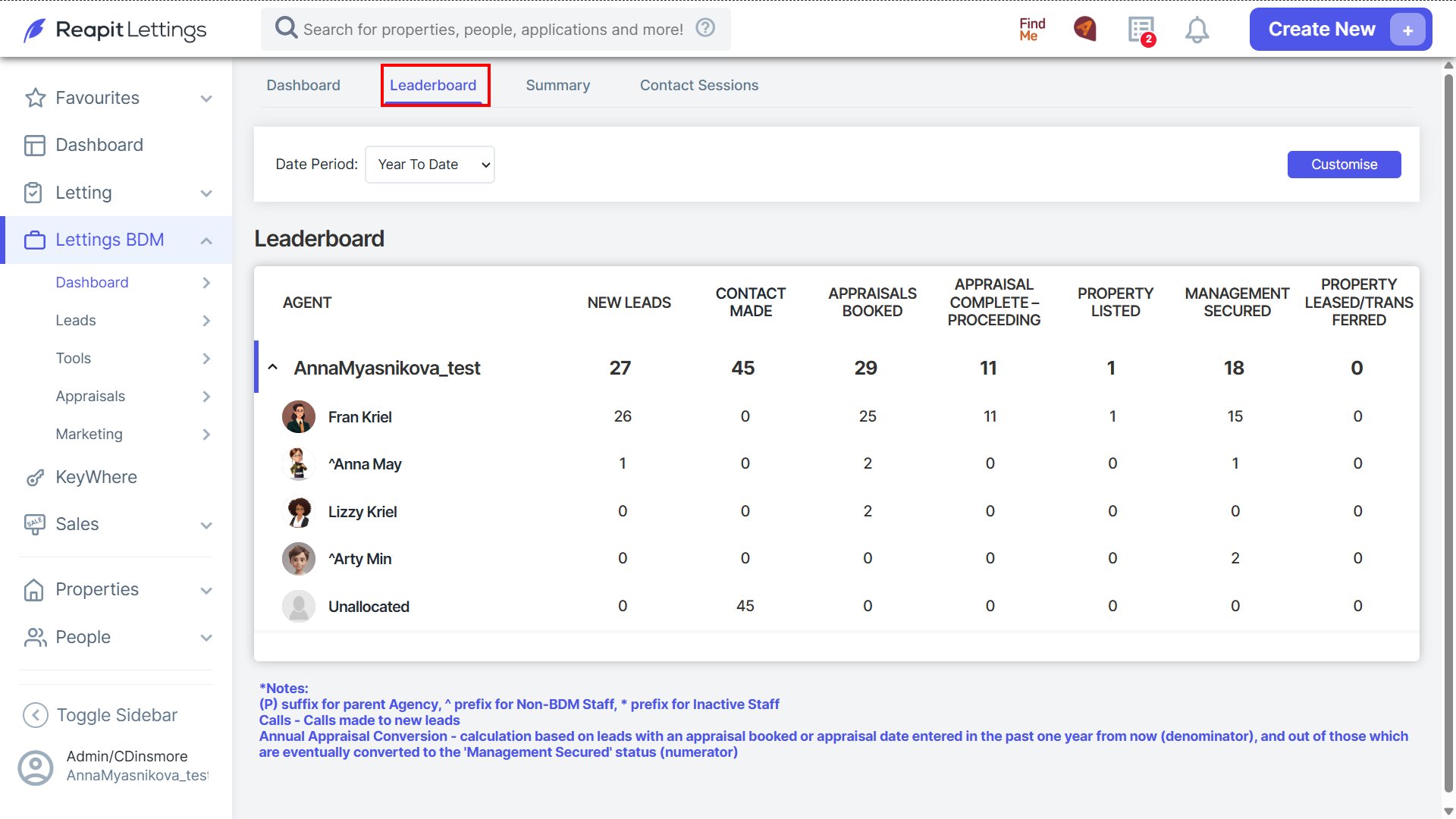
You can show or hide any of the columns by clicking on Customise.
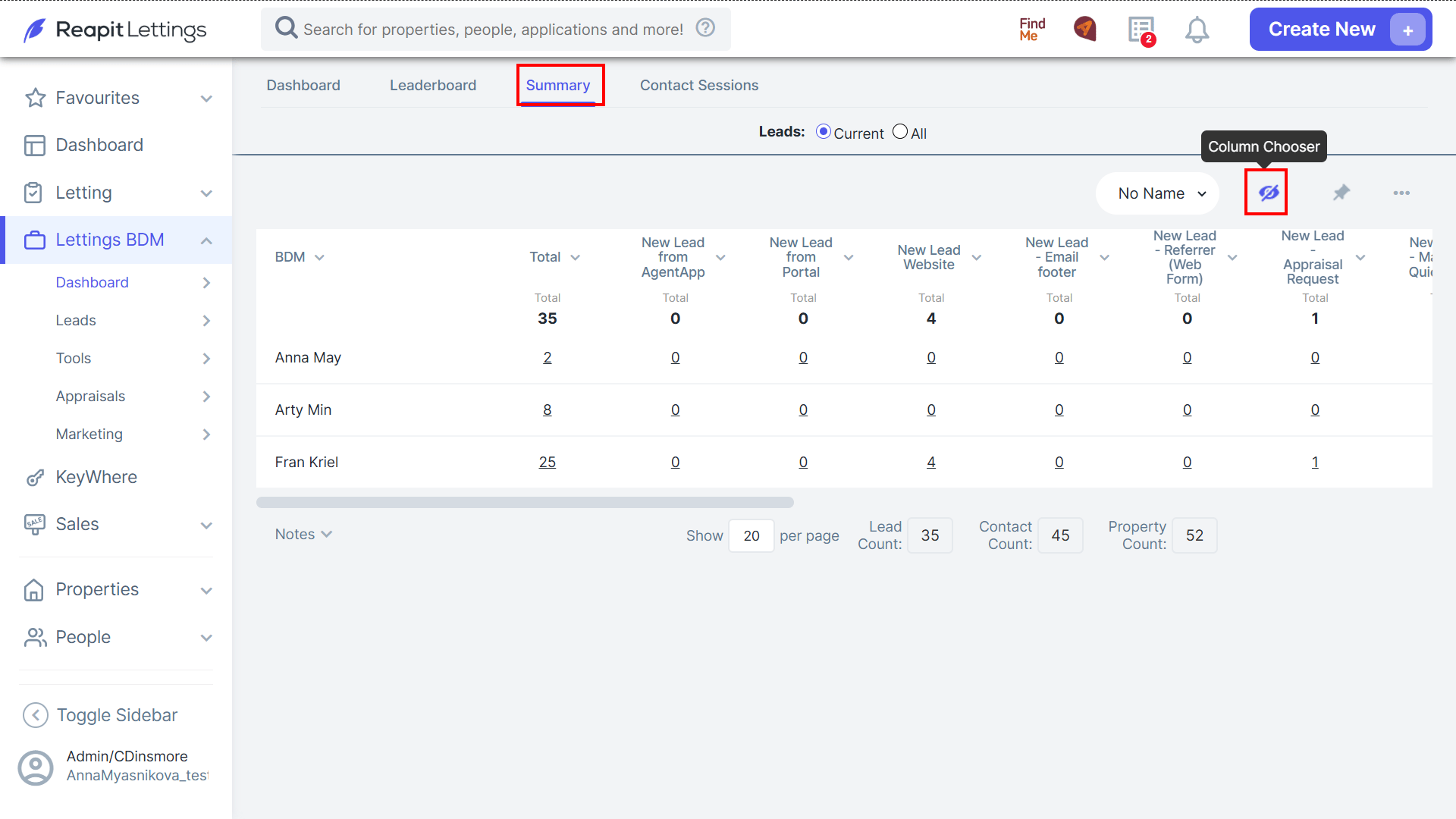
11. The Summary tab will display information relating to leads along with configurable rows through the column chooser icon
12. Contact sessions will load up with currently running sessions when in use. For more information on Contact Sessions, please see - https://help.reapit.com.au/s/article/Contact-Sessions