'%20d='M0%208a8%208%200%200%201%208-8h24a8%208%200%200%201%208%208v24a8%208%200%200%201-8%208H8a8%208%200%200%201-8-8V8Z'/%3e%3cpath%20fill='%23fff'%20d='M32.576%206C12.293%206%208.776%2025.887%207.424%2034H9.1c.45-2.977%203.493-14.748%2010.899-20.287%200%200-5.633%206.976-6.572%2015.051%203.426-.652%2013.845-3.372%2016.056-12.927l-3.84-.61c1.352-1.351%204.909-5.17%206.931-9.226V6Z'/%3e%3cdefs%3e%3clinearGradient%20id='reapit-lettings__a'%20x1='20.702'%20x2='20.702'%20y1='.351'%20y2='31.228'%20gradientUnits='userSpaceOnUse'%3e%3cstop%20stop-color='%235573FD'/%3e%3cstop%20offset='.575'%20stop-color='%234E56EA'/%3e%3c/linearGradient%3e%3c/defs%3e%3c/svg%3e)
Show Application Pending Properties Setting
This article covers the Show Application Pending Setting and functionality within Reapit Lettings.
Overview
Show Application Pending Properties Setting
This article covers the Show Application Pending Setting and functionality within Reapit Lettings.
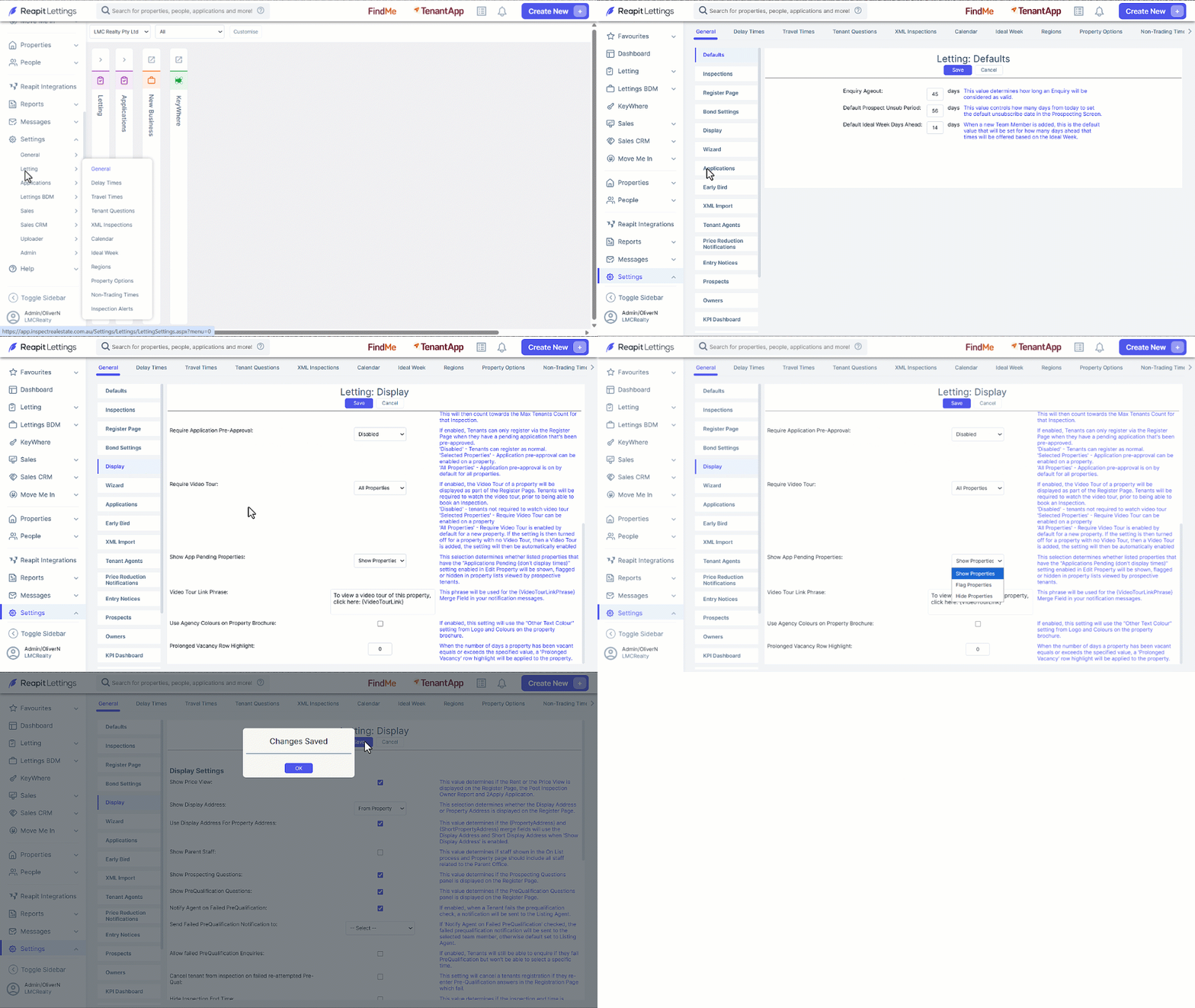
- Click on Settings.
- Click on Letting.
- Click on General.
- Select the Display tab.
- Navigate to and select the Show App Pending Properties dropdown and select from:
- Show Properties - is the default setting for all accounts. This will display the property even if there is an application pending.
- Flag Properties - Will highlight that the property has an Application Pending. Below is an example of the rental list.
- Hide Properties - hide the properties from being viewed by the prospective tenants.
- Click on Save and OK.
Setting the property application to pending can be done in 3 ways:
Option 1
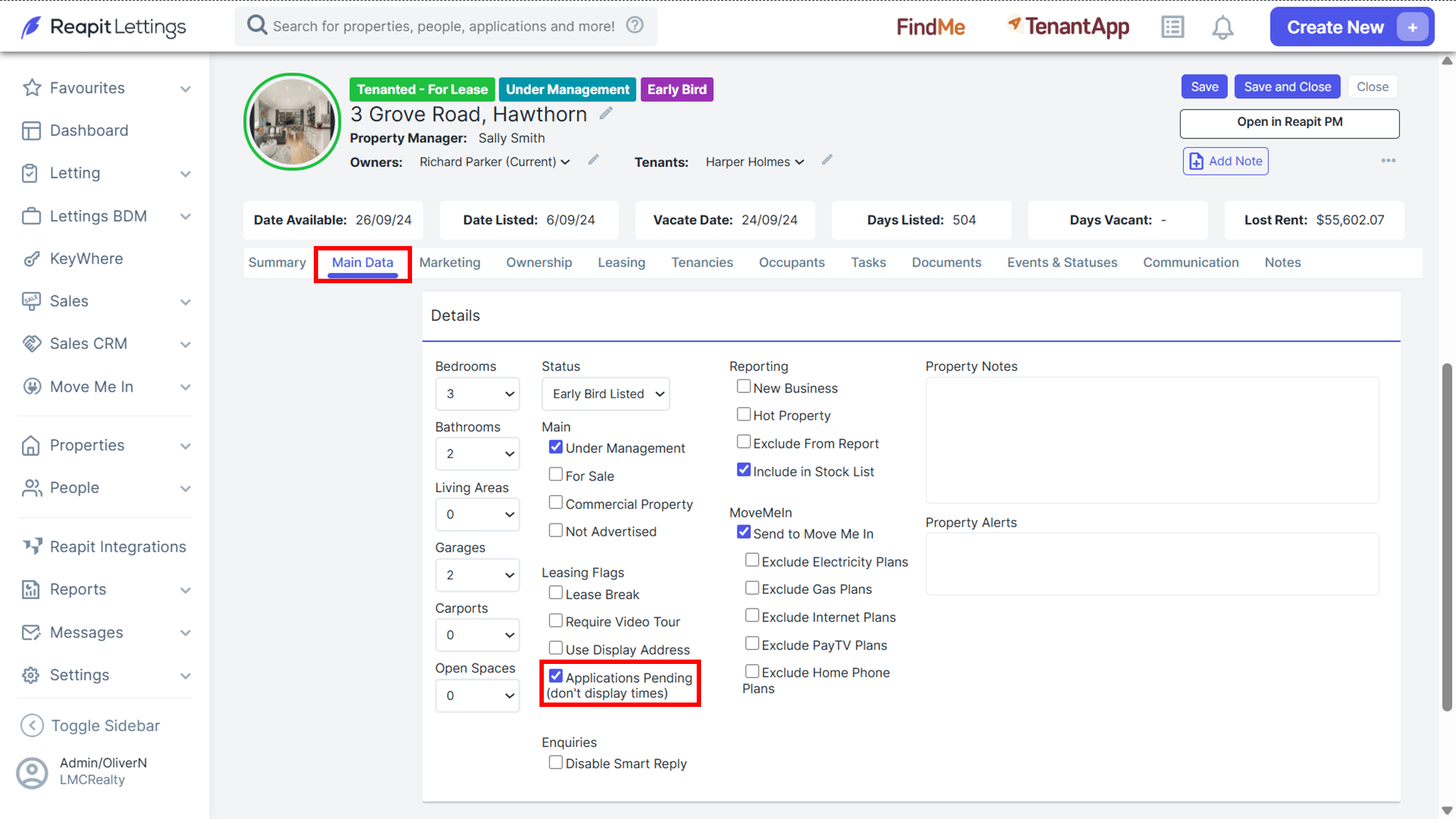
In the Main Data tab of the property card, select Applications Pending (don't display times) from the Details section.
Option 2
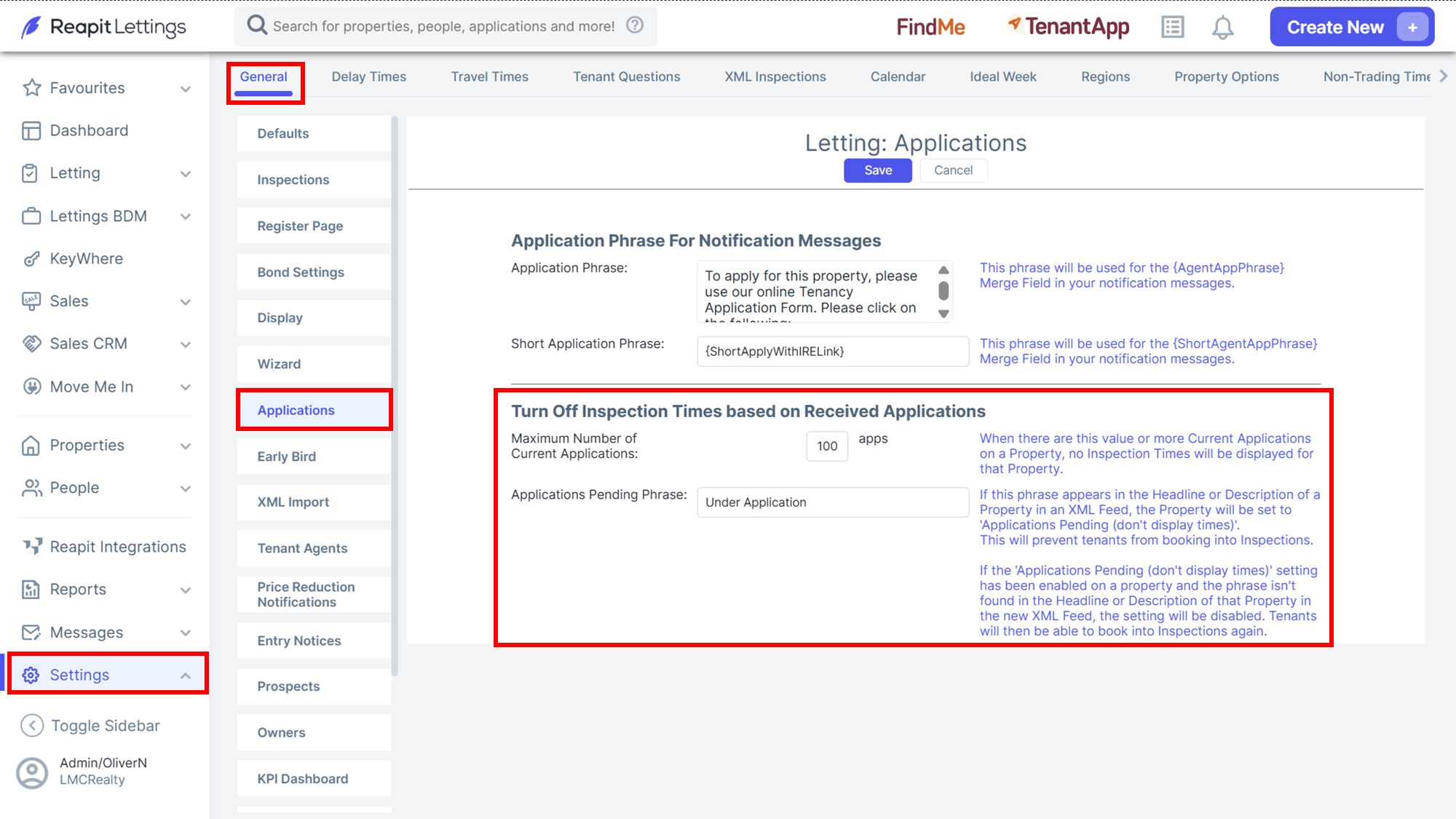
Turn Off Inspection Times based on Received Applications.
Navigate to the Applications tab. Go to the Turn Off Inspection Times based on Received Applications section.
Enter the number of applications that will trigger no inspection times to be displayed. Update the Phrase as required.
Option 3
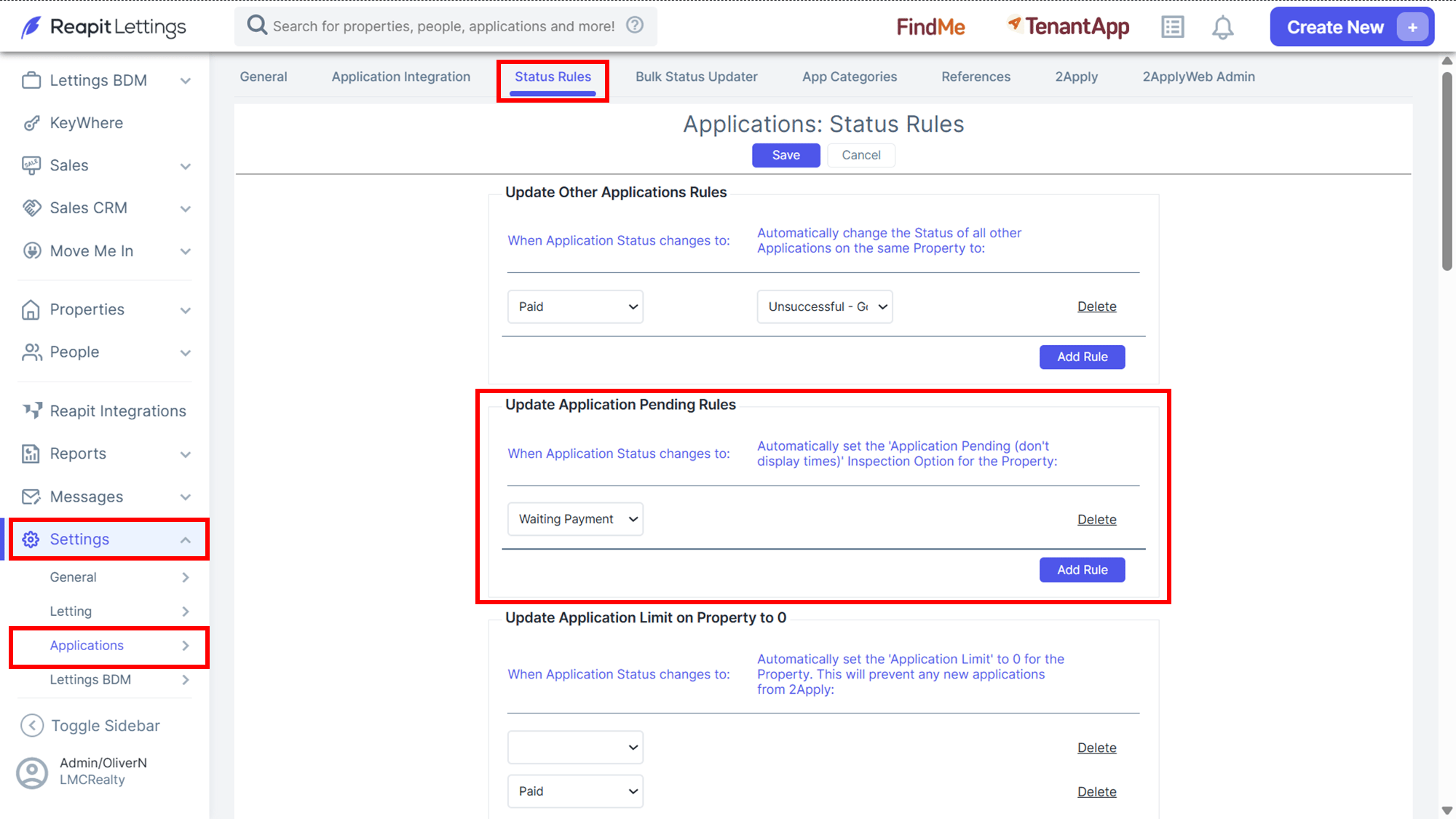
Adjust the Update Application Pending Rule.
Update Application Pending Rules allows you to select the status you would like to automatically set 'Application Pending (don't display times)' Inspection Option for the Property.