'%20d='M0%208a8%208%200%200%201%208-8h24a8%208%200%200%201%208%208v24a8%208%200%200%201-8%208H8a8%208%200%200%201-8-8V8Z'/%3e%3cpath%20fill='%23fff'%20d='M32.576%206C12.293%206%208.776%2025.887%207.424%2034H9.1c.45-2.977%203.493-14.748%2010.899-20.287%200%200-5.633%206.976-6.572%2015.051%203.426-.652%2013.845-3.372%2016.056-12.927l-3.84-.61c1.352-1.351%204.909-5.17%206.931-9.226V6Z'/%3e%3cdefs%3e%3clinearGradient%20id='reapit-lettings__a'%20x1='20.702'%20x2='20.702'%20y1='.351'%20y2='31.228'%20gradientUnits='userSpaceOnUse'%3e%3cstop%20stop-color='%235573FD'/%3e%3cstop%20offset='.575'%20stop-color='%234E56EA'/%3e%3c/linearGradient%3e%3c/defs%3e%3c/svg%3e)
How To Setup A Property Specific Ideal Week And Calendar Time
This article will run through how to set up a property specific ideal week and calendar time in Reapit Lettings
How to Set Up a Property Specific Ideal Week and Calendar Time
This article will run through how to set up a property specific ideal week and calendar time in Reapit Lettings.
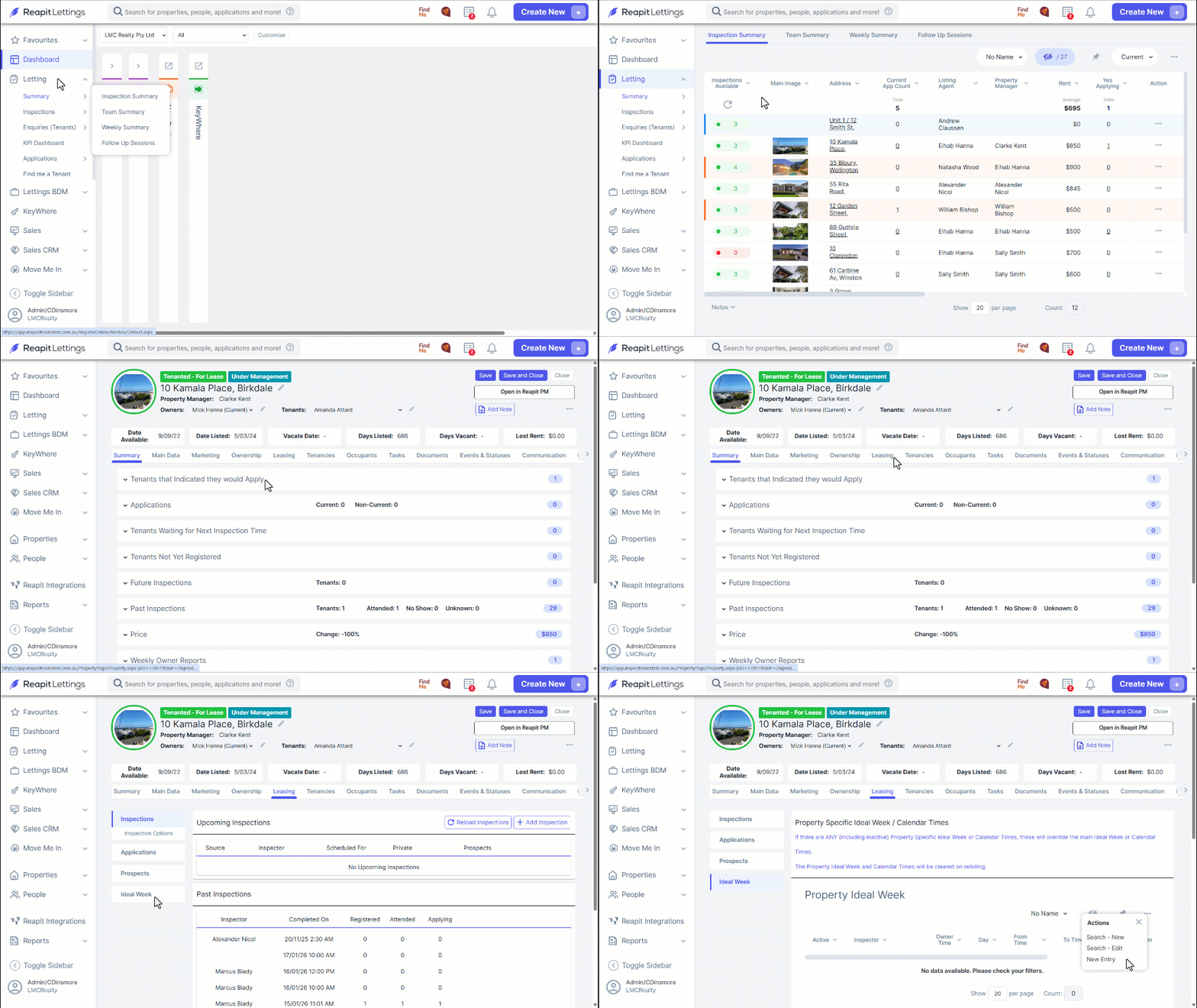
- Navigate to Letting.
- Click Summary.
- Click Inspection Summary.
- Find the property and then click on the address. This will load up the details for that property.
- Click the Leasing tab and go to the Ideal week section. This will take you to the property specific ideal week page.
- To add a new property ideal week time for this property.
- Click the three dots.
8 Click New Entry.
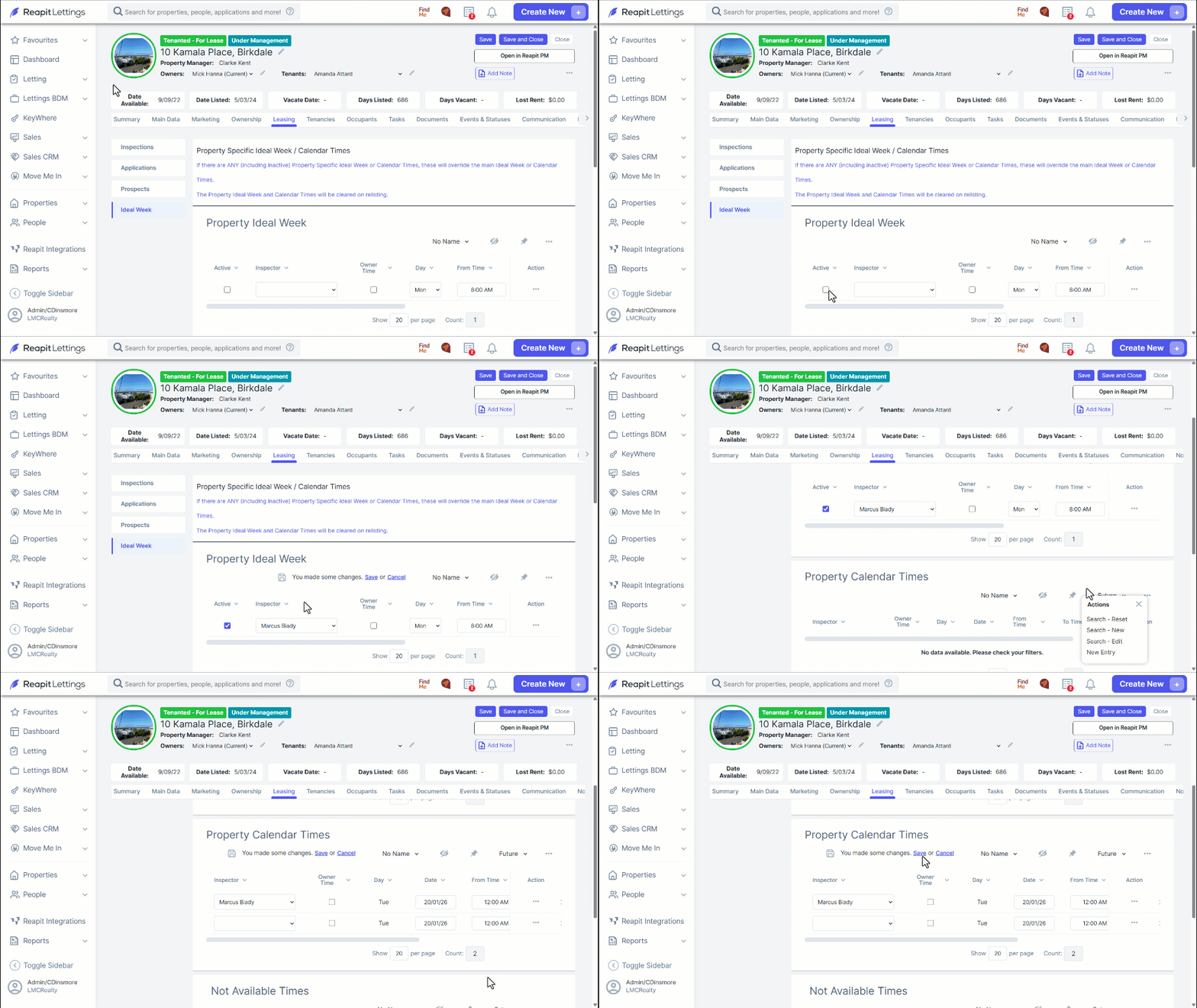
- Enter in the details as you would for a regular ideal week time and add who the inspector will be for this entry. You may need to use the scroll bar below to complete this section.
- Tick active and Save.
- To set up a calendar time for the property, click the three dots and click New Entry button in the Property Calendar Times section.
- Fill out the date, time, inspector, and other details about the time, then press the Save button. You may need to use the scroll bar to fill out this section.
- This will create that available time for that day only.
Note: if a property ideal week or calendar time is set up, then it will block out the main Ideal Week or Calendar time for that inspector at that time, even if it is set to inactive.