'%20d='M0%208a8%208%200%200%201%208-8h24a8%208%200%200%201%208%208v24a8%208%200%200%201-8%208H8a8%208%200%200%201-8-8V8Z'/%3e%3cpath%20fill='%23fff'%20d='M32.576%206C12.293%206%208.776%2025.887%207.424%2034H9.1c.45-2.977%203.493-14.748%2010.899-20.287%200%200-5.633%206.976-6.572%2015.051%203.426-.652%2013.845-3.372%2016.056-12.927l-3.84-.61c1.352-1.351%204.909-5.17%206.931-9.226V6Z'/%3e%3cdefs%3e%3clinearGradient%20id='reapit-lettings__a'%20x1='20.702'%20x2='20.702'%20y1='.351'%20y2='31.228'%20gradientUnits='userSpaceOnUse'%3e%3cstop%20stop-color='%235573FD'/%3e%3cstop%20offset='.575'%20stop-color='%234E56EA'/%3e%3c/linearGradient%3e%3c/defs%3e%3c/svg%3e)
How To Use The Run Wizard
This article will run through how to use the run wizard
How To Use The Run Wizard
This article will run through how to use the run wizard in Reapit Lettings.
You can use the Run Wizard to set up an inspection run (multiple inspections on the same day).
- Navigate to Letting.
- Click Inspections.
- Click Run Wizard.
- ****Select the Inspector & Inspection Day
- Click the right arrow to continue.
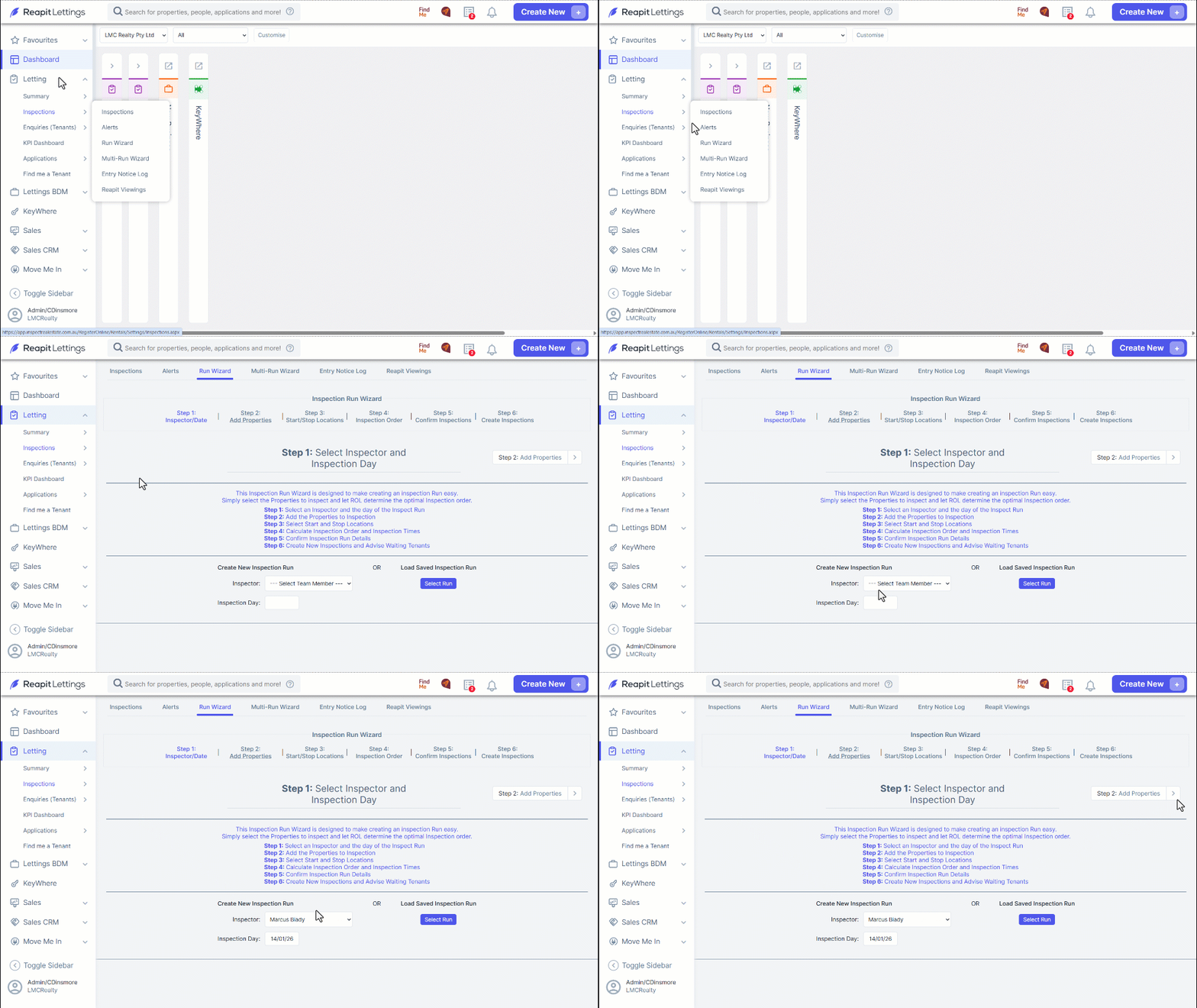
Alternatively, if you have saved a run previously, you can opt for Select Run.
If you have opted to create a new run, the process will be as follows.
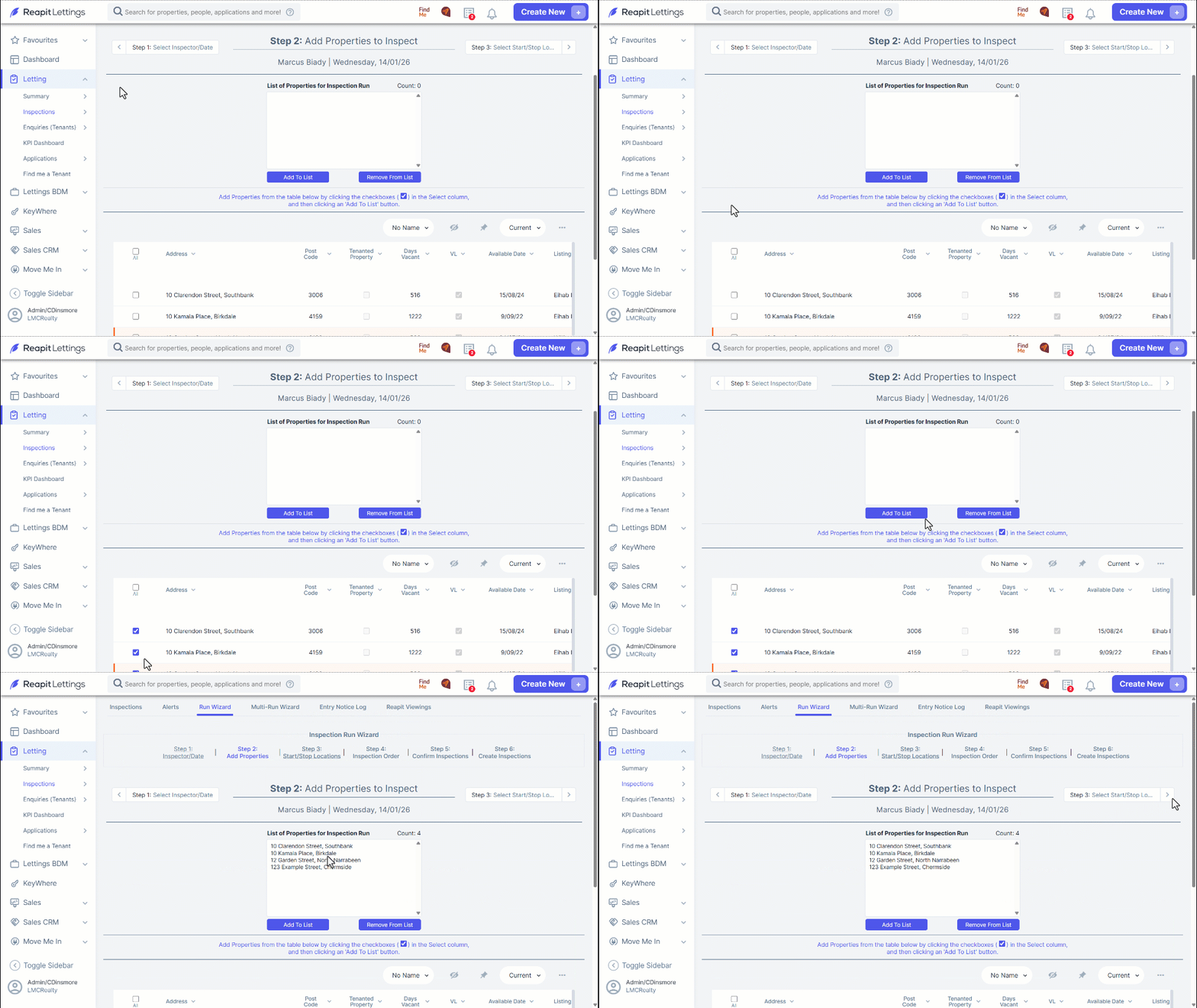
- Scroll down and select the properties you want to inspect in the Select column.
- Click Add to List.
- Once you have added all the properties, press the right arrow to continue.
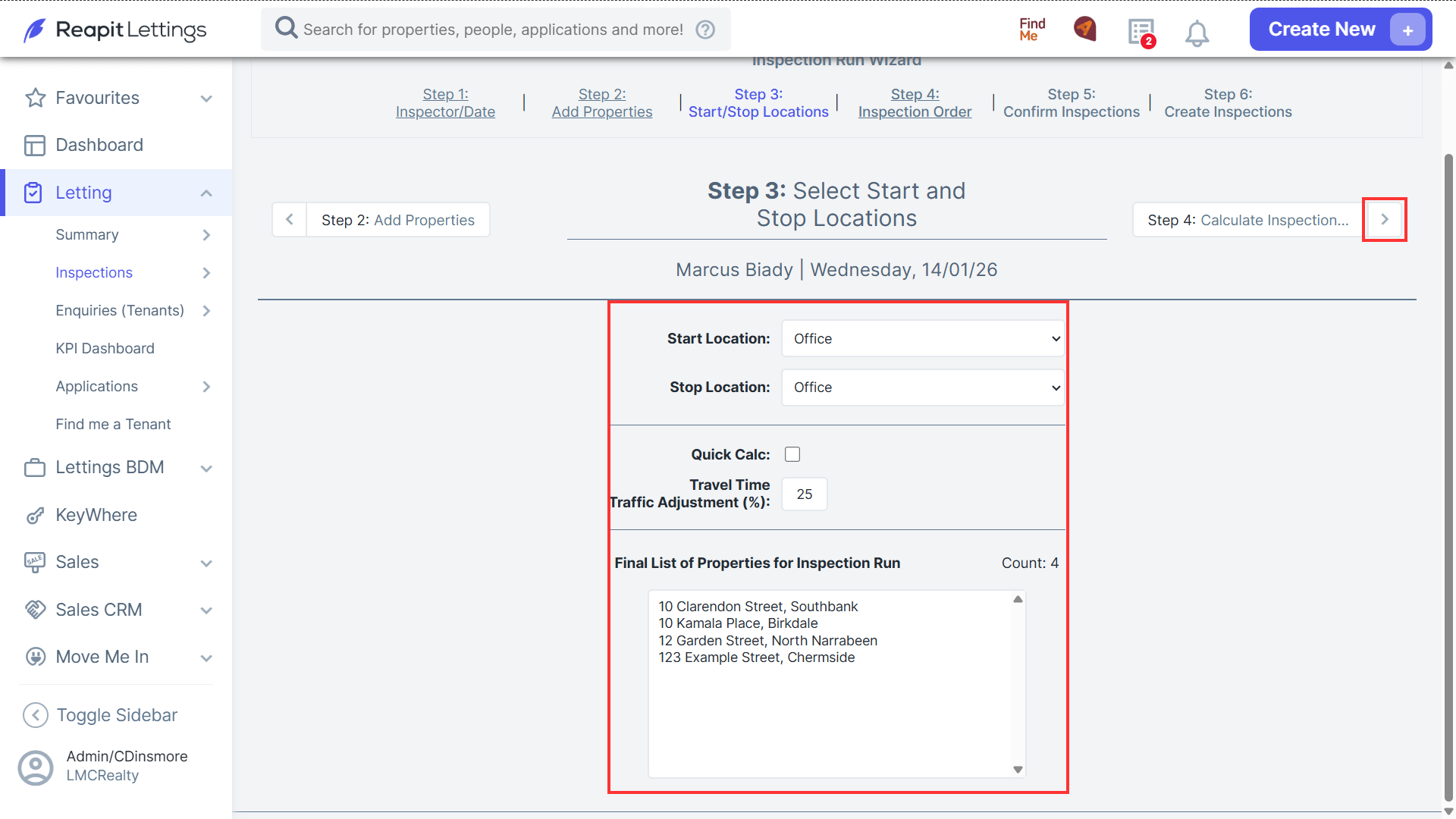
- Select where the run will start and stop.
- The Quick Cal Checkbox
If you do not want the system to calculate the quickest route for you, click the Quick Calc checkbox.
Otherwise, leave un-ticked (when un-ticked, the system will calculate the Quickest Route for you).
Select the Travel Time Traffic Adjustment you want applied to the run. This option will add a percentage (default is 20%) of the travel time that Bing or Google Maps calculates.
- Press the right arrow to continue.
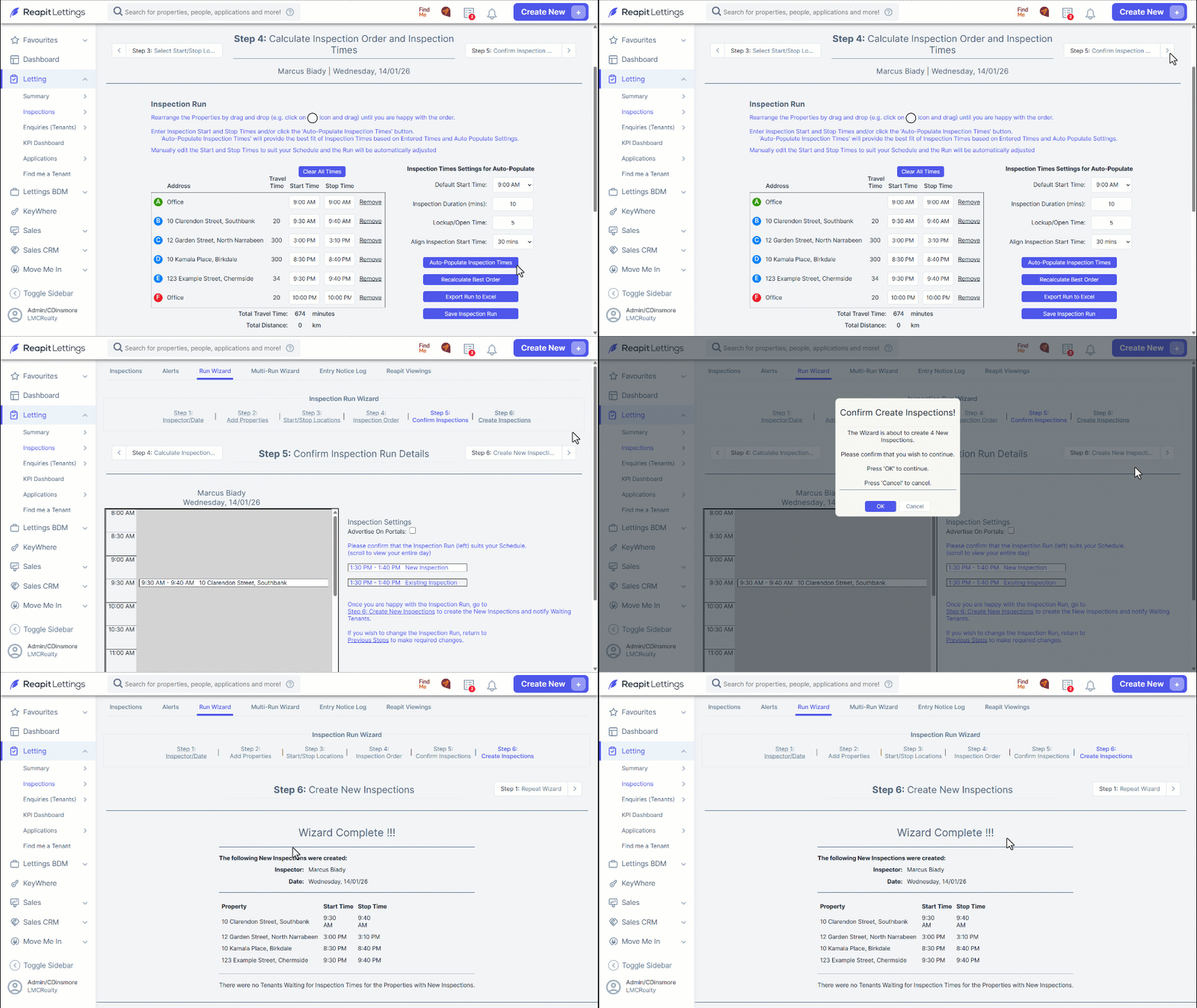
- Assign Inspection Times - The system will calculate the quickest way to travel between the properties you selected. You can still re-arrange properties by dragging and dropping the property into the order you want.
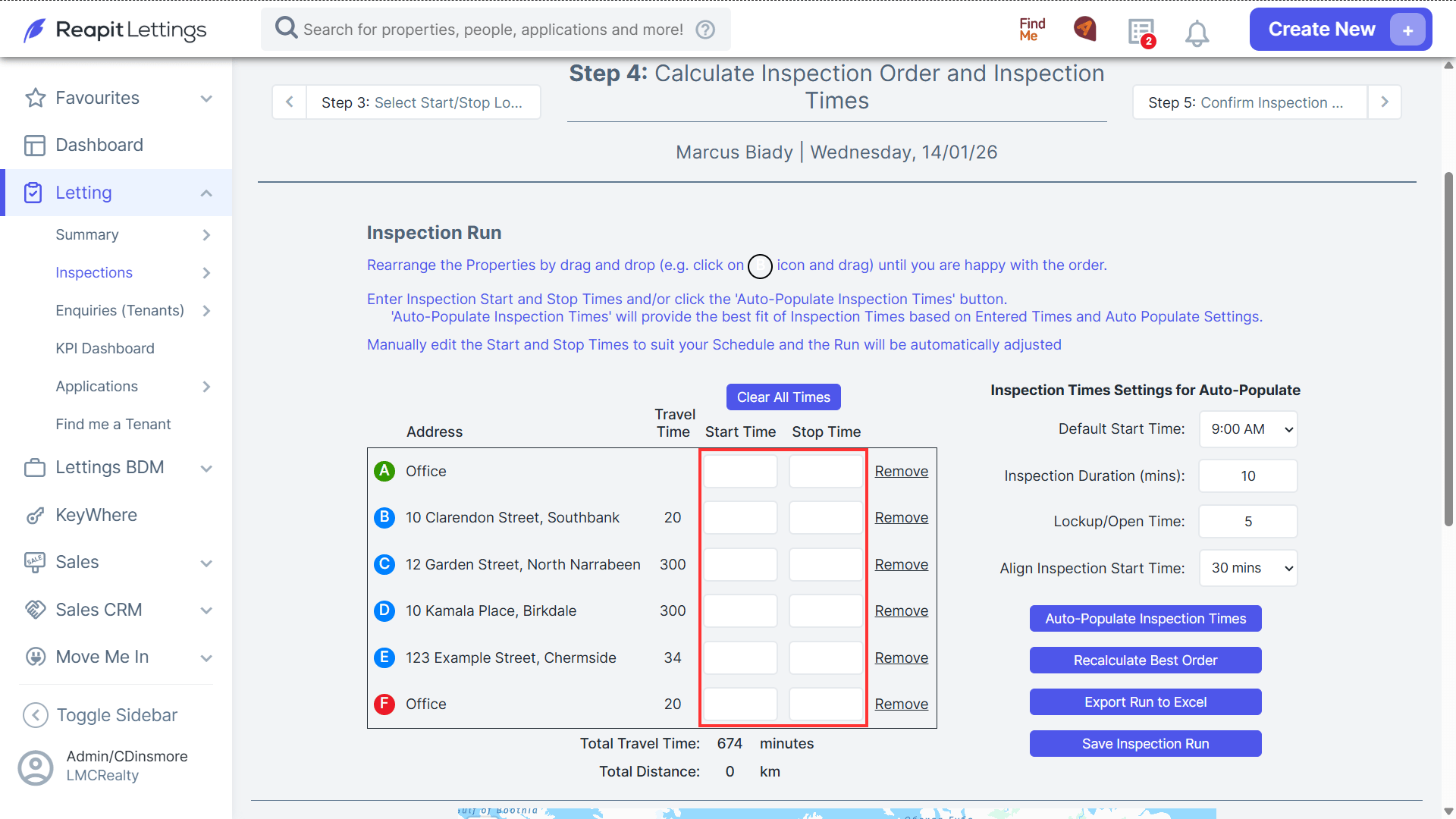
- Select Auto-Populate Inspection Times to quickly generate the start and end time for each inspection. You can always manually edit the times once this has been selected.
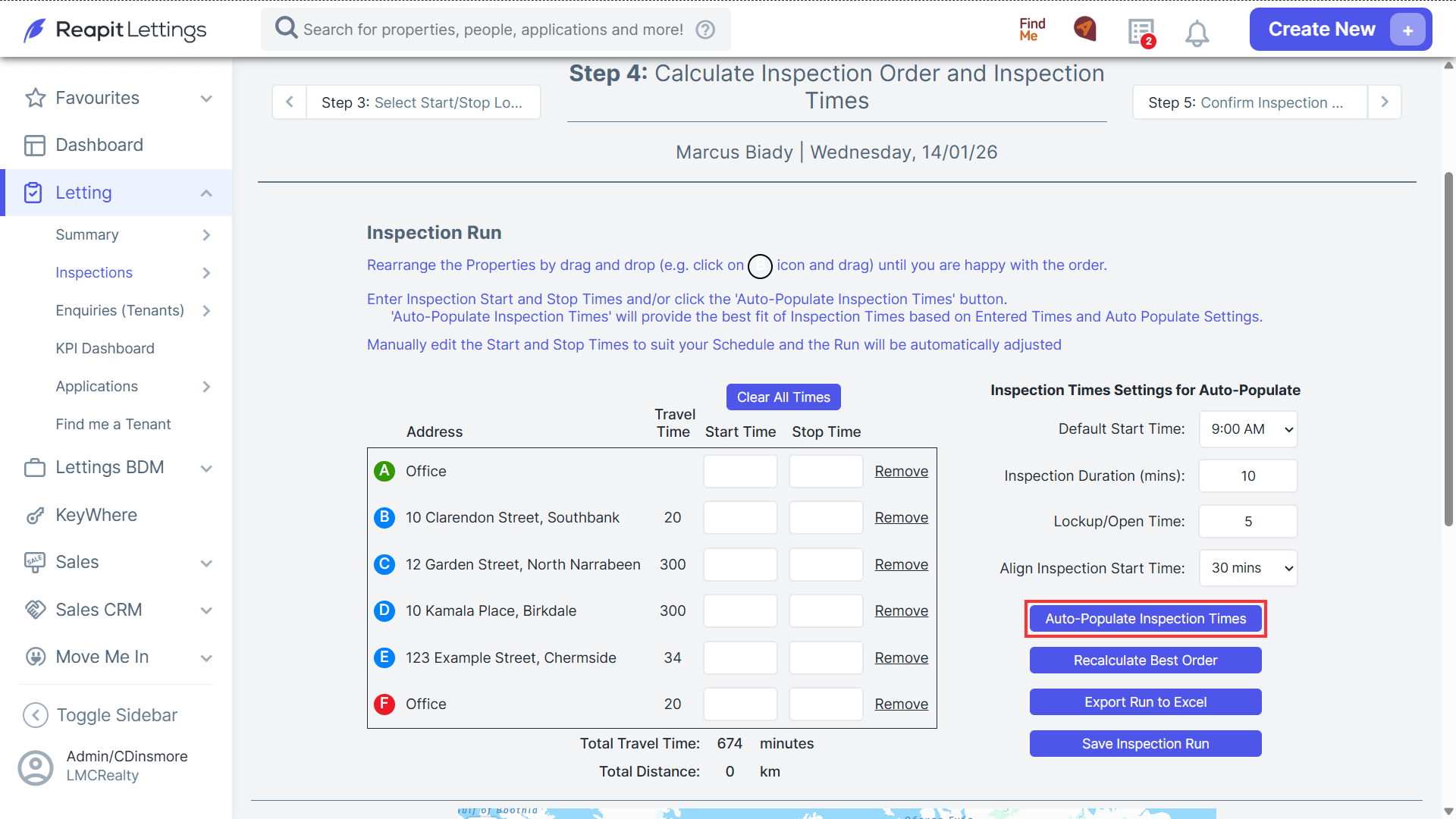
Additional settings can be enabled if desired:
Default Start Time
Inspection Duration: allows you to manually override the office default.
Lockup/Open Time: allows you to add additional time between inspections.
Alight Inspections: allows you to start inspection on a specific time bracket.
- You can save this specific inspection run in your IRE account by selecting Save Inspection Run.
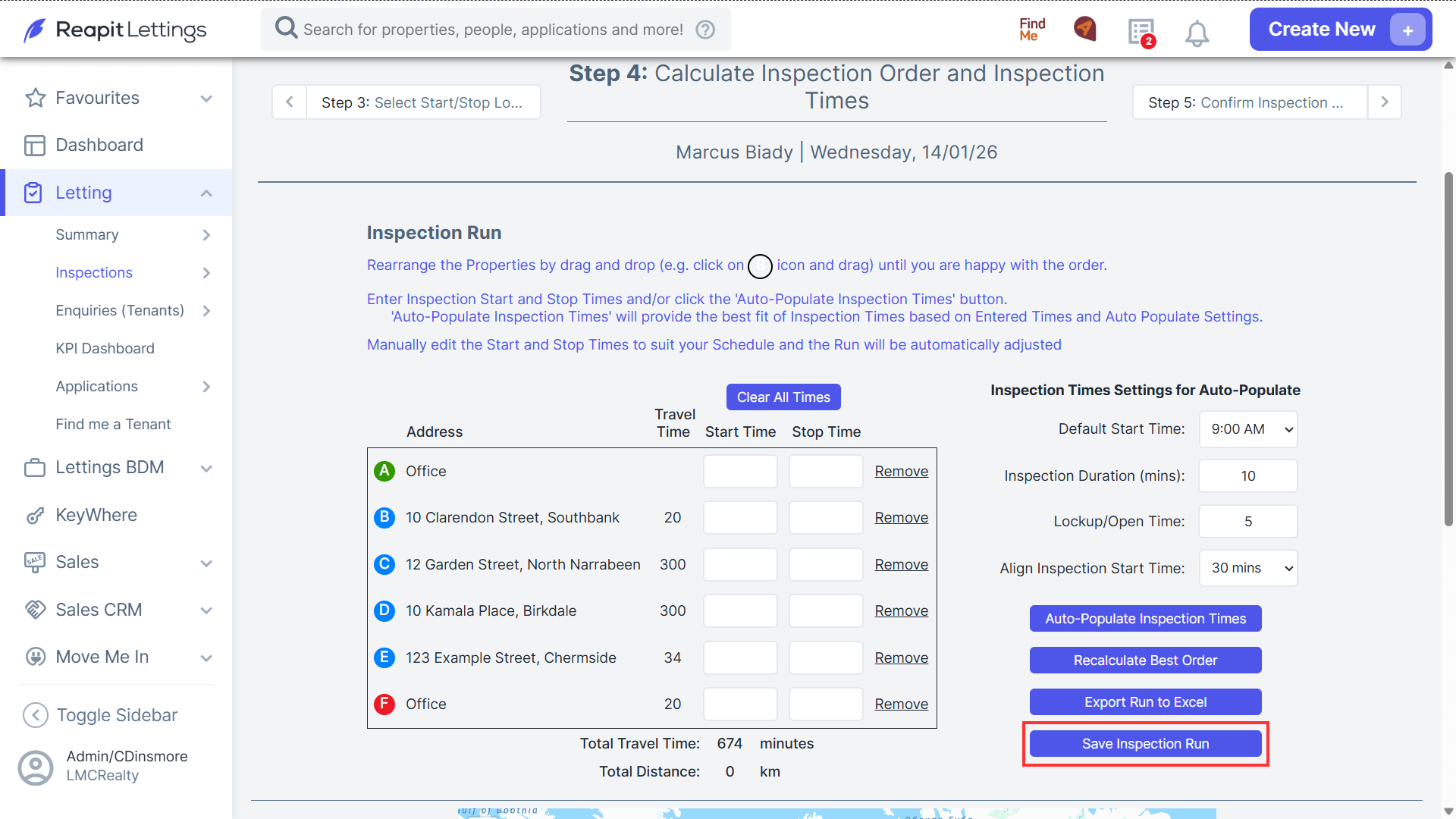
- Once you're happy with the run, select Confirm Inspection Run.
- An overview of all the inspections will be shown on the left. If you are happy to schedule the inspection, select Create New Inspections.
- A pop up will appear asking you to confirm - select OK to proceed.
- Another popup will appear asking if you want to notify waiting tenants. Select OK to notify them.
- The wizard is complete. It will ask if you want to create another inspection. Either ignore or select Repeat Wizard if you want to make another run.