'%20d='M0%208a8%208%200%200%201%208-8h24a8%208%200%200%201%208%208v24a8%208%200%200%201-8%208H8a8%208%200%200%201-8-8V8Z'/%3e%3cpath%20fill='%23fff'%20d='M32.576%206C12.293%206%208.776%2025.887%207.424%2034H9.1c.45-2.977%203.493-14.748%2010.899-20.287%200%200-5.633%206.976-6.572%2015.051%203.426-.652%2013.845-3.372%2016.056-12.927l-3.84-.61c1.352-1.351%204.909-5.17%206.931-9.226V6Z'/%3e%3cdefs%3e%3clinearGradient%20id='reapit-lettings__a'%20x1='20.702'%20x2='20.702'%20y1='.351'%20y2='31.228'%20gradientUnits='userSpaceOnUse'%3e%3cstop%20stop-color='%235573FD'/%3e%3cstop%20offset='.575'%20stop-color='%234E56EA'/%3e%3c/linearGradient%3e%3c/defs%3e%3c/svg%3e)
Updating a Lead
This article will run through how to update the status of a Lead and communicate the change through Reapit Lettings. The processes in this article include: Update a Lead Status Bulk Update Leads
Updating a Lead
This article will run through how to update the status of a Lead and communicate the change through Reapit Lettings.
The processes in this article include:
- Update a Lead Status
- Bulk Update Leads
When a Lead Status or Follow Up date is changed, you have the ability to confirm changes made by sending an automatic update to the Lead, Referrer & Assigned BDM via email or SMS.
Update a Lead Status
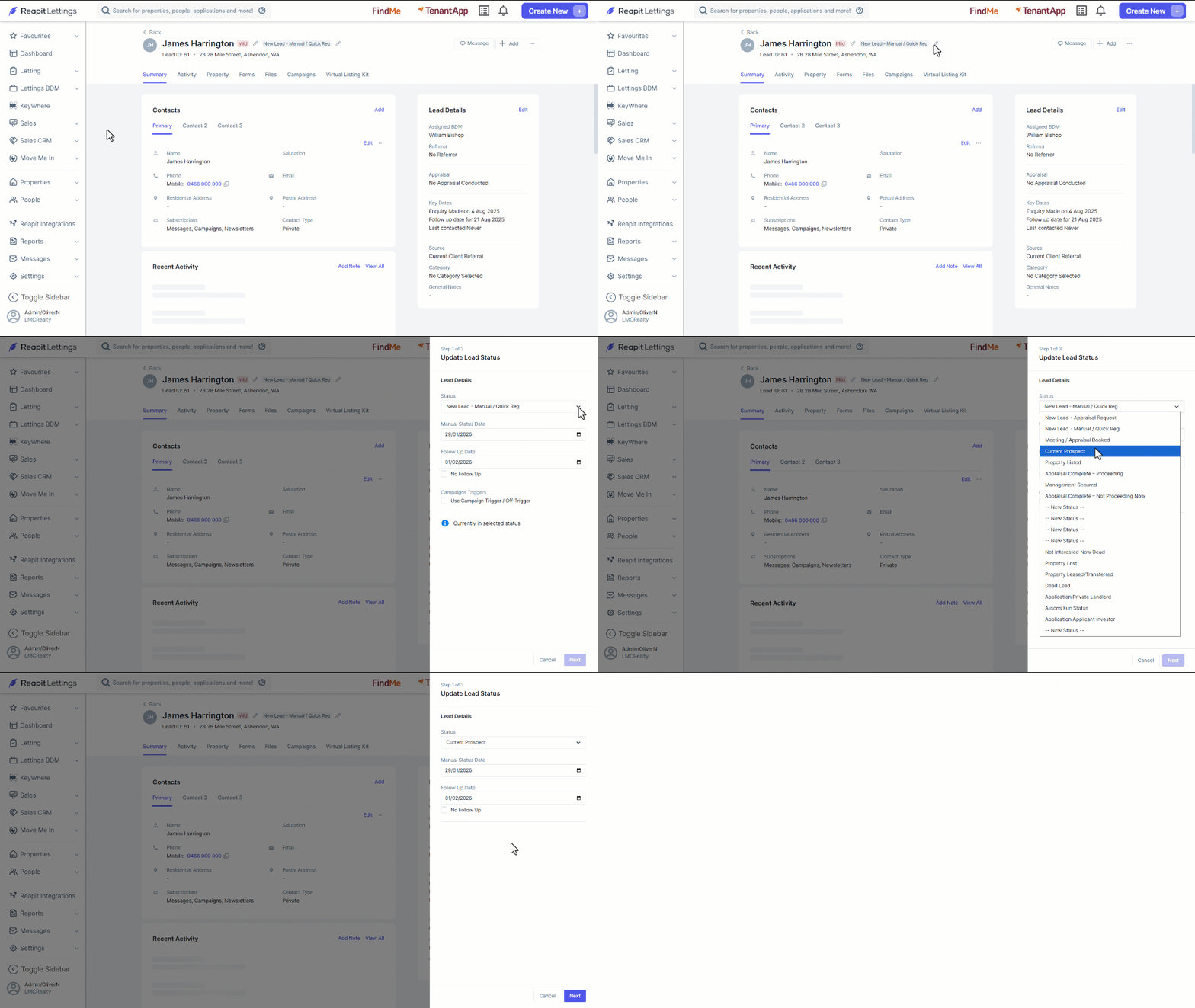
- Select the Pencil Icon to open the Update Lead Status drawer.
- Select the desired status from the Status drop down.
Note: You can resend the existing status notification by clicking on Resend.
- Enter your required Follow Up Date or tick No Follow Up.
- Review and complete any further fields that are status-dependent. Click on Next.
Note: The available fields change based on the Status selected from the drop down. E.g. Campaign Trigger, Management Details.
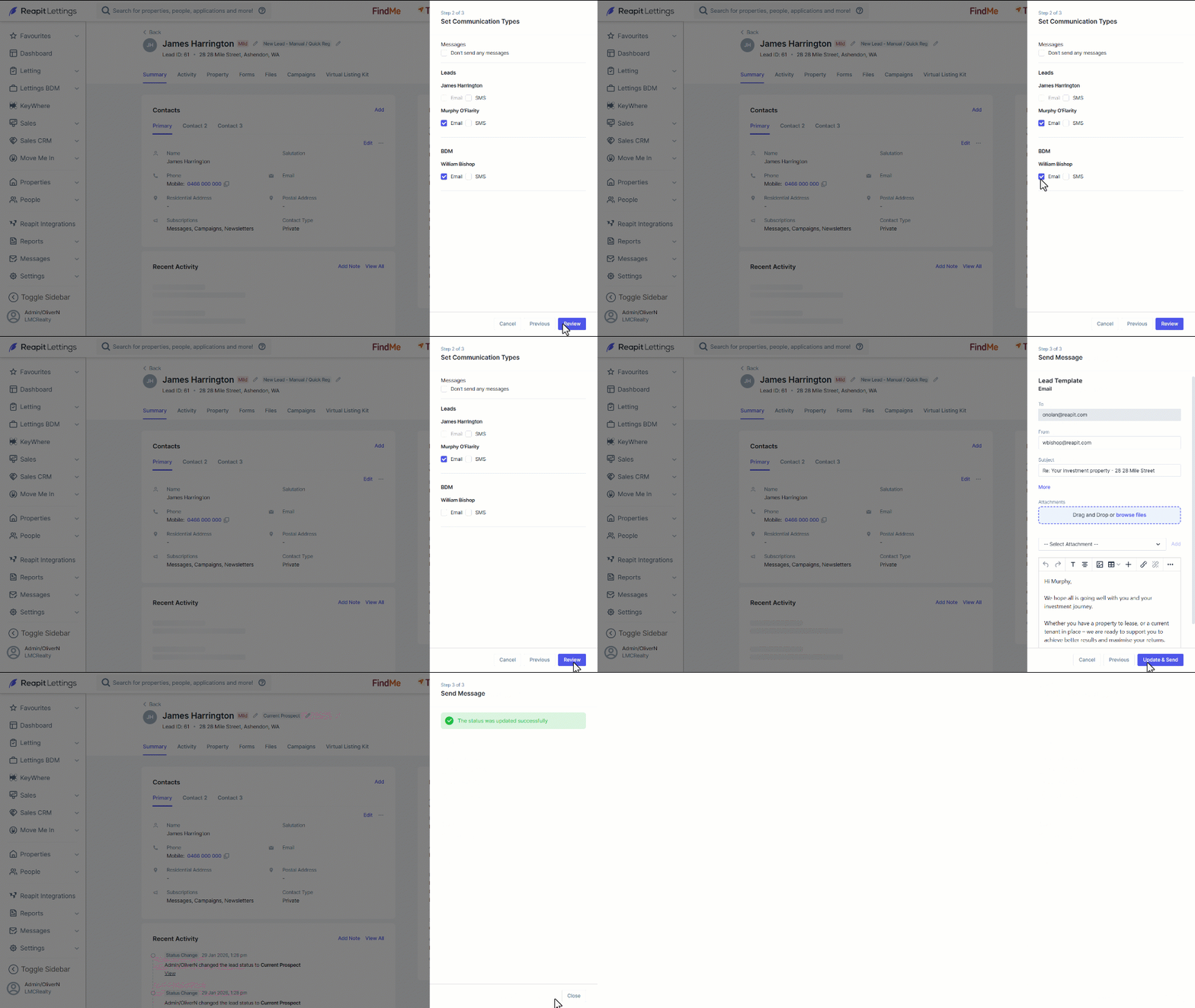
- Select the communications you wish to send to the Lead Contacts and BDM then click on Review.
Alternatively, Select Don’t send any messages, then click on Update Status.
- If communications are being sent, the Send Message drawer will display the selected communication types. Review each templated message, adjust if required and click Update & Send.
- ****A green confirmation message will display. Click on Close.
Bulk Update Leads
Bulk updating leads allows users to update a range of Lead information including:
- Lead Status
- BDM
- Category
- Follow Up Date
- Temperature
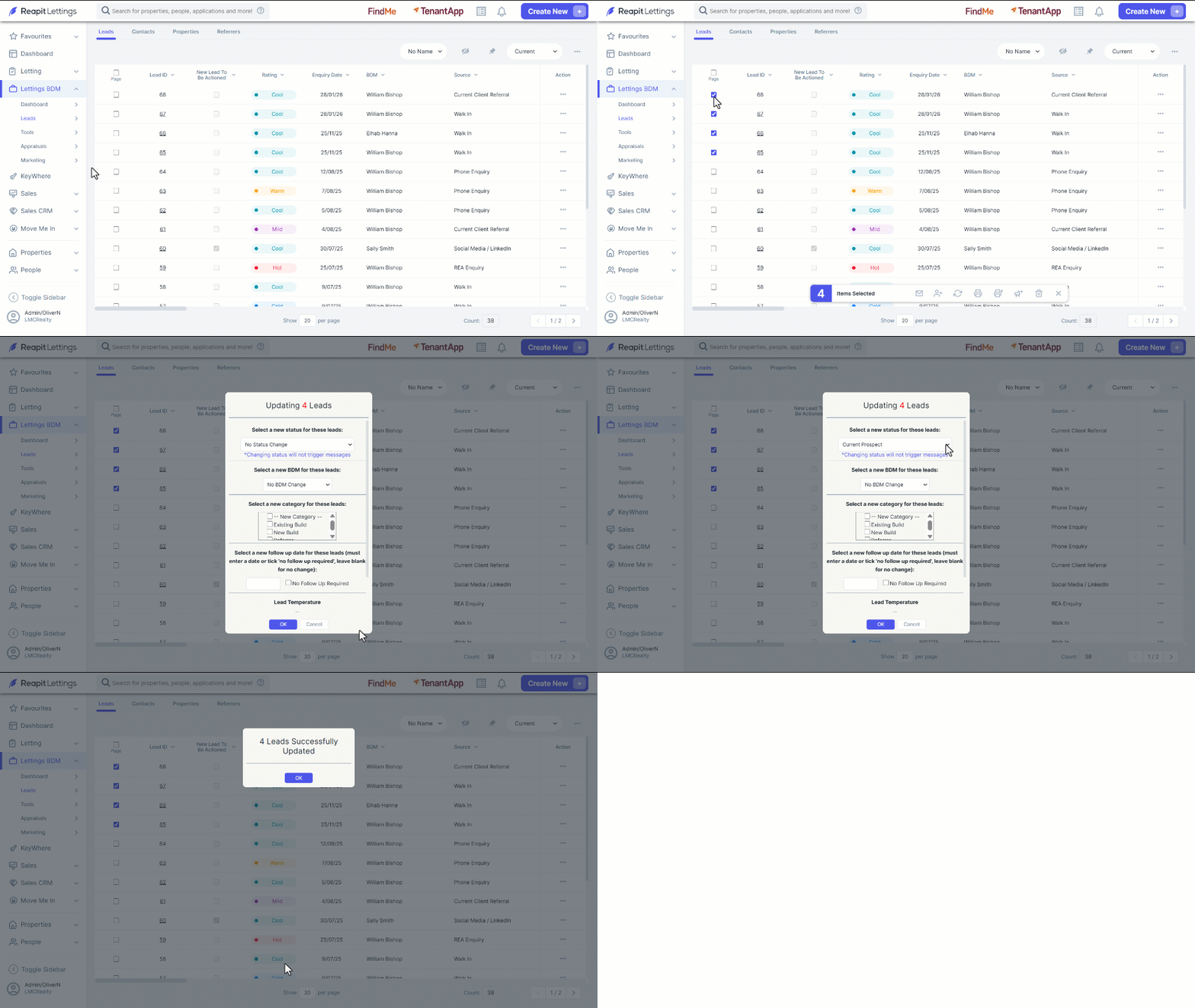
- From the Leads screen, use the page selector to select the leads to be updated.
- Select the update icon.
- Update the desired lead information.
- Click on OK.
- Click on OK to confirm update.