'%20d='M0%208a8%208%200%200%201%208-8h24a8%208%200%200%201%208%208v24a8%208%200%200%201-8%208H8a8%208%200%200%201-8-8V8Z'/%3e%3cpath%20fill='%23fff'%20d='M32.576%206C12.293%206%208.776%2025.887%207.424%2034H9.1c.45-2.977%203.493-14.748%2010.899-20.287%200%200-5.633%206.976-6.572%2015.051%203.426-.652%2013.845-3.372%2016.056-12.927l-3.84-.61c1.352-1.351%204.909-5.17%206.931-9.226V6Z'/%3e%3cdefs%3e%3clinearGradient%20id='reapit-lettings__a'%20x1='20.702'%20x2='20.702'%20y1='.351'%20y2='31.228'%20gradientUnits='userSpaceOnUse'%3e%3cstop%20stop-color='%235573FD'/%3e%3cstop%20offset='.575'%20stop-color='%234E56EA'/%3e%3c/linearGradient%3e%3c/defs%3e%3c/svg%3e)
Automated Key Reservations for Inspections
This article will walk you through the My Runs and Inspection features, which display any inspections scheduled by the property manager within Reapit Lettings, and highlight the required keys in KeyWhere.
Automated Key Reservations for Inspections
This article will walk you through the My Runs and Inspection features, which display any inspections scheduled by the property manager within Reapit Lettings, and highlight the required keys.
Users can efficiently borrow keys directly through KeyWhere, eliminating the need to manually create reservations or loans.
- Navigate to My Runs
- Click Inspections.
- Click the calendar icon.
- Select the desired inspection date.
- To view all inspections in a grid format, click the dropdown arrow on the right side of the row next to the inspector's name.
The total number of inspections will be displayed in this row.
- To borrow all the keys listed, click Borrow All. This action will allow you to assign all the keys displayed in the pop-up window.
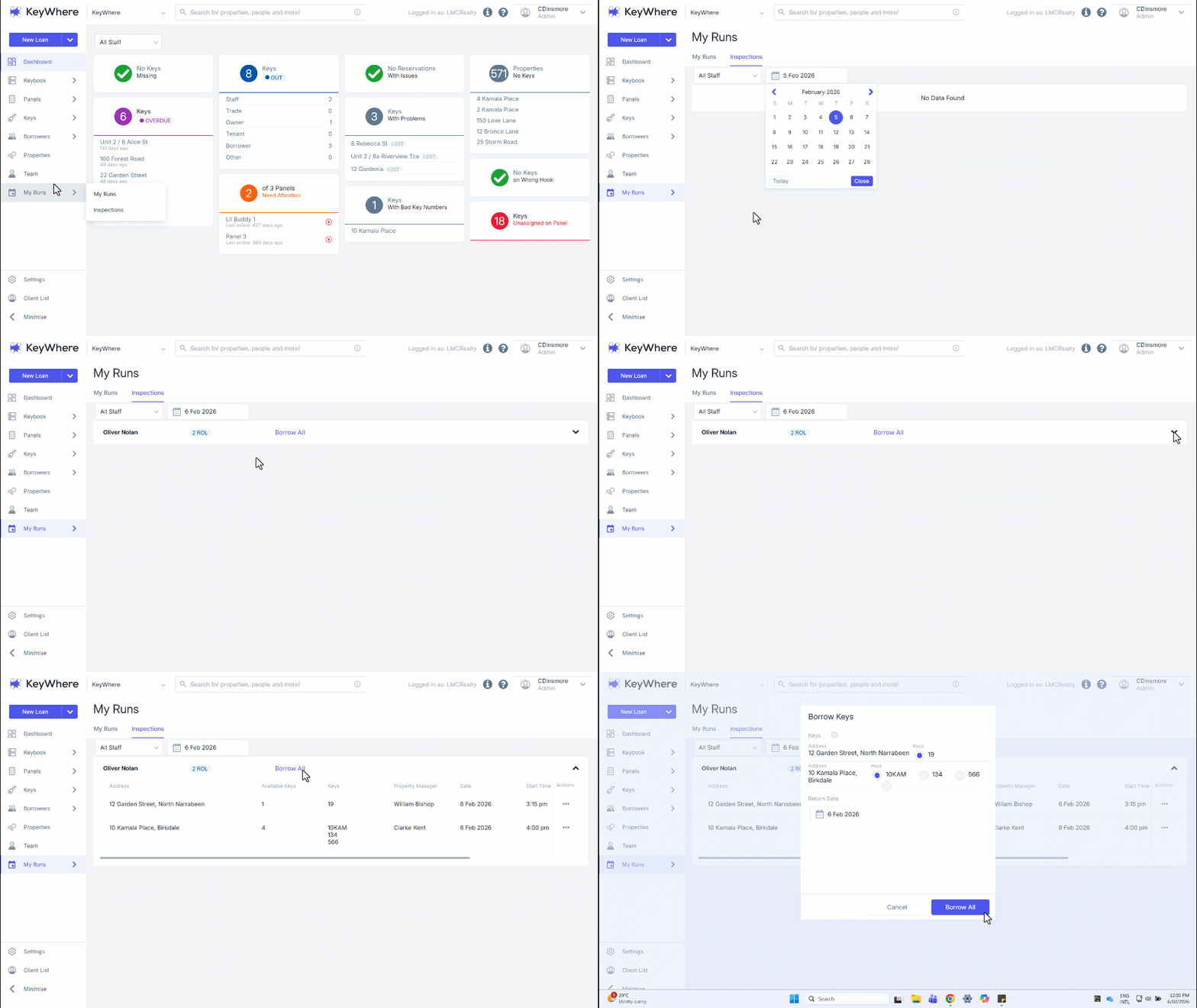
Note: When handling inspections with multiple keys, ensure you scroll through the entire list using the sidebar. Carefully review each address and select the appropriate radio button option for each key before committing to 'Borrow All.'
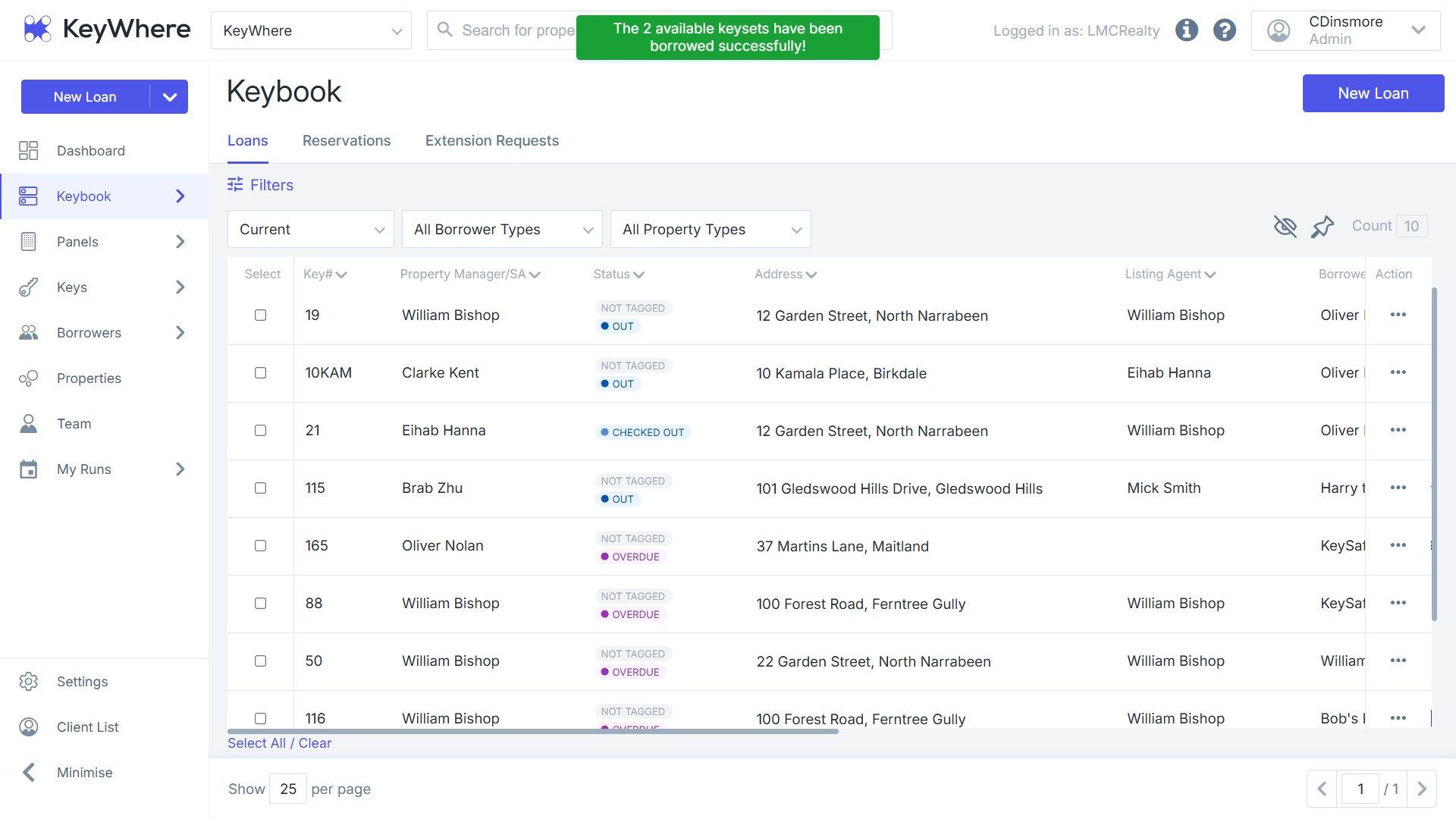
- The status of all borrowed keys will be updated to Out and recorded against the corresponding key numbers in KeyWhere.