'%20d='M0%208a8%208%200%200%201%208-8h24a8%208%200%200%201%208%208v24a8%208%200%200%201-8%208H8a8%208%200%200%201-8-8V8Z'/%3e%3cpath%20fill='%23fff'%20d='M32.576%206C12.293%206%208.776%2025.887%207.424%2034H9.1c.45-2.977%203.493-14.748%2010.899-20.287%200%200-5.633%206.976-6.572%2015.051%203.426-.652%2013.845-3.372%2016.056-12.927l-3.84-.61c1.352-1.351%204.909-5.17%206.931-9.226V6Z'/%3e%3cdefs%3e%3clinearGradient%20id='reapit-lettings__a'%20x1='20.702'%20x2='20.702'%20y1='.351'%20y2='31.228'%20gradientUnits='userSpaceOnUse'%3e%3cstop%20stop-color='%235573FD'/%3e%3cstop%20offset='.575'%20stop-color='%234E56EA'/%3e%3c/linearGradient%3e%3c/defs%3e%3c/svg%3e)
Logging in to Reapit Lettings with Reapit Connect
This guide outlines the processes for logging in, resetting passwords, and managing users in the Reapit Lettings system once connected to Reapit Connect
Logging in to Reapit Lettings with Reapit Connect
This guide outlines the processes for logging in, resetting passwords, and managing users in the Reapit Lettings system once connected to Reapit Connect.
The process in this article include:
- Reapit Connect Welcome Emails
- Accessing the Login Page
- Signing in to Reapit Connect
- Resetting your Password
- Managing Users
- Setting up and logging in with Multi-Factor Authentication (MFA)
Reapit Connect Welcome Emails
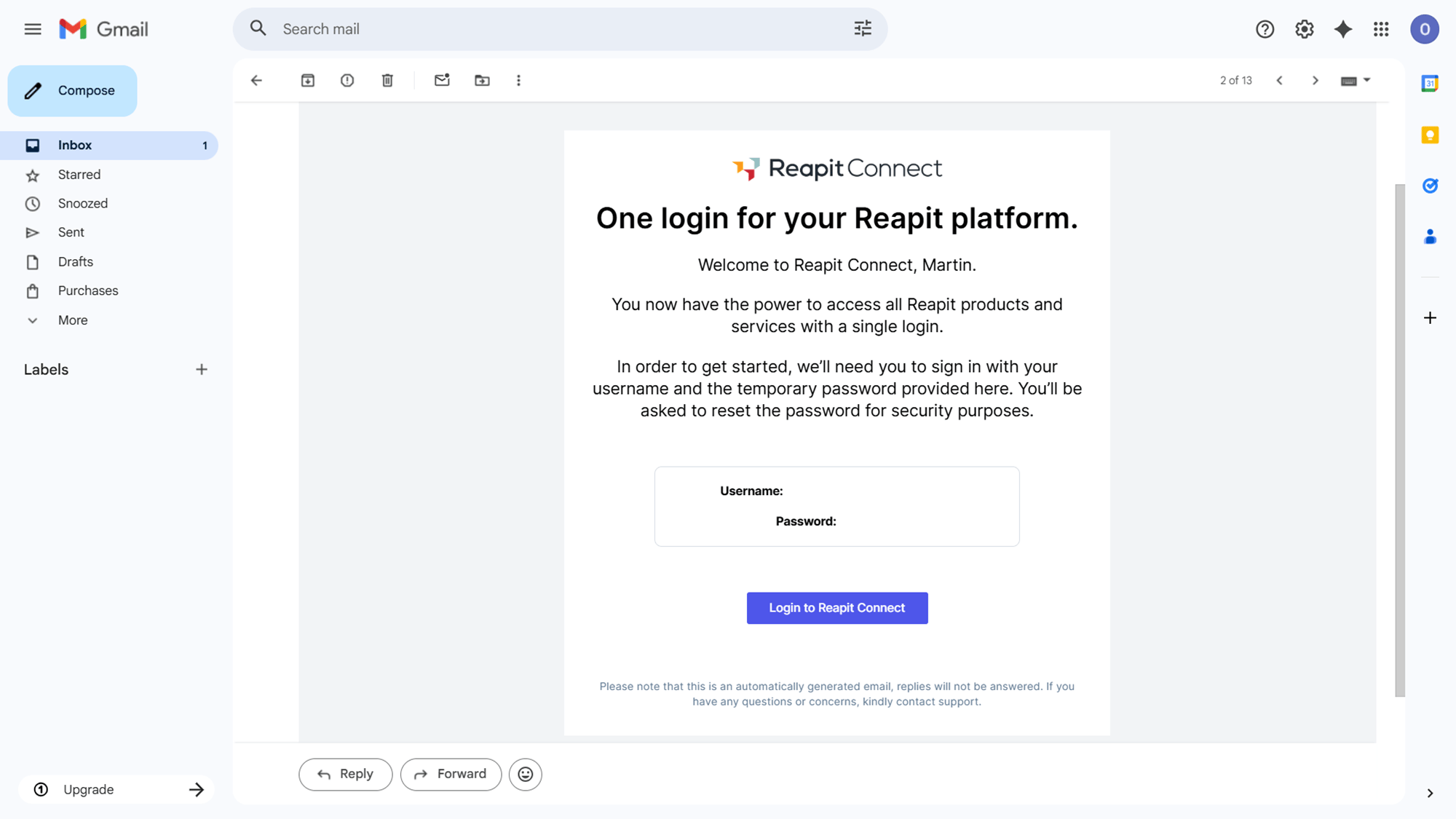
When a user is created in an office with Reapit Connect, They will receive 2 emails.
- Welcome to Reapit Connect email asking them to log in to Reapit Connect, using a temporary password.
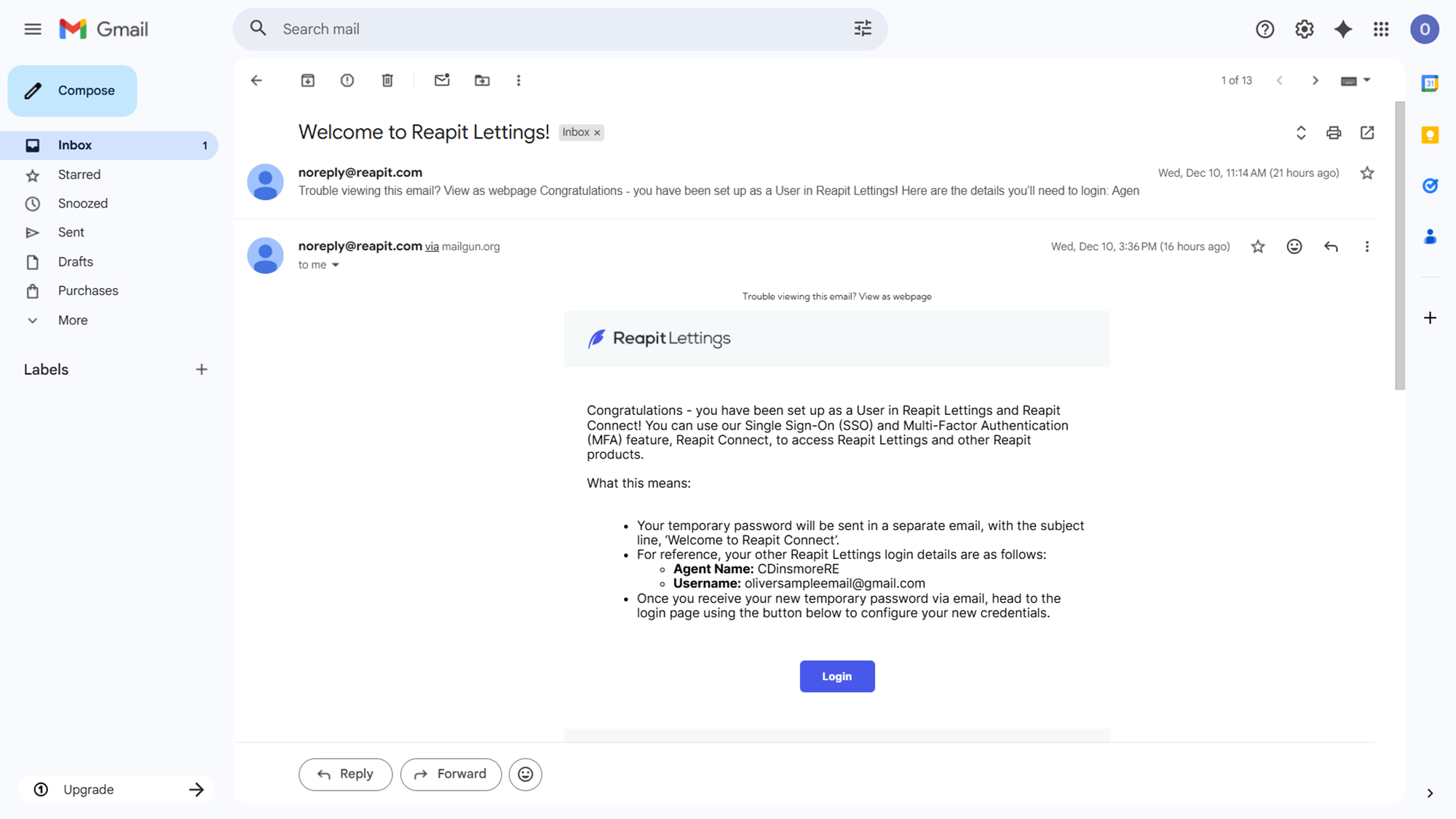
- Welcome to Reapit Lettings email that includes their Agent Name and Username to access Reapit Lettings.
Accessing Reapit Lettings for the First Time
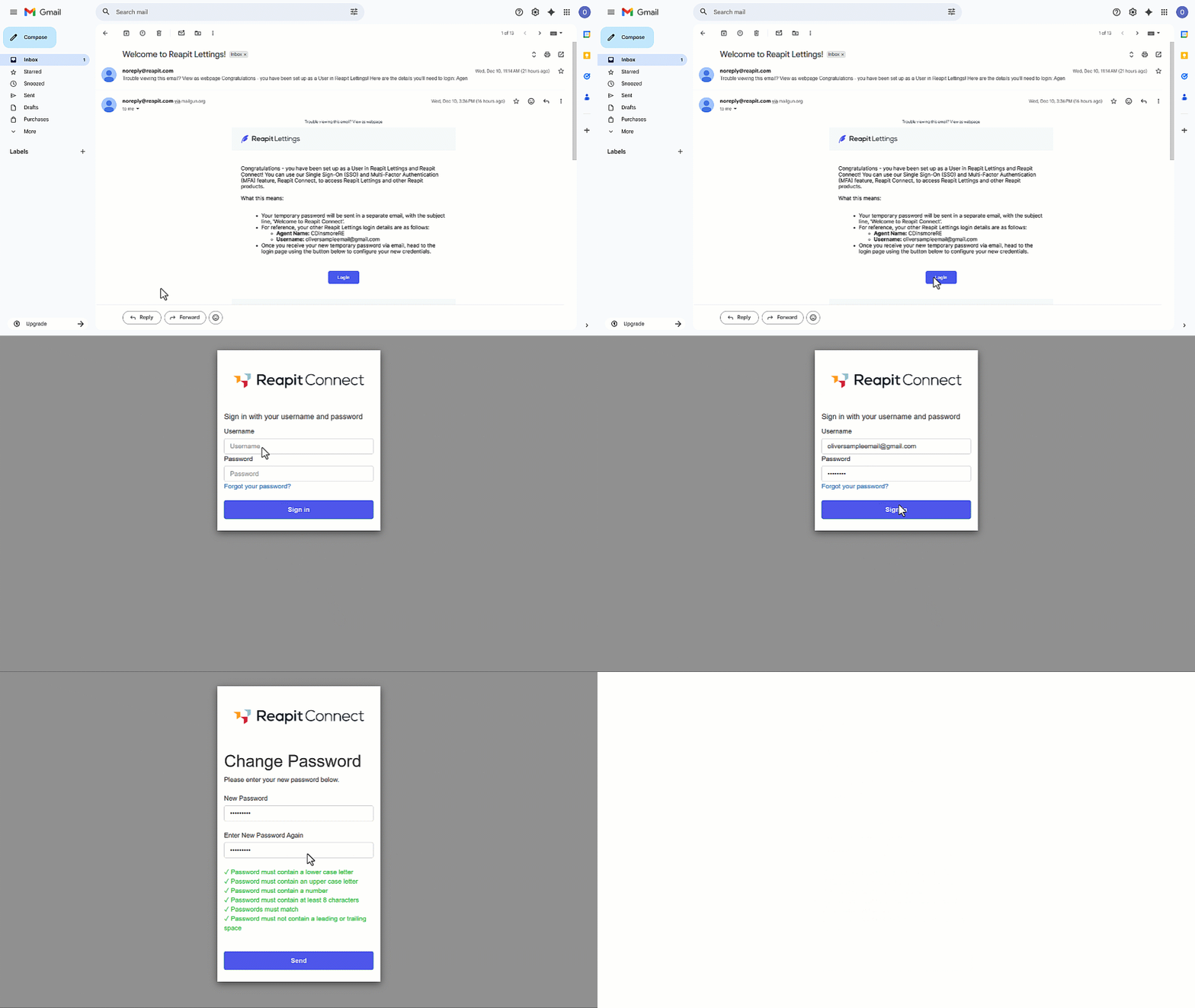
- Click on Login from the Welcome to Reapit Lettings email.
- Enter the Username and Password from the Welcome to Reapit email and click on Sign In
- Enter your new password twice, ensuring it meets all the security requirements.
- Click on Send.
Logging in with Reapit Connect
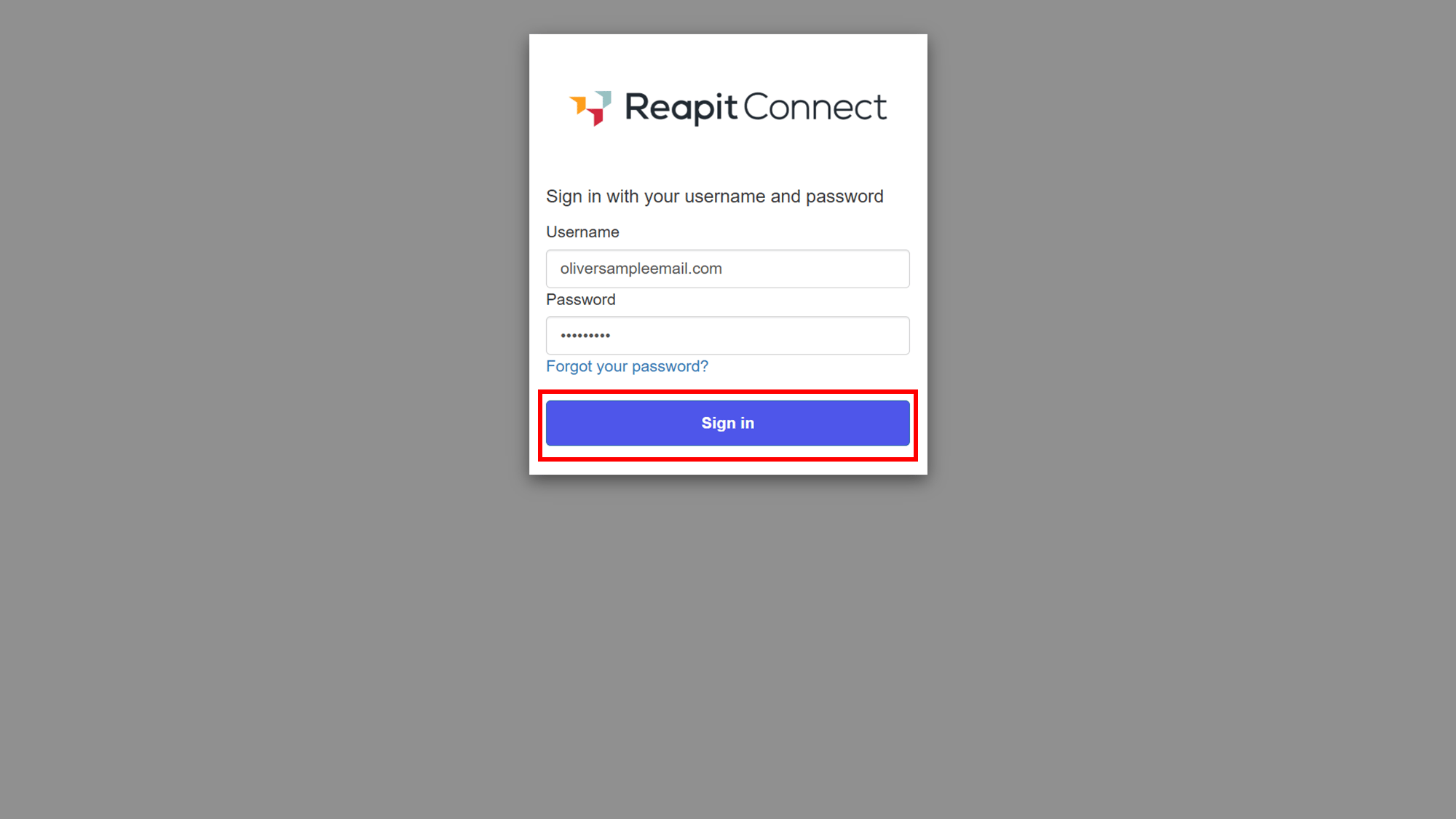
If you are not already signed in to one of the other services, the login with Reapit Connect screen will display. Enter your Username and Password. Click Sign in.
Resetting your Password
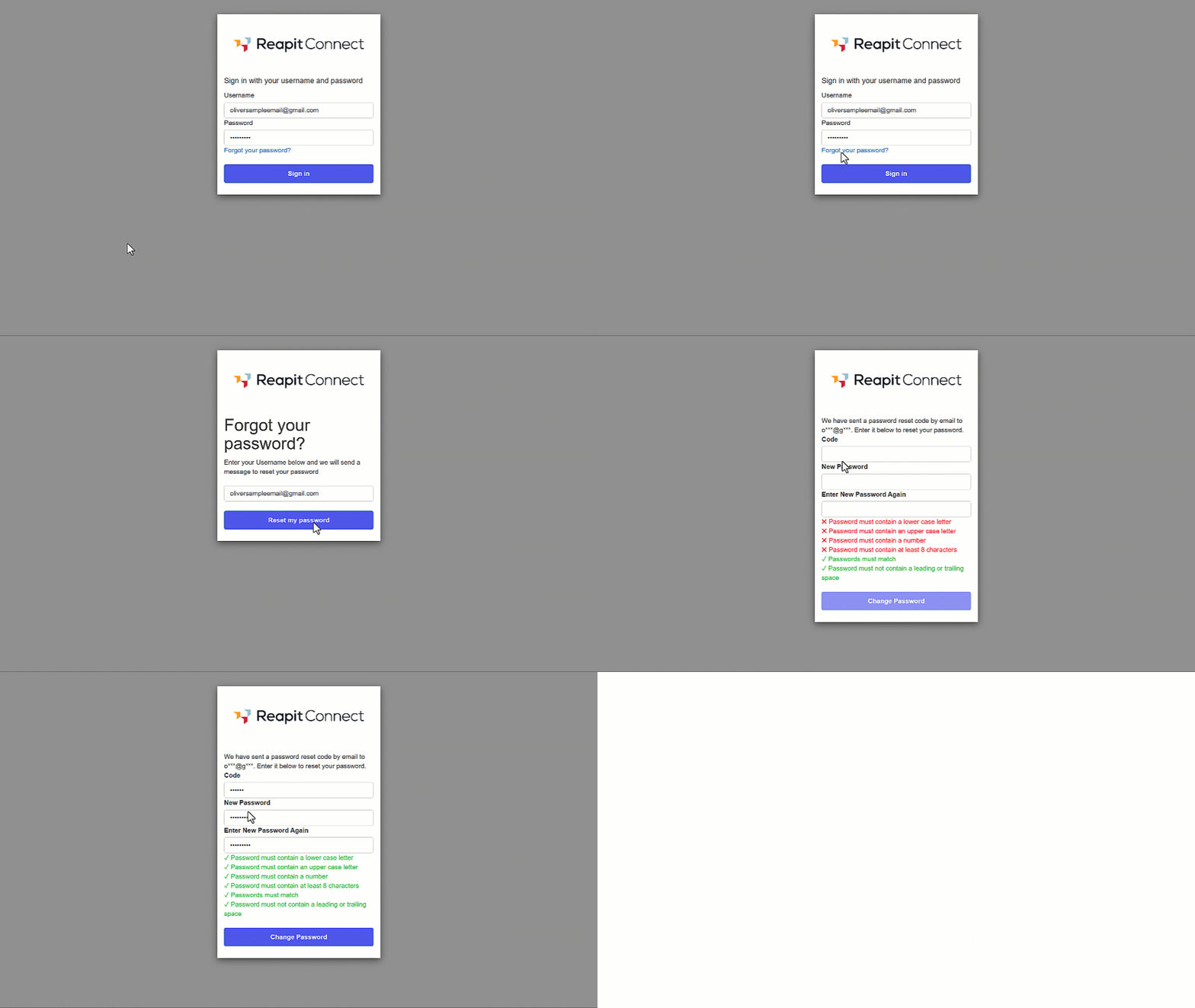
- On the login page, click the Forgot Password? link.
- Enter your Username and click Reset Password.
- A password reset code will be sent to your email address. Enter the code, then type your new password and confirm it by entering it again. The password must meet the requirements, otherwise, you will not be able to proceed.
- Click Change Password to complete the process.
Managing Users
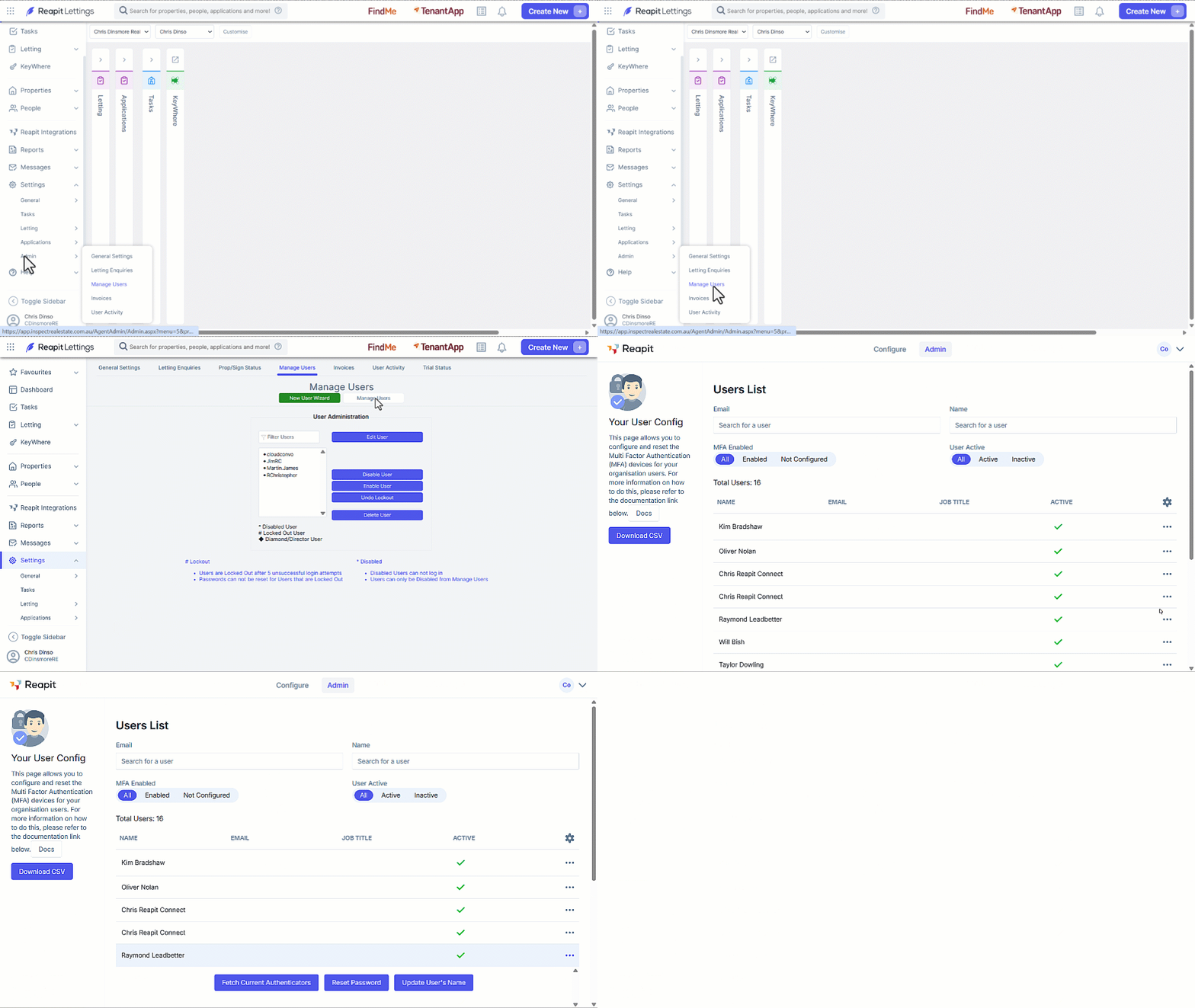
The user management process has been consolidated for better clarity and control. To reset a user’s password:
- Click on Settings.
- Click on Admin.
- Click on Manage Users.
- Click on Manage Users.
- In the Admin tab, click the three dots to the right of the user to Fetch Current Authenticators or Reset Password.
Setting up and Logging in with Multi-Factor Authentication (MFA)
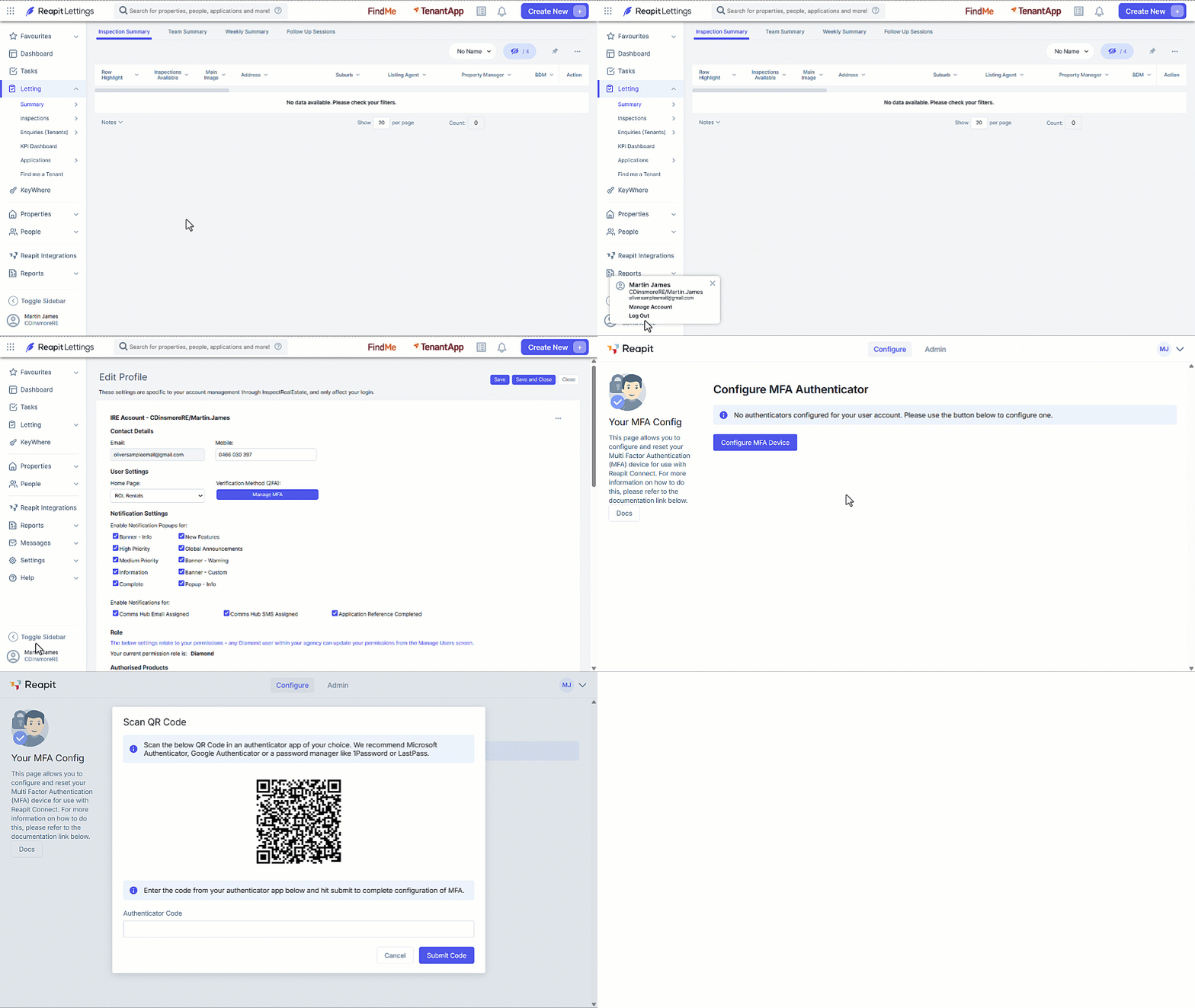
To set up Multi-Factor Authentication (MFA) for your account:
- Click on your name located on the bottom left of the page.
- Click Manage Account.
- From the Edit Profile section, click on Manage MFA.
- Click on Configure MFA Device.
- Scan the QR Code using an external authenticator app.
- After scanning the QR Code, type in the authenticator code provided by your app and select Submit Code.
- A banner will display confirming a successfully verified authenticator attached to the account.
With the authenticator now enabled, you'll be prompted to enter a code from your passcode app each time you sign in.