'%20d='M0%208a8%208%200%200%201%208-8h24a8%208%200%200%201%208%208v24a8%208%200%200%201-8%208H8a8%208%200%200%201-8-8V8Z'/%3e%3cpath%20fill='%23fff'%20d='M32.576%206C12.293%206%208.776%2025.887%207.424%2034H9.1c.45-2.977%203.493-14.748%2010.899-20.287%200%200-5.633%206.976-6.572%2015.051%203.426-.652%2013.845-3.372%2016.056-12.927l-3.84-.61c1.352-1.351%204.909-5.17%206.931-9.226V6Z'/%3e%3cdefs%3e%3clinearGradient%20id='reapit-lettings__a'%20x1='20.702'%20x2='20.702'%20y1='.351'%20y2='31.228'%20gradientUnits='userSpaceOnUse'%3e%3cstop%20stop-color='%235573FD'/%3e%3cstop%20offset='.575'%20stop-color='%234E56EA'/%3e%3c/linearGradient%3e%3c/defs%3e%3c/svg%3e)
Configuring Travel Times Settings
This article will walk you through how to configure travel time settings in the system, which are crucial for calculating the travel time required by a Team Member to move from one inspection to another in Reapit Lettings.
Configuring Travel Times Settings
This article will walk you through how to configure travel time settings in the system, which are crucial for calculating the travel time required by a Team Member to move from one inspection to another in Reapit Lettings.
Ensuring these settings are correctly configured will enhance efficiency and reduce the need for manual adjustments.
Accessing Travel Time Settings
- To access the travel time settings, navigate to Settings.
- Click Letting.
- Click Travel Times.
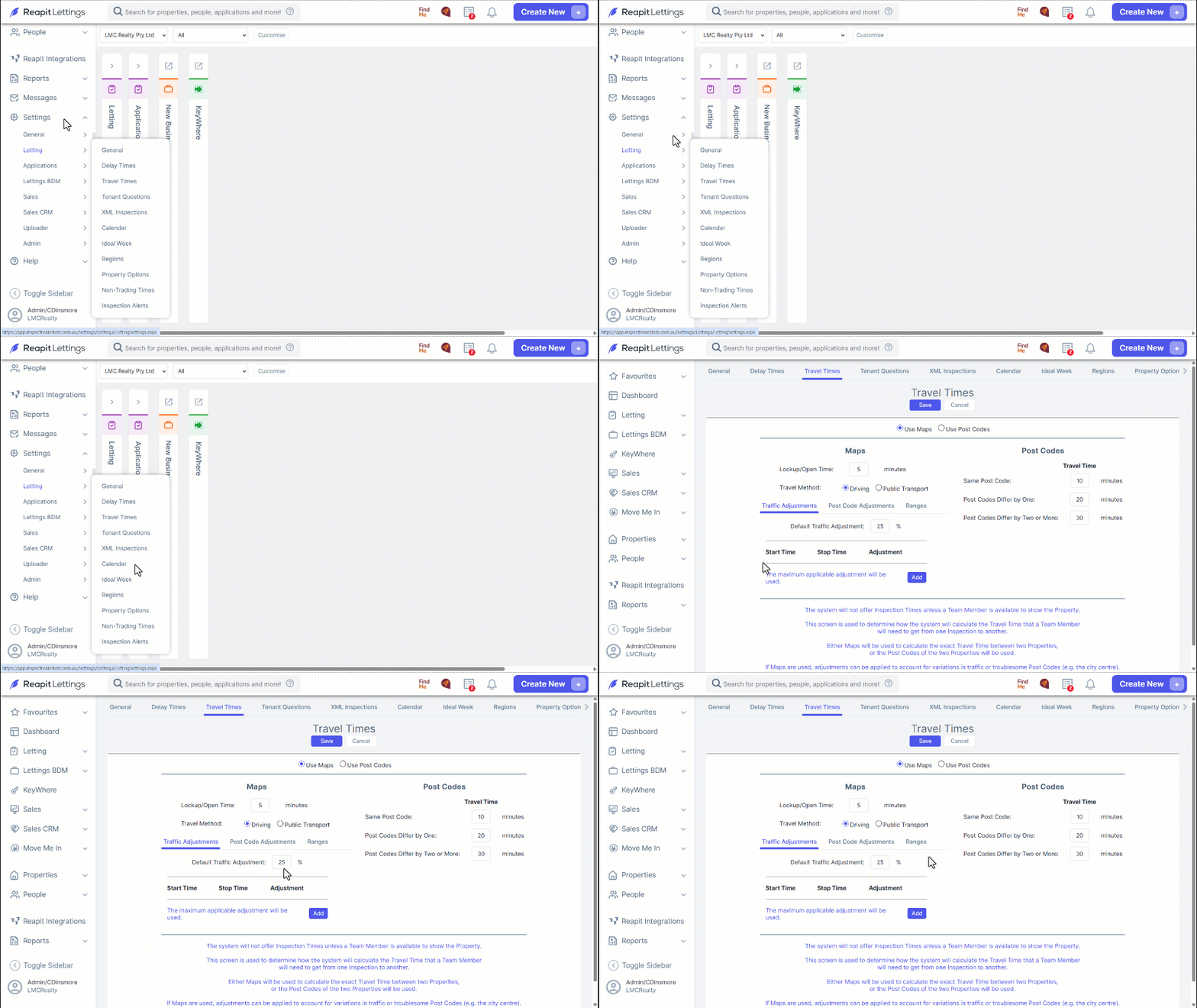
The travel time settings are used by the Run Wizard to determine travel times and include:
Maps: Uses exact travel routes to calculate travel time.
Post Codes: Use the post codes of the properties if maps cannot find a suitable route.
Travel Time Settings
Lockup/Open Time: Default is set to 5 minutes. This is the timeframe to lock up and open the property for for locking.
Travel Method: Choose between Driving or Public Transport.
Traffic Adjustments: Adjust travel times based on specific traffic conditions during different times of the day.
Post Code Adjustments: Adjust travel times for specific post codes.
Ranges: Set travel times based on the distance (KM) between inspections.
Traffic Adjustments
The default traffic adjustment is set at 25%.
To customise this, click Add to input a start and stop time, along with a value to adjust for traffic at specific intervals. For example, set a 50% adjustment between 7:00 AM and 9:00 AM.
Time-Specific Adjustments
- 7:00 AM to 9:00 AM: 50%
- 9:00 AM to 11:00 AM: 25%
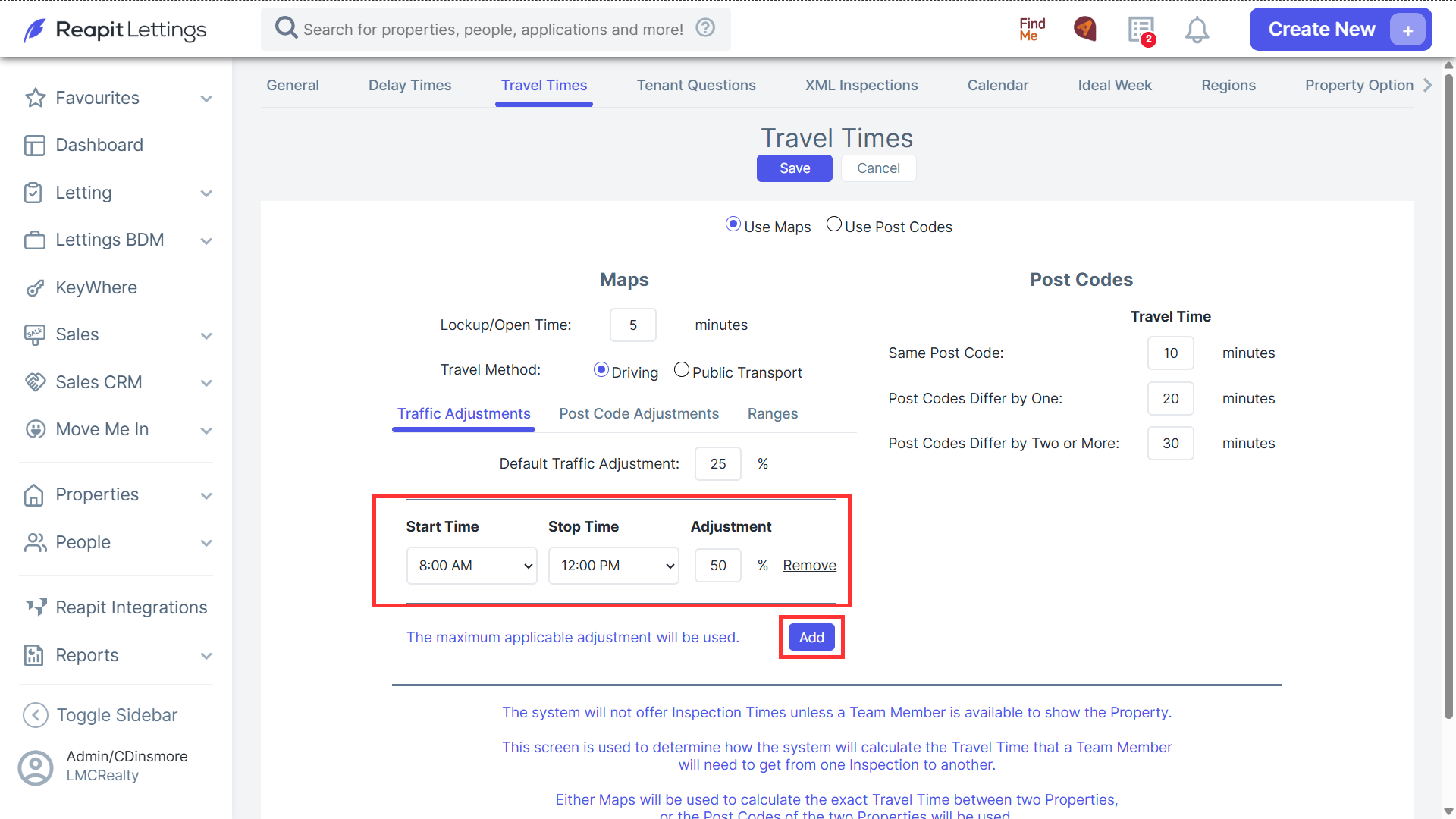
Post Code Travel Times:
Same Post Code: 10 minutes
Post Codes Differ by One: 20 minutes
Post Codes Differ by Two or More: 30 minutes
How to Configure Travel Time Settings
Select Maps or Post Codes: Generally, leave it on Maps for accurate travel times. Switch to Post Codes if it works better for your area (e.g., inner city).
Set Lockup/Open Time: Configure the time needed for lockup/open activities.
Adjust Traffic Settings:
- Set a default traffic adjustment percentage.
- Add time-specific adjustments to account for peak traffic periods.
- Configure Post Code Adjustments: Define travel times based on the similarity of postcode.
- Set Distance Ranges: Define travel times based on the distance between properties.
Efficiency Benefits
Tweaking these settings helps to ensure the Run Wizard provides accurate travel times between inspections, minimising the need for manual adjustments. This is particularly useful in areas with heavy traffic or unusual post code configurations.
Whatever is configured in this setting will then be applied to the inspection Run Wizard, helping you efficiently complete multiple inspections with the travel time and adjustments calculated for you, ensuring a smoother operation for your team.
To review how to use the Run Wizard for managing multiple inspections as well as setting up a property specific Ideal Week And Calendar Time, review the following help guides:
How to set up a property specific Ideal Week and Calendar Time