'%20d='M0%208a8%208%200%200%201%208-8h24a8%208%200%200%201%208%208v24a8%208%200%200%201-8%208H8a8%208%200%200%201-8-8V8Z'/%3e%3cpath%20fill='%23fff'%20d='M32.576%206C12.293%206%208.776%2025.887%207.424%2034H9.1c.45-2.977%203.493-14.748%2010.899-20.287%200%200-5.633%206.976-6.572%2015.051%203.426-.652%2013.845-3.372%2016.056-12.927l-3.84-.61c1.352-1.351%204.909-5.17%206.931-9.226V6Z'/%3e%3cdefs%3e%3clinearGradient%20id='reapit-lettings__a'%20x1='20.702'%20x2='20.702'%20y1='.351'%20y2='31.228'%20gradientUnits='userSpaceOnUse'%3e%3cstop%20stop-color='%235573FD'/%3e%3cstop%20offset='.575'%20stop-color='%234E56EA'/%3e%3c/linearGradient%3e%3c/defs%3e%3c/svg%3e)
How to Sync Inspections into your Email Calendar
This article will run through how to sync inspections from your account to your Office 365 or Google calendar With Reapit Lettings. The process in this article include: Configuring your staff Office 365 Calendar Configuring your staff Google Calendar
How to Sync Inspections into your Email Calendar
This article will run through how to sync inspections from your account to your Office 365 or Google calendar With Reapit Lettings.
The process in this article include:
- Configuring your staff Office 365 Calendar
- Configuring your staff Google Calendar
Contact your account manager to enable the correct integration.
Office 365 Calendar
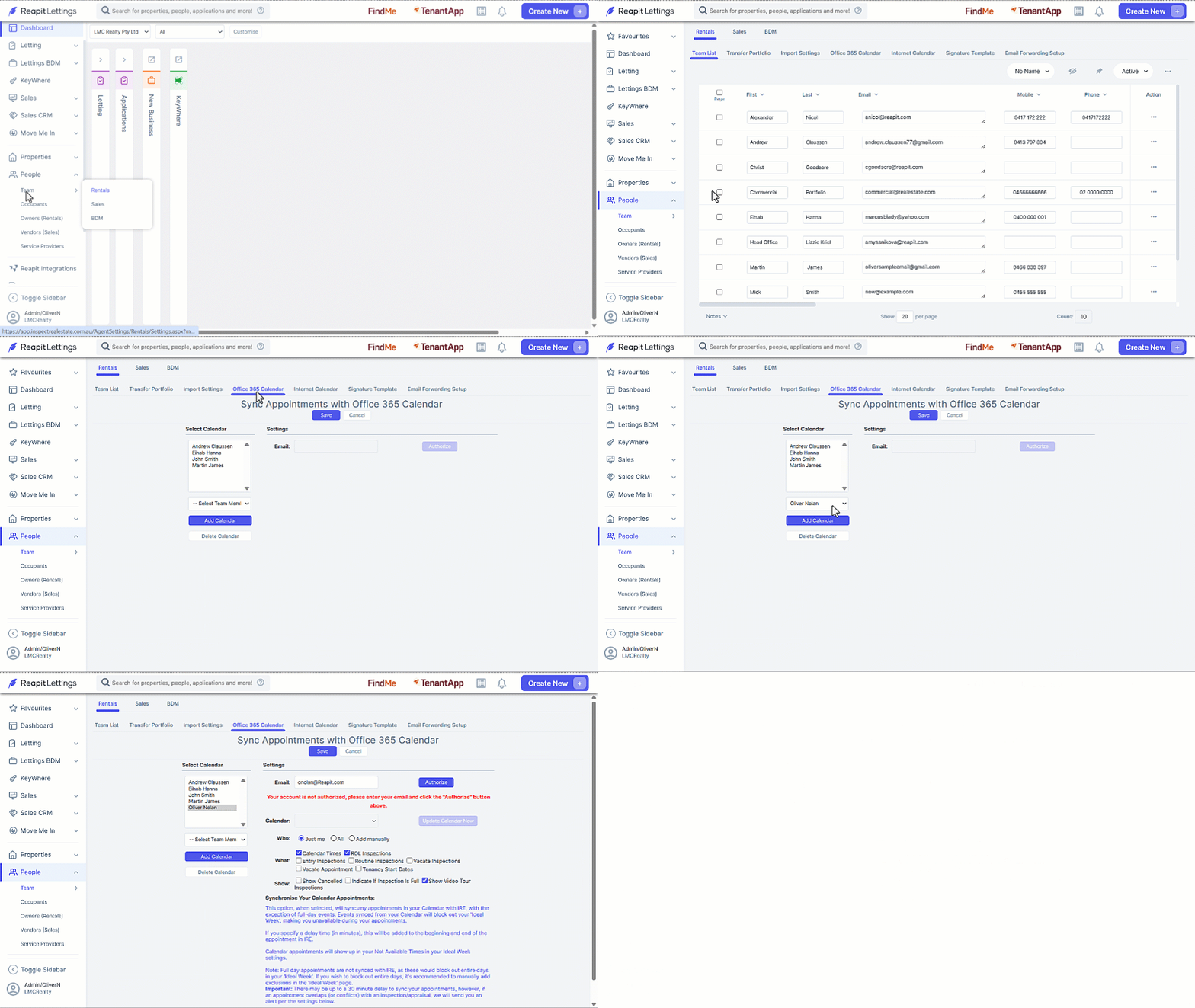
- Click on People.
- Click on Team.
- Click on Rentals.
- Select the Office 365 Calendar tab.
- Select team member from the dropdown.
- Click on Add Calendar.
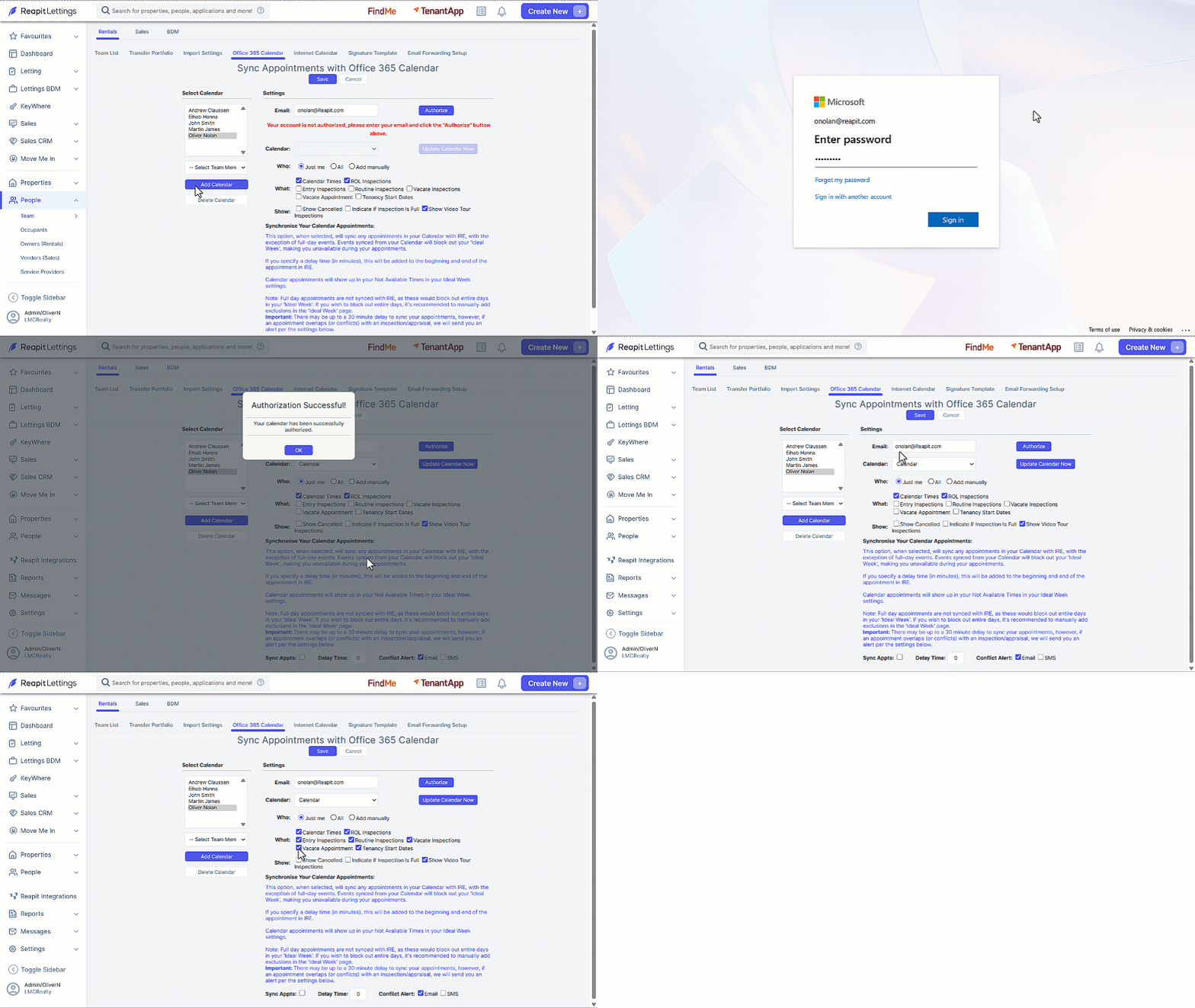
- Confirm the team members’ email address is correct. If it is incorrect, update in the Team list and return to this process.
- Click on Authorise.
- You will be directed to your office 365 login, login as normal. Complete MFA if prompted.
- Click OK on the Authorization Successful confirmation.
- Select/ deselect the settings required for your staff members’ synchronisation, Click on Save.
Google Calendar
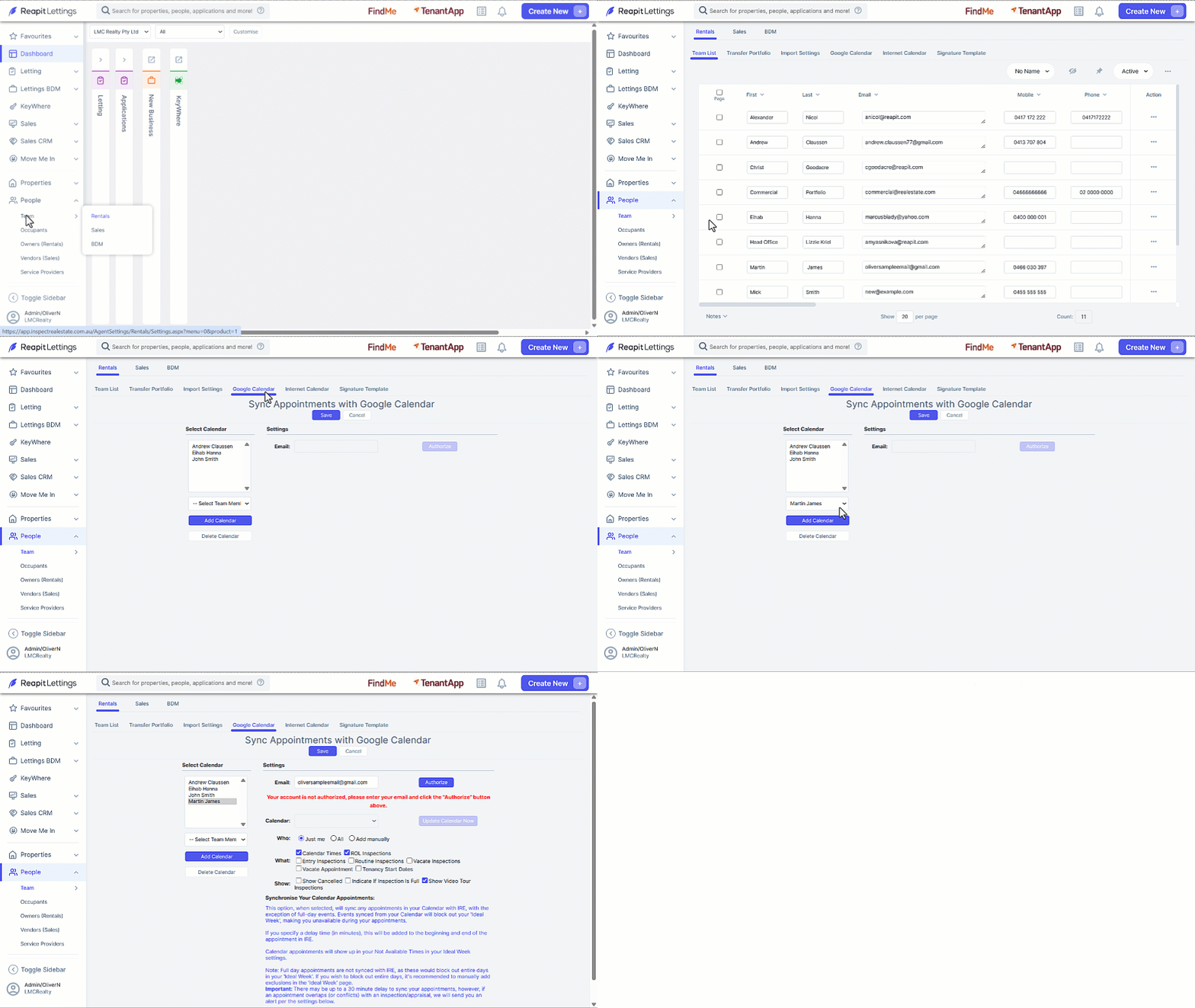
- Click on People.
- Click on Team.
- Click on Rentals.
- Select the Google Calendar tab.
- Select team member from the dropdown.
- Click on Add Calendar.
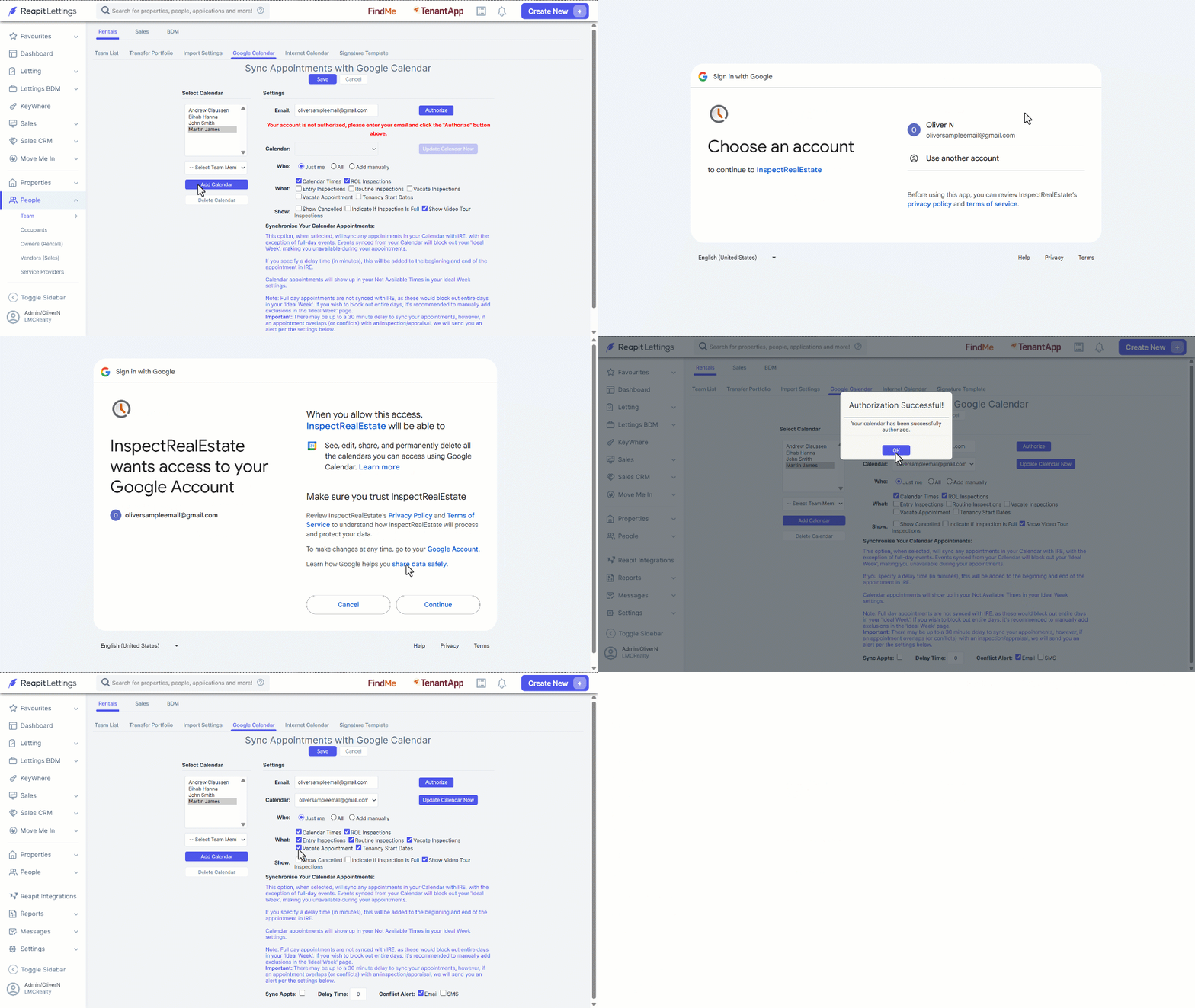
- Confirm the team members’ email address is correct. If it is incorrect, update in the Team list and return to this process.
- Click on Authorise.
- You will be directed to your Google account, follow the login prompts
- Click OK on the Authorization Successful confirmation.
- Select/ deselect the settings required for your staff members’ synchronisation, Click on Save.