'%20d='M0%208a8%208%200%200%201%208-8h24a8%208%200%200%201%208%208v24a8%208%200%200%201-8%208H8a8%208%200%200%201-8-8V8Z'/%3e%3cpath%20fill='%23fff'%20d='M32.576%206C12.293%206%208.776%2025.887%207.424%2034H9.1c.45-2.977%203.493-14.748%2010.899-20.287%200%200-5.633%206.976-6.572%2015.051%203.426-.652%2013.845-3.372%2016.056-12.927l-3.84-.61c1.352-1.351%204.909-5.17%206.931-9.226V6Z'/%3e%3cdefs%3e%3clinearGradient%20id='reapit-lettings__a'%20x1='20.702'%20x2='20.702'%20y1='.351'%20y2='31.228'%20gradientUnits='userSpaceOnUse'%3e%3cstop%20stop-color='%235573FD'/%3e%3cstop%20offset='.575'%20stop-color='%234E56EA'/%3e%3c/linearGradient%3e%3c/defs%3e%3c/svg%3e)
Lettings BDM Follow Up Report
This article will run through the Lettings BDM Follow Up Report in Reapit Lettings
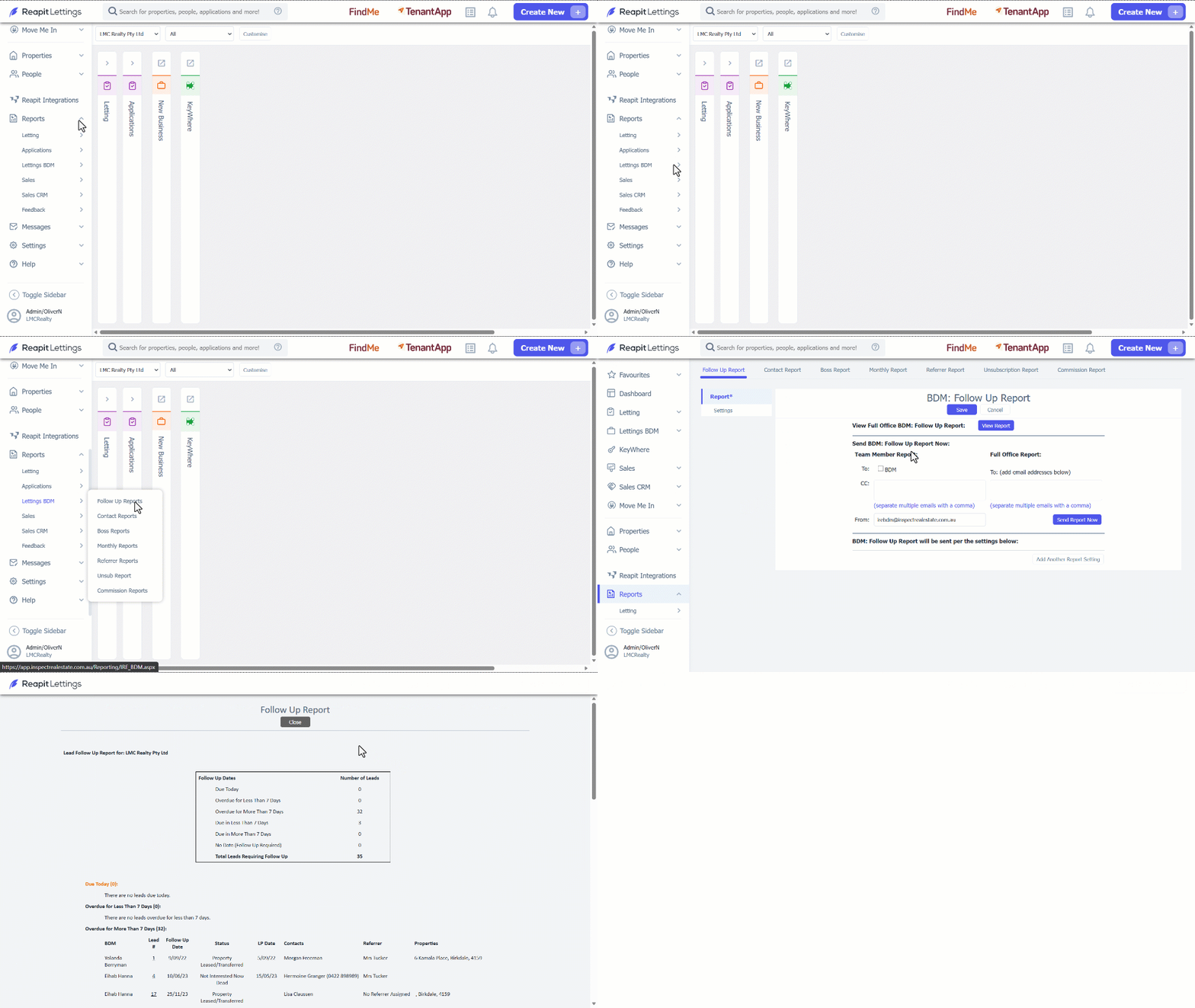
1. Click on Reports.
2. Click on Lettings BDM.
3. Select Follow up Reports.
4. To open the full report in a new tab, press View Report.
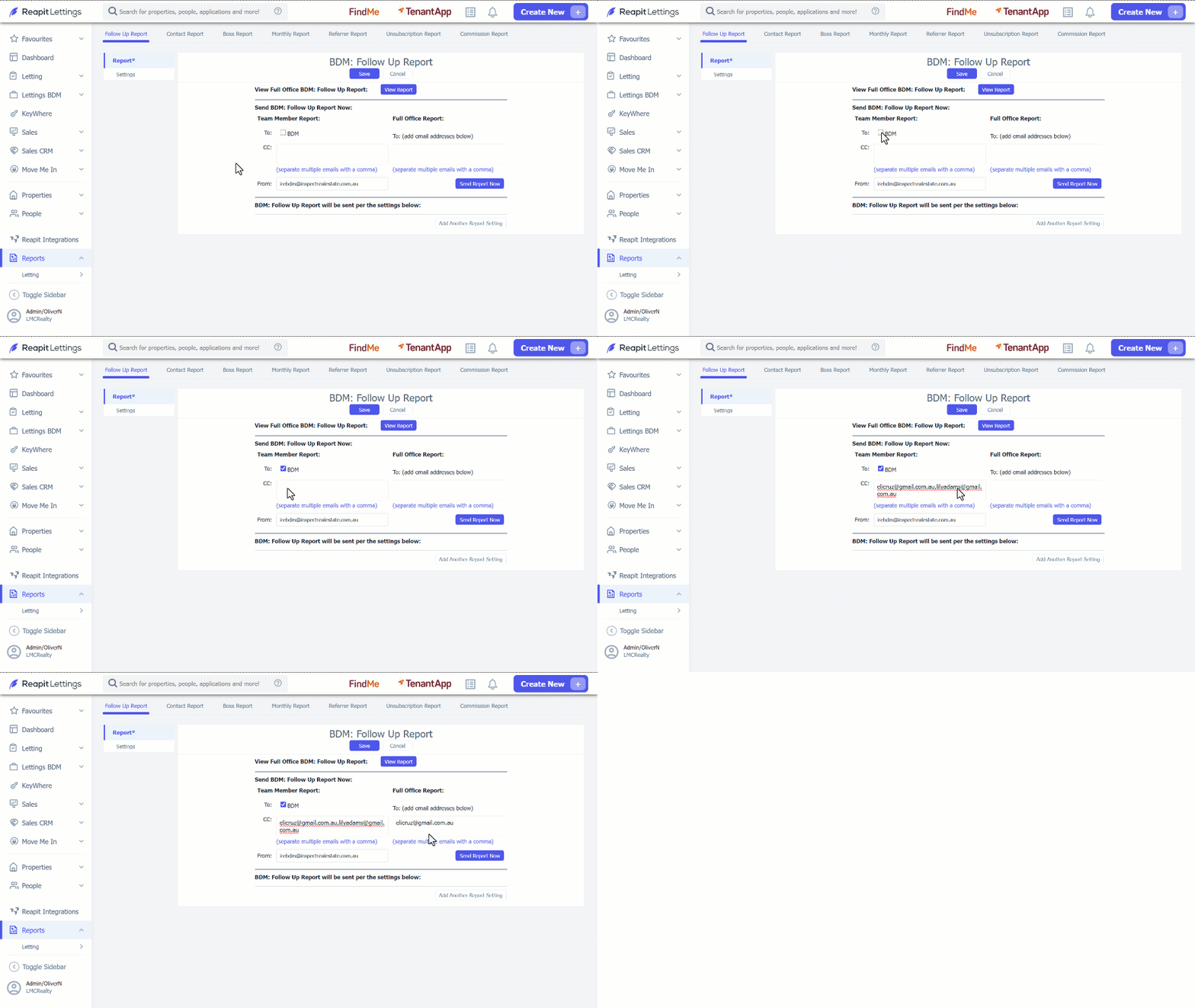
5. To send a copy of the report, the following options can be done.
5.1. Tick the checkbox to send to BDM under Team Member Report.
5.2. CC a member by adding the email address in the CC: text field. To add multiple emails, separate it with a comma.
5.3. For the Full Office Report, enter the appropriate email address in the Full Office Report section.
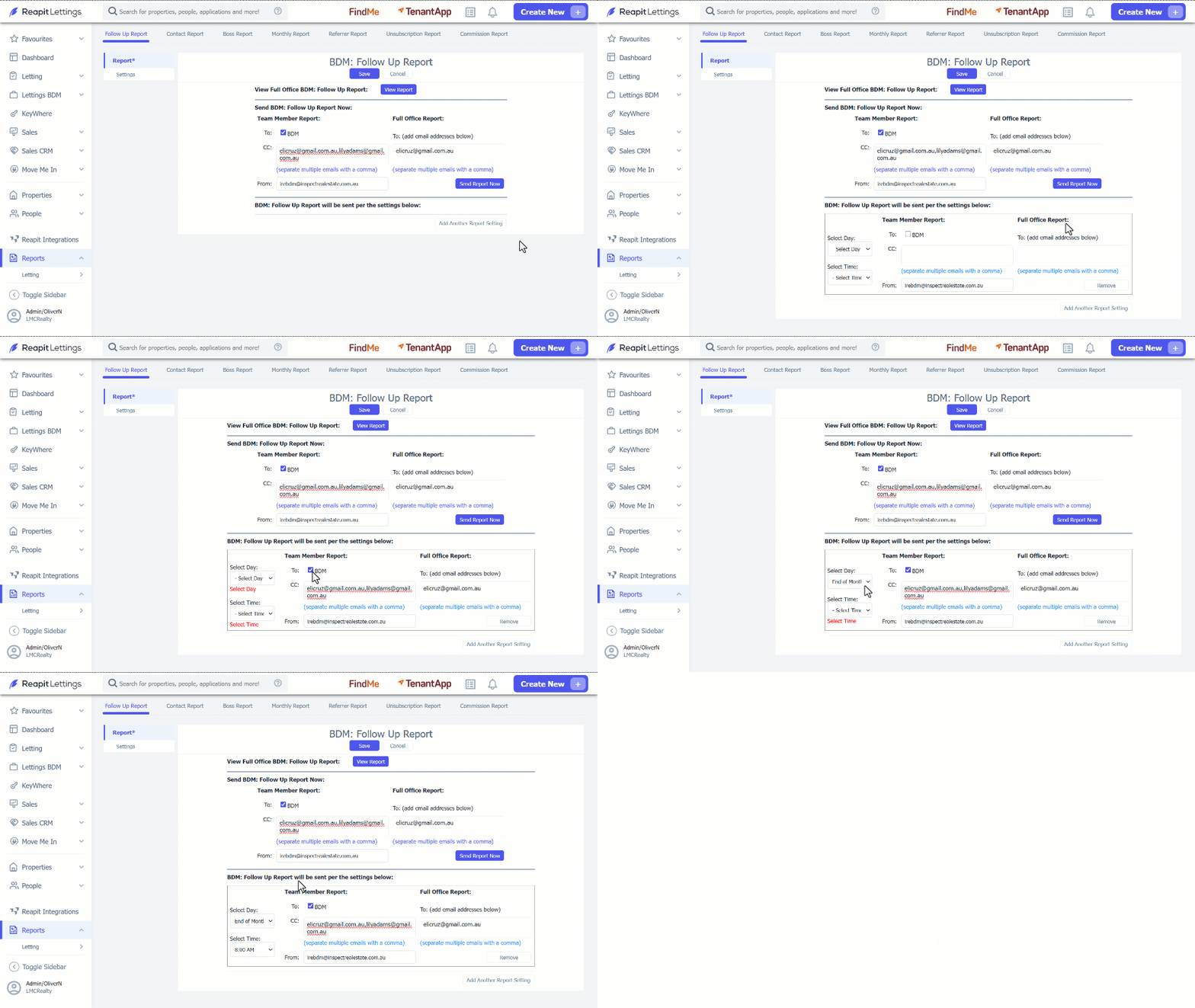
6. To add another report setting, such as reoccurring reports, click on Add Another Report Setting. This will open an extra section, where reoccurring report settings can be managed.
7. Manage the recipient via Team Member Report and Full Office Report section.
8. Select the Day and Time you would like the report to go.
9. Click on Save.