'%20d='M0%208a8%208%200%200%201%208-8h24a8%208%200%200%201%208%208v24a8%208%200%200%201-8%208H8a8%208%200%200%201-8-8V8Z'/%3e%3cpath%20fill='%23fff'%20d='M32.576%206C12.293%206%208.776%2025.887%207.424%2034H9.1c.45-2.977%203.493-14.748%2010.899-20.287%200%200-5.633%206.976-6.572%2015.051%203.426-.652%2013.845-3.372%2016.056-12.927l-3.84-.61c1.352-1.351%204.909-5.17%206.931-9.226V6Z'/%3e%3cdefs%3e%3clinearGradient%20id='reapit-lettings__a'%20x1='20.702'%20x2='20.702'%20y1='.351'%20y2='31.228'%20gradientUnits='userSpaceOnUse'%3e%3cstop%20stop-color='%235573FD'/%3e%3cstop%20offset='.575'%20stop-color='%234E56EA'/%3e%3c/linearGradient%3e%3c/defs%3e%3c/svg%3e)
Leads Campaigns Tab
This Reapit Lettings article explains how to Add and Manage Campaigns within a Lead. Note: There are 2 ways you can add Campaigns against Leads in Lettings BDM. The processes in this article include: Adding a Campaign – Individual Lead Putting a Campaign on Hold & Cancelling a Campaign Adding a Campaign to multiple Leads
Leads Campaigns Tab
This Reapit Lettings article explains how to Add and Manage Campaigns within a Lead.
Note: There are 2 ways you can add Campaigns against Leads in Lettings BDM.
The processes in this article include:
- Adding a Campaign – Individual Lead
- Putting a Campaign on Hold & Cancelling a Campaign
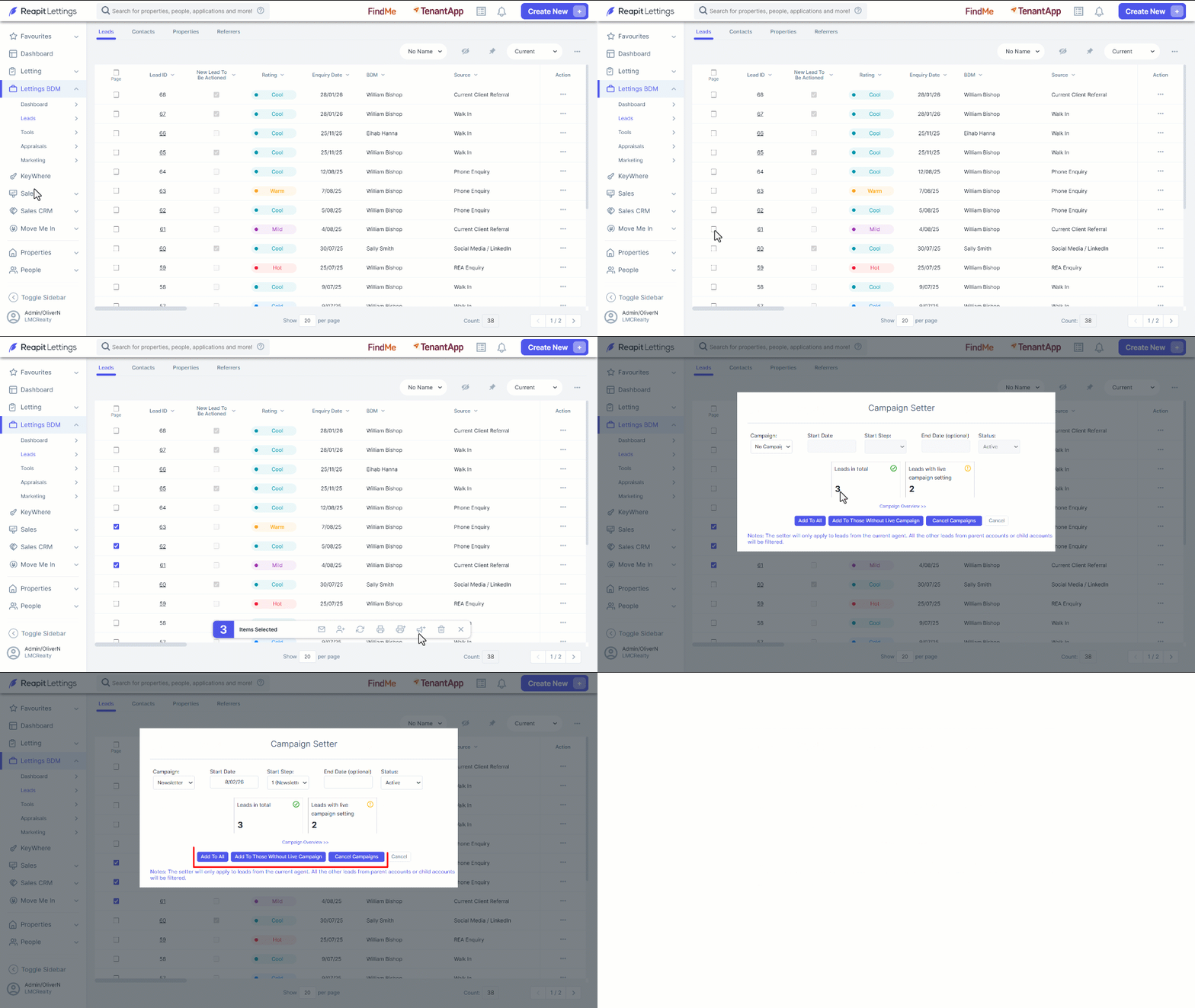
- Adding a Campaign to multiple Leads
Adding a Campaign – Individual Lead
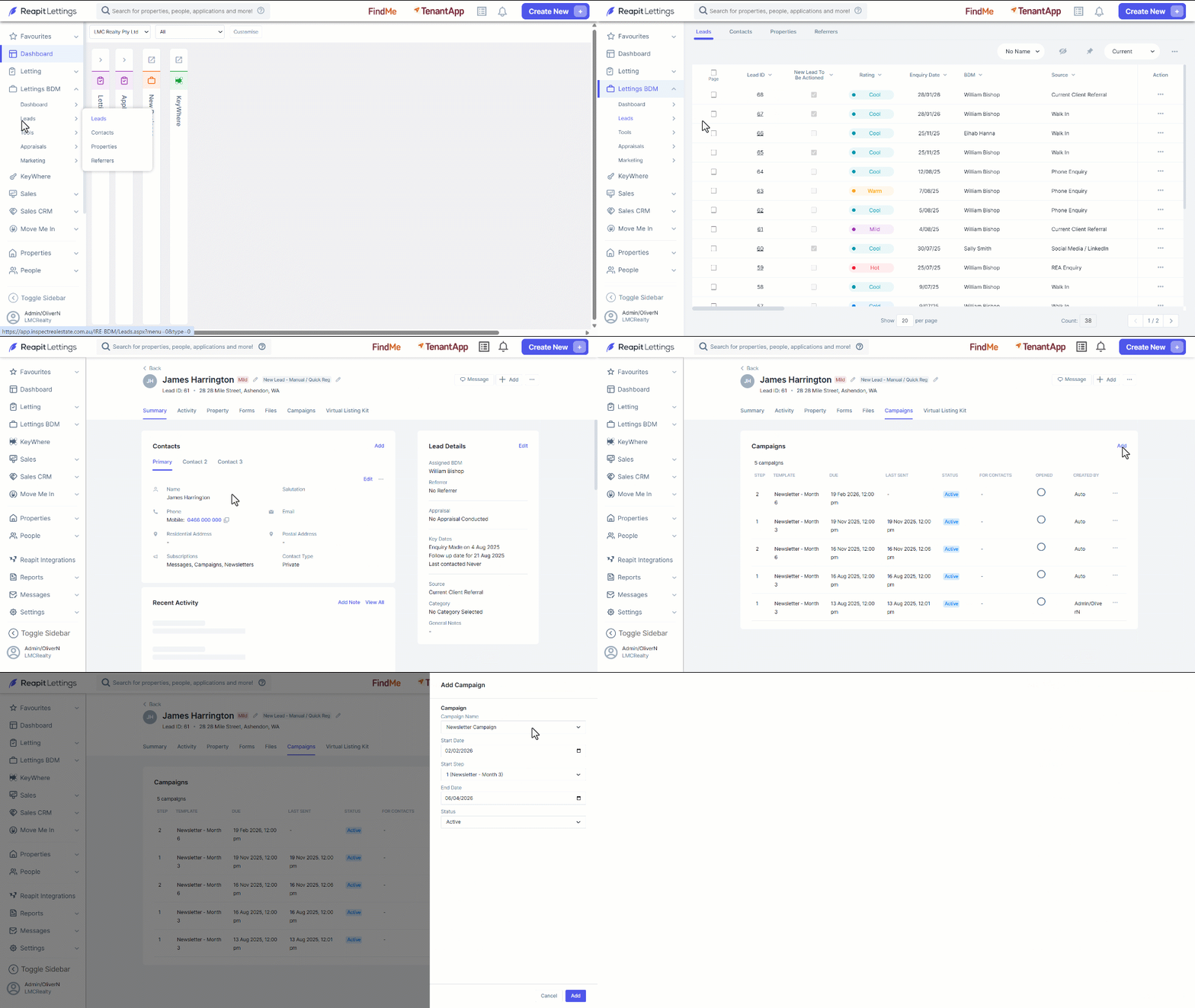
- Click on Lettings BDM.
- Click on Leads.
- Click on ****Leads.
- Select the required lead by clicking on the Lead ID.
- Select the Campaigns tab.
- Click on Add to open the Add Campaign Drawer.
- Select the campaign to add from the Campaign Name drop down. Select the Start Date, Start Step, End Date and Status as required, then click on Add.
- You will now see the campaign loaded against the lead.
Putting a Campaign on Hold & Cancelling a Campaign
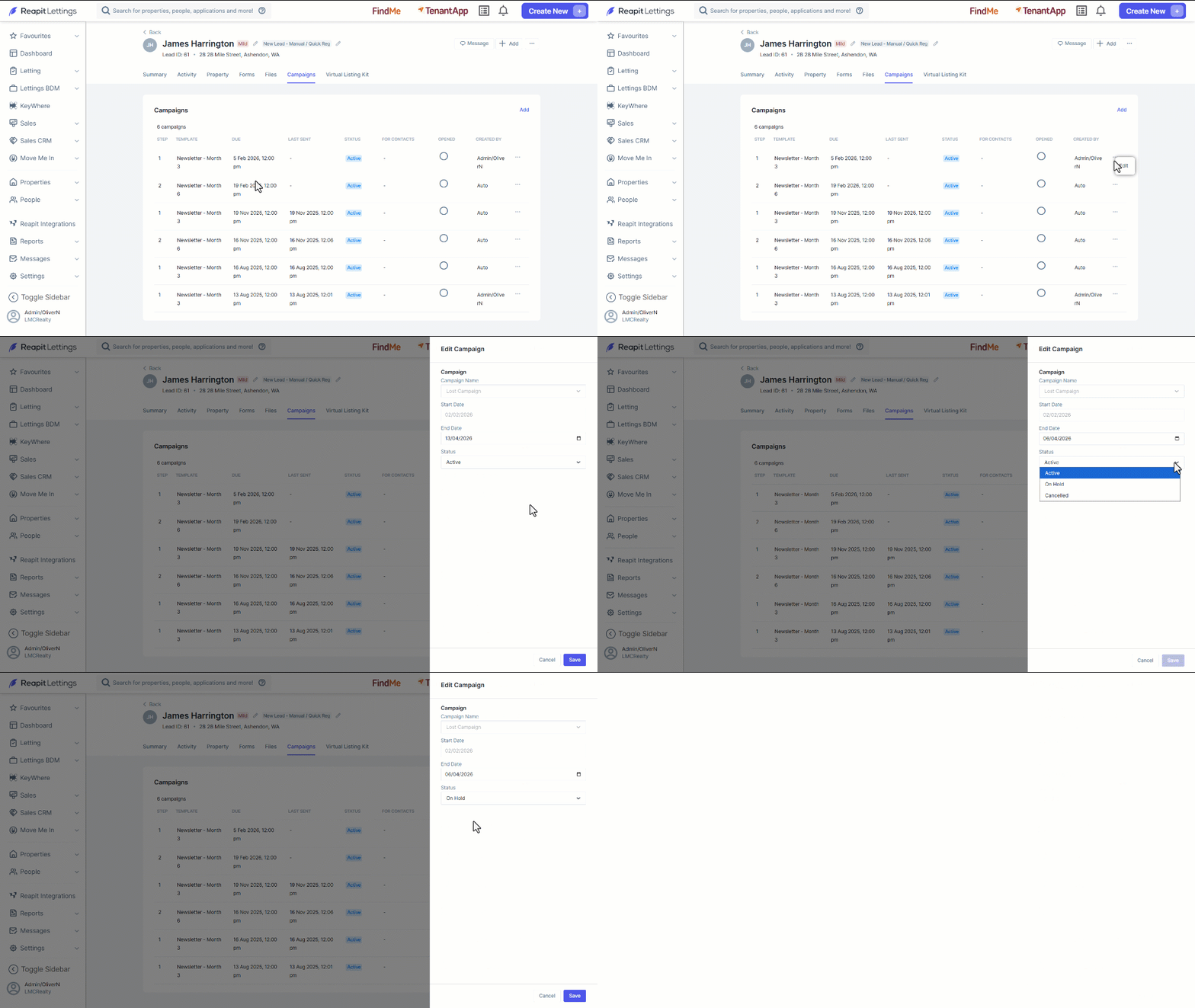
- From the Campaigns Tab, select the 3 dots on the campaign to be modified.
- Select Edit.
- Choose an End Date and / or change the Status using the dropdown.
- Click on Save.
Adding a Campaign to multiple Leads
- ****Use the page selector to choose the Leads on the Leads Grid.
- Click Setup Campaign.
- Select the Campaign you would like to assign, a start date, Start Step and End Date as required.
- Select the desired action button.
- Click on OK.