'%20d='M0%208a8%208%200%200%201%208-8h24a8%208%200%200%201%208%208v24a8%208%200%200%201-8%208H8a8%208%200%200%201-8-8V8Z'/%3e%3cpath%20fill='%23fff'%20d='M32.576%206C12.293%206%208.776%2025.887%207.424%2034H9.1c.45-2.977%203.493-14.748%2010.899-20.287%200%200-5.633%206.976-6.572%2015.051%203.426-.652%2013.845-3.372%2016.056-12.927l-3.84-.61c1.352-1.351%204.909-5.17%206.931-9.226V6Z'/%3e%3cdefs%3e%3clinearGradient%20id='reapit-lettings__a'%20x1='20.702'%20x2='20.702'%20y1='.351'%20y2='31.228'%20gradientUnits='userSpaceOnUse'%3e%3cstop%20stop-color='%235573FD'/%3e%3cstop%20offset='.575'%20stop-color='%234E56EA'/%3e%3c/linearGradient%3e%3c/defs%3e%3c/svg%3e)
How to View All Your Letting Enquiries
This article will run through how to view all your enquiries in Reapit Lettings.
How to View All Your Letting Enquiries
This article will run through how to view enquiries in Reapit Lettings.
The processes in this article include:
- How to View All Your Letting Enquiries
- Responding to an Enquiry
- How to Follow Up Tenants Who Indicated That They Would Apply for a Property
How to View All Your Letting Enquiries
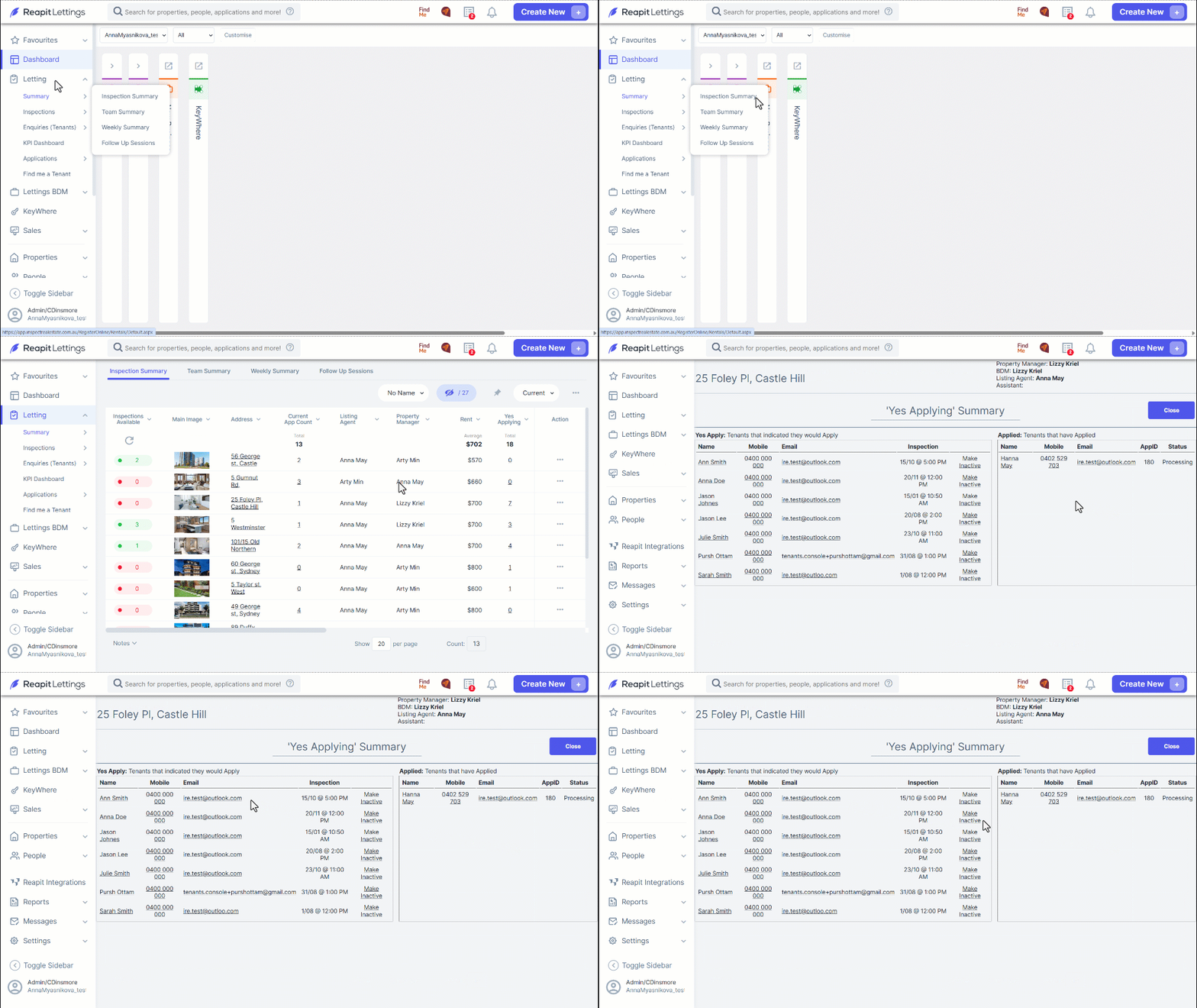
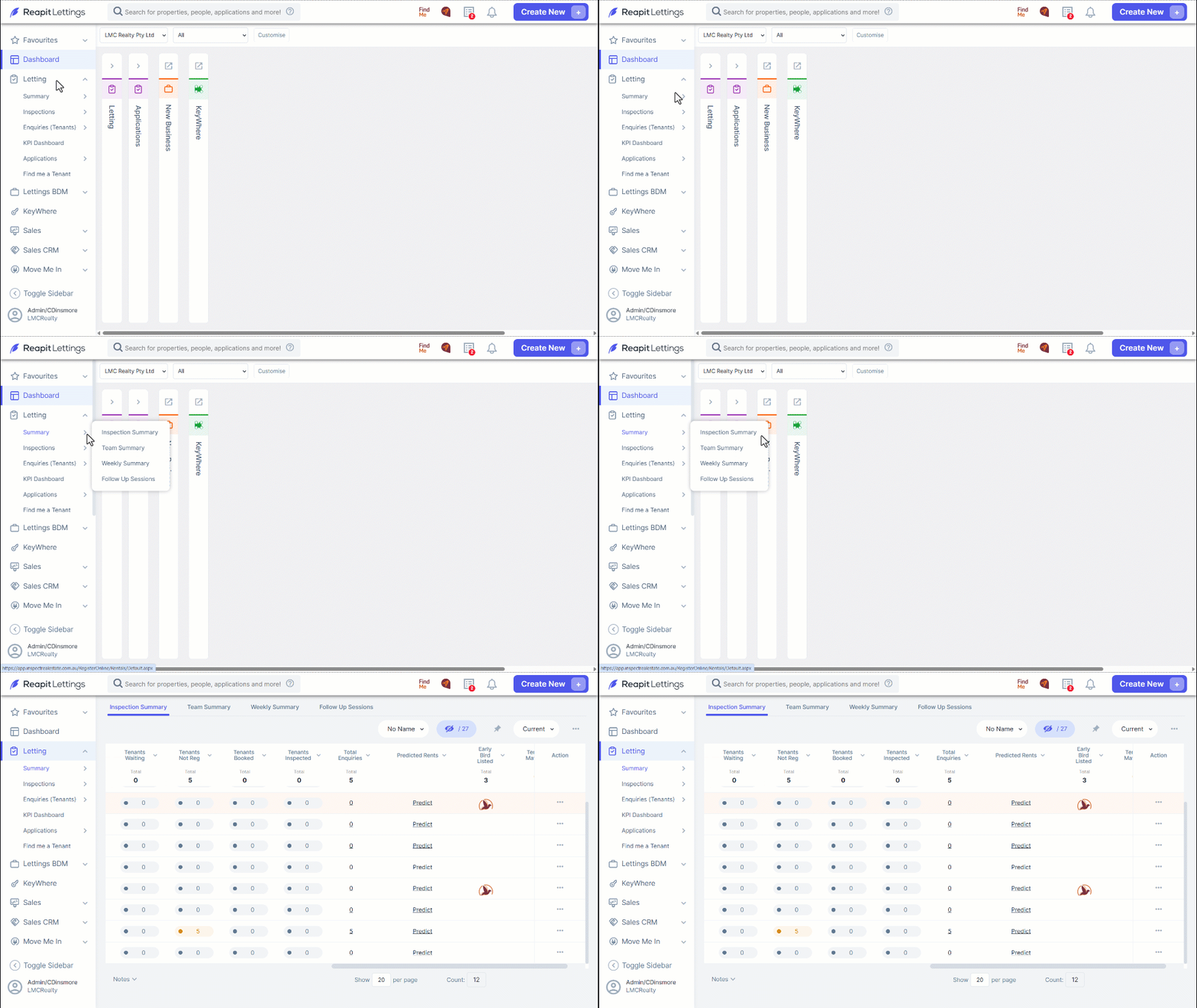
- Navigate to Letting.
- Click Summary.
- Click Inspection Summary.
- On the Summary Screen, your enquiries are sorted into categories and by property. Only active enquiries are shown.
- If you would like to see all your enquiries, you will need to use the ‘Tenants’ Screen.
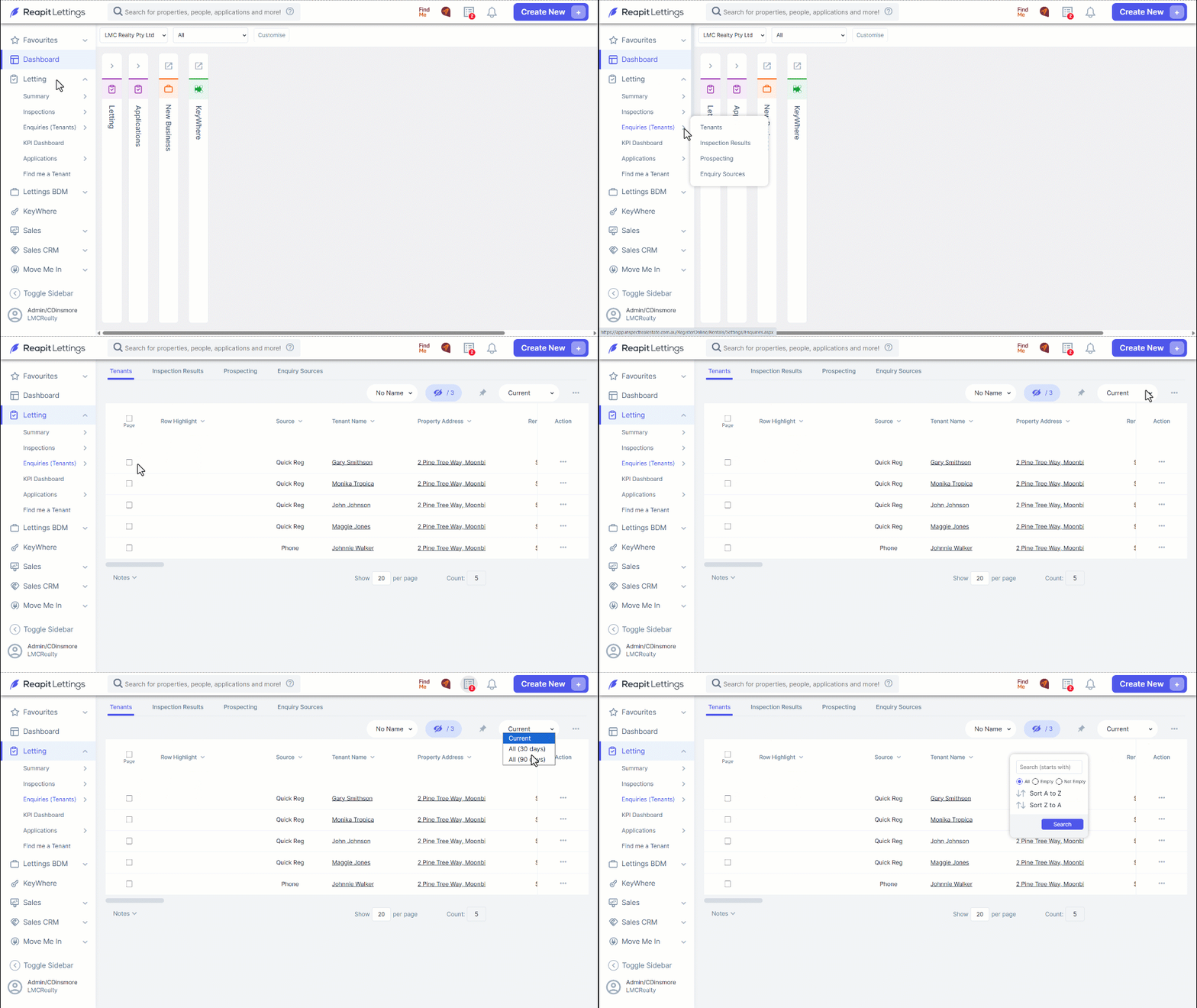
- Navigate to Lettings.
- Click Enquiries (Tenants).
- Click Tenants.
- This will show all your ‘active’ enquiries as default.
To view both active and inactive enquiries, you will need to show “All”. You can choose to show ‘All’ enquiries for the past 30 days or 90 days.
- You can then search these enquiries using any field in the search bar. Click on the column name for the search bar to appear.
Responding to an Enquiry
All email enquiries on major portals such as Realestate.com.au and Domain are automatically loaded into ROL rentals instead of your email inbox. All email enquiries receive an automatic response on your behalf. This automatic response is a great initial reply for people inquiring about a property. However, there are times that you will need to respond to queries about topics such as if pets are allowed, parking, furniture, or other questions.
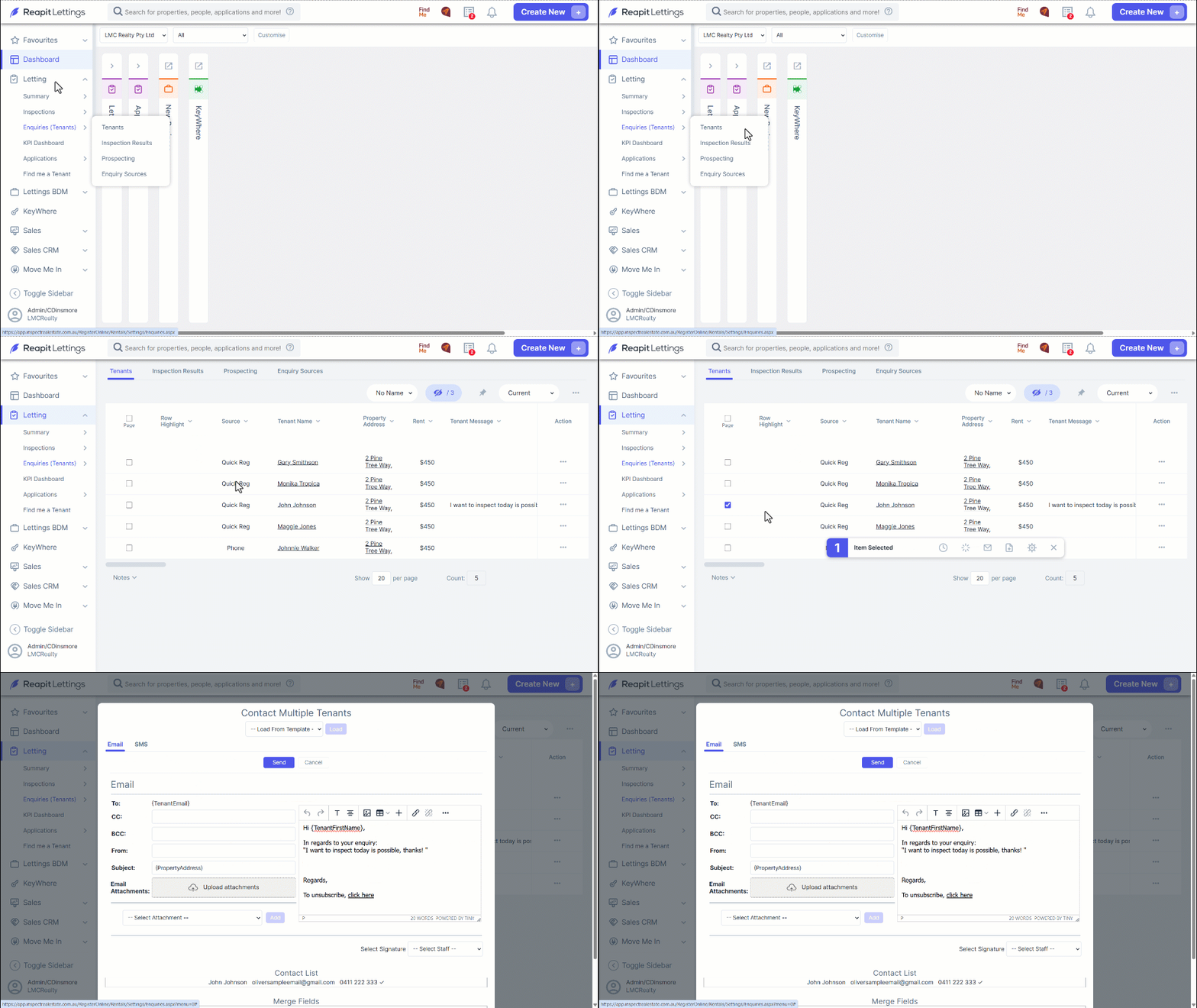
- Navigate to Letting.
- Click Enquiries (Tenants).
- Click Tenants.
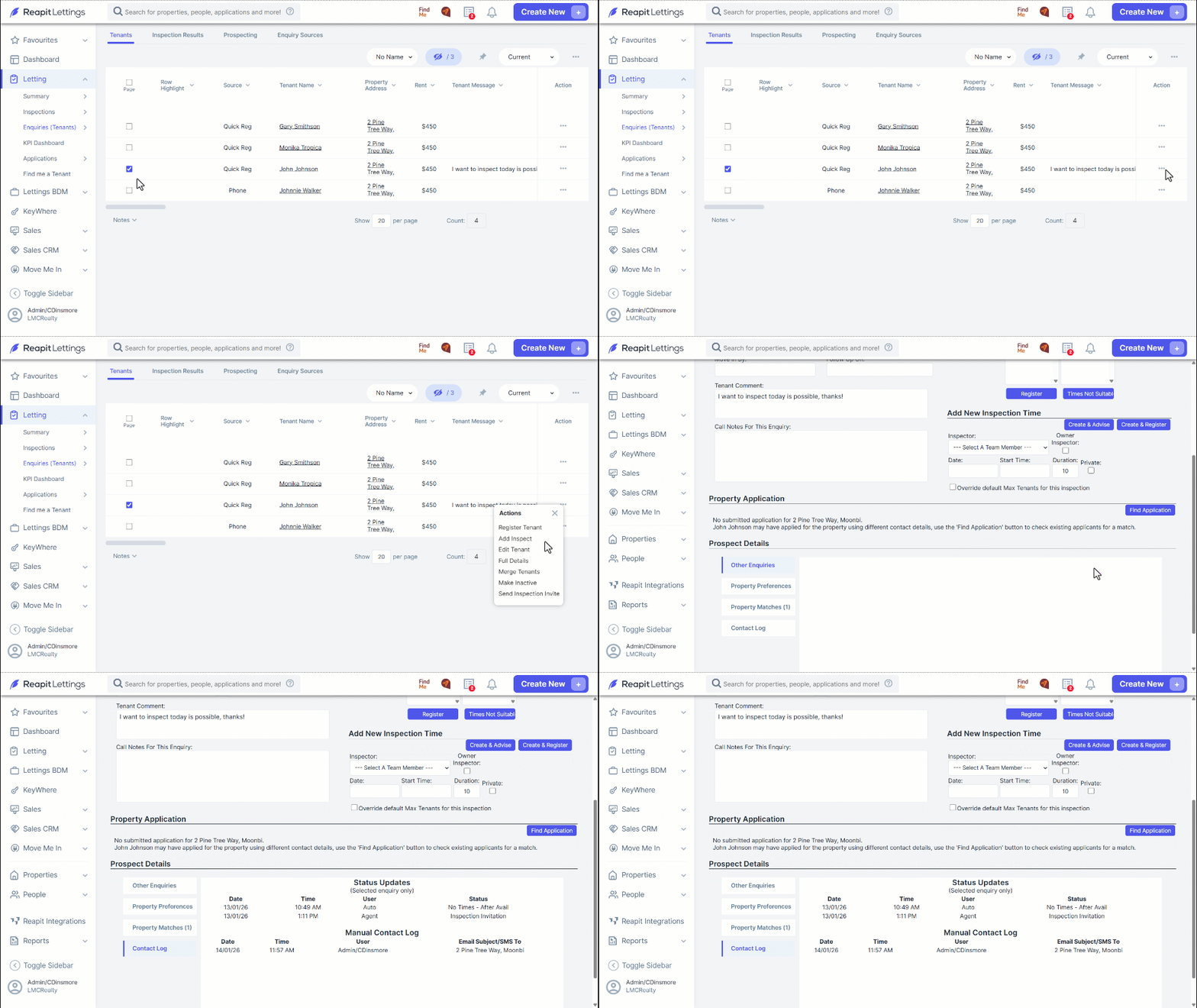
- Read the messages under Tenant Message and decide which one needs a reply. Any enquiries about viewing times will automatically get notified once you set up a viewing time. To reply, you click on the email address, and the screen will pop up for you to type in.
- Select the tenants that you want to contact, then select the envelope icon that will appear at the bottom of the screen. This icon will only appear once you have selected the tenants.
- This will lead to the messaging screen. Here you can customise the message that will be sent out to all the selected recipients.
- The message you’ve sent can be seen by going to the three dots located on the right side of the tenant's enquiry and selecting Full Details.
- Scroll down to Contact Log.
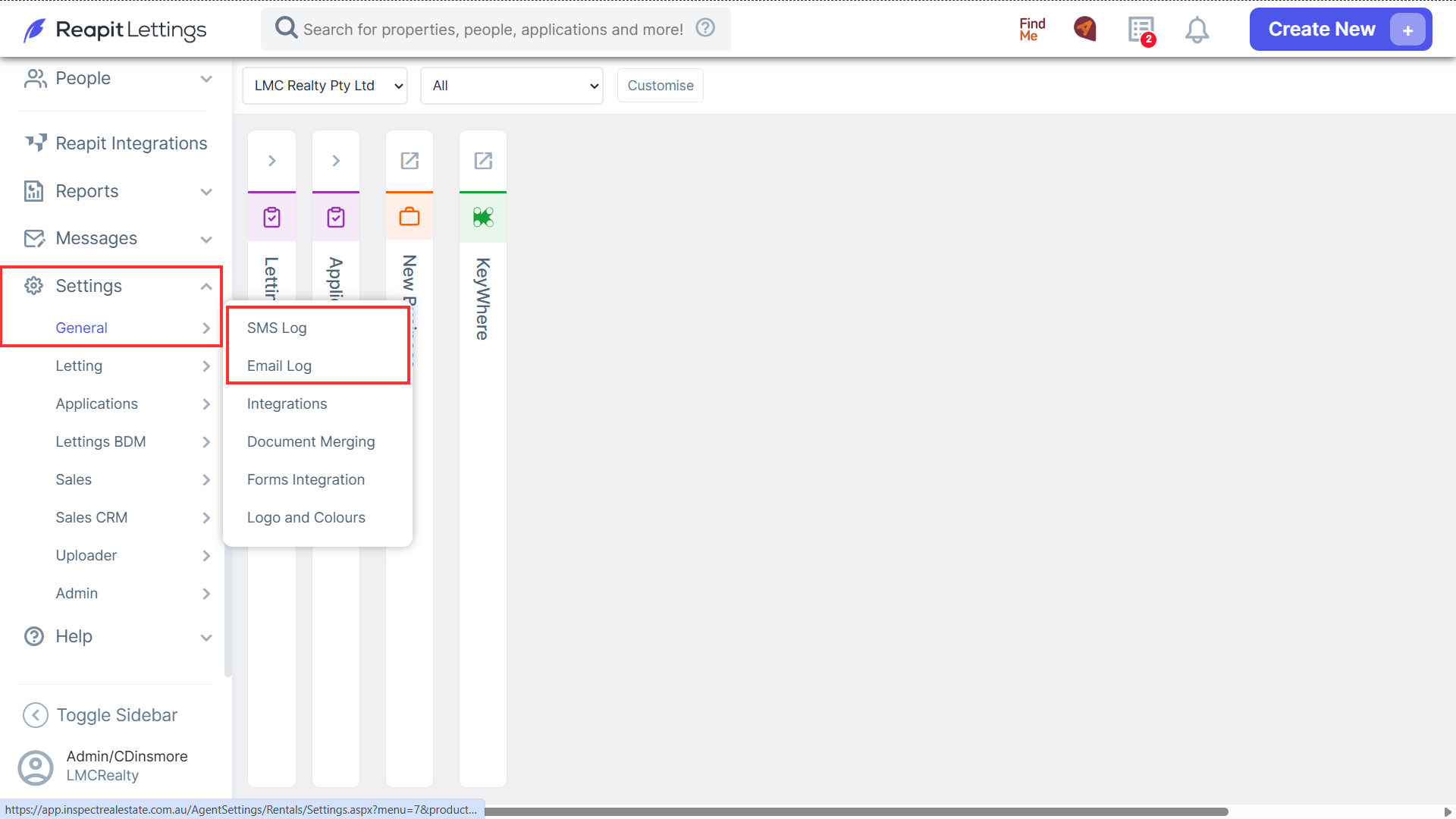
- Emails and SMS messages sent to anyone from Reapit Lettings, can also be found in the Settings > General > Email and SMS Log.
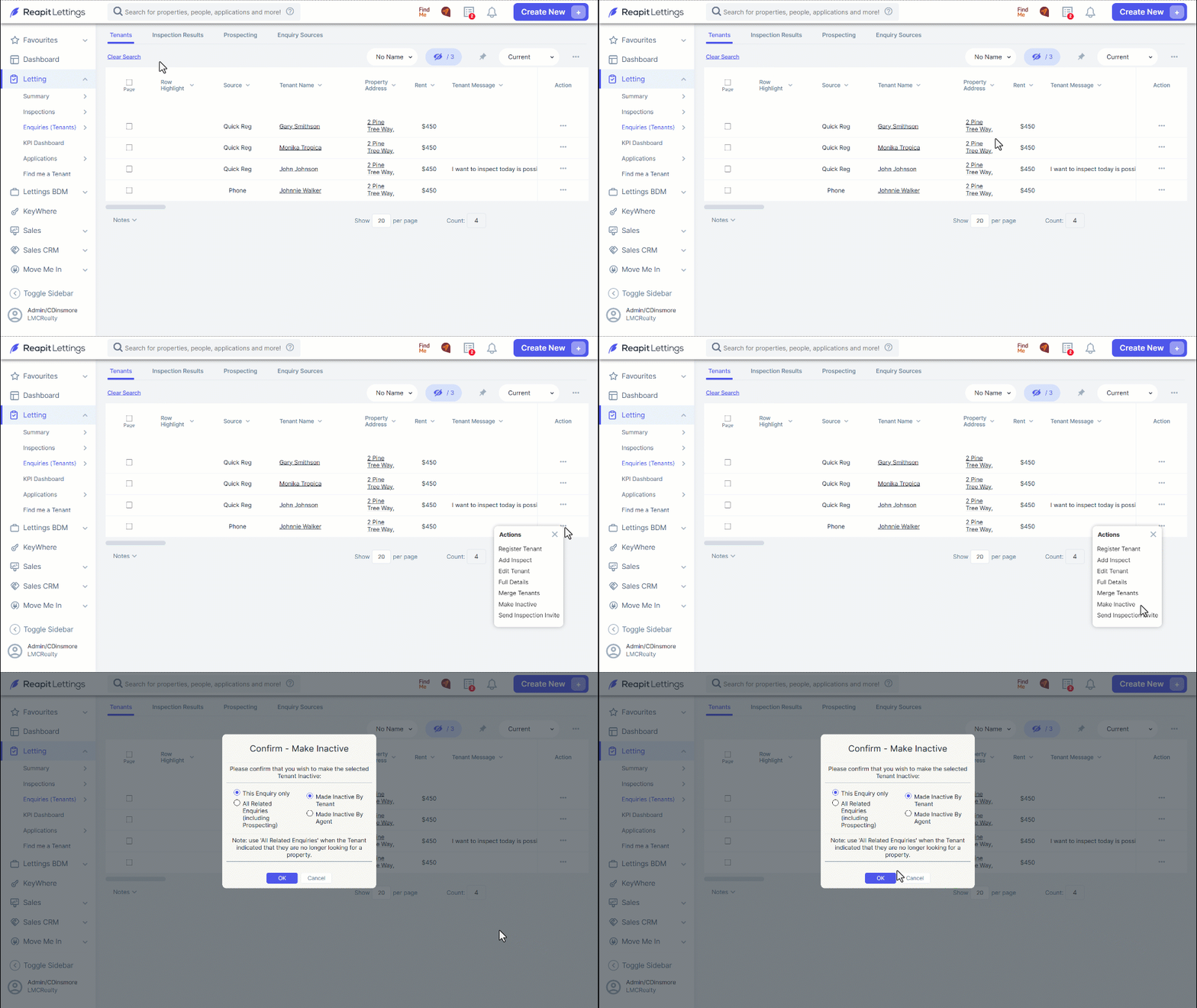
If a tenant has contacted you and would like to remove their enquiry for a specific property, you can set the prospective tenant enquiry as inactive. This will prevent further notifications for this particular property.
- From the Tenants page, find the specific tenant.
- Navigate to the three dots.
- Click Make Inactive.
- The Make Inactive pop up will allow you to select if you would like to make this enquiry inactive or make all enquiries inactive. Select the appropriate option and click OK Select This enquiry only keeps their enquiries on other properties active.
How to Follow Up Tenants Who Indicated That They Would Apply for a Property
- Navigate to Letting.
- Click Summary.
- Click Inspection Summary.
- Click the Yes Applying column for the property you would like to action.
- On the left, you will see all the tenants who indicated they would apply – it will list their name, contact information and the inspection they attended.
- On the right, you will see all the applicants you have loaded in for that property. It will list the applicants, their contact details, their application ID and application status.
- To follow up a tenant who indicated they would apply but has not yet applied, you can send them an email and/or SMS by clicking on their name, email address or mobile number.
- If you contact the potential applicant and they are no longer interested in applying for the property, press the ‘Make Inactive’ link to remove that tenant from your follow up list (they’ll remain in your database).