User Settings and Adding a User in KeyWhere
This article will run through user settings and adding a user in Keywhere.
The processes in this article include:
- User Settings
- Manage Users
- Account Functions
- Edit in Lettings
- Manage In Lettings
- Adding a New User
Note:
For Real Estate users, user settings from Reapit Lettings ****should be the same in KeyWhere, so anything previously setup with other Reapit Lettings products will be ready to go. Similarly, if you change something in KeyWhere it will also be changed in Reapit Lettings. This is something to think about before reading on.
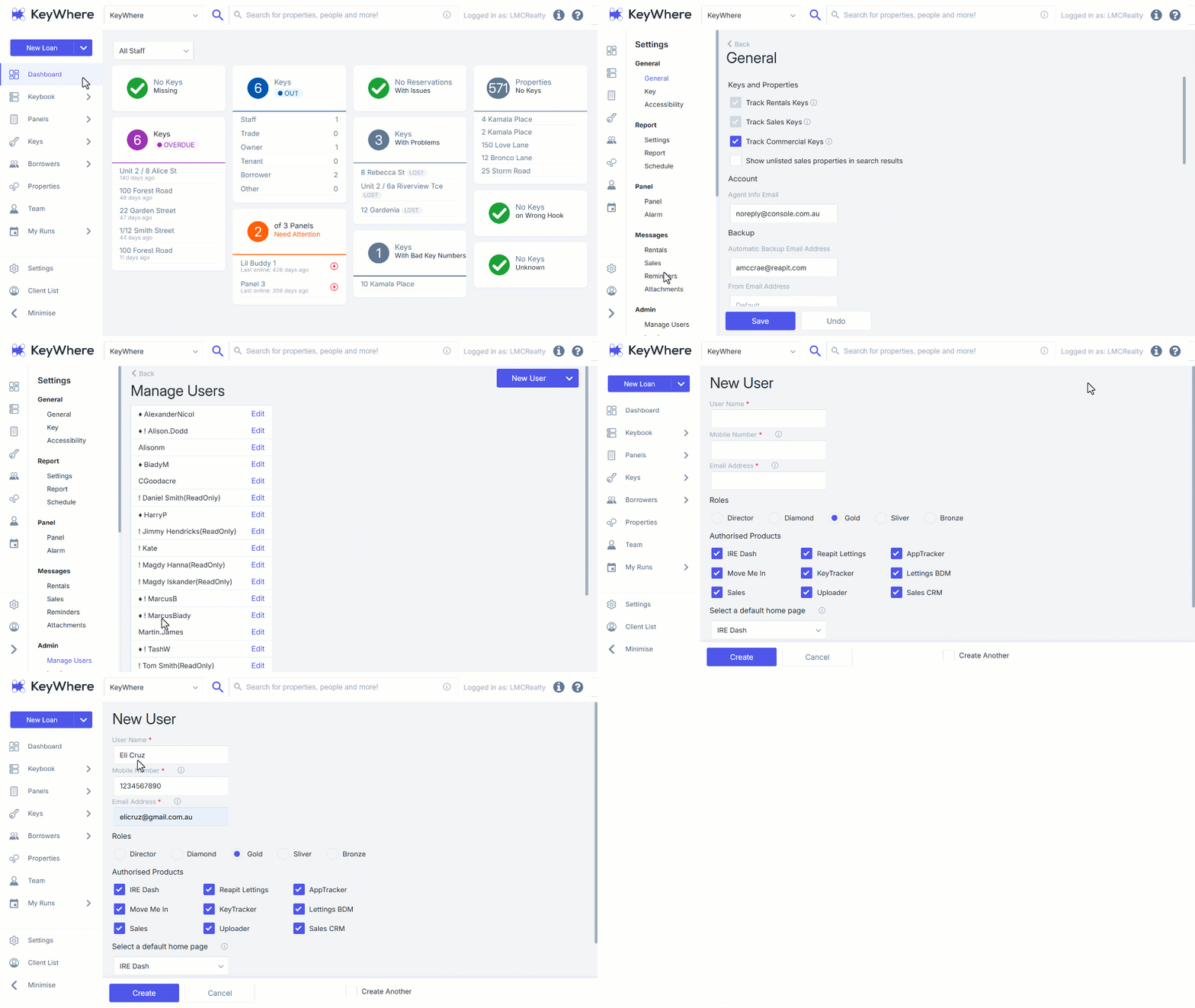
User Settings Manage Users 1. Click on Settings. 2. Navigate to subcategory Admin. 3. Click on Manage User. 4. Locate the user you wish to edit and click on Edit to edit their details, permissions and/or disable or unlock their account. This opens the Edit User screen. Follow the on-screen prompts to edit their information, role and permissions. 5. Click on Save. 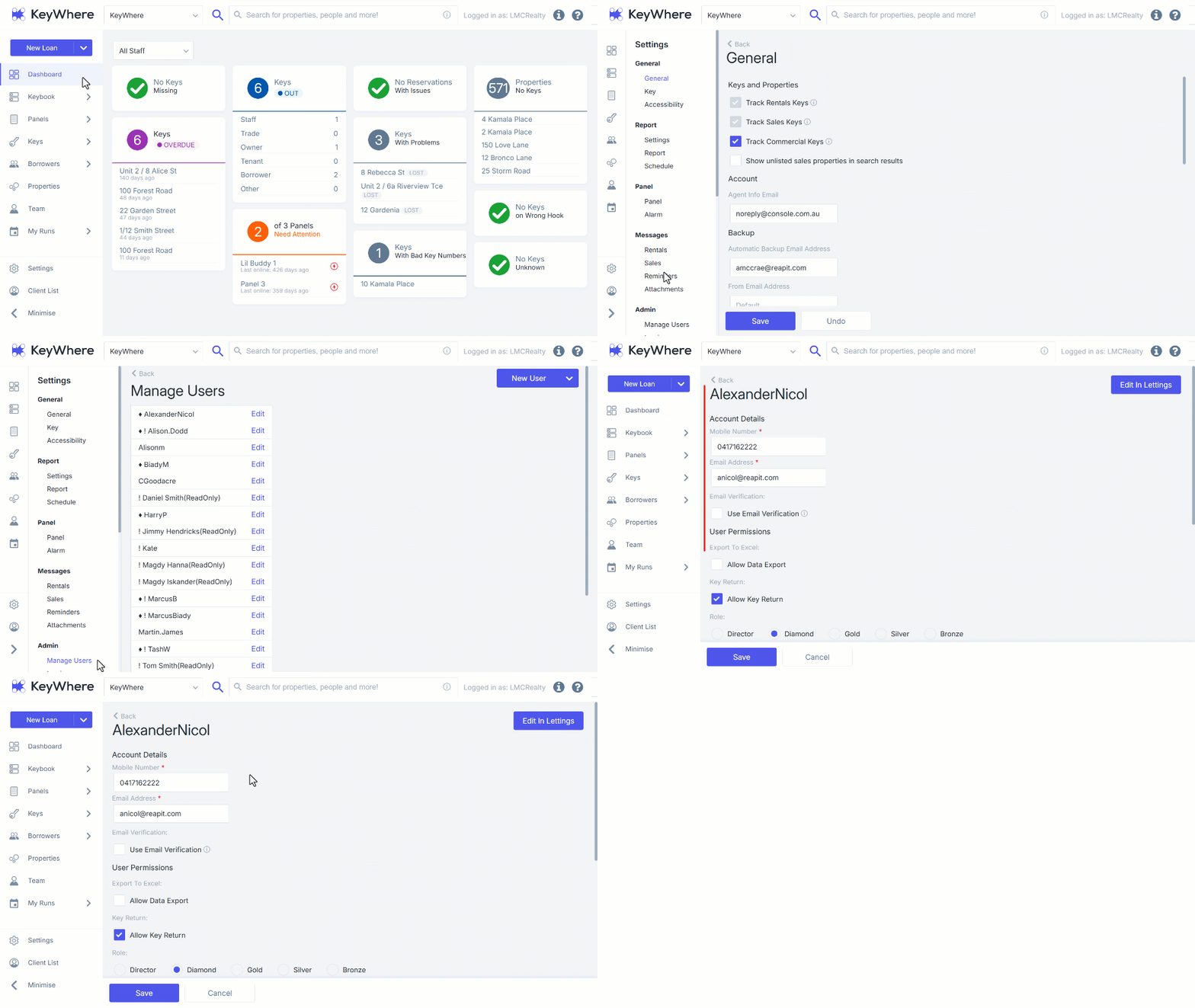 Account Functions From the Edit User page, the account functions section can be used to:
- Reset Password.
- Disable or Enable their account.
- Undo an account lockout. If an account becomes locked out due to five incorrect login attempts, select the 'Undo Lockout' button to resolve the issue.
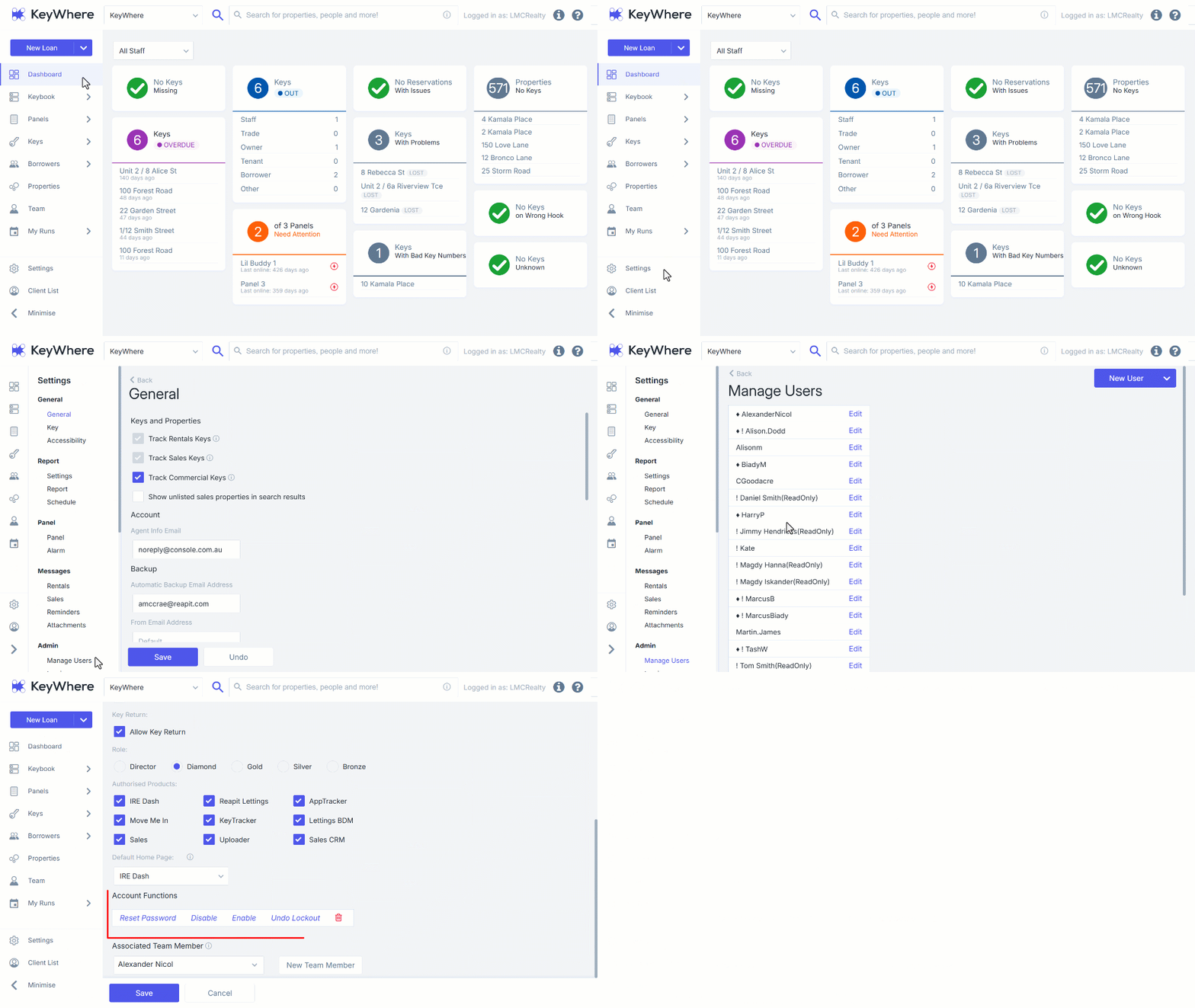 Edit in Lettings For users with other Reapit Lettings products, you can edit users using the Reapit Lettings portal. 1. Navigate to the user that you would like to edit using the steps above, then click the Edit in Lettings button. 2. You will then be redirected to log in into Reapit Lettings. 3. Once logged in, you will be redirected to the edit page of the user you selected.
 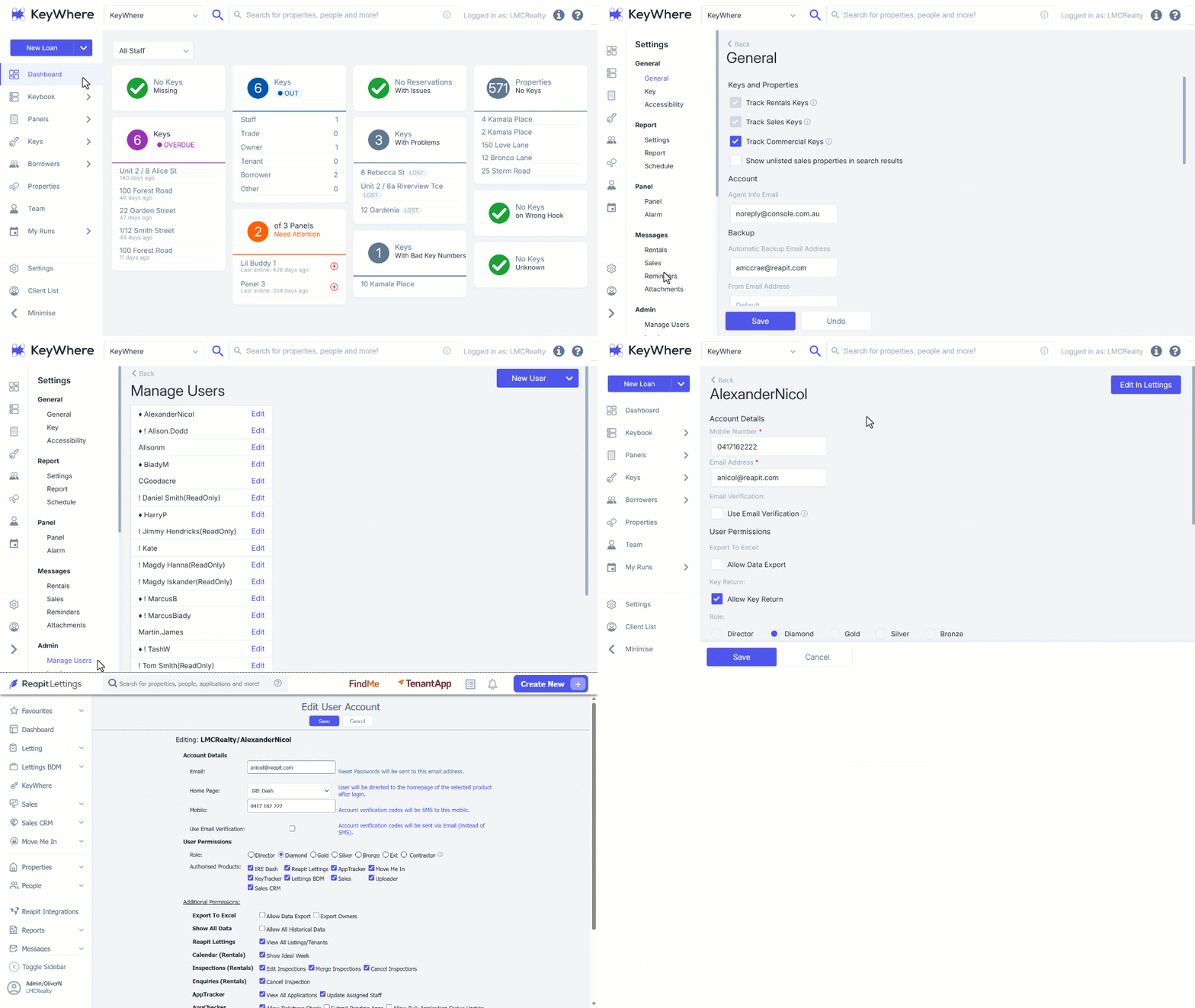 Manage In Lettings For users with other Reapit Lettings products, you can manage users using the Reapit Lettings portal. 1. Navigate to the user's page using the steps above. 2. Navigate the top right-hand corner of the screen and select Manage in Lettings. 3. You will be redirected to log in to ****Reapit Lettings. **** 4. Once logged in, you will be redirected to the manage users page in Reapit Lettings. This contains more advanced features than the ones you find in KeyWhere.
 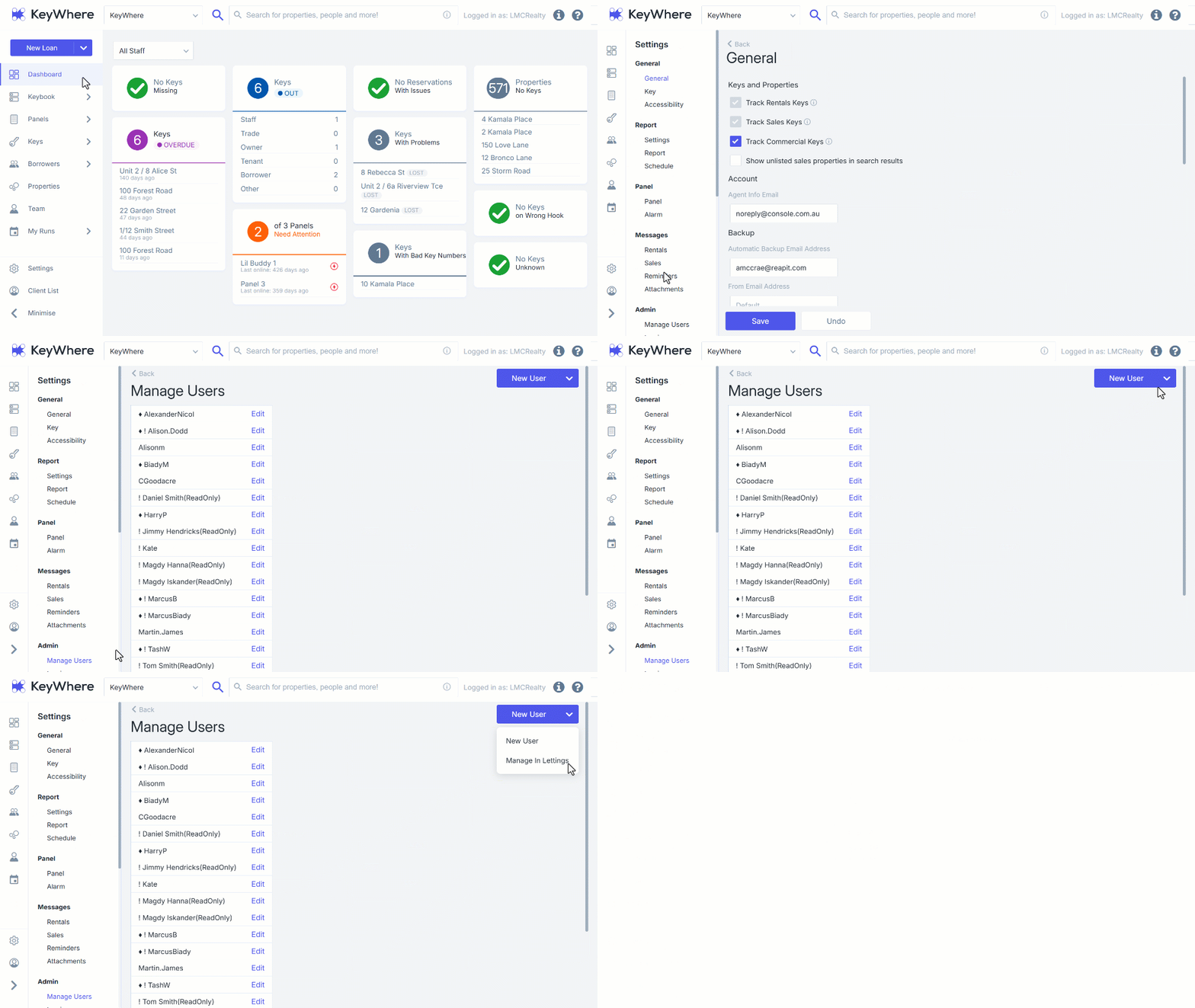 Adding a New User 1. Click on Settings. 2. Navigate to subcategory Admin. 3. Click on Manage User. 4. Click the New User button in the top right-hand corner of the screen. 5. This will open the New User page. Fill in the relevant details and preferences and follow the on-screen prompts to complete the process. 6. To save the new user, click Create in the bottom left of the screen.
  Note: When making multiple users in a session, it may be useful to check Create Another in the bottom right before clicking "Create." Having this option enabled will make it so that clicking "Create" will take you right back to a new "Create User" screen, rather than back to the Settings page.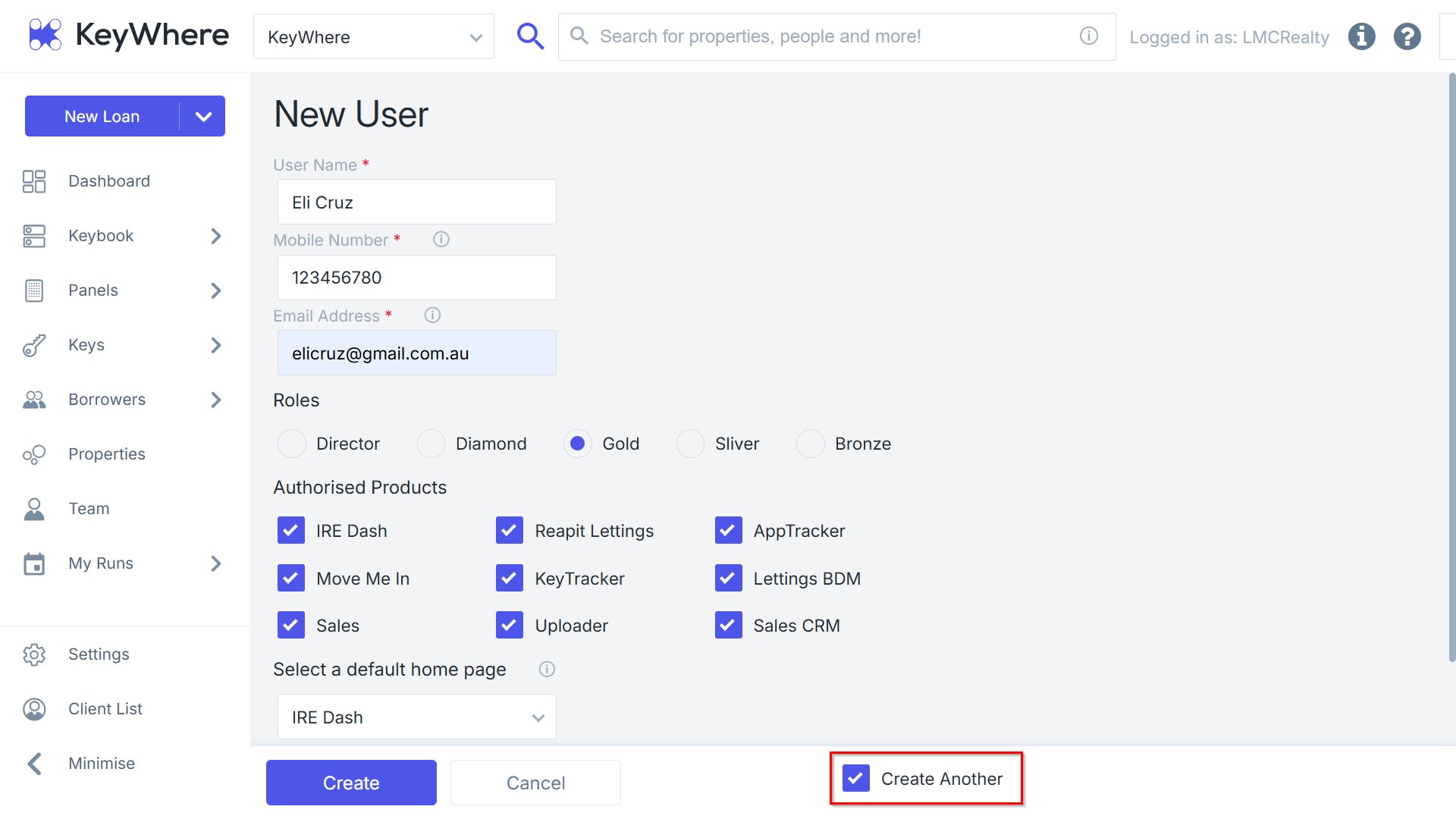
'%20d='M0%208a8%208%200%200%201%208-8h24a8%208%200%200%201%208%208v24a8%208%200%200%201-8%208H8a8%208%200%200%201-8-8V8Z'/%3e%3cpath%20fill='%23fff'%20d='M32.576%206C12.293%206%208.776%2025.887%207.424%2034H9.1c.45-2.977%203.493-14.748%2010.899-20.287%200%200-5.633%206.976-6.572%2015.051%203.426-.652%2013.845-3.372%2016.056-12.927l-3.84-.61c1.352-1.351%204.909-5.17%206.931-9.226V6Z'/%3e%3cdefs%3e%3clinearGradient%20id='reapit-lettings__a'%20x1='20.702'%20x2='20.702'%20y1='.351'%20y2='31.228'%20gradientUnits='userSpaceOnUse'%3e%3cstop%20stop-color='%235573FD'/%3e%3cstop%20offset='.575'%20stop-color='%234E56EA'/%3e%3c/linearGradient%3e%3c/defs%3e%3c/svg%3e)