'%20d='M0%208a8%208%200%200%201%208-8h24a8%208%200%200%201%208%208v24a8%208%200%200%201-8%208H8a8%208%200%200%201-8-8V8Z'/%3e%3cpath%20fill='%23fff'%20d='M32.576%206C12.293%206%208.776%2025.887%207.424%2034H9.1c.45-2.977%203.493-14.748%2010.899-20.287%200%200-5.633%206.976-6.572%2015.051%203.426-.652%2013.845-3.372%2016.056-12.927l-3.84-.61c1.352-1.351%204.909-5.17%206.931-9.226V6Z'/%3e%3cdefs%3e%3clinearGradient%20id='reapit-lettings__a'%20x1='20.702'%20x2='20.702'%20y1='.351'%20y2='31.228'%20gradientUnits='userSpaceOnUse'%3e%3cstop%20stop-color='%235573FD'/%3e%3cstop%20offset='.575'%20stop-color='%234E56EA'/%3e%3c/linearGradient%3e%3c/defs%3e%3c/svg%3e)
How to Sync Your Calendar with Google Gmail
This article will run through how to sync your calendar with Google/ Gmail in Reapit Lettings. Note: These steps must be completed by the person who has access to the inbox calendar that is being synced.
This article will run through how to sync your calendar with Google/ Gmail in Reapit Lettings.
Note:
- These steps must be completed by the person who has access to the inbox calendar that is being synced.
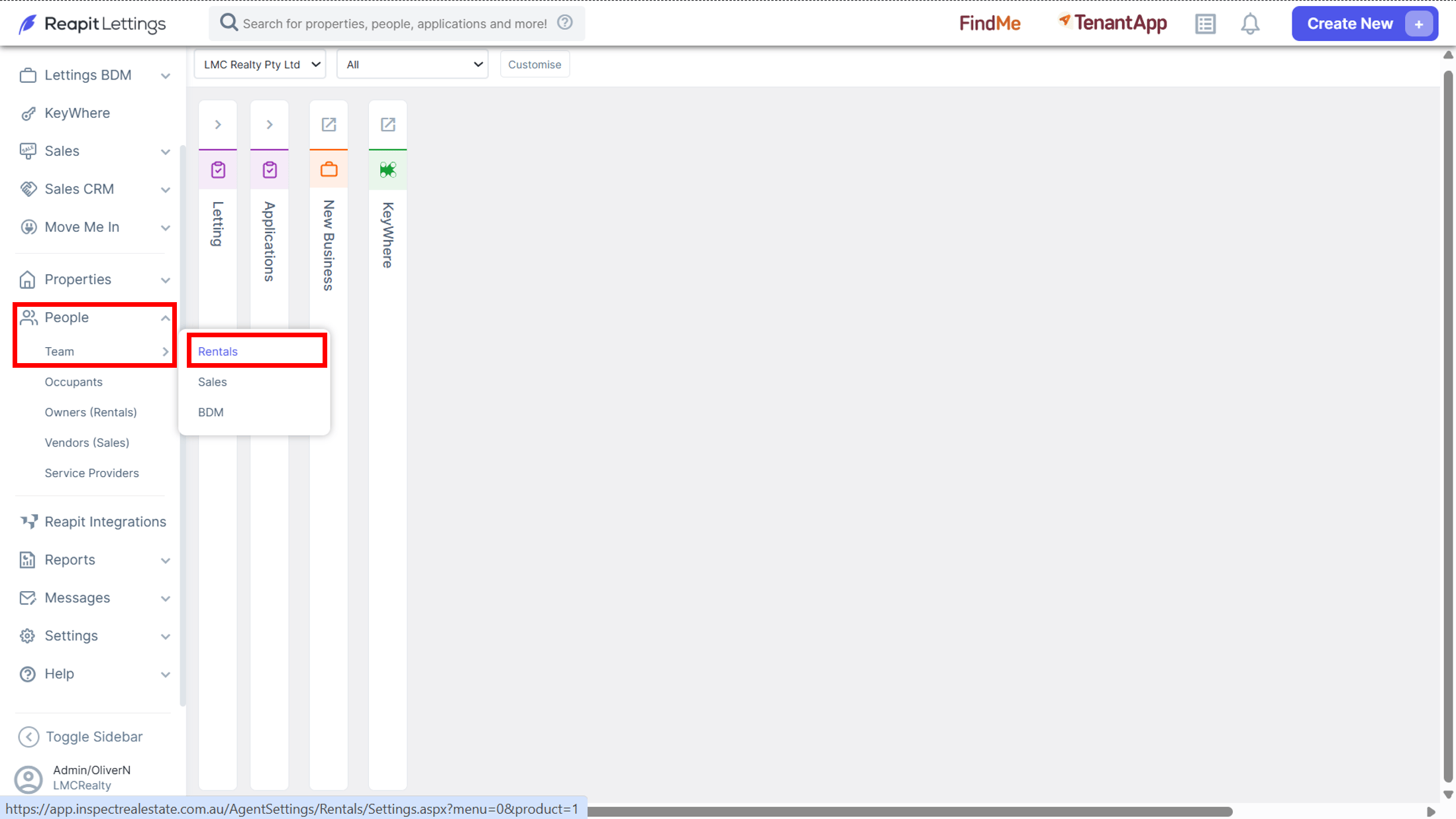
1. Navigate to People > Team > Rentals.
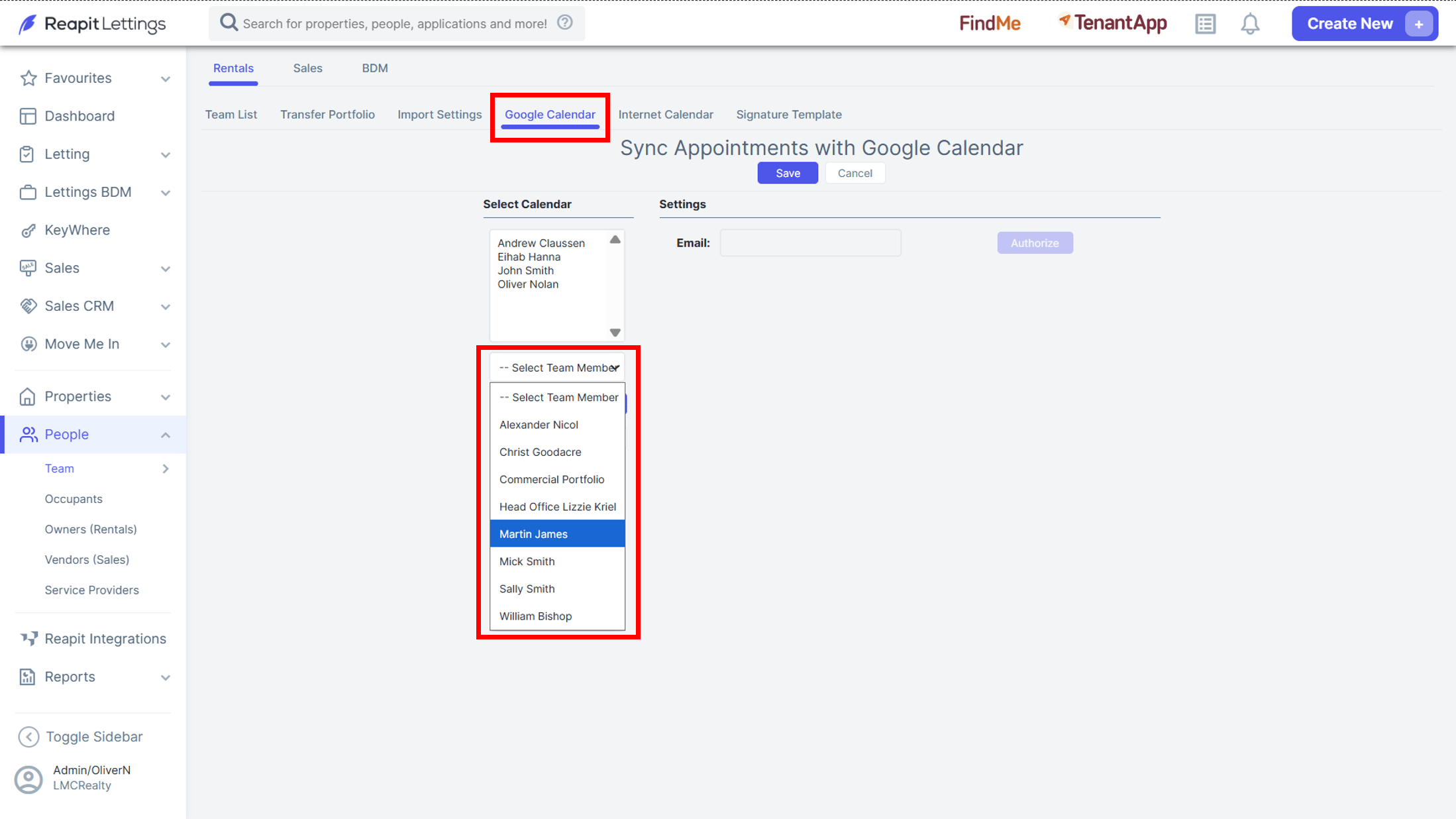
2. Once on the team page click on the Google Calendar tab.
3. In this tab you can click the Select Team Member drop down and select the team member you wish to synchronise the calendar with.
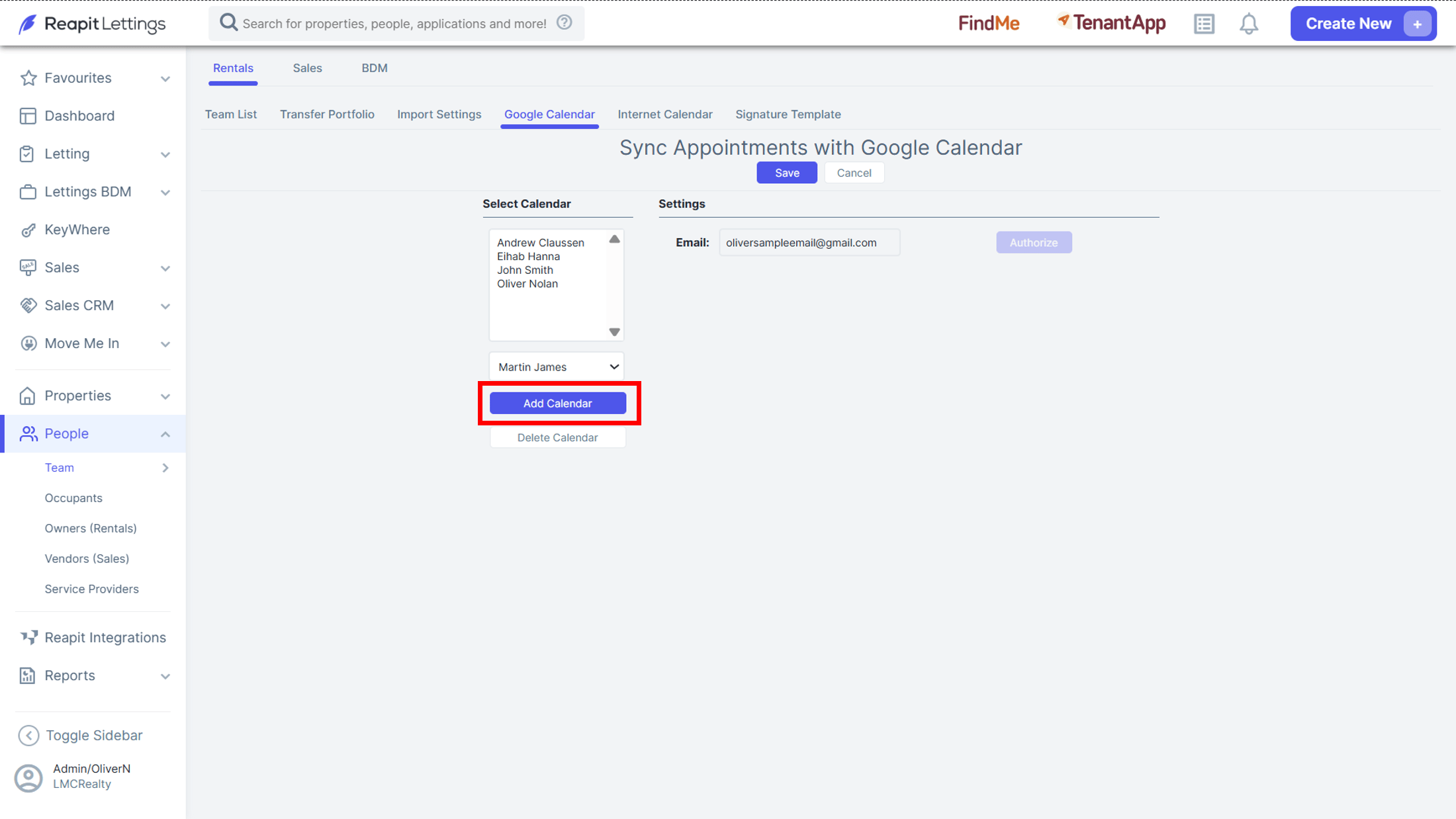
4. When selected, you can then click the Add Calendar button.
Configuring Gmail Accounts
1. First, verify if the correct email address is entered (update if required) then click the Authorize button.
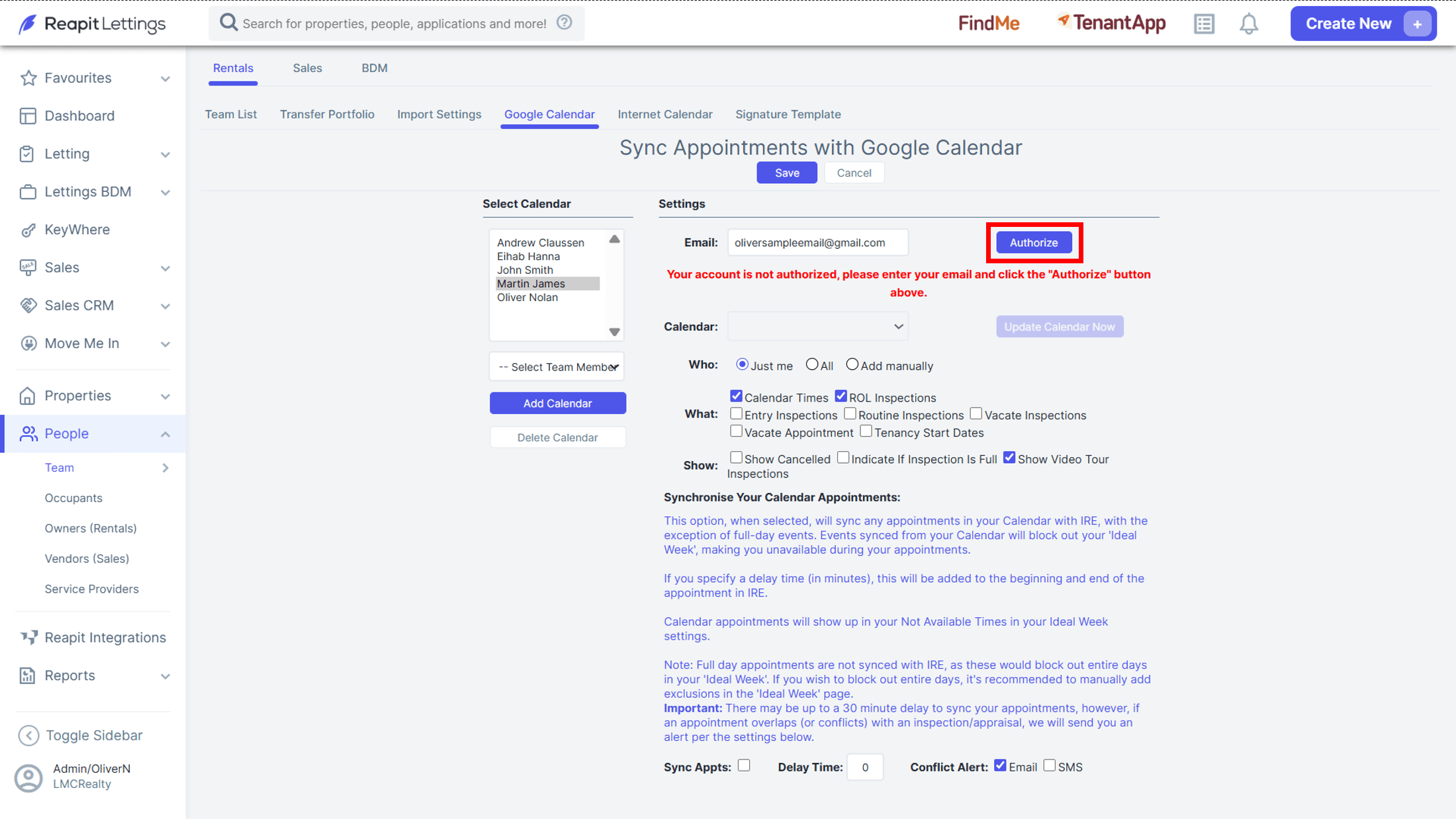
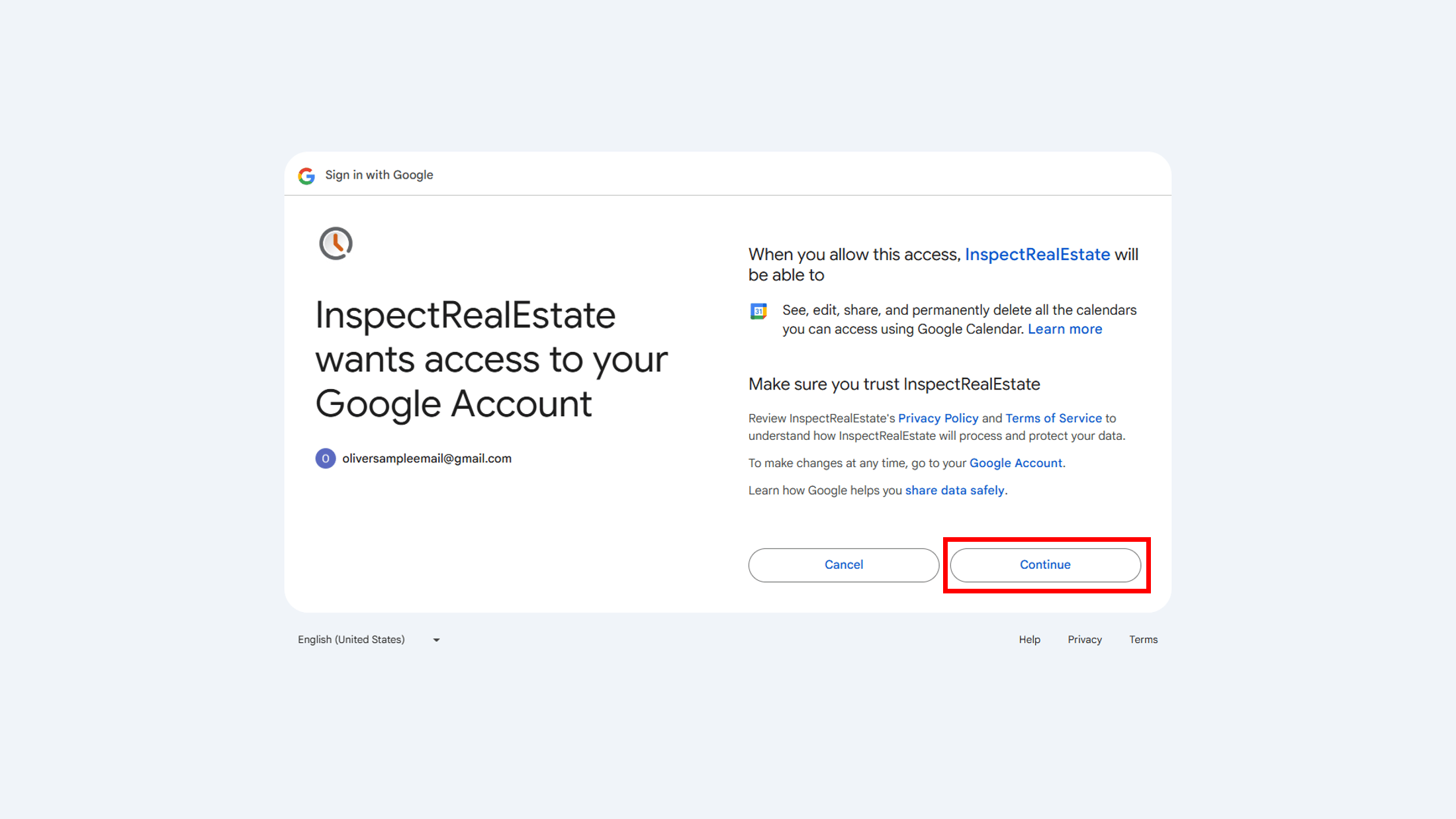
2. Clicking Authorise will then take you to Google login page where you will be prompted to enter your credentials. When logged in, the page below will be displayed. Click on Continue.
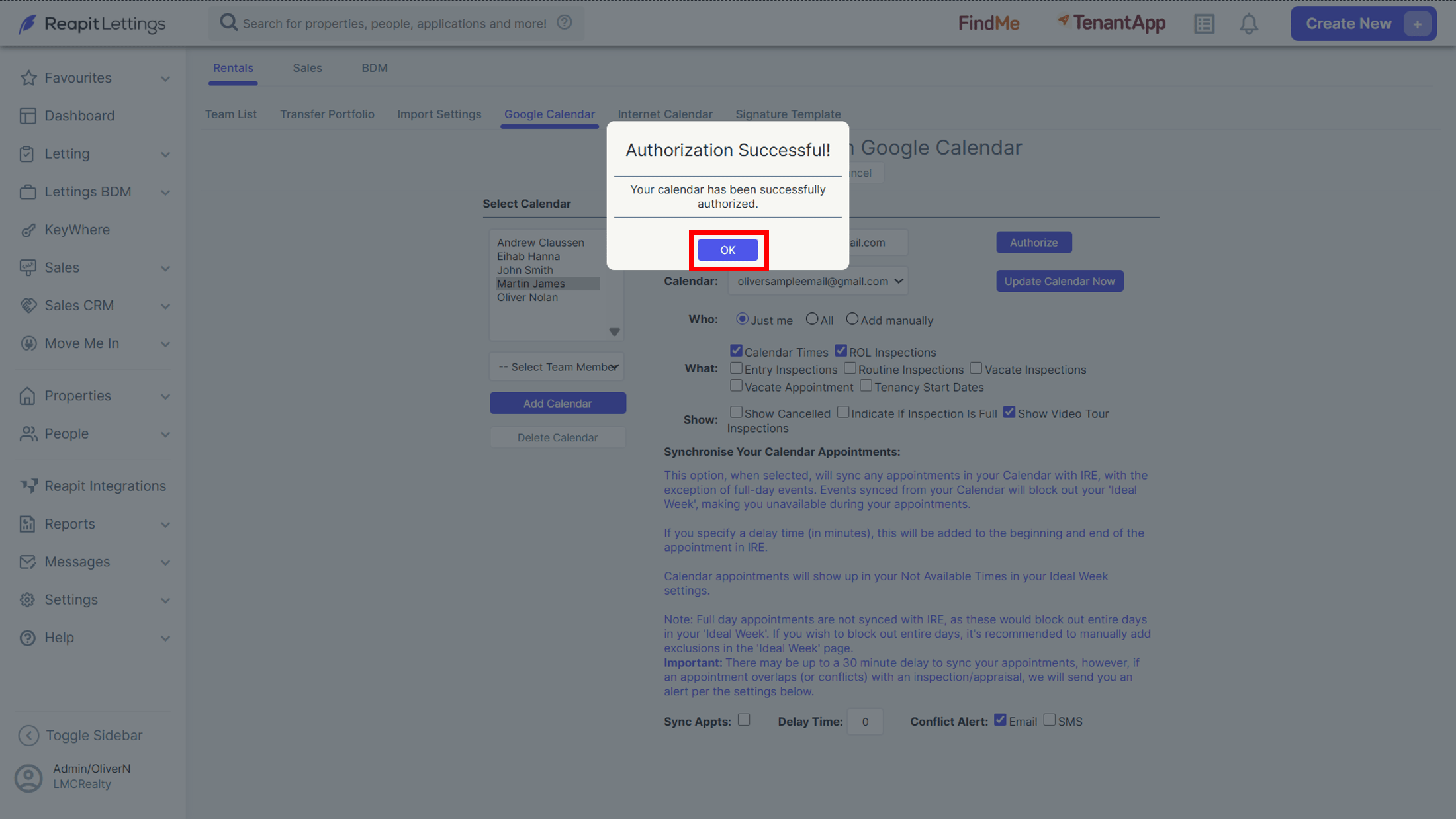
3. You will see the below to confirm the success of the authorisation. Click on OK.
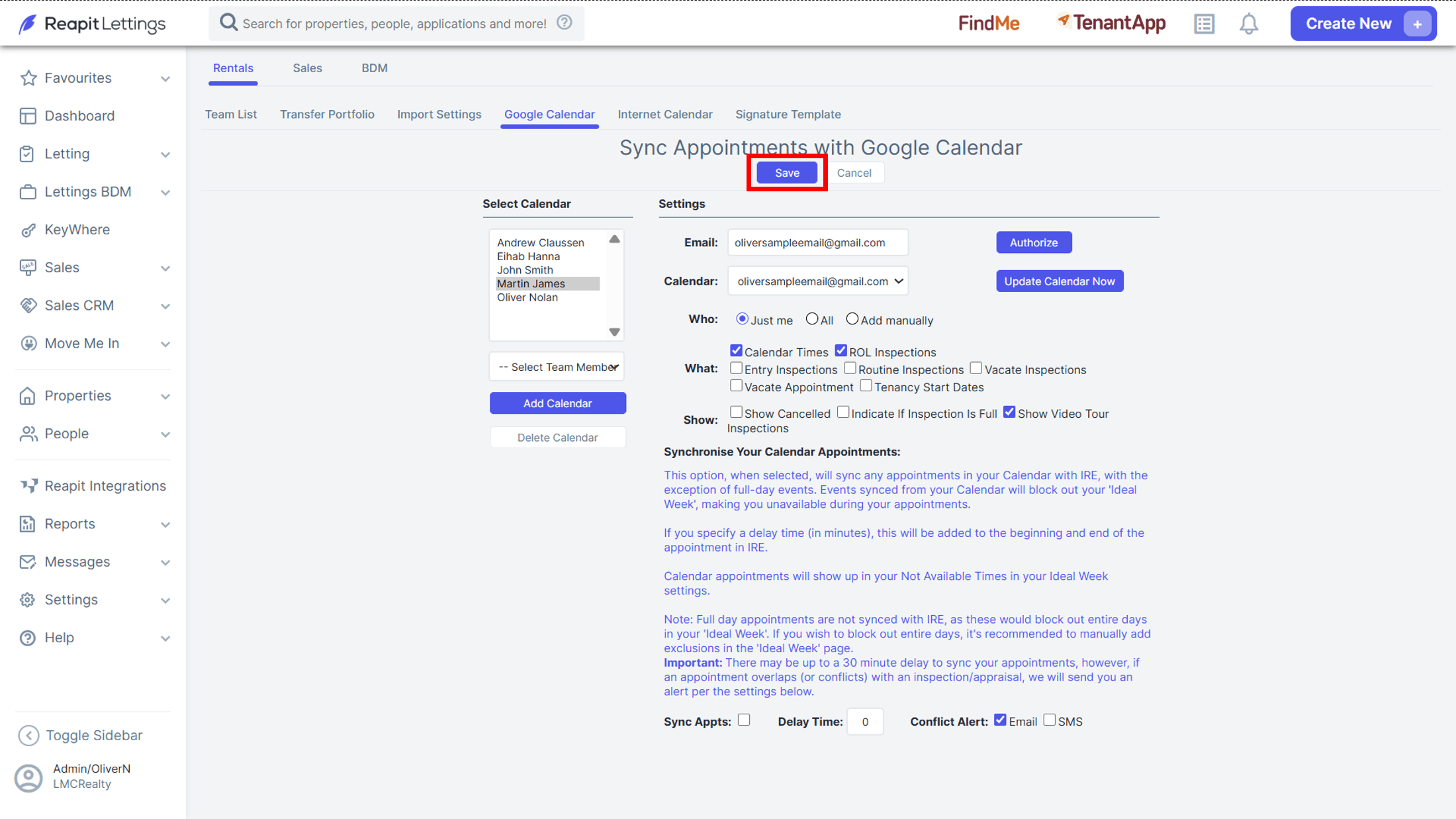
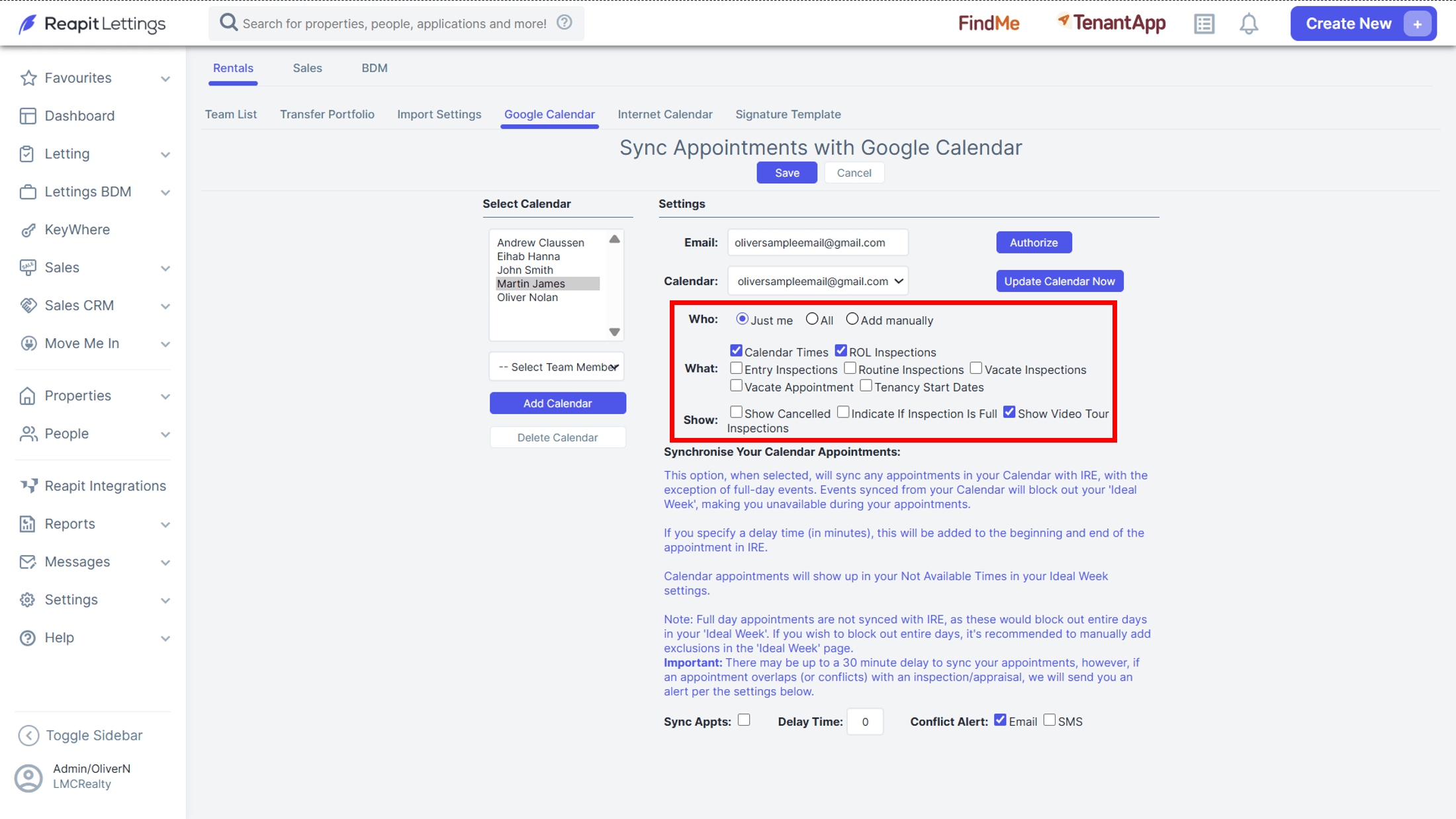
4. Finally, you can now select update the settings to reflect what they require from the synchronisation. The settings include the ability to choose:
a. Who you would like to be synced: Just you, Everyone (All) or to add each event manually.
b. What gets synced: Calendar Times & Inspections.
c. What gets shown: Show cancelled inspections, Indicate if Inspection is Full, Show Video Tour.
d. Sync appointments in your Google calendar will sync with the ideal week settings to show them as not available during the duration of each appointment.
e. The delay time between appointments.
f. Whether you want to receive conflict alerts and by what method(s).
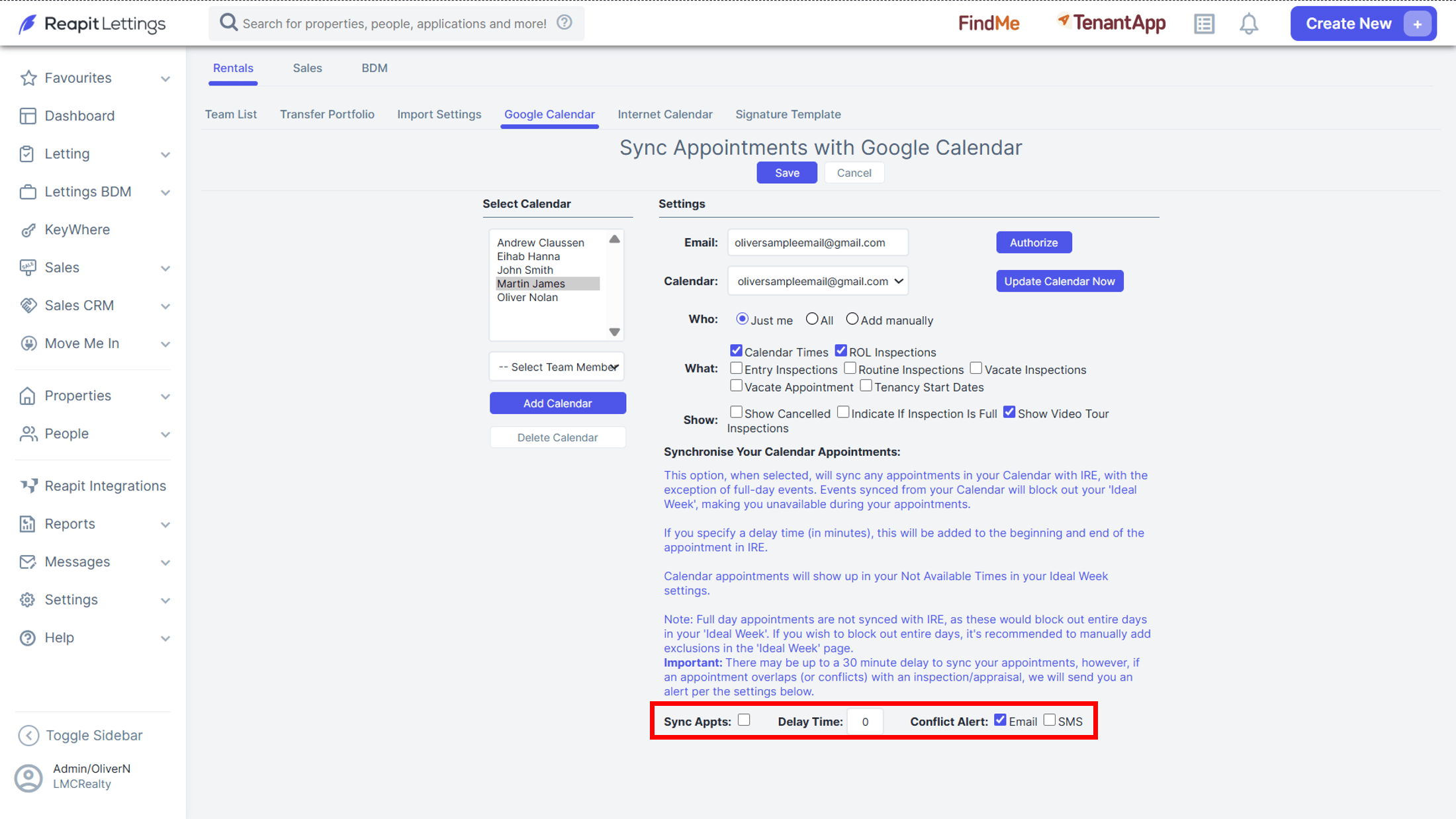
5. When all the desired settings have been selected, click Save.