'%20d='M0%208a8%208%200%200%201%208-8h24a8%208%200%200%201%208%208v24a8%208%200%200%201-8%208H8a8%208%200%200%201-8-8V8Z'/%3e%3cpath%20fill='%23fff'%20d='M32.576%206C12.293%206%208.776%2025.887%207.424%2034H9.1c.45-2.977%203.493-14.748%2010.899-20.287%200%200-5.633%206.976-6.572%2015.051%203.426-.652%2013.845-3.372%2016.056-12.927l-3.84-.61c1.352-1.351%204.909-5.17%206.931-9.226V6Z'/%3e%3cdefs%3e%3clinearGradient%20id='reapit-lettings__a'%20x1='20.702'%20x2='20.702'%20y1='.351'%20y2='31.228'%20gradientUnits='userSpaceOnUse'%3e%3cstop%20stop-color='%235573FD'/%3e%3cstop%20offset='.575'%20stop-color='%234E56EA'/%3e%3c/linearGradient%3e%3c/defs%3e%3c/svg%3e)
Key Safes: Adding, Viewing, Editing, Deleting
This article explains about adding, viewing, editing and deleting key safes
Key Safes: Adding, Viewing, Editing, Deleting
This article explains about adding, viewing, editing and deleting key safes within KeyWhere.
The processes in this article includes:
- Creating a Key Safe
- Loaning to a Key Safe
- Viewing Key Safe Details
- Editing a Key Safe
- Deleting a Key Safe
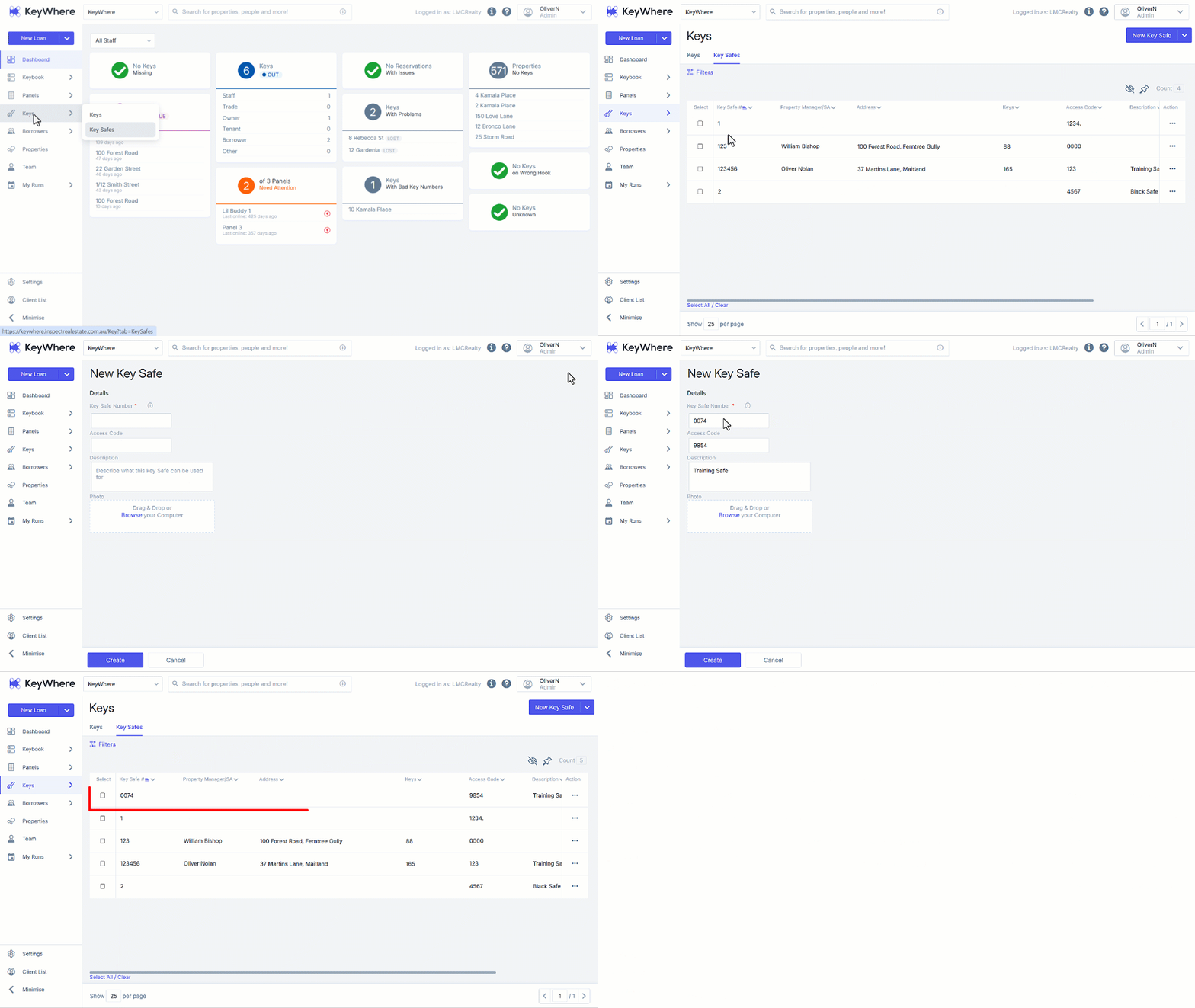
Creating a Key Safe
- Click on Keys.
- Click on Key Safes.
- Click on New Key Safe.
- Complete the Detail section. (* Mandatory Fields)
New Key Safe Number*
Access Code
Description
Photo
- Click on Create.
Loaning to a Key Safe
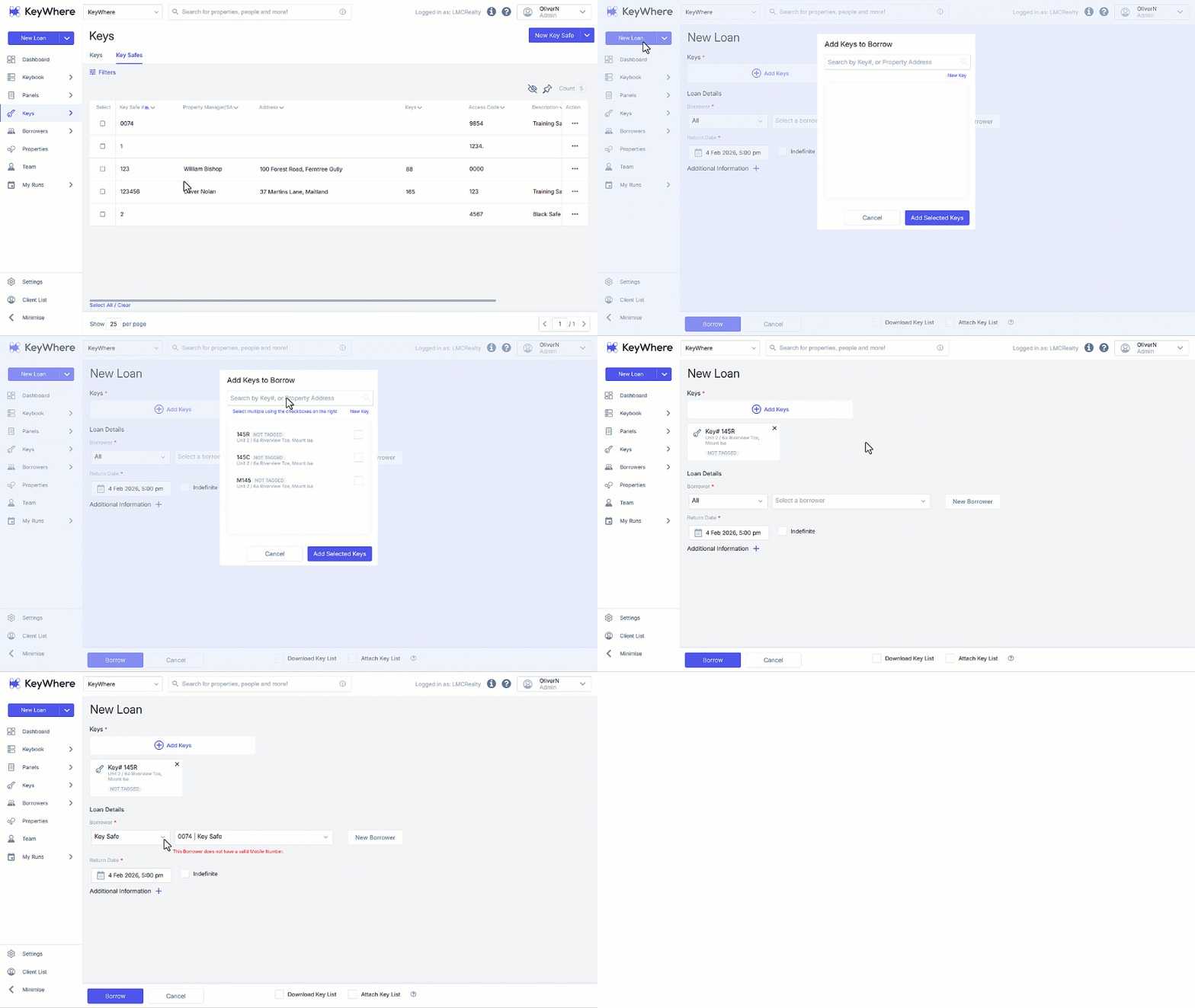
Once a key safe has been created, it can be assigned a key. Once the loan has been created, you will be able to view & return it in the Loans page as normal. You will also be able to view the key safe, along with its assigned key and associated property manager and address, in the Key Safes page. The assigned property manager and address depends on the specific key loaned to the key safe.
- Click on New Loan
- Search by Key# or Property Address then select the desired result.
- Complete the Loan Details by selecting Key Safe from the borrower dropdown, then the desired Key Safe from the Select a Borrower dropdown.
- Complete Return Date information as required.
- Click on Borrow.
Viewing Key Safe Details
- Click on Keys.
- Click on Key Safes.
- Select the Key Safe from the list.
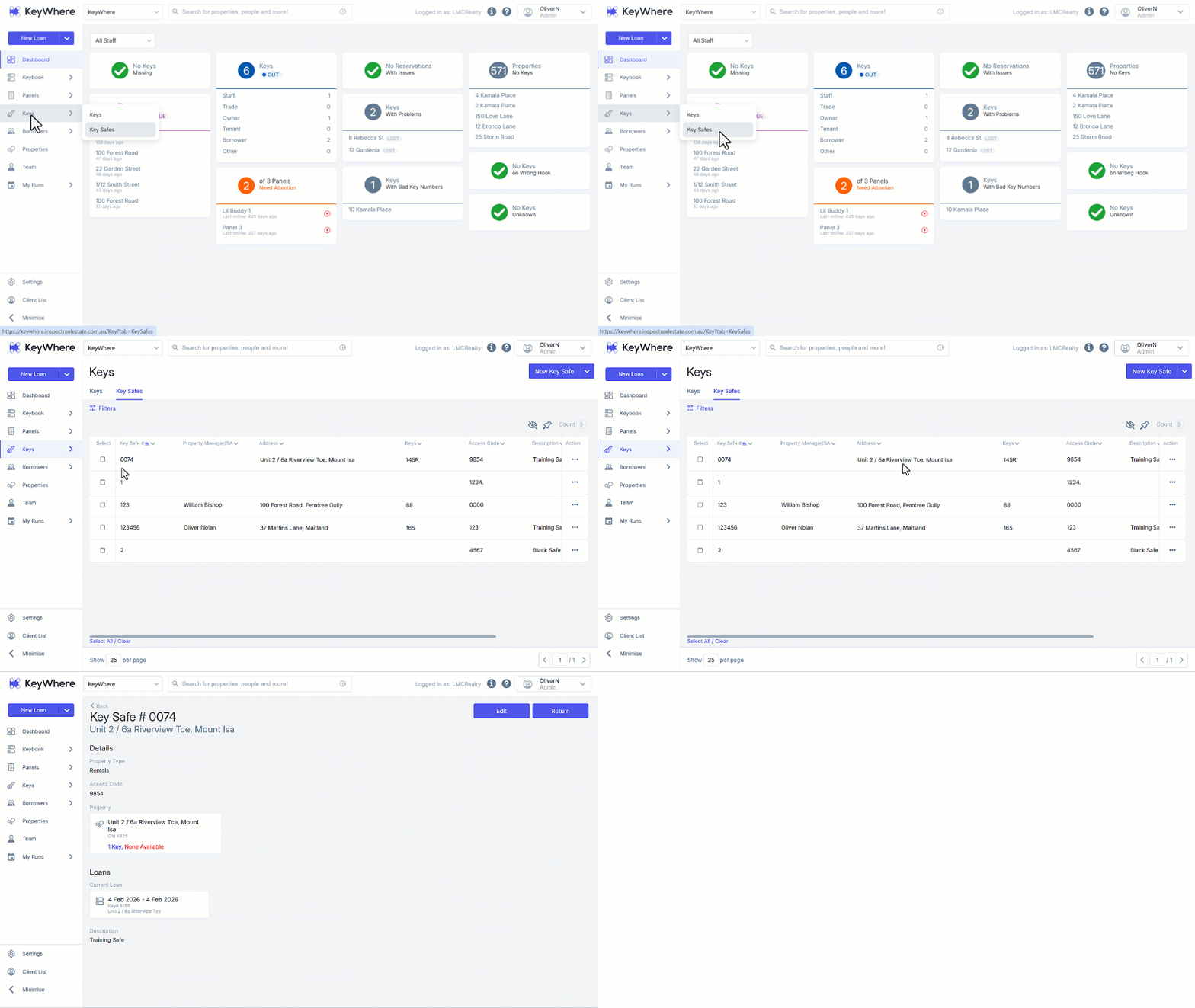
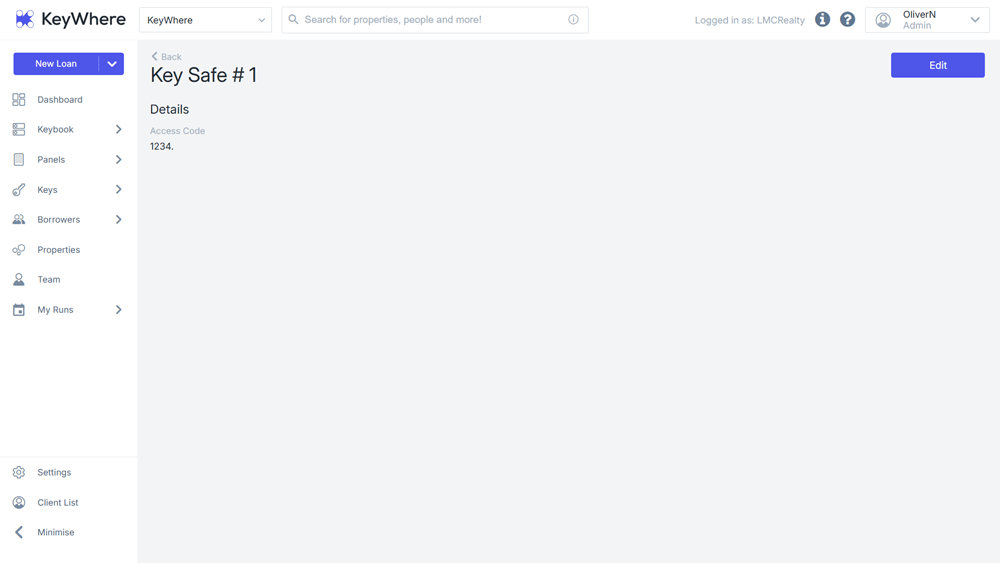
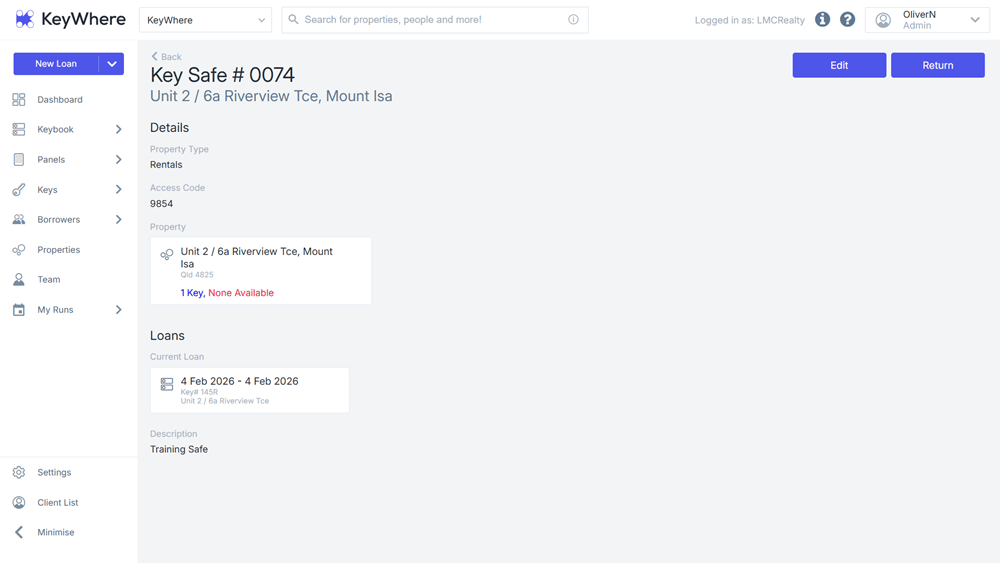
Safe Details page, which will look different depending on whether the Key Safe has a key in it.
For safes without keys, you will be able to see their access code and description.
For safes with keys, you will also be able to see the loaned key along with its property address and manager.
Editing a Key Safe
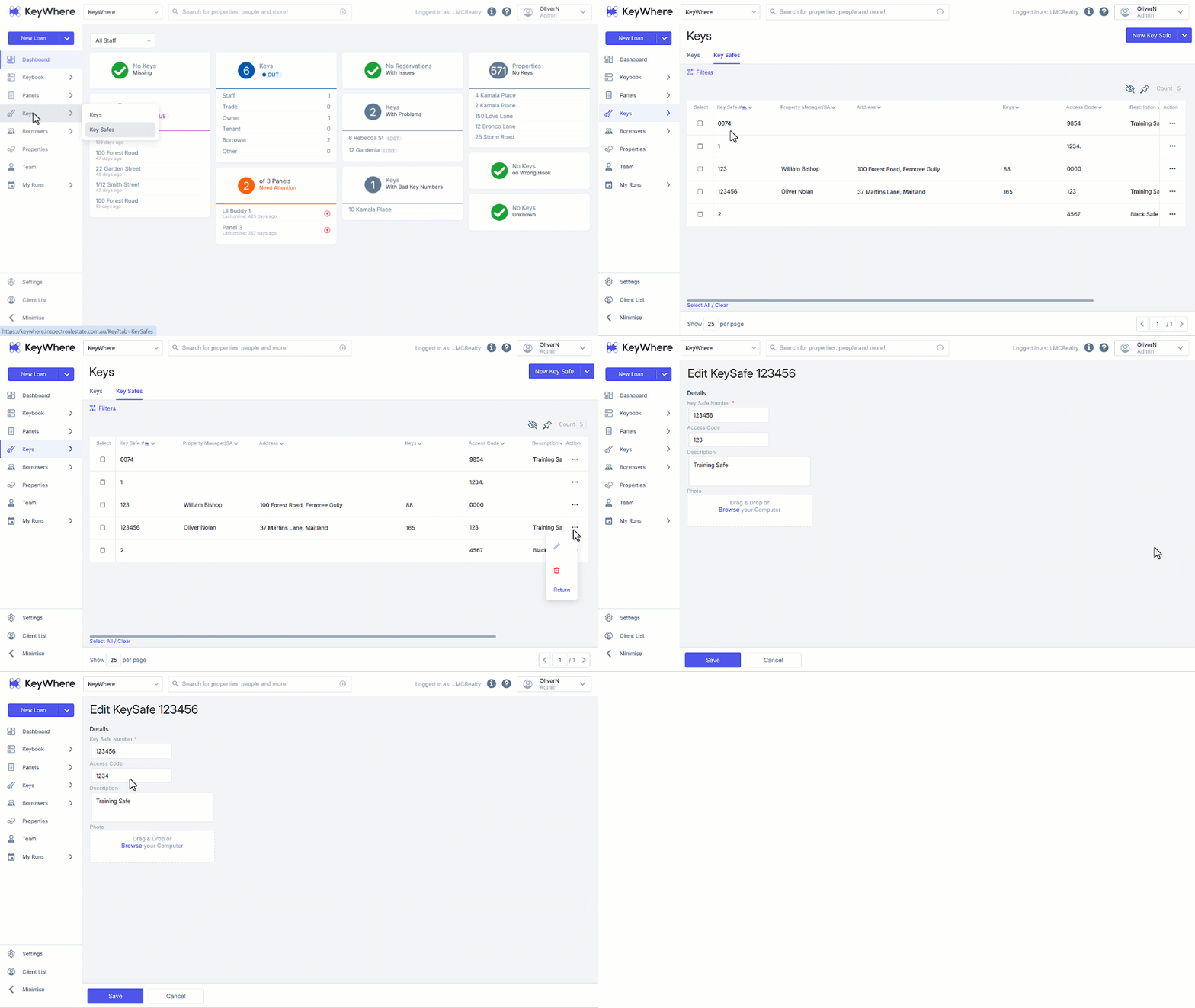
- Click on Keys.
- Click on Key Safes.
- Click on the 3-dots and select the Pencil (Edit) icon. Alternatively click Edit from within the Key Safe's Details page.
- Update date the Details section as required.
- Click on Save to keep the changes, or click Cancel.
Note: If you want to change a Key Safe's associated key or property, you will need to do so by cancelling the safe's current loan and creating a new one.
Deleting a Key Safe
- Click on Keys.
- Click on Key Safes.
- Click on the 3-dots and select the Bin (Delete) icon.
- Click on Delete.