'%20d='M0%208a8%208%200%200%201%208-8h24a8%208%200%200%201%208%208v24a8%208%200%200%201-8%208H8a8%208%200%200%201-8-8V8Z'/%3e%3cpath%20fill='%23fff'%20d='M32.576%206C12.293%206%208.776%2025.887%207.424%2034H9.1c.45-2.977%203.493-14.748%2010.899-20.287%200%200-5.633%206.976-6.572%2015.051%203.426-.652%2013.845-3.372%2016.056-12.927l-3.84-.61c1.352-1.351%204.909-5.17%206.931-9.226V6Z'/%3e%3cdefs%3e%3clinearGradient%20id='reapit-lettings__a'%20x1='20.702'%20x2='20.702'%20y1='.351'%20y2='31.228'%20gradientUnits='userSpaceOnUse'%3e%3cstop%20stop-color='%235573FD'/%3e%3cstop%20offset='.575'%20stop-color='%234E56EA'/%3e%3c/linearGradient%3e%3c/defs%3e%3c/svg%3e)
Why is My Ideal Week Not Working?
This article will run through why your ideal week may not be working correctly in Reapit Lettings.
Why is My Ideal Week Not Working?
This article will run through why your ideal week may not be working correctly in Reapit Lettings.
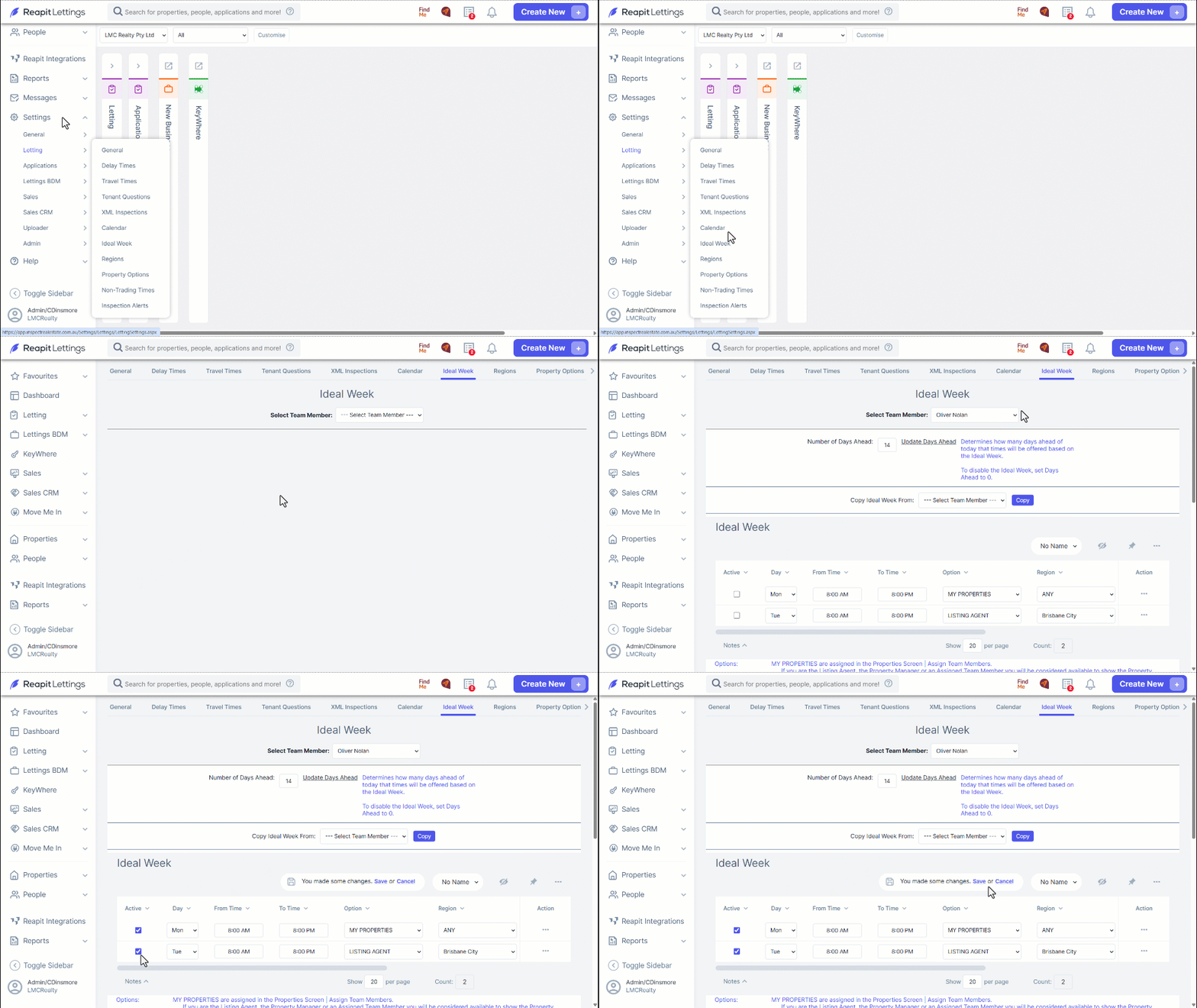
Check that the ‘Active’ box is ticked against all entities
- Navigate to Settings.
- Click Letting.
- Click Ideal Week.
- Check if the tick boxes are checked.
- Click Save if any changes have been made.
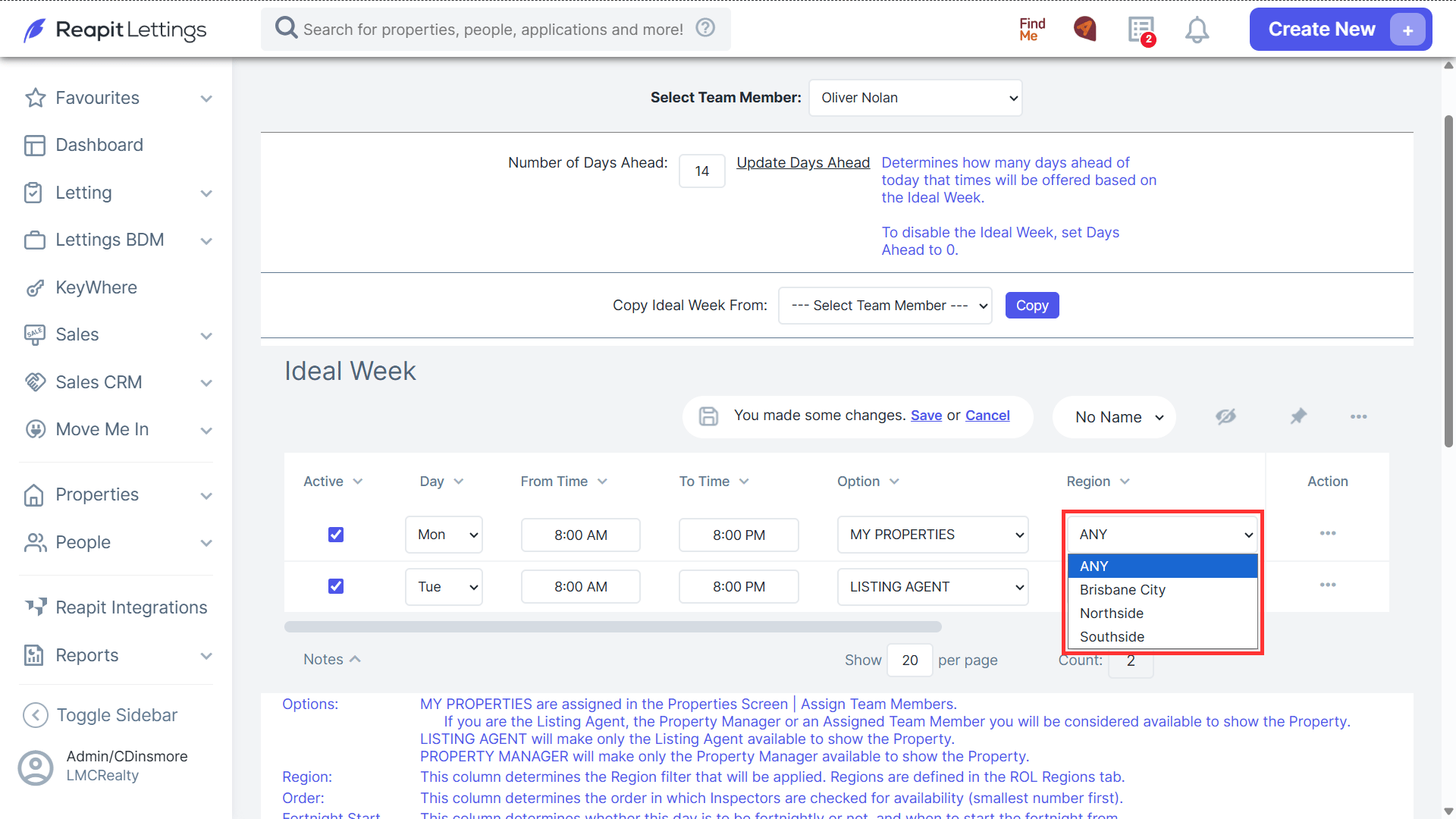
Check that the option is correct against the team member
- Within the team member's ideal week entry, there is a column called Option. Ensure this is correctly assigned.
- An example of this might be, if the option Listing Agent was assigned, the ideal week will only work if the team member is assigned as the Listing Agent against properties.
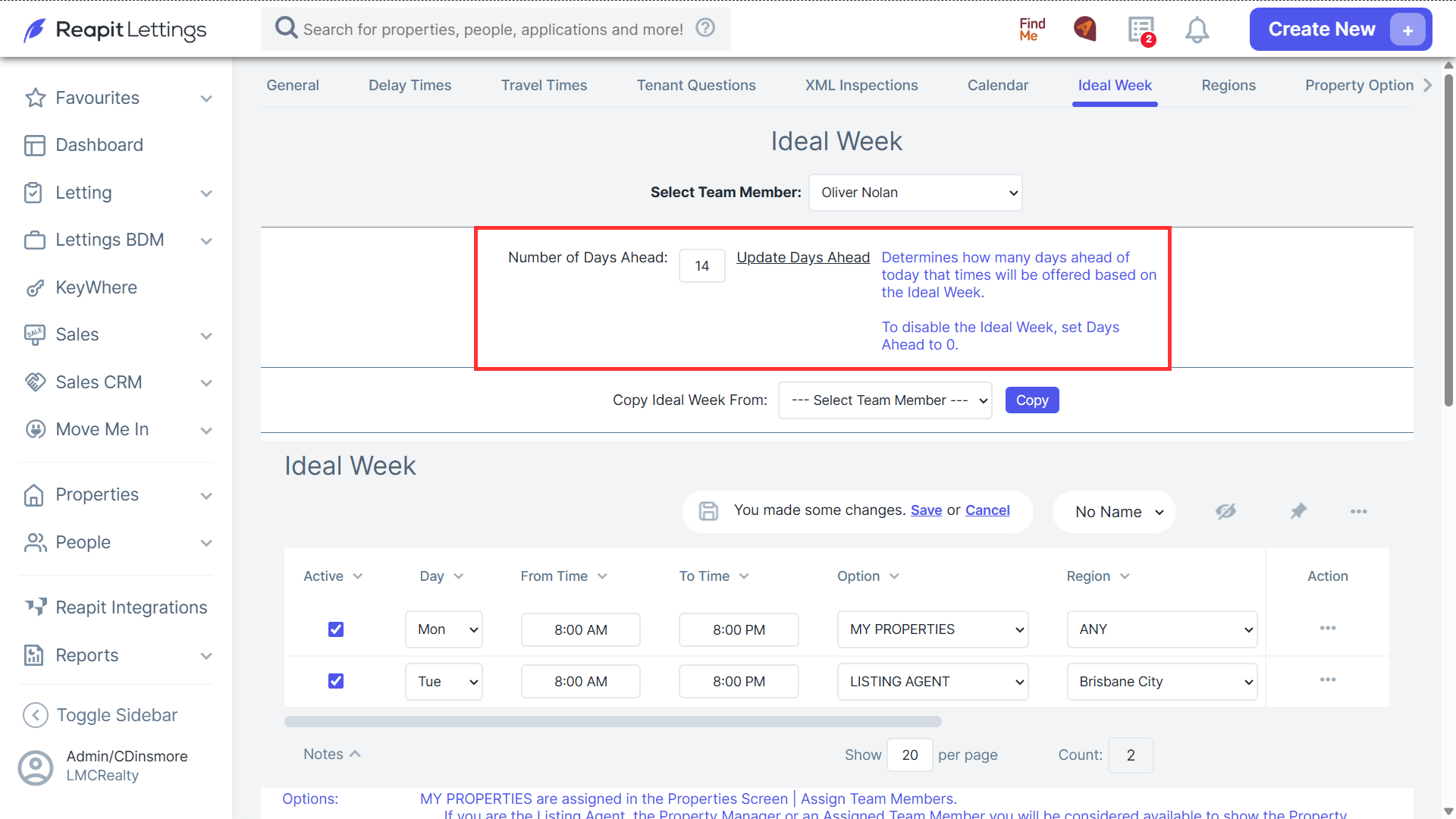
Check the number of ‘Days Ahead’ against the team member
- You could be at max capacity.
- If you have several inspections already booked, you may need to increase your days ahead number. Check how many inspections you have already booked. You could test this theory by quickly increasing the number by one or two to see if it opens more times.
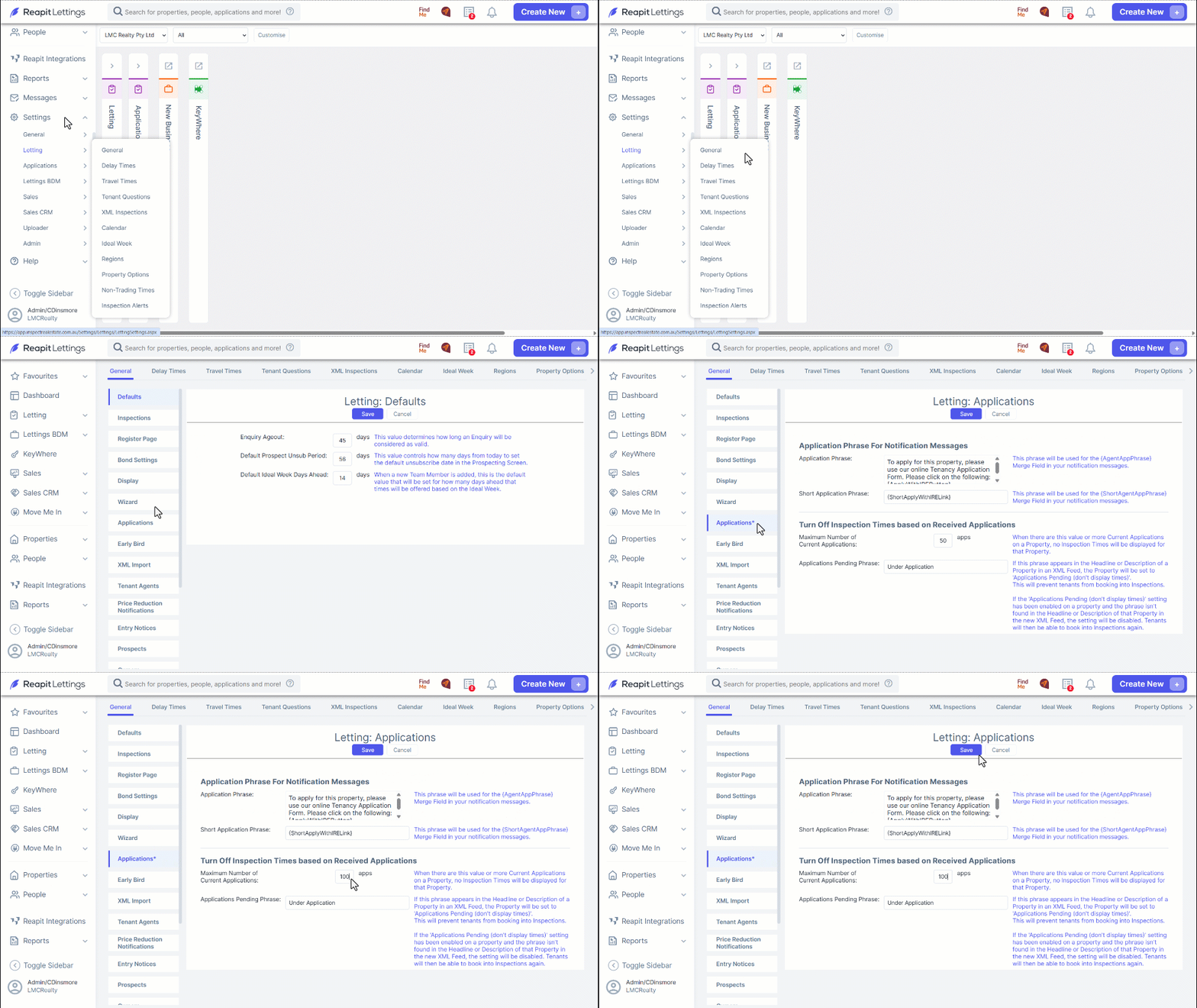
Maximum Number of Applications Received
There is a setting in ROLRentals that allows you to cut off inspections once a certain number of applications are received.
- Navigate to Settings.
- Click Letting.
- Click General.
- Click Applications.
- Adjust the Turn Off Inspection Times based on Received Applications.
- Click Save.
Property Specific Settings
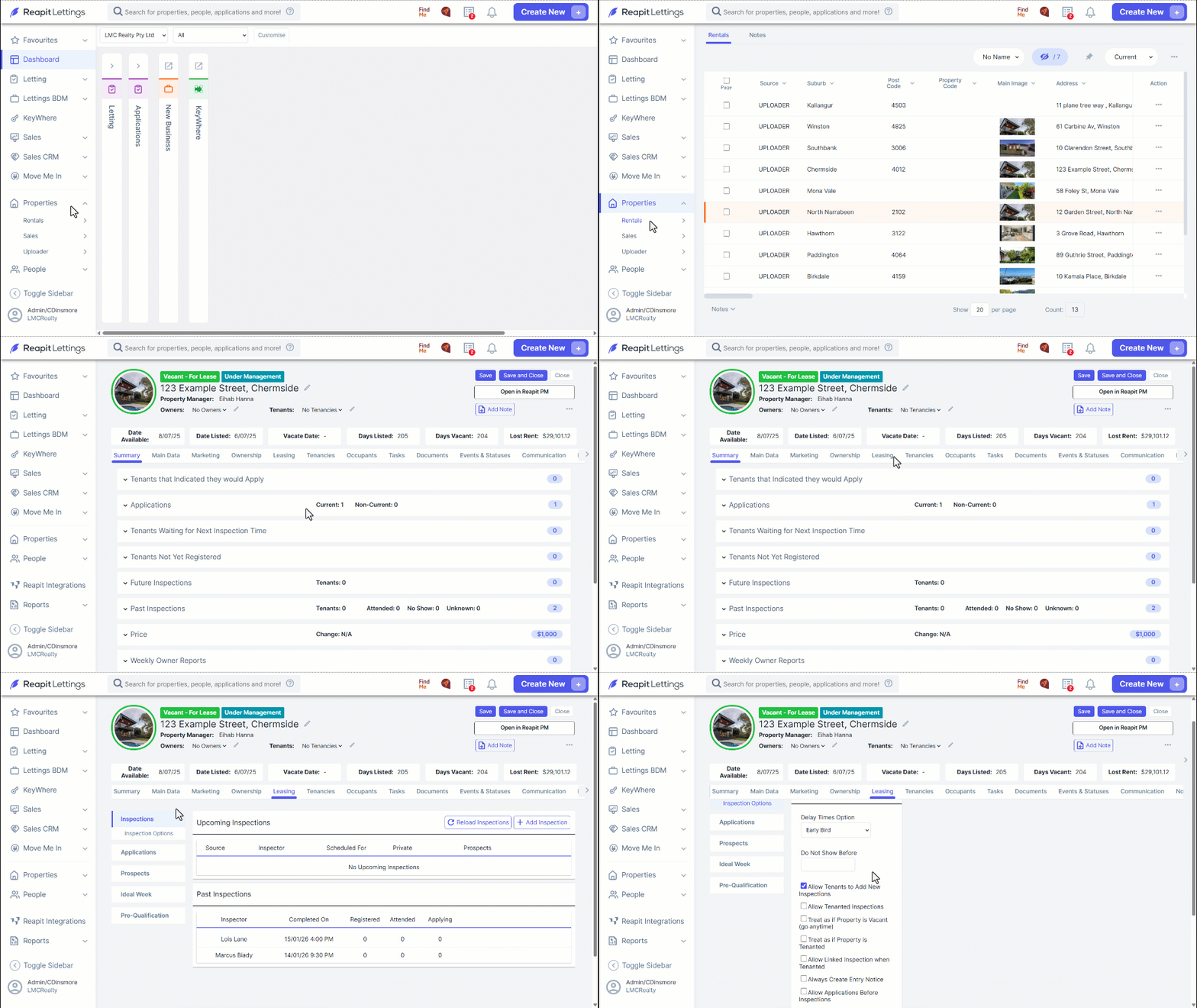
There could be a specific setting against the property preventing the inspection from showing.
- Navigate to Properties
- Click Rentals.
- Click on the property.
- Click Leasing.
- Click Inspections
- Click Inspection Options.
Check the Assigned Delay Time
Each property is assigned a delay time. The delay time dictates what types of inspections can be created.
- You can check what type of delay time is assigned to the property by going into Leasing.
- Click Inspections.
- Click Inspection Options.
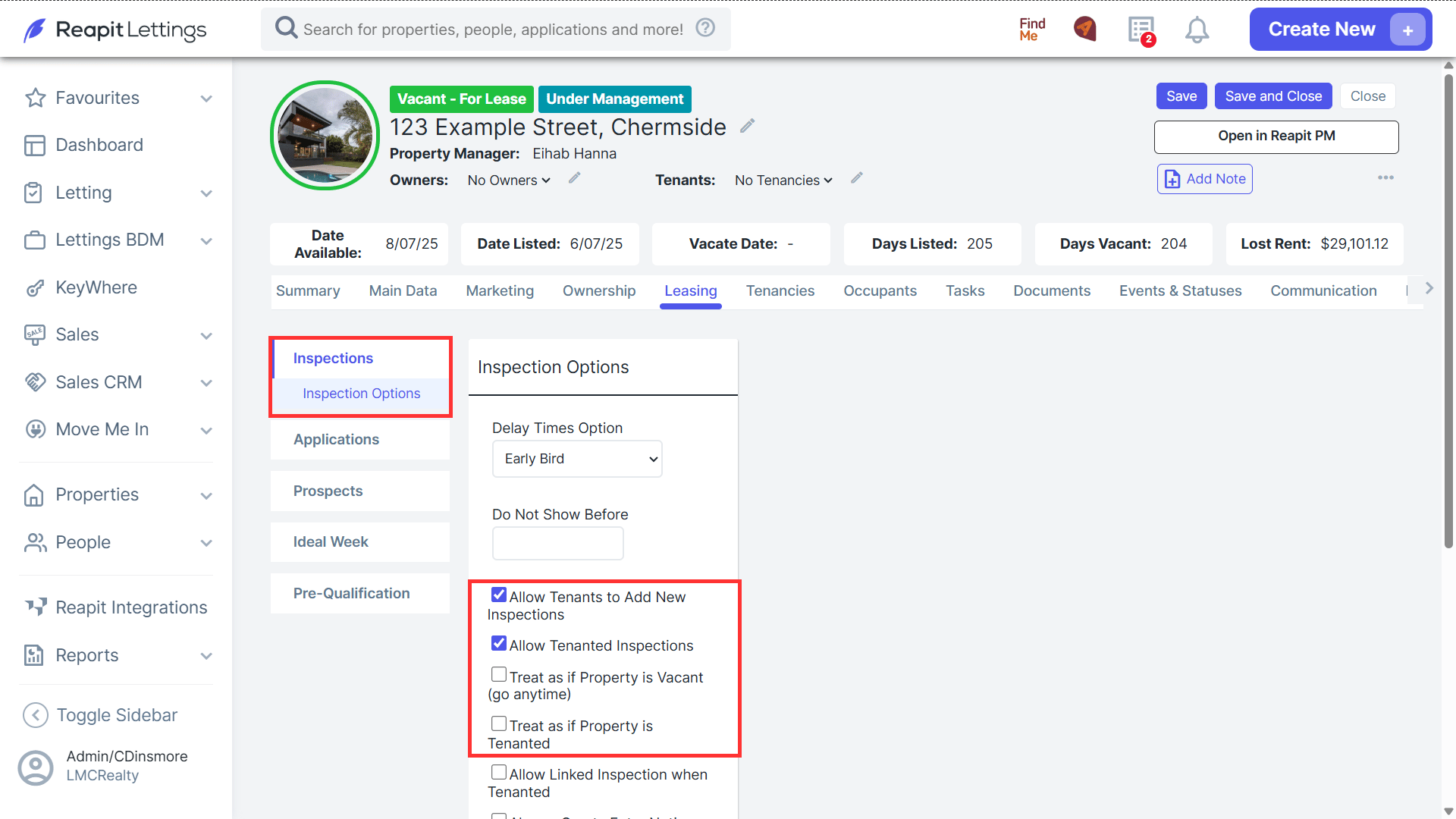
- Once you have determined what delay time is assigned, it's recommended to check what settings are applied to that delay time.