'%20d='M0%208a8%208%200%200%201%208-8h24a8%208%200%200%201%208%208v24a8%208%200%200%201-8%208H8a8%208%200%200%201-8-8V8Z'/%3e%3cpath%20fill='%23fff'%20d='M32.576%206C12.293%206%208.776%2025.887%207.424%2034H9.1c.45-2.977%203.493-14.748%2010.899-20.287%200%200-5.633%206.976-6.572%2015.051%203.426-.652%2013.845-3.372%2016.056-12.927l-3.84-.61c1.352-1.351%204.909-5.17%206.931-9.226V6Z'/%3e%3cdefs%3e%3clinearGradient%20id='reapit-lettings__a'%20x1='20.702'%20x2='20.702'%20y1='.351'%20y2='31.228'%20gradientUnits='userSpaceOnUse'%3e%3cstop%20stop-color='%235573FD'/%3e%3cstop%20offset='.575'%20stop-color='%234E56EA'/%3e%3c/linearGradient%3e%3c/defs%3e%3c/svg%3e)
Team: Adding, Viewing, Editing, Deleting
This article will run through how to add, view, edit and delete a team in Keywhere.
Team: Adding, Viewing, Editing, Deleting
This article will run through how to add, view, edit and delete a team in Keywhere.
Team Page
- Clicking on Team on the sidebar will access the Teams page.
- The Team page shows a list of your team members and their roles for real estate users.
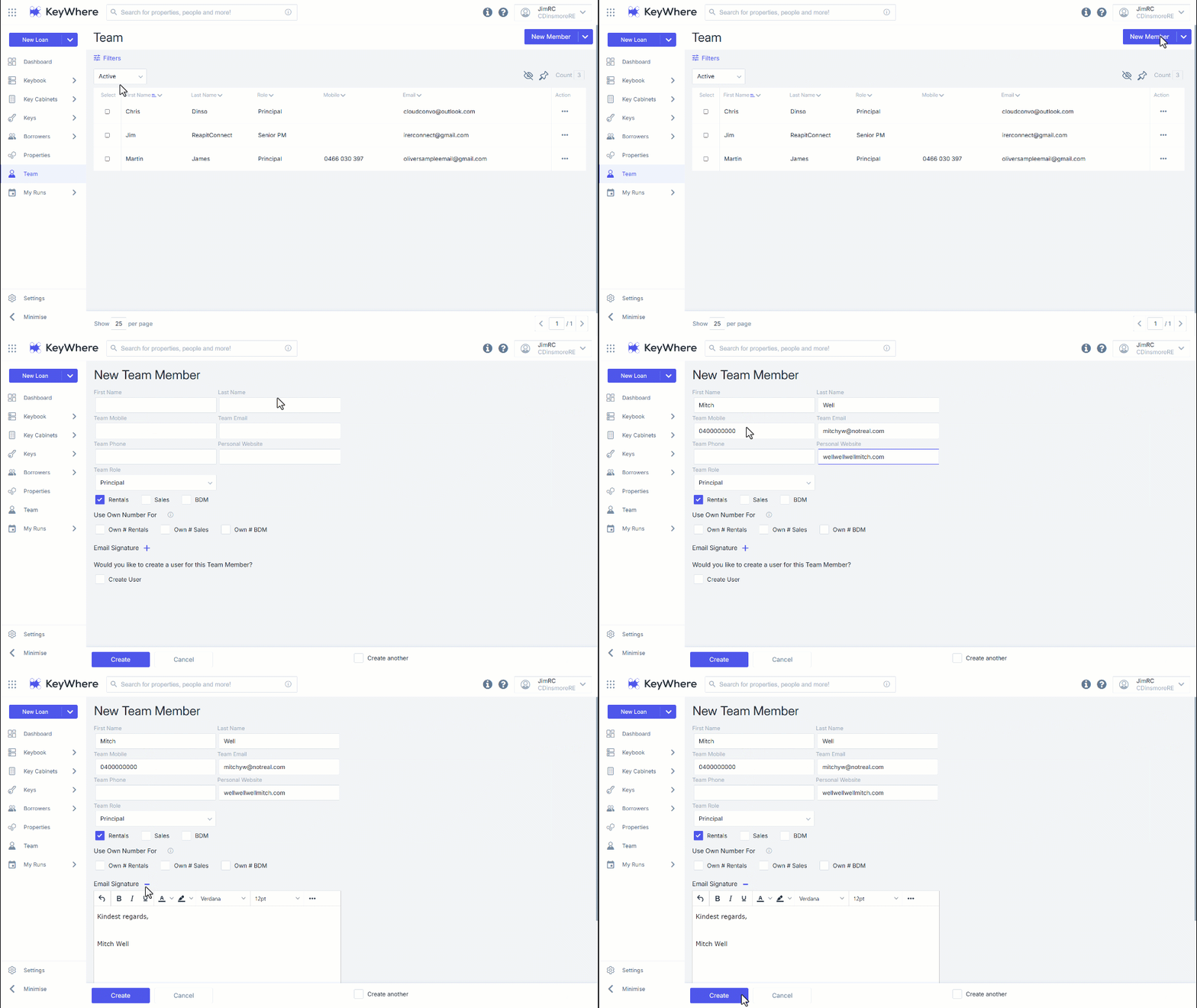
- To add a new team member, click on the New Member drop-down menu, then click the New Team Member button in the top right-hand corner of the page and follow the on-screen prompts.
- Clicking on an individual team member from the list opens the View Team Member page.
- The View Team Member page displays more details about a specific person, and is used to edit their details by selecting the Edit button at the top right-hand corner of the screen.
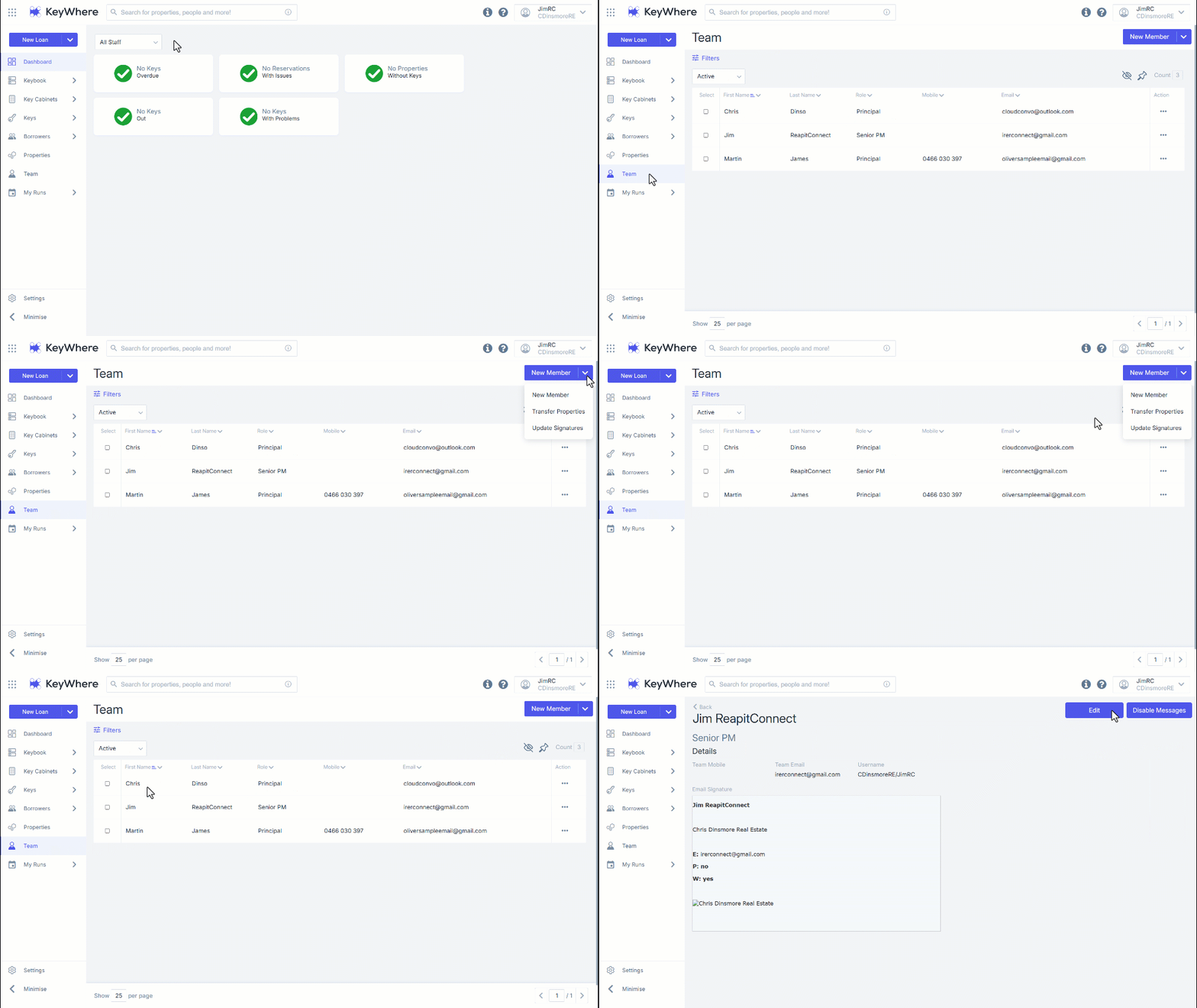
- The Transfer Assets/Properties option allows you to reassign the Property Manager/SA or Listing Agent from one team member to another.
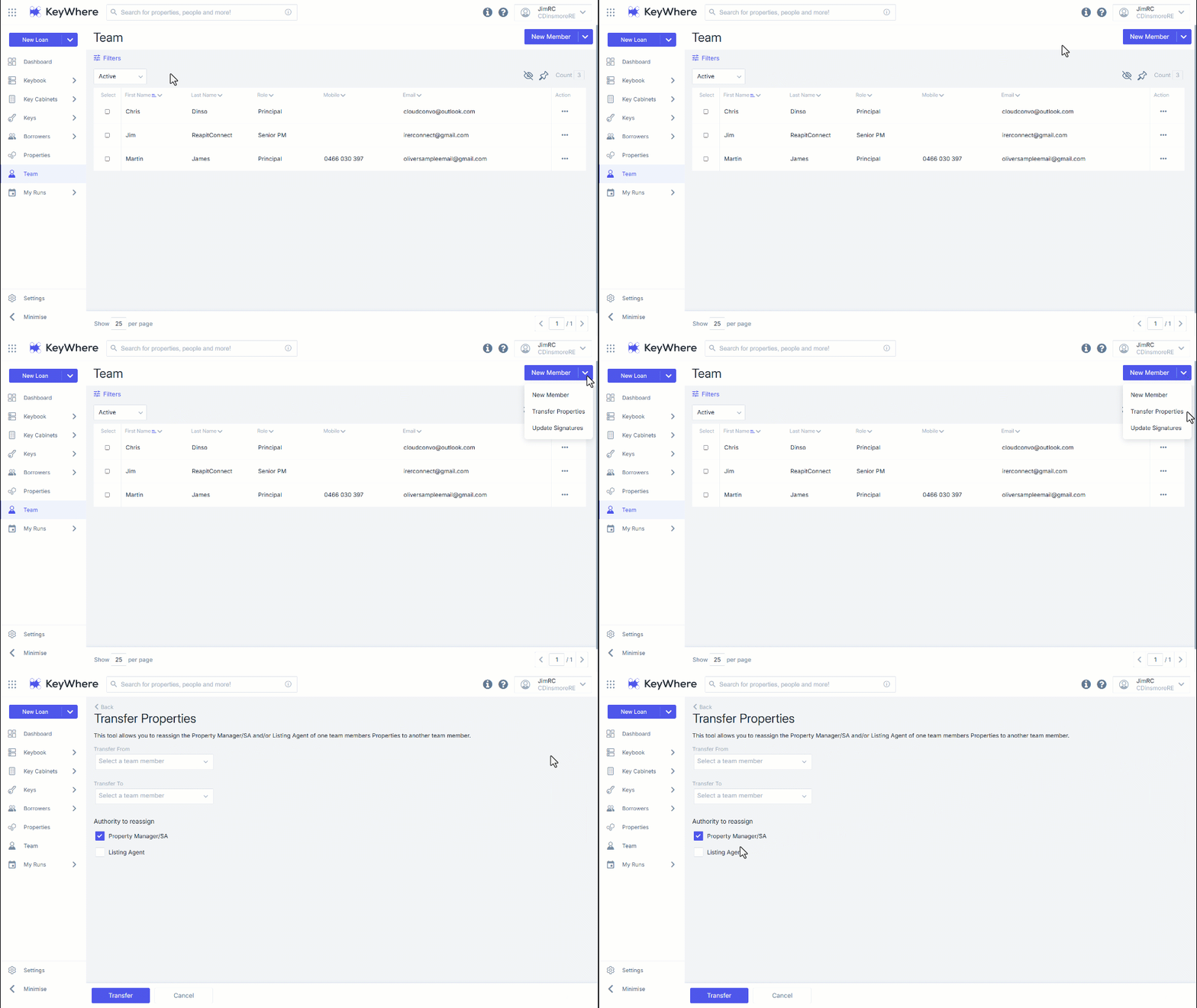
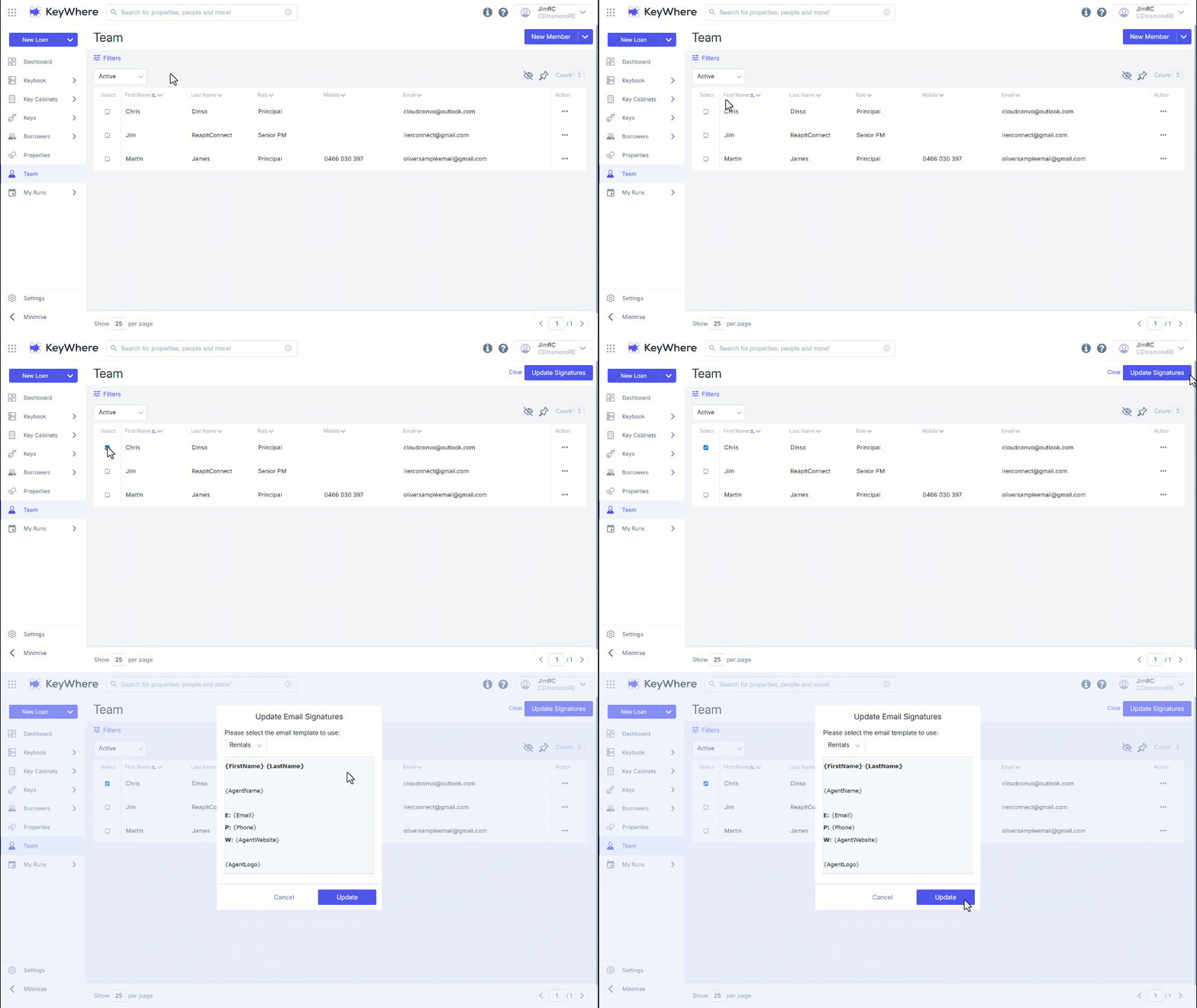
- The Update Signatures option allows you to change the email signature for all currently filtered Team Members on the main Team page.
Adding a New Team Member
- A new team member can be added by clicking on New Team Member in the top right-hand side dropdown menu.
- This will display the New Team Member page. Personal details of the team member including name, mobile number, email, and website can be added.
- An email signature can also be added here by clicking the + icon, and a dropdown box will appear.
- By checking the Create User checkbox, a user login can be created by entering the required details.
- If creating multiple team members in a row, it may be helpful to check the "Create Another" checkbox in the bottom right of the page before clicking "Create." This will take you directly to a new team member creation page after saving, rather than back to the generic Team page.
- When you're finished setting up, click "Create" to save your new team member.
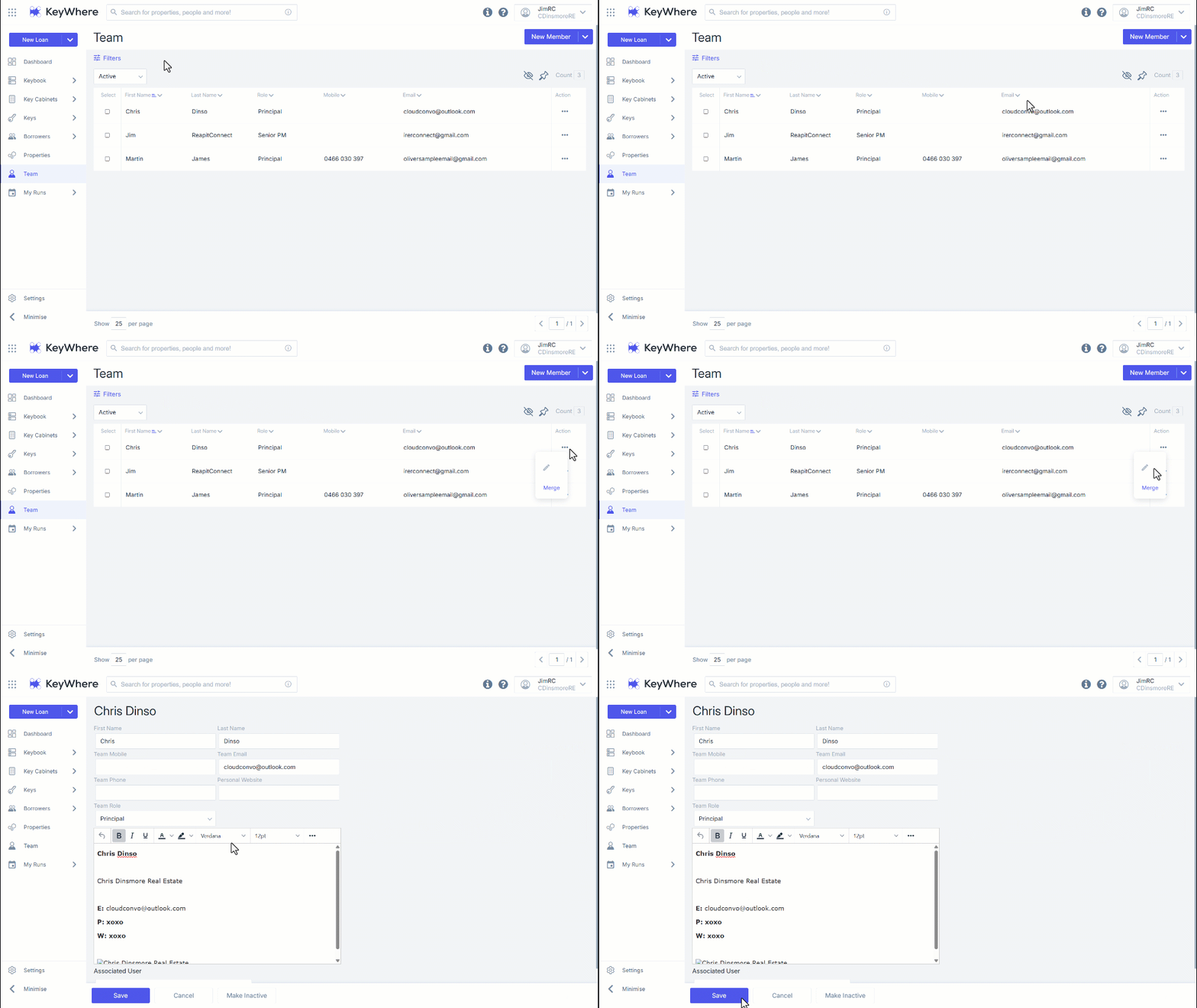
Editing a Team Member
- Navigate to the three dots.
- Click the Pencil icon.
- From this page, you can edit the team members' information.
- Once you have made the changes, click Save.
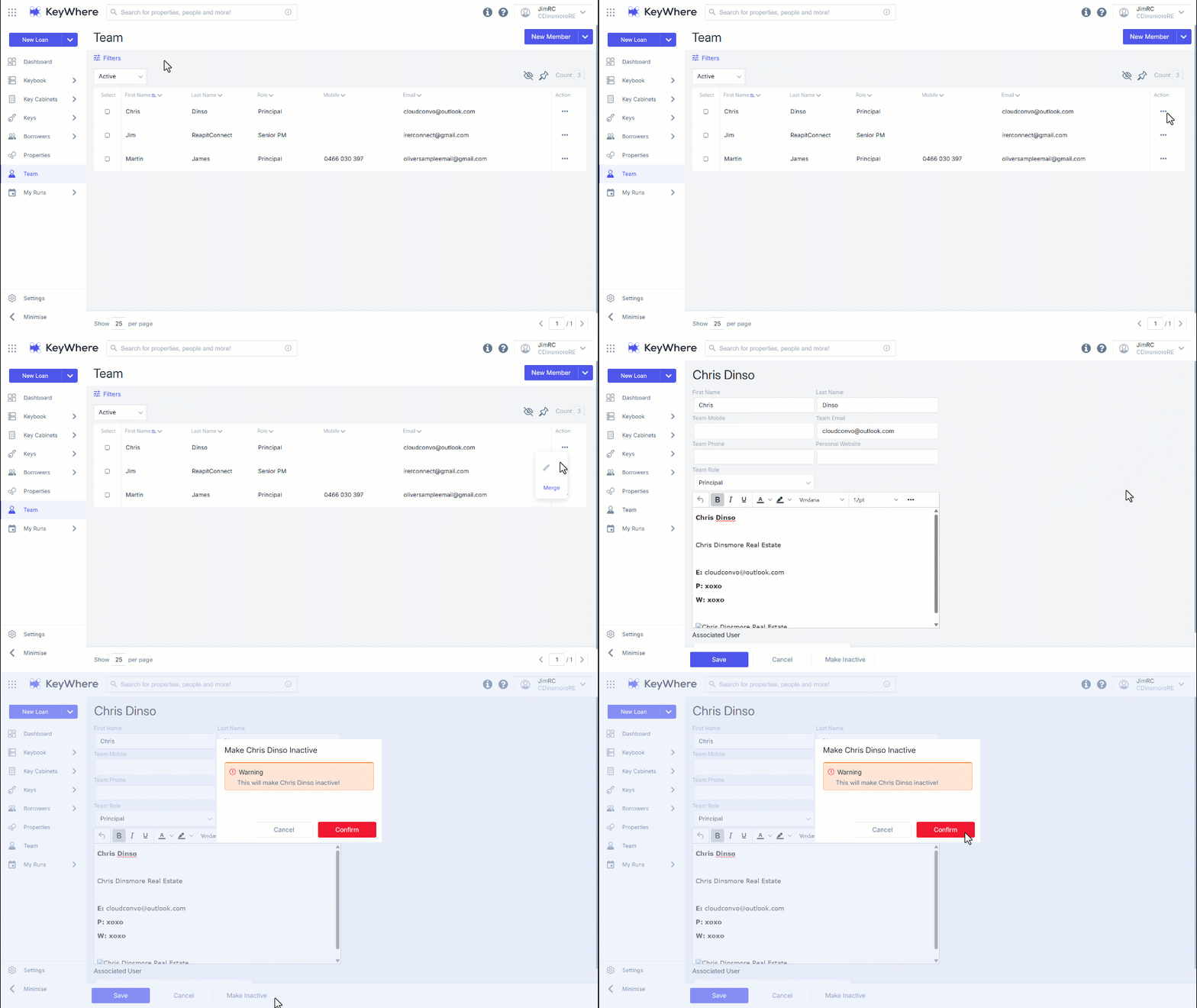
Removing a Team Member
- Navigate to the Edit page.
- Click Make Inactive.
- Click Confirm.
Note: Inactive Team Members can be restored by finding the Inactive Team Member account, then go to edit the Team Member and click the restore button.