'%20d='M0%208a8%208%200%200%201%208-8h24a8%208%200%200%201%208%208v24a8%208%200%200%201-8%208H8a8%208%200%200%201-8-8V8Z'/%3e%3cpath%20fill='%23fff'%20d='M32.576%206C12.293%206%208.776%2025.887%207.424%2034H9.1c.45-2.977%203.493-14.748%2010.899-20.287%200%200-5.633%206.976-6.572%2015.051%203.426-.652%2013.845-3.372%2016.056-12.927l-3.84-.61c1.352-1.351%204.909-5.17%206.931-9.226V6Z'/%3e%3cdefs%3e%3clinearGradient%20id='reapit-lettings__a'%20x1='20.702'%20x2='20.702'%20y1='.351'%20y2='31.228'%20gradientUnits='userSpaceOnUse'%3e%3cstop%20stop-color='%235573FD'/%3e%3cstop%20offset='.575'%20stop-color='%234E56EA'/%3e%3c/linearGradient%3e%3c/defs%3e%3c/svg%3e)
How to Check Who Canceled an Inspection
This article will run through how to check who canceled an inspection within your account in Reapit Lettings.
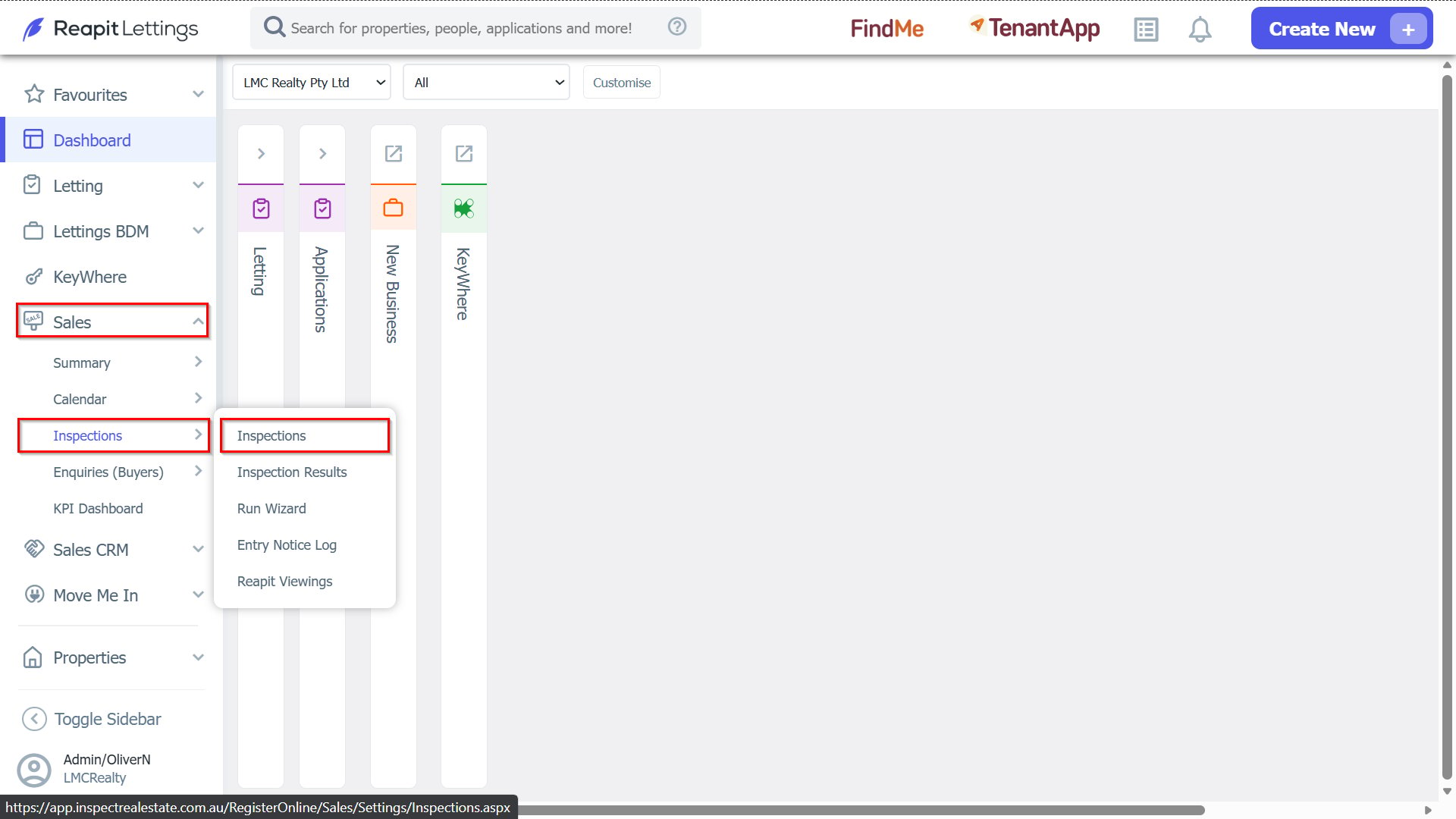
1. Navigate to Sales > Inspections > Inspections.
2. Select Canceled by and Cancelation Reason from the Column Chooser icon.
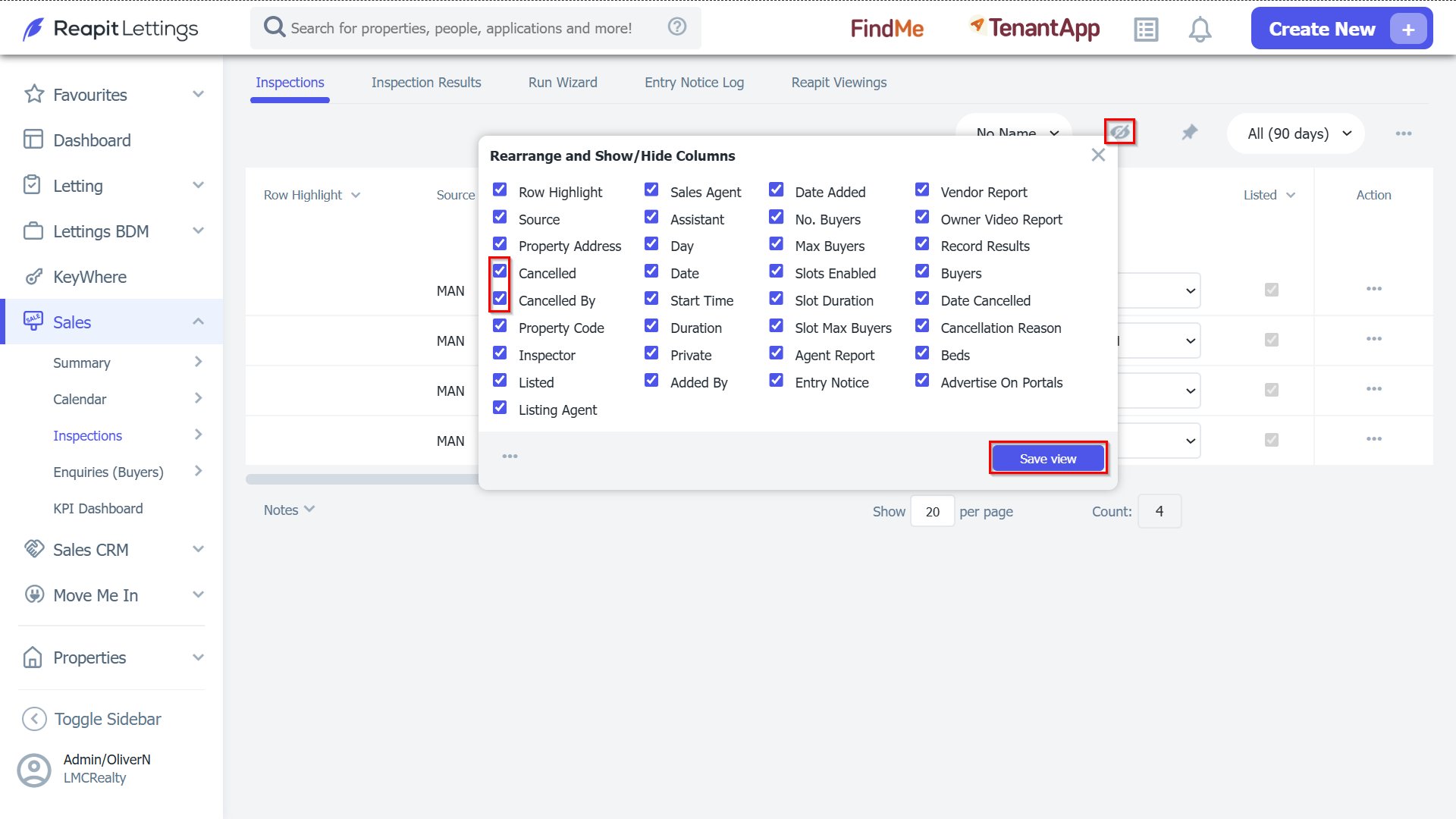
Note: When a prospective tenant initiates a cancelation through your agency, the system will display relevant data within the grid to provide insights. Conversely, if the cancelation of the inspection is executed by your agency, note that under that cancelation, the system will record and list the name of the staff member responsible, along with the date and time of the cancelation. In this instance, the reason for the cancelation will not be recorded in this scenario.