'%20d='M0%208a8%208%200%200%201%208-8h24a8%208%200%200%201%208%208v24a8%208%200%200%201-8%208H8a8%208%200%200%201-8-8V8Z'/%3e%3cpath%20fill='%23fff'%20d='M32.576%206C12.293%206%208.776%2025.887%207.424%2034H9.1c.45-2.977%203.493-14.748%2010.899-20.287%200%200-5.633%206.976-6.572%2015.051%203.426-.652%2013.845-3.372%2016.056-12.927l-3.84-.61c1.352-1.351%204.909-5.17%206.931-9.226V6Z'/%3e%3cdefs%3e%3clinearGradient%20id='reapit-lettings__a'%20x1='20.702'%20x2='20.702'%20y1='.351'%20y2='31.228'%20gradientUnits='userSpaceOnUse'%3e%3cstop%20stop-color='%235573FD'/%3e%3cstop%20offset='.575'%20stop-color='%234E56EA'/%3e%3c/linearGradient%3e%3c/defs%3e%3c/svg%3e)
How to Clear the Cache in Google Chrome and Microsoft Edge
This article will show how to clear browser cache in Google Chrome and Microsoft Edge to help improve performance, resolve loading issues, and ensure you’re viewing the latest version of a website
How to Clear the Cache in Google Chrome and Microsoft Edge
Clearing your browser cache helps improve performance, resolve loading issues, and ensure you’re viewing the latest version of a website. Whether you're troubleshooting an issue or performing regular maintenance, this guide will walk you through the process.
The processes in this article include:
- Clear Cache in Google Chrome
- Clear Cache in Microsoft Edge
Clear Cache in Google Chrome
- While using Google Chrome, navigate to the three dots and select Settings.
- Click on Privacy and Security and select Third-party cookies.
- Select See all site data and permissions.
- Using the search bar on the top, search 'inspect' to bring up site results. Tap on the bin icon to remove cached pages individually, or select Delete displayed data to clear all results.
- The Delete displayed data confirmation box will display advising that you will be signed out of the website by clearing the cache. Click Delete to complete the process.
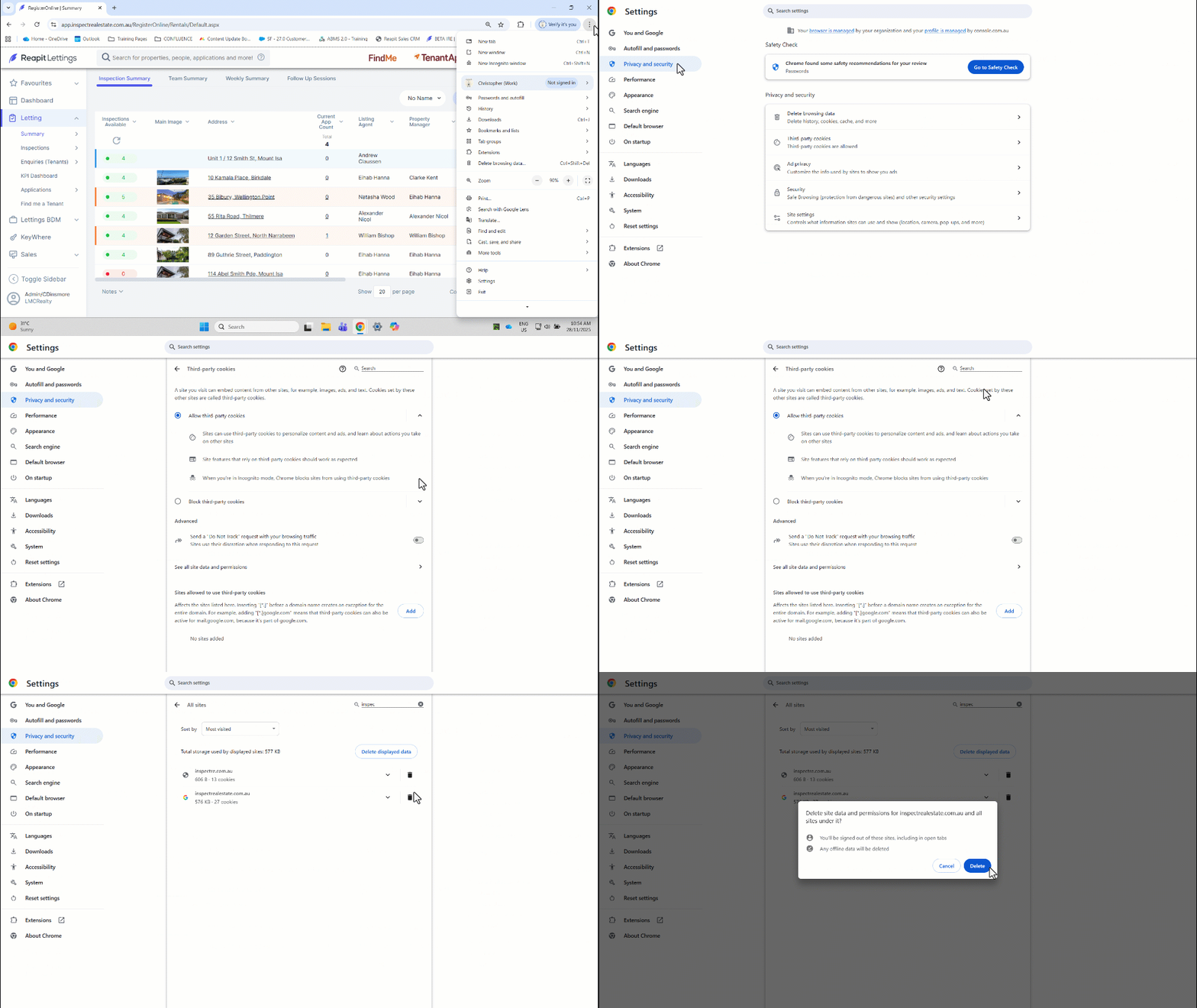
The selected website caches will be removed, and you will need to sign back onto any websites you have just cleared caches for.
Clear Cache in Microsoft Edge
- While using Microsoft Edge, navigate to the three action dots on the top right of the page and select Settings.
- Navigate to Privacy, search, and services. Click Cookies.
- Click See all cookies and site data.
- Type 'inspect' in the search bar and click the Bin Icon to remove.
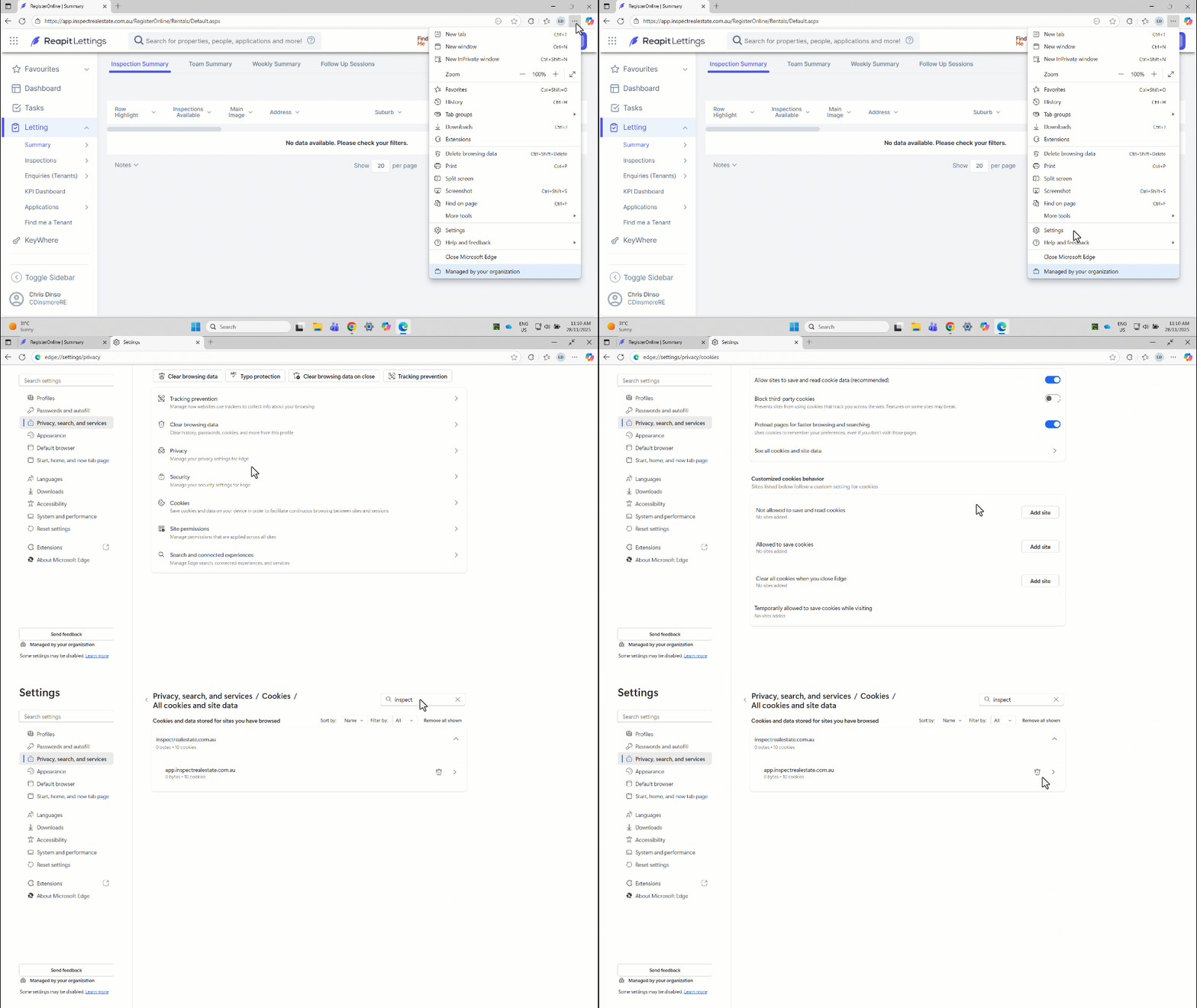
The selected website caches will be removed, and you will need to sign back onto any websites you have just cleared caches for.