'%20d='M0%208a8%208%200%200%201%208-8h24a8%208%200%200%201%208%208v24a8%208%200%200%201-8%208H8a8%208%200%200%201-8-8V8Z'/%3e%3cpath%20fill='%23fff'%20d='M32.576%206C12.293%206%208.776%2025.887%207.424%2034H9.1c.45-2.977%203.493-14.748%2010.899-20.287%200%200-5.633%206.976-6.572%2015.051%203.426-.652%2013.845-3.372%2016.056-12.927l-3.84-.61c1.352-1.351%204.909-5.17%206.931-9.226V6Z'/%3e%3cdefs%3e%3clinearGradient%20id='reapit-lettings__a'%20x1='20.702'%20x2='20.702'%20y1='.351'%20y2='31.228'%20gradientUnits='userSpaceOnUse'%3e%3cstop%20stop-color='%235573FD'/%3e%3cstop%20offset='.575'%20stop-color='%234E56EA'/%3e%3c/linearGradient%3e%3c/defs%3e%3c/svg%3e)
Managing Existing Enquiries
This article covers the processes to locate, update contact details and deactivate existing enquires within Reapit Lettings. The processes in this article include: How to Find an Existing Enquiry How to Update Contact Details for an Existing Enquiry How to Make an Enquiry Inactive on the Tenants Screen How to Make an Existing Enquiry Inactive Via Create New
This article covers the processes to locate, update contact details and deactivate existing enquires within Reapit Lettings.
The processes in this article include:
- How to Find an Existing Enquiry
- How to Update Contact Details for an Existing Enquiry
- How to Make an Enquiry Inactive on the Tenants Screen
- How to Make an Existing Enquiry Inactive Via Create New
How to Find an Existing Enquiry
This process will run through how to find an existing enquiry.
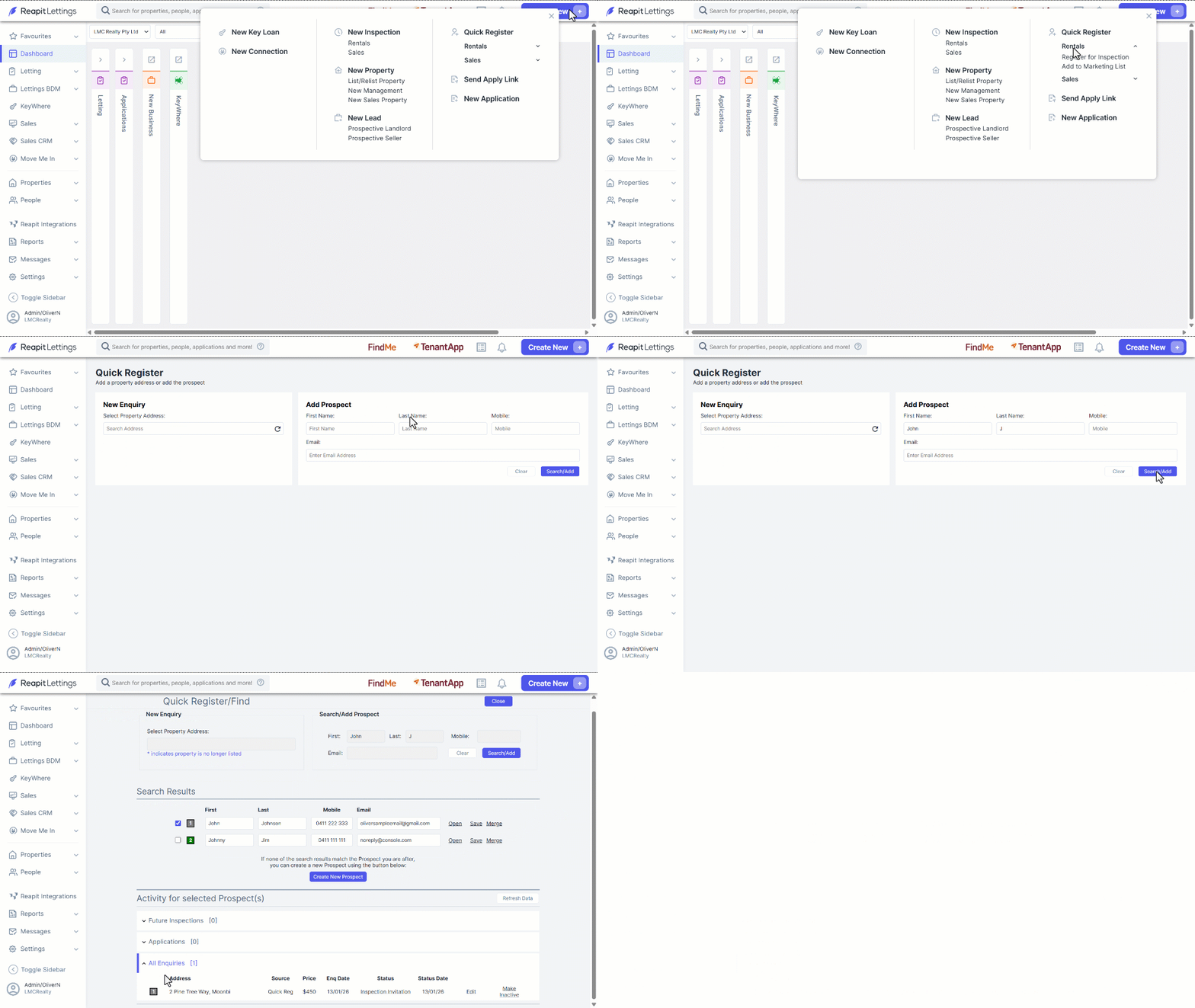
- Click on Create New.
- Navigate to Rentals and click on Register for Inspection.
- Enter the tenant's contact details on the right-hand side and click on Search/Add.
- You will then be presented with a list of matching records.
- If there are multiple entries, you can:
- Refine your search by reviewing the prospect information add in the search area, or
- Select the correct entry by ticking the appropriate checkbox, then press Refresh Data, or
- Select multiple entries by ticking the checkbox next to each entry then pressing refresh data (the entries will be colour coded based on the colour/number next to the enquiry)
Note: If you are redirected to the Add Prospect screen, the contact has not made an enquiry.
- Select either Future Inspections, Applications or All Enquires to expand and view further information.
How to Update Contact Details for an Existing Enquiry
This process will run through how to update contact details for an existing enquiry.
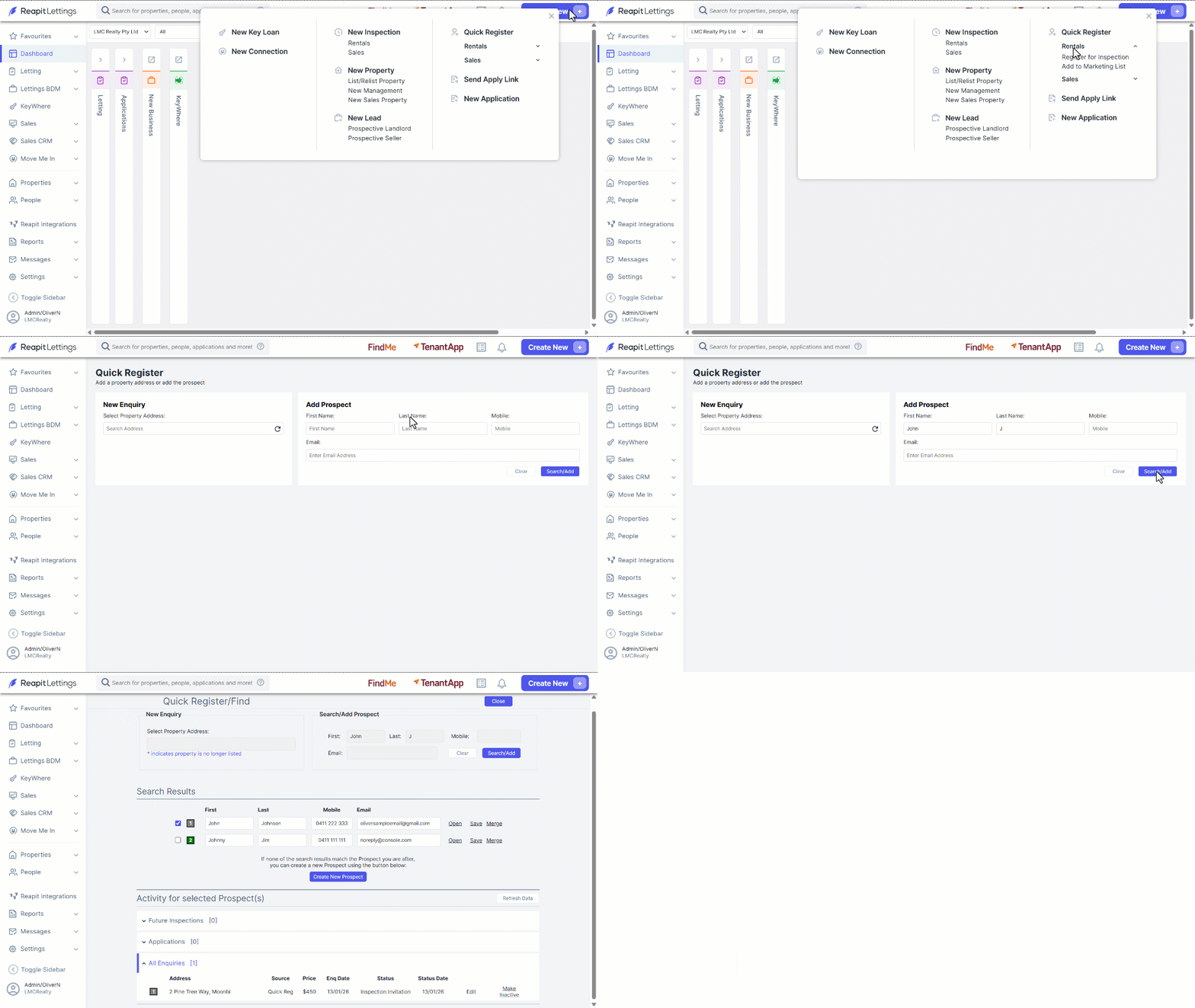
- Click on Create New.
- Navigate to Rentals and click on Register for Inspection.
- Enter the tenant's contact details on the right-hand side and click on Search/Add.
- In the Search Results, add or update the prospects contact details.
- Click on Save.
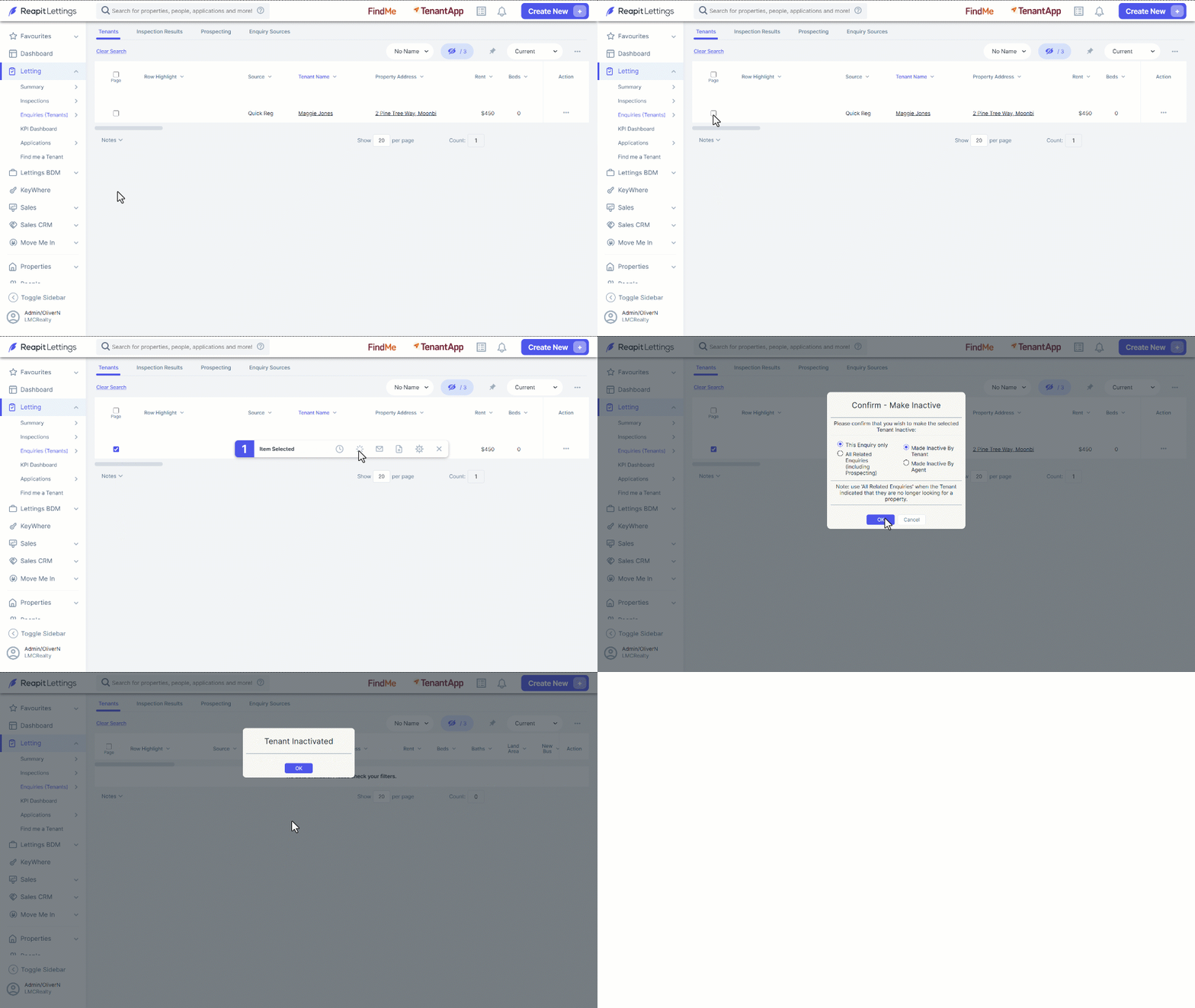
How to Make an Enquiry Inactive on the Tenants Screen
This process will run through how to make an enquiry inactive on the tenant's screen.
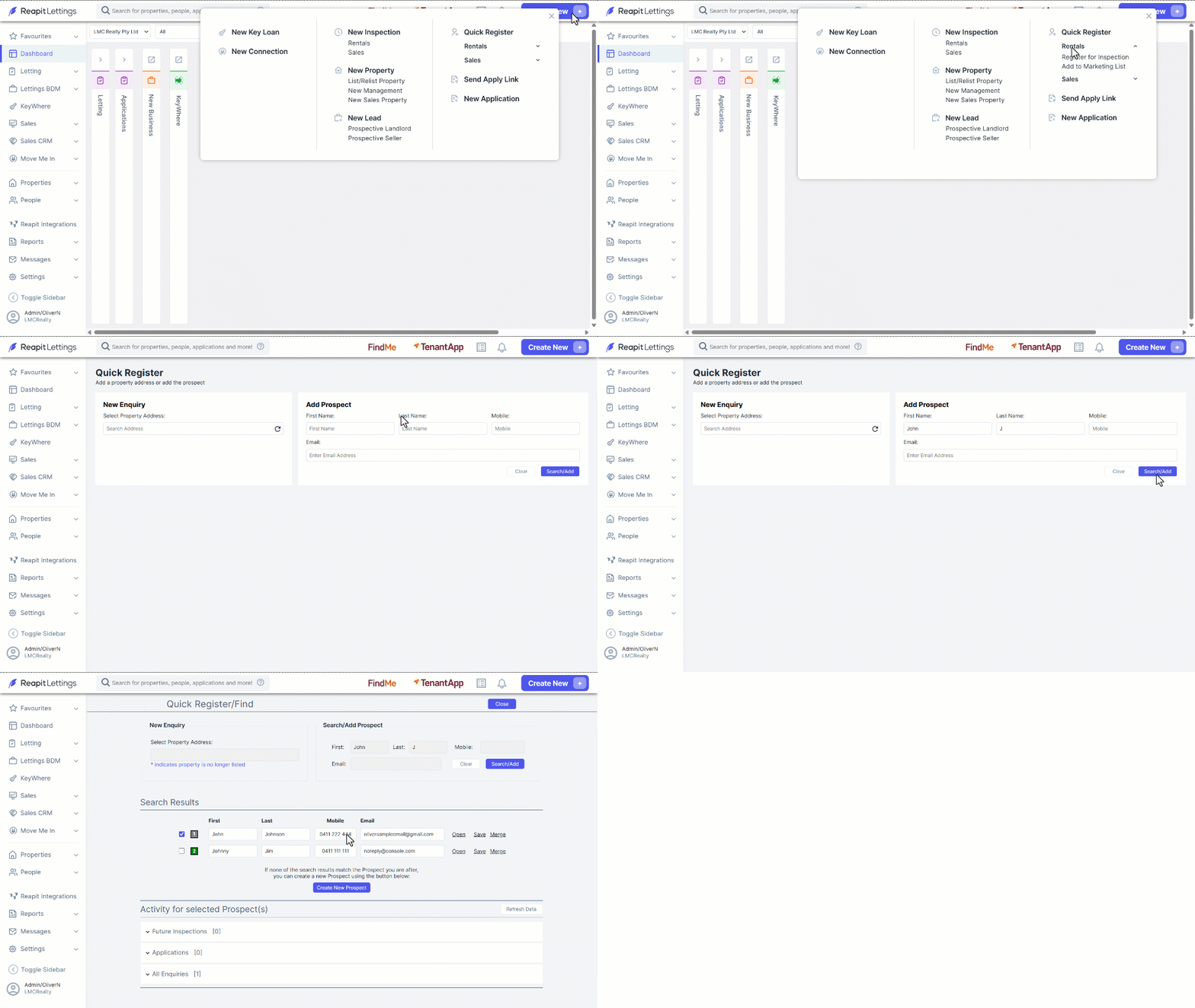
- Click on Letting.
- Click on Enquiries (Tenants)
- Click on Tenants.
- Locate the enquiry on the results page or search for the enquiry by clicking on Tenant Name and entering tenant's name into the Search field clicking on Search. Alternatively, you can search via the Tenant Email or Tenant Mobile columns.
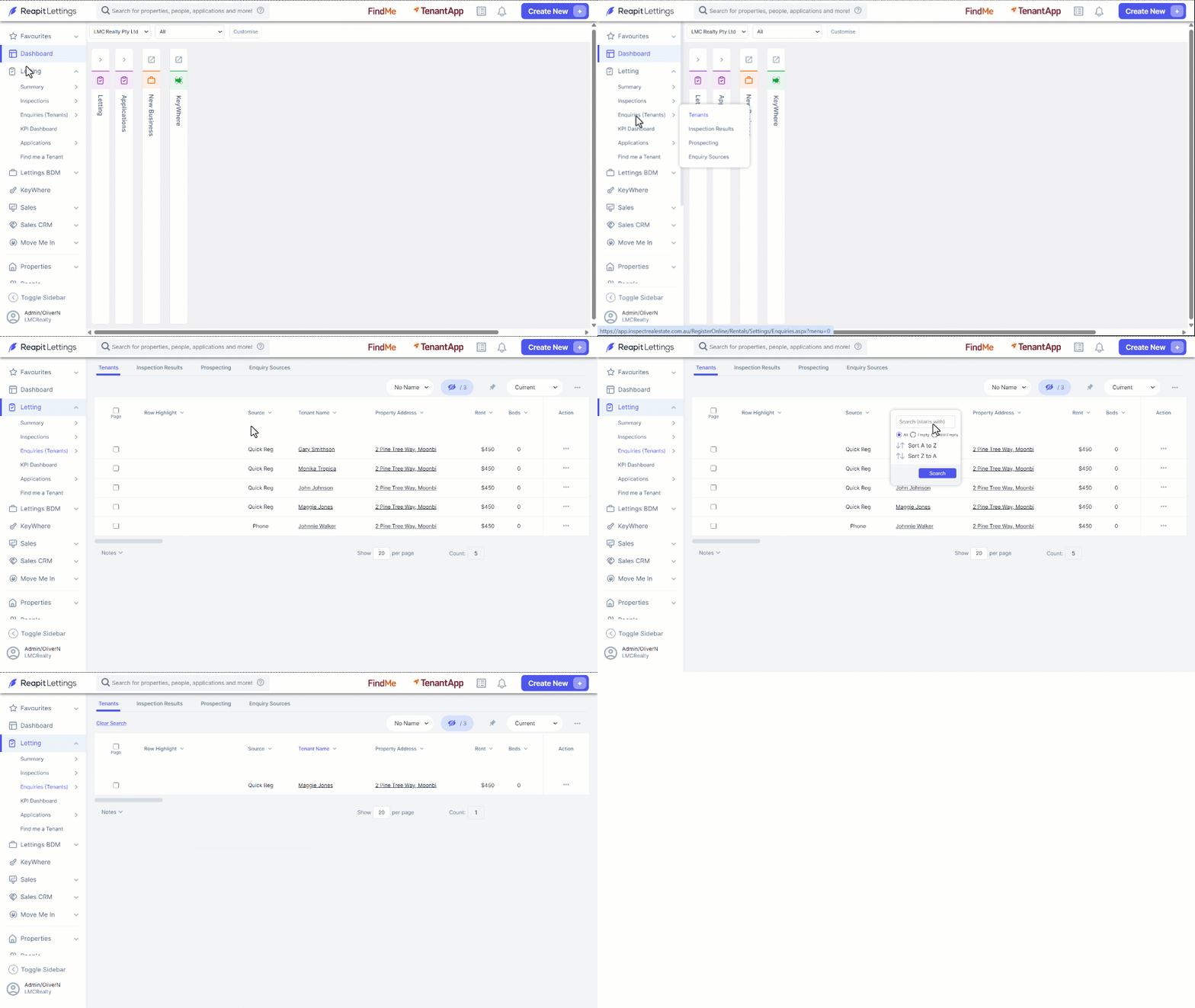
- Select the tick boxes next to the enquiries you want to make inactive.
- Click on the inactive icon in the action bar.
- Select from:
- Selected Enquires only or All Related Enquiries (including Prospecting), then
- Made inactive By Tenant or Made Inactive by Agent.
- Click on OK.
How to Make an Existing Enquiry Inactive Via Create New
This process will run through how to make an existing enquiry inactive via the Create New button.
- Click on Create New.
- Navigate to Rentals and click on Register for Inspection.
- Enter the tenant's contact details on the right-hand side and click on Search/Add.
- If multiple results are found, select the correct enquiry and click on Refresh Data.
- Navigate to the All Enquiries section and click to expand.
- Click on Make Inactive.