'%20d='M0%208a8%208%200%200%201%208-8h24a8%208%200%200%201%208%208v24a8%208%200%200%201-8%208H8a8%208%200%200%201-8-8V8Z'/%3e%3cpath%20fill='%23fff'%20d='M32.576%206C12.293%206%208.776%2025.887%207.424%2034H9.1c.45-2.977%203.493-14.748%2010.899-20.287%200%200-5.633%206.976-6.572%2015.051%203.426-.652%2013.845-3.372%2016.056-12.927l-3.84-.61c1.352-1.351%204.909-5.17%206.931-9.226V6Z'/%3e%3cdefs%3e%3clinearGradient%20id='reapit-lettings__a'%20x1='20.702'%20x2='20.702'%20y1='.351'%20y2='31.228'%20gradientUnits='userSpaceOnUse'%3e%3cstop%20stop-color='%235573FD'/%3e%3cstop%20offset='.575'%20stop-color='%234E56EA'/%3e%3c/linearGradient%3e%3c/defs%3e%3c/svg%3e)
Setting up On/Off Triggers to Automatically Assign Campaigns to Leads
This article will run through how to set your on and off triggers to campaigns in Reapit Lettings. Note: Once all of your campaigns have been setup you are able to activate them by using the 'On and Off Triggers'. 'On Triggers" Automatically assign a campaign to a certain lead based on their ‘Status’, likewise 'Off Triggers" Automatically remove the campaign from the lead based on their Status. The processes in this article include: Setting up ON Triggers Setting up OFF Triggers
Setting up On/Off Triggers to Automatically Assign Campaigns to Leads
This article will run through how to set your on and off triggers to campaigns in Reapit Lettings.
Note: Once all of your campaigns have been setup you are able to activate them by using the 'On and Off Triggers'. 'On Triggers" Automatically assign a campaign to a certain lead based on their ‘Status’, likewise 'Off Triggers" Automatically remove the campaign from the lead based on their Status.
The processes in this article include:
- Setting up ON Triggers
- Setting up OFF Triggers
- Click on Lettings BDM. 2. Click on Marketing. 3. Select Campaigns. 4. Navigate to Triggers.
Setting up ON Triggers From Triggers tab, you can set a particular status that will trigger a corresponding campaign to start. When a lead reaches this status, the campaign will automatically start sending to them. 1. Select the Status you would like to use as your 'On Trigger'. 2. Select the Campaign you would like to automatically assign to the Status. 3. Select the Start Step you would like the Campaign to start at. 4. Then click the Add Trigger button to activate the 'On Trigger'. 5. Once activated click Save at the top of the screen.
Note: Once the status is changed again, the New Campaign will override the existing Campaign.
Setting up OFF Triggers
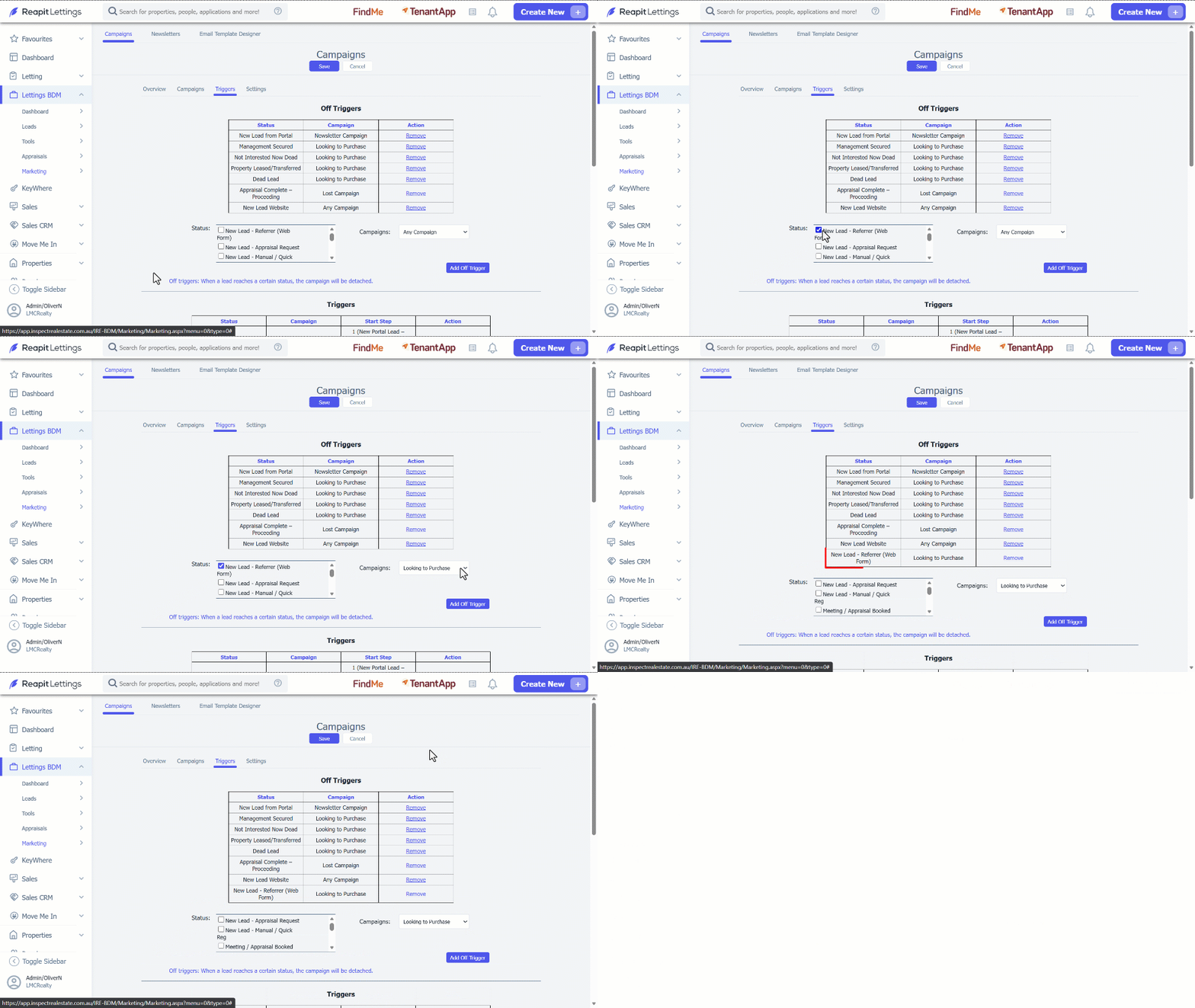
On the same screen, you can set a status that will trigger the corresponding campaign to stop, so that when a lead reaches this status the campaign will automatically stop sending. 1. Select the Status you would like to use as your 'Off Trigger'. 2. Select the Campaign you would like to automatically assign to the Status. 3. Then click the Add Off Trigger button to activate the 'Off Trigger'. 4. Once activated click Save at the top of the screen.