'%20d='M0%208a8%208%200%200%201%208-8h24a8%208%200%200%201%208%208v24a8%208%200%200%201-8%208H8a8%208%200%200%201-8-8V8Z'/%3e%3cpath%20fill='%23fff'%20d='M32.576%206C12.293%206%208.776%2025.887%207.424%2034H9.1c.45-2.977%203.493-14.748%2010.899-20.287%200%200-5.633%206.976-6.572%2015.051%203.426-.652%2013.845-3.372%2016.056-12.927l-3.84-.61c1.352-1.351%204.909-5.17%206.931-9.226V6Z'/%3e%3cdefs%3e%3clinearGradient%20id='reapit-lettings__a'%20x1='20.702'%20x2='20.702'%20y1='.351'%20y2='31.228'%20gradientUnits='userSpaceOnUse'%3e%3cstop%20stop-color='%235573FD'/%3e%3cstop%20offset='.575'%20stop-color='%234E56EA'/%3e%3c/linearGradient%3e%3c/defs%3e%3c/svg%3e)
How to Create a New User & Team Member
This article explains how to create a new User and Team Member in Reapit Lettings.
Overview
How to Create a New User & Team Member
This article explains how to create a new User and Team Member in Reapit Lettings.
How to Create a New User
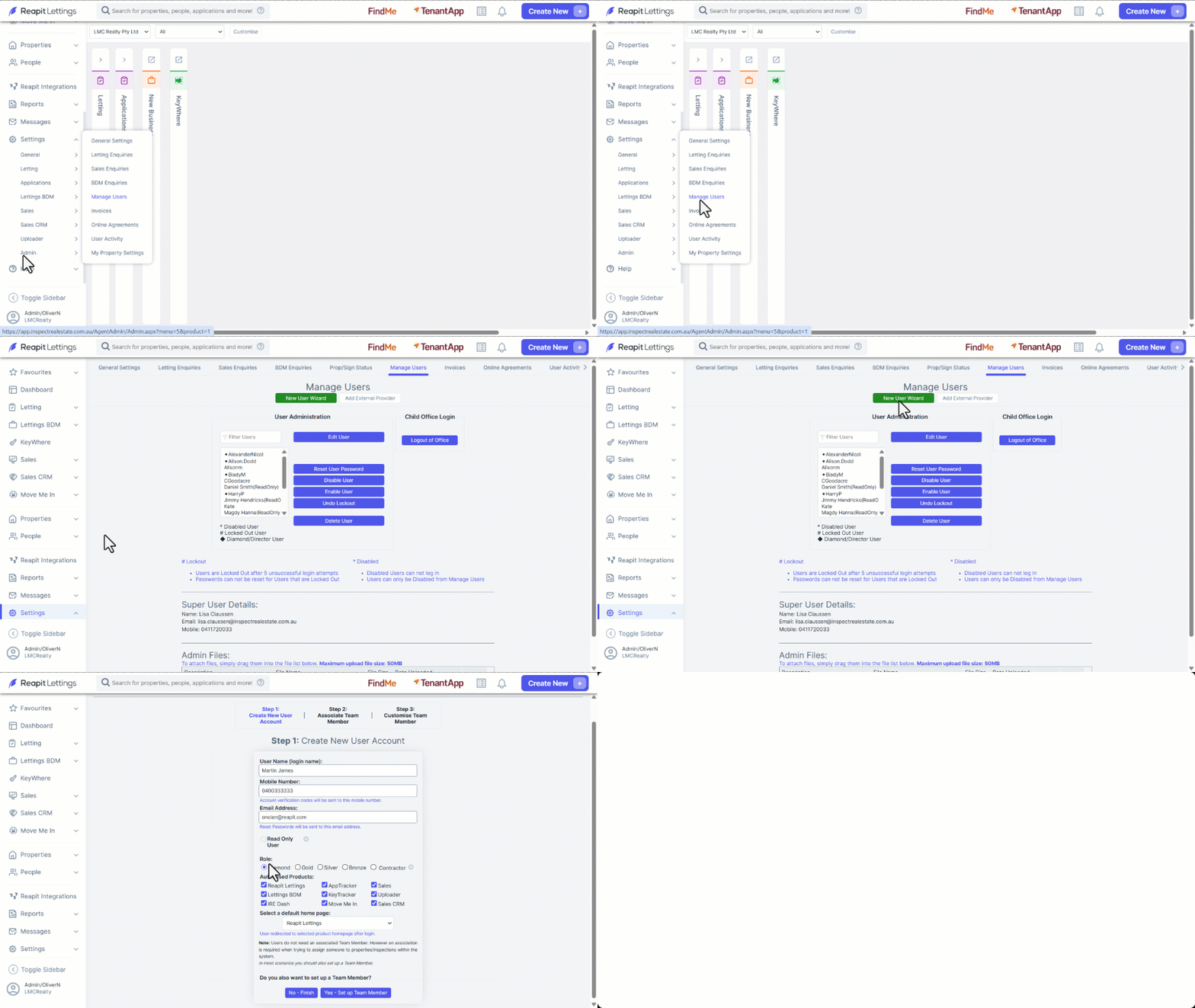
- Click on Settings.
- Click on Admin.
- Click on Manage Users.
- Click on New User Wizard.
- Enter the user's name, mobile number, email address, and role in the designated fields.
- Authorise and select the relevant products for the user's access and choose a default home page.
- Click Yes - Set up Team Member once completed. Click No - Finish, if you do not need to set up a team member
How to Create a New User & Team Member
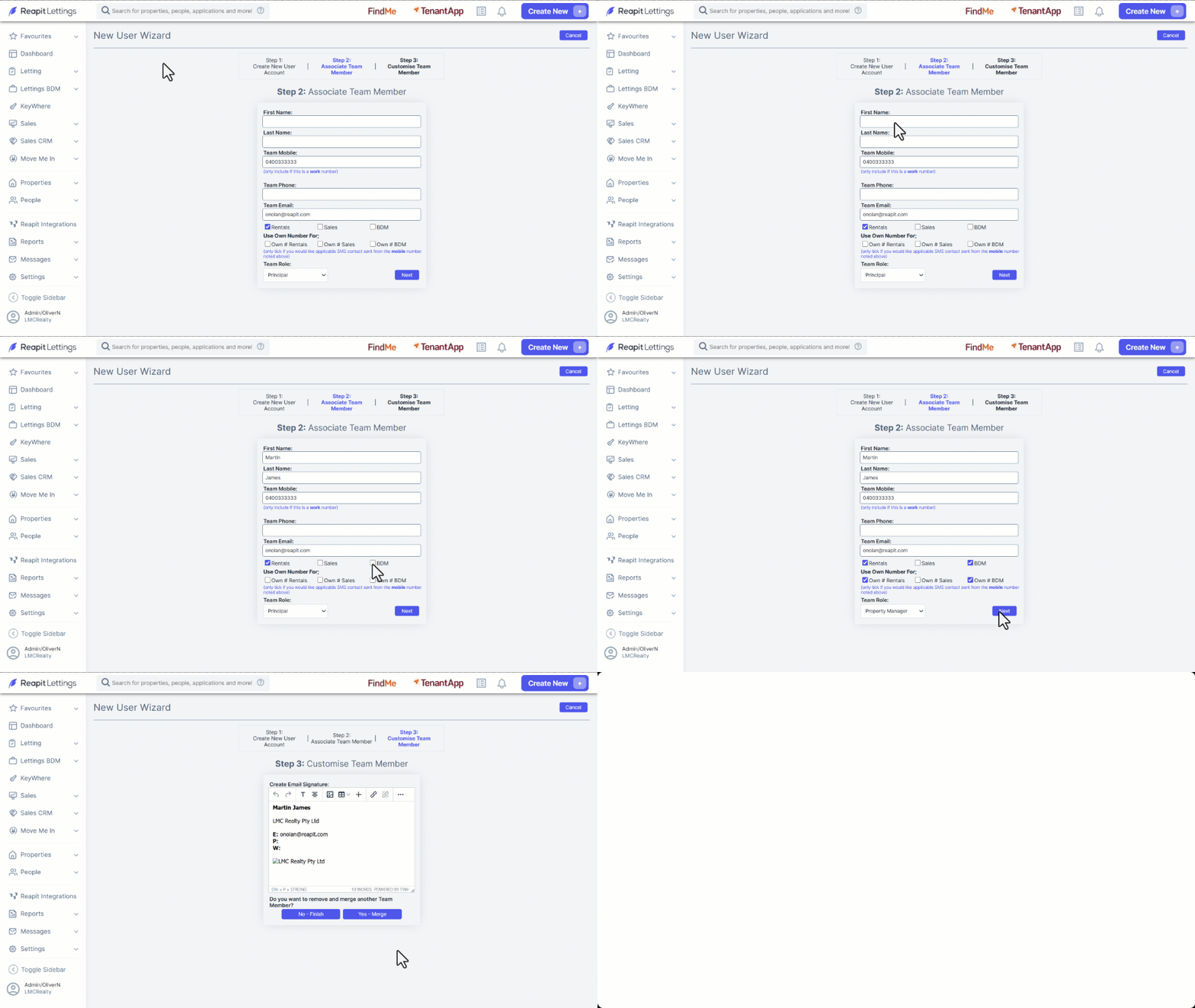
- Enter comprehensive information in the Associate Team Member is section, as it will be integrated into the account for correspondence, contingent on the user's role.
- Click Next.
- Review the Team Members Email Signature Template and adjust as required.
- Click on No Finish to create the account for a user who is not replacing an existing user. If the user is taking over the role of an existing user, choose Yes - Merge to select the team member being replaced by the new team member. This action will automatically transfer all items associated with the old user's account to the new user's account immediately.