'%20d='M0%208a8%208%200%200%201%208-8h24a8%208%200%200%201%208%208v24a8%208%200%200%201-8%208H8a8%208%200%200%201-8-8V8Z'/%3e%3cpath%20fill='%23fff'%20d='M32.576%206C12.293%206%208.776%2025.887%207.424%2034H9.1c.45-2.977%203.493-14.748%2010.899-20.287%200%200-5.633%206.976-6.572%2015.051%203.426-.652%2013.845-3.372%2016.056-12.927l-3.84-.61c1.352-1.351%204.909-5.17%206.931-9.226V6Z'/%3e%3cdefs%3e%3clinearGradient%20id='reapit-lettings__a'%20x1='20.702'%20x2='20.702'%20y1='.351'%20y2='31.228'%20gradientUnits='userSpaceOnUse'%3e%3cstop%20stop-color='%235573FD'/%3e%3cstop%20offset='.575'%20stop-color='%234E56EA'/%3e%3c/linearGradient%3e%3c/defs%3e%3c/svg%3e)
Advising and Inviting Inspection Attendees
This article covers the processes to follow to advise or invite attendees to schedules inspections within Reapit Lettings. The processes in this article include: How To Manually Advise Waiting Tenants of Inspection Times How to Re-Advise Tenants not registered or cancelled of Inspection times Private Inspection Invites The processes in this article include: How To Manually Advise Waiting Tenants of Inspection Times How to Re-Advise Tenants not registered or cancelled of Inspection times Private Inspection Invites
This article covers the processes to follow to advise or invite attendees to schedules inspections within Reapit Lettings.
The processes in this article include:
- How To Manually Advise Waiting Tenants of Inspection Times
- How to Setup Re-Advise Tenants not registered or cancelled of Inspection times
- Private Inspection Invites
How To Manually Advise Waiting / Re-Advise Tenants of Inspection Times
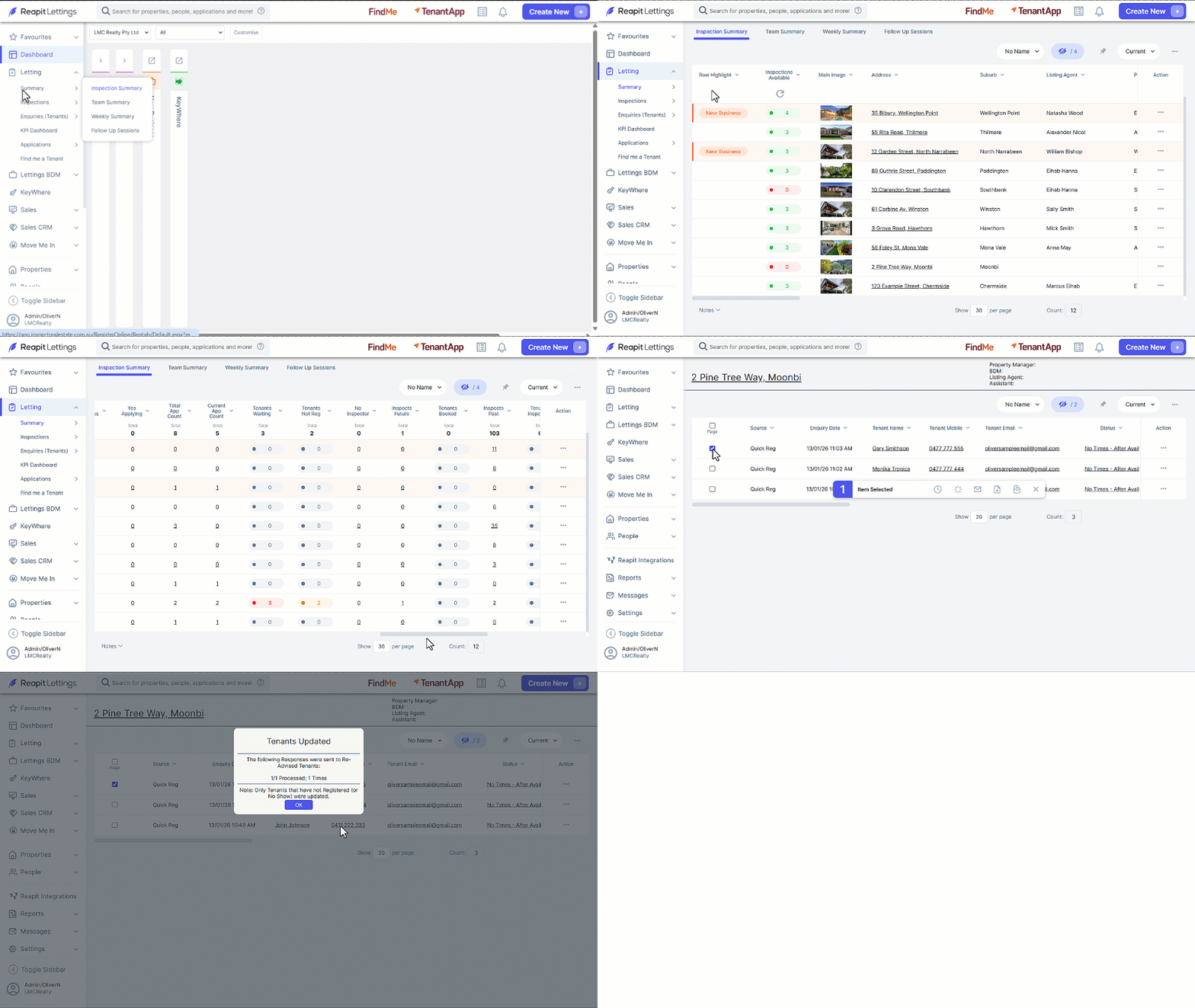
This process explains how to manually advise waiting Tenants of Inspection Times.
Waiting Tenants are automatically advised when you create a new inspection time for that property. However, if you cancel the notification to the tenants, you can manually re-advise if required.
- Click on Lettings.
- Click on Summary.
- Click on Inspection Summary.
- Locate the property and navigate to the Tenants Waiting column.
- Click on the number.
- Tick the checkbox and click on the clock icon, the following window will appear which confirms how many people were advised of times.
How to Setup Re-Advise Tenants not registered or cancelled of Inspection times
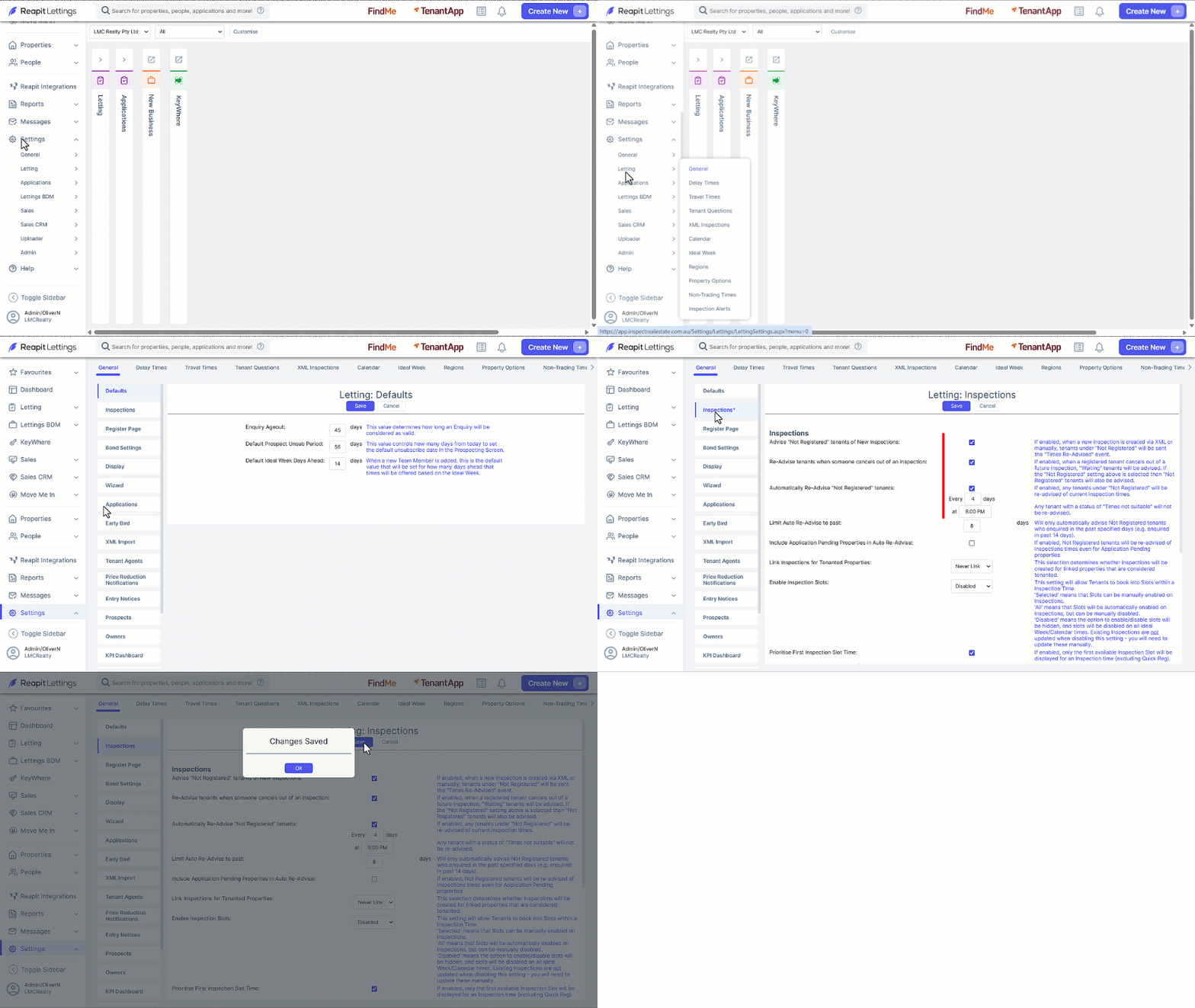
This process explains how to setup readvising tenants of inspections and changes.
To complete the setup, you must have Diamond level access.
- Click on Settings.
- Click on Lettings
- Click on General.
- Navigate to the Inspections tab.
- Enable the following as required.
- Advise “Not registered” tenants of New Inspections
- Re-Advise tenants when someone cancels out of an inspection
- Enable Automatically Re-Advise “Not Registered” Tenants by ticking the box.
- Note: Enter the frequency in day, and the scheduled time. Enter the days Limit Auto Re-Advie to past. It is recommended to specify a relatively short period to ensure that only interested tenants, who have recently inquired, receive these communications.
- Click on Save.
Private Inspection Invites
This article will run through how you create a private inspection invite.
- Click on Letting.
- Click on Summary.
- Click on Inspection Summary.
- Locate the property and navigate to the Tenants Waiting column.
- Click on the number.
- Choose enquires individually or select all or multiple by clicking the checkboxes to the left.
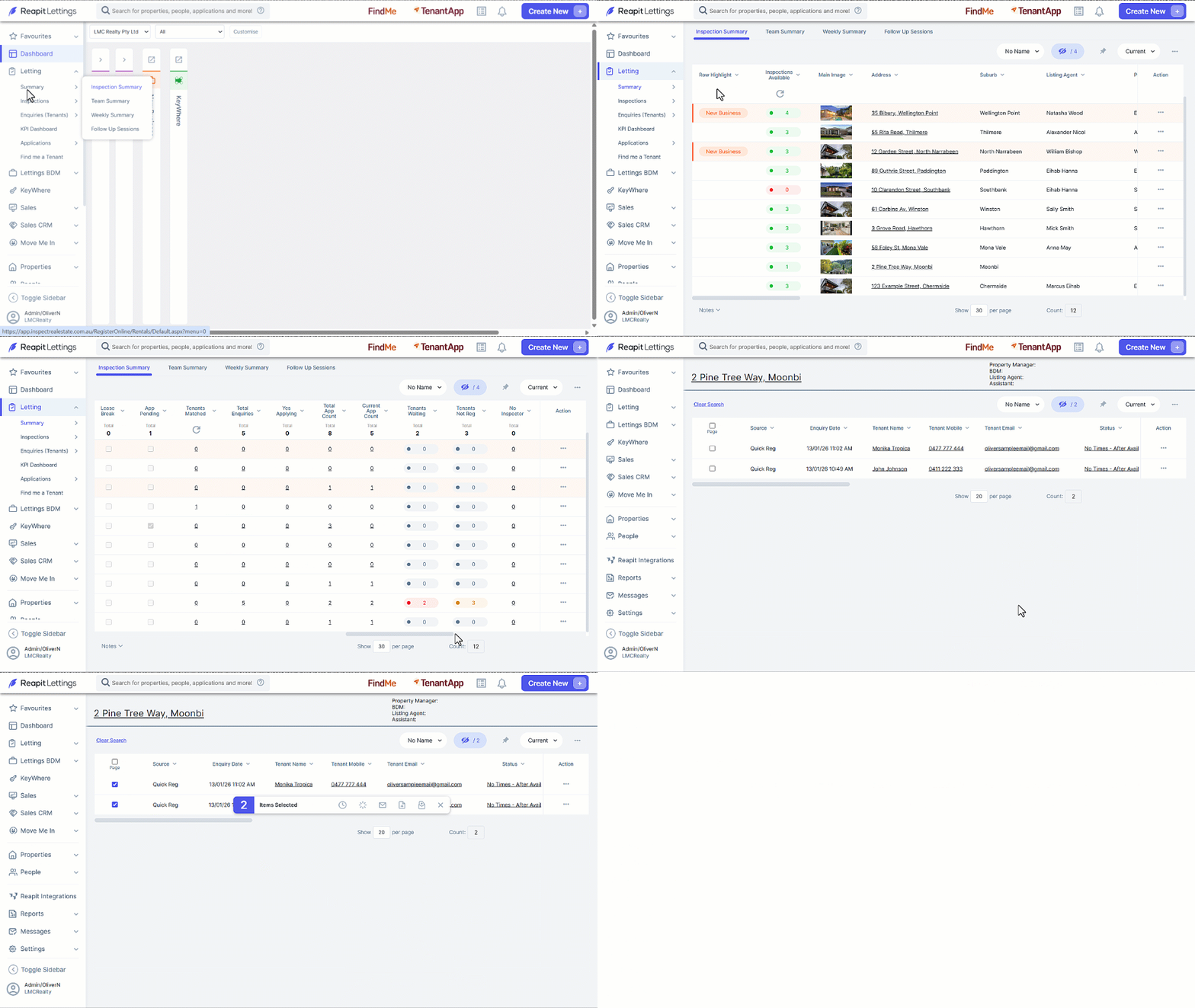
- Select the send invite icon on the far right.
- Select existing inspection or create new.
- Select Send Invites.