'%20d='M0%208a8%208%200%200%201%208-8h24a8%208%200%200%201%208%208v24a8%208%200%200%201-8%208H8a8%208%200%200%201-8-8V8Z'/%3e%3cpath%20fill='%23fff'%20d='M32.576%206C12.293%206%208.776%2025.887%207.424%2034H9.1c.45-2.977%203.493-14.748%2010.899-20.287%200%200-5.633%206.976-6.572%2015.051%203.426-.652%2013.845-3.372%2016.056-12.927l-3.84-.61c1.352-1.351%204.909-5.17%206.931-9.226V6Z'/%3e%3cdefs%3e%3clinearGradient%20id='reapit-lettings__a'%20x1='20.702'%20x2='20.702'%20y1='.351'%20y2='31.228'%20gradientUnits='userSpaceOnUse'%3e%3cstop%20stop-color='%235573FD'/%3e%3cstop%20offset='.575'%20stop-color='%234E56EA'/%3e%3c/linearGradient%3e%3c/defs%3e%3c/svg%3e)
Entering a New Prospect Enquiry
This article will run through how to enter a new prospect enquiry within your account in Reapit Lettings.
Entering a New Prospect Enquiry
This article will run through how to enter a new prospect enquiry within your account in Reapit Lettings.
The processes in this article include:
- Entering a New Prospect Enquiry
- How to Enter Enquiries for Multiple Properties
Entering a New Prospect Enquiry
ROL Rental's Prospecting feature efficiently accelerates property rentals by utilising the tenant enquiry database in Reapit Lettings, ensuring accurate tenant-property matching and timely notifications of new listings. This document offers an in-depth guide to optimise its use for enhanced performance in your office.
There are two ways to create prospects within your account.
Automatic Process
A prospect profile is automatically generated for every individual who inquires about any of your properties. Upon making inquiries on additional properties, the system consolidates these interactions into a comprehensive profile, capturing the specifics of each property explored. This process enables ROL Rentals to acquire a nuanced understanding of the tenant's preferences, facilitating a more precise alignment of the prospect with properties that closely match their criteria.
Manual Process
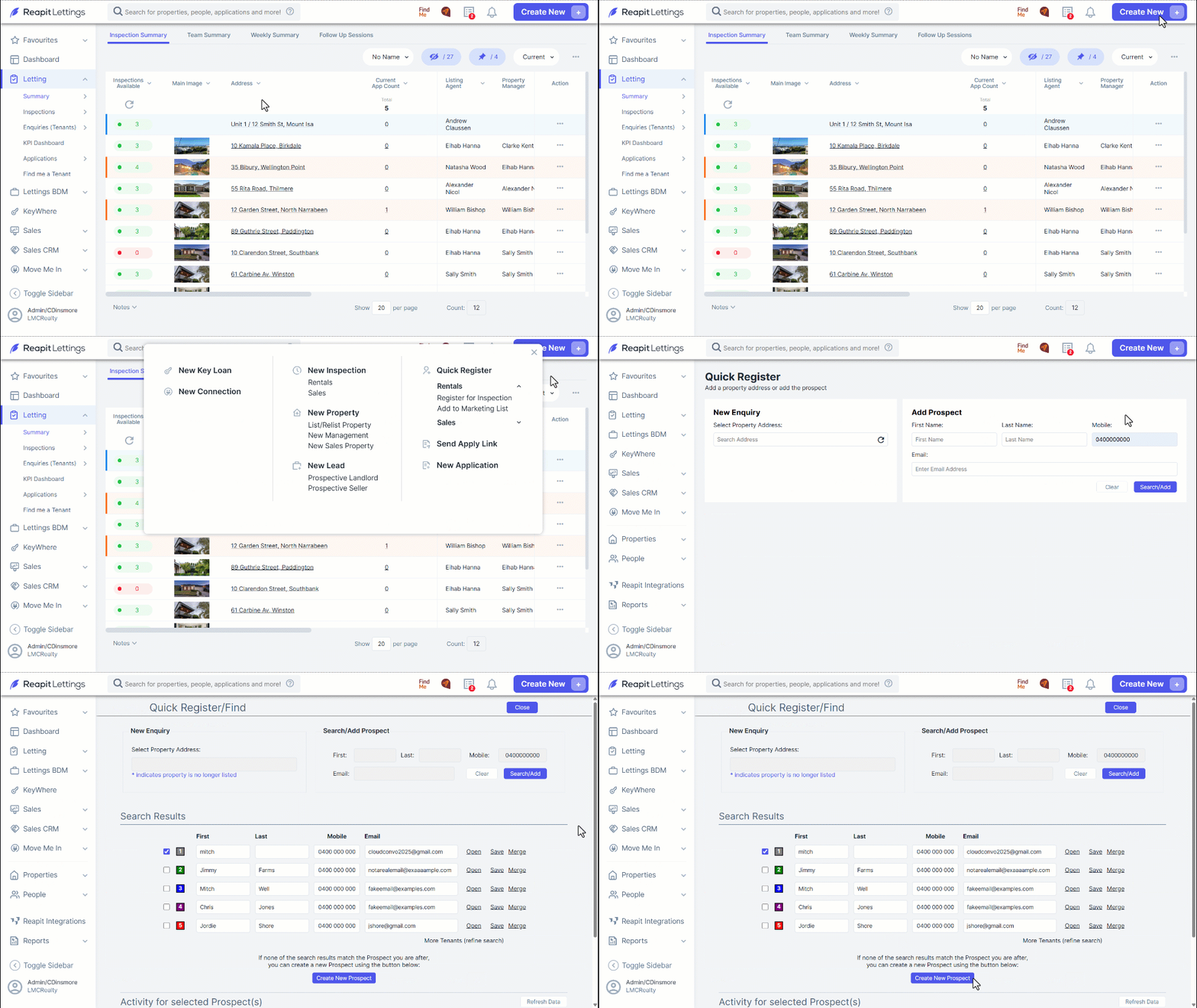
- In instances where a potential tenant reaches out to inquire about property availability without specifying a particular property, you have the capability to manually register them as a prospect. To accomplish this, commence by navigating to Create New. Click Quick Register Rentals. Click Register for Inspection.
- Use the Search/Add Prospect section to enter the prospect's details before clicking Search/Add.
- You can input the mobile number and click Search/Add. If the prospect’s contact number exists within your account, those details will populate accordingly.
Select the relevant contact and click Create New Prospect.
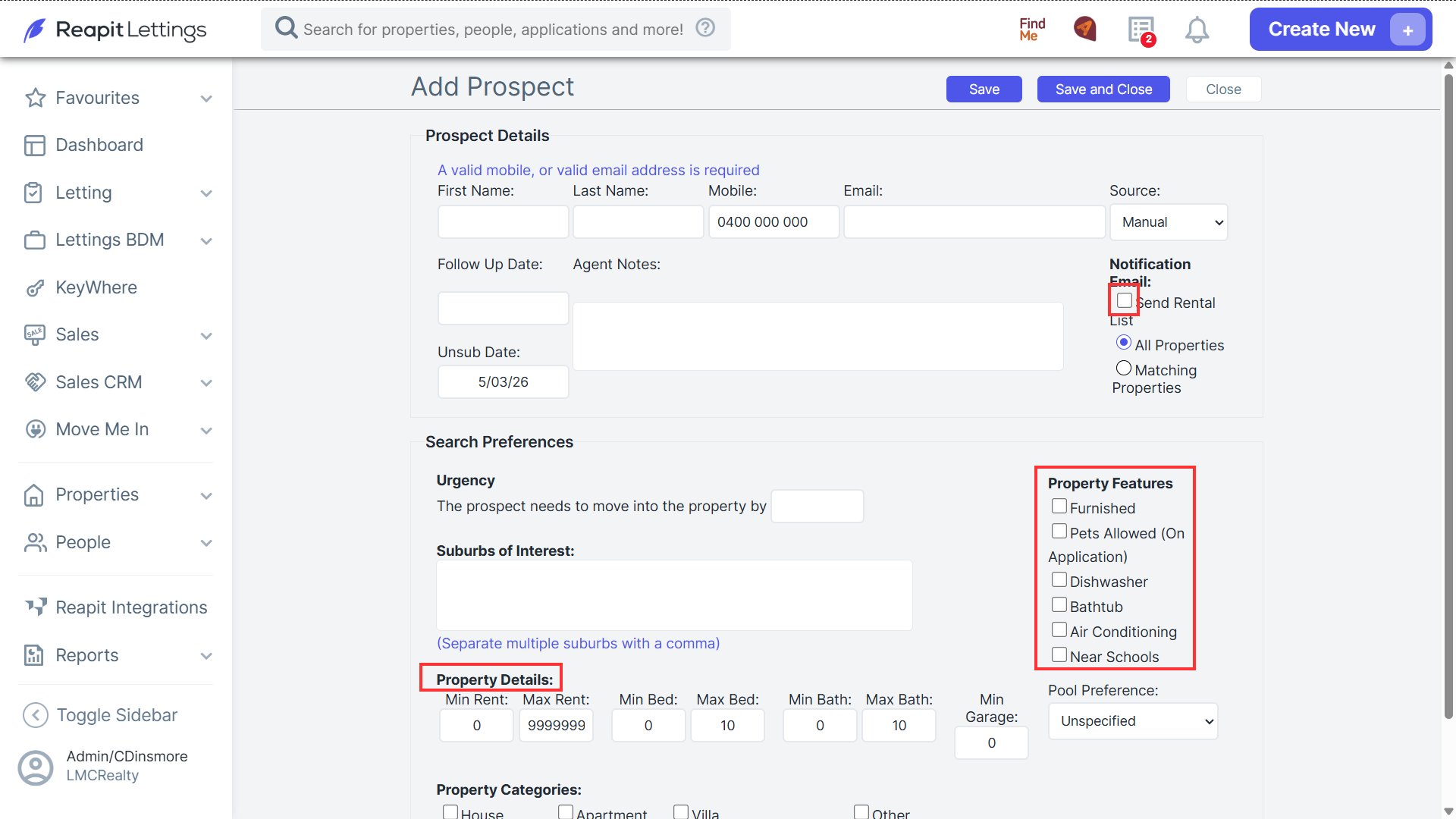
- Please enter the contact details and property preferences of all potential tenants in the provided fields. Additionally, you have the option to email them a PDF version of your rental listings by selecting the Send Rental List checkbox located at the top right corner of the page. After ensuring that all details are accurately entered, click Save & Close at the top of the screen.
How to Enter Enquiries for Multiple Properties
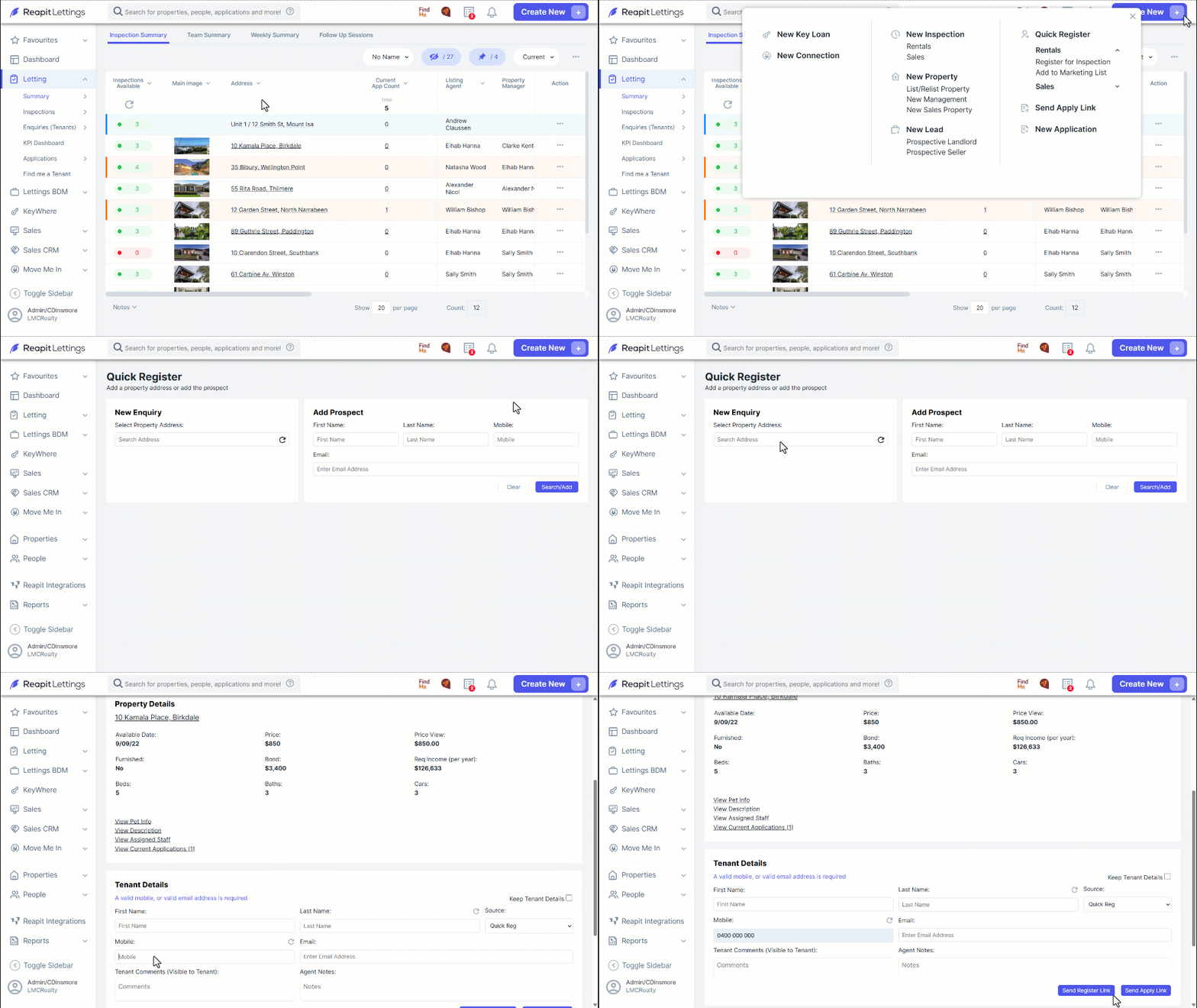
- Navigate to Create New.
- Click Quick Register.
- Click Rentals Register for Inspection.
- Type in the property address.
- Enter in the tenant's details. You can then tick the Keep Tenant Details checkbox.
- You can then press the Send Register Link button for that property.
Note: Because ‘Keep Tenant Details’ is ticked, every time you select a new property, the tenant's details will remain in place, so all you need to do is press the Send Register Link button for each property.
Alternatively, you can go to the Tenants page.
- Navigate to Letting.
- Click Enquiries (Tenants) > Tenants.
- Press the New Tenant Enquiry button in the top right of the page under the action dots and enter the contact details for the tenant.
- Enter the property they are enquiring about in the space provided.
- You can add more properties by pressing the Add button.
- Once you have added all the properties, press Save.
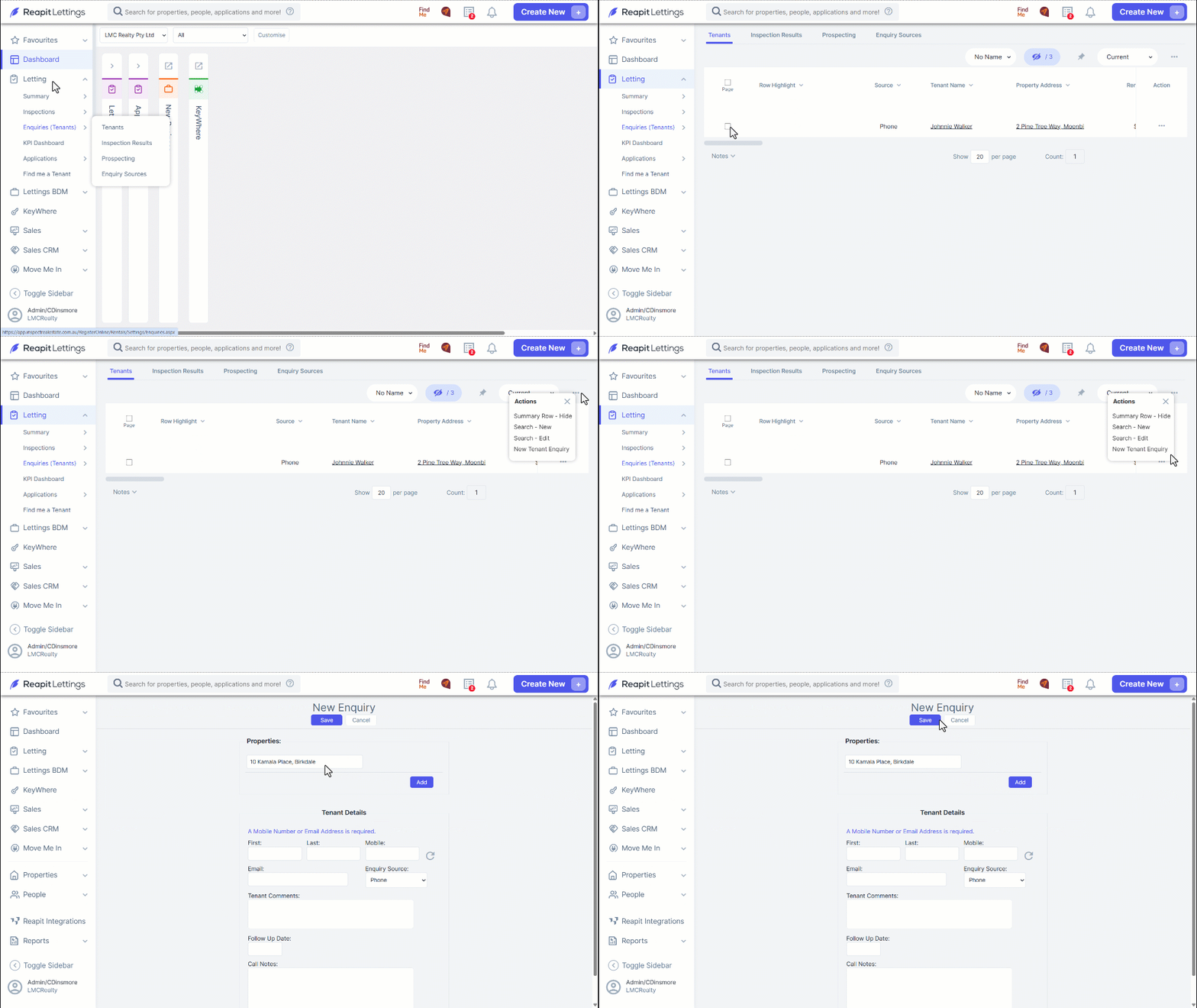
This will send the tenant the register link for all the properties you have selected.