'%20d='M0%208a8%208%200%200%201%208-8h24a8%208%200%200%201%208%208v24a8%208%200%200%201-8%208H8a8%208%200%200%201-8-8V8Z'/%3e%3cpath%20fill='%23fff'%20d='M32.576%206C12.293%206%208.776%2025.887%207.424%2034H9.1c.45-2.977%203.493-14.748%2010.899-20.287%200%200-5.633%206.976-6.572%2015.051%203.426-.652%2013.845-3.372%2016.056-12.927l-3.84-.61c1.352-1.351%204.909-5.17%206.931-9.226V6Z'/%3e%3cdefs%3e%3clinearGradient%20id='reapit-lettings__a'%20x1='20.702'%20x2='20.702'%20y1='.351'%20y2='31.228'%20gradientUnits='userSpaceOnUse'%3e%3cstop%20stop-color='%235573FD'/%3e%3cstop%20offset='.575'%20stop-color='%234E56EA'/%3e%3c/linearGradient%3e%3c/defs%3e%3c/svg%3e)
How to Set up The Weekly Owner Report
This article will run through how to enable the weekly owner report within your account in Reapit Lettings.
How to Set Up the Weekly Owner Report
This article will run through how to enable the weekly owner report within your account in Reapit Lettings.
The processes in this article include:
- How to Set Up the Weekly Owner Report
- How to Access & Send the Weekly Owner Report
- How to Action Multiple Owner Reports
- Using AI in the Owner Reports
How to Set Up the Weekly Owner Report
- Navigate to Reports.
- Click Letting.
- Click Owner Reports.
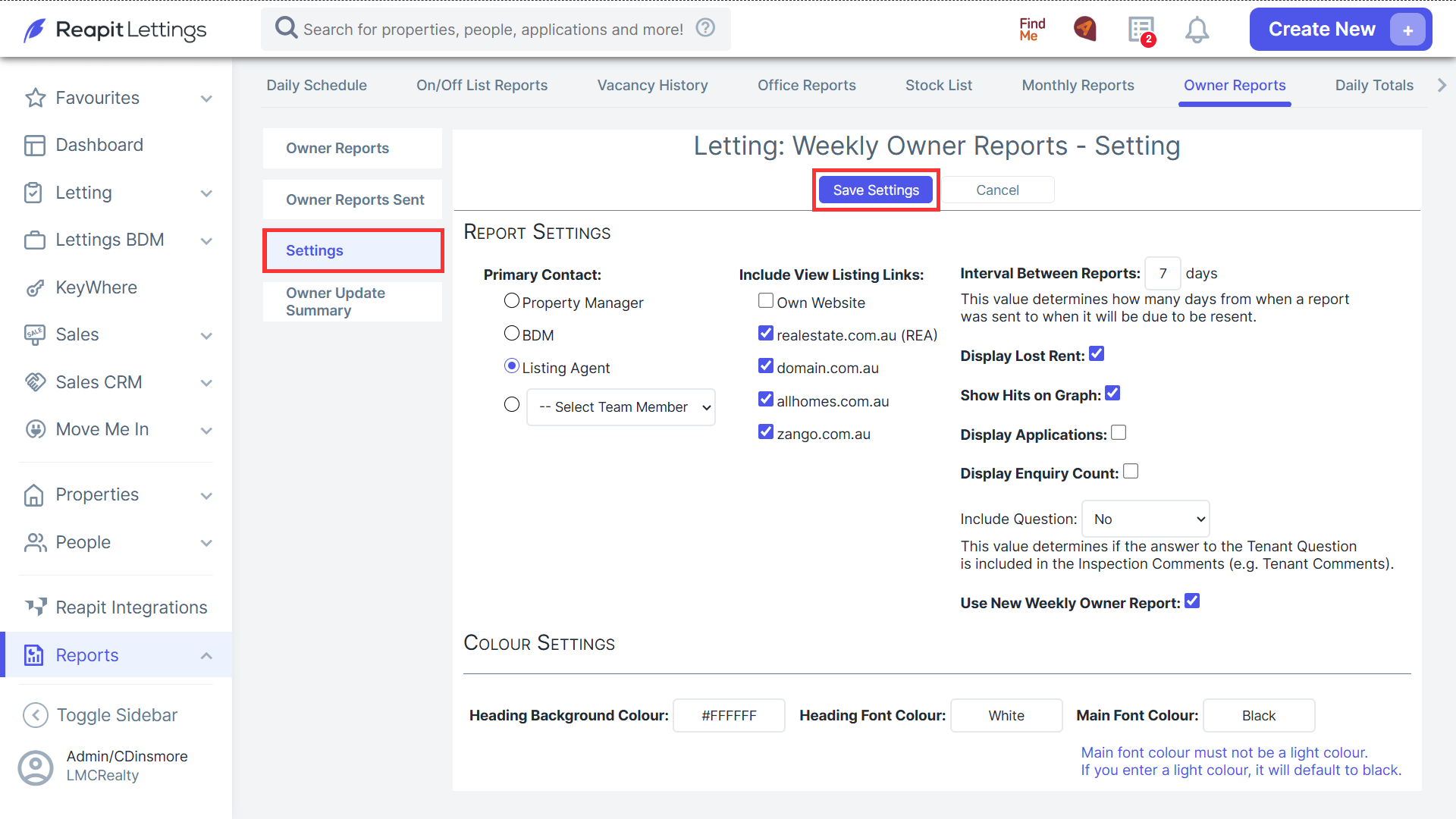
- Click on the Settings tab.
- Select the Primary contact and specify an individual team member by clicking on the Select Team Member dropdown selector.
- Select the listing links, input a numeric value for the report interval, click the Use New Weekly Owner Report checkbox.
- Click Save Settings.
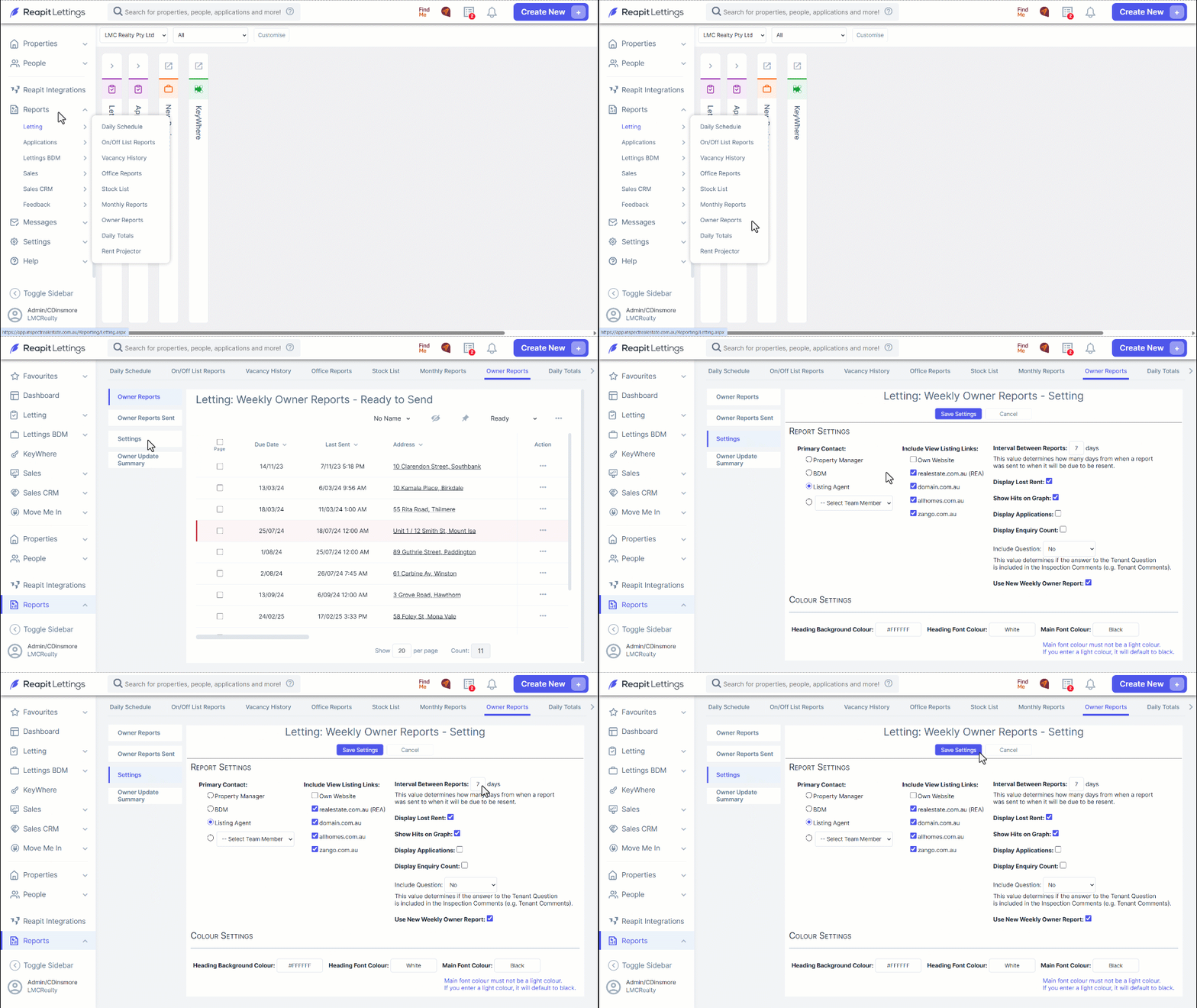
Note: these settings apply to all owner reports in your office.
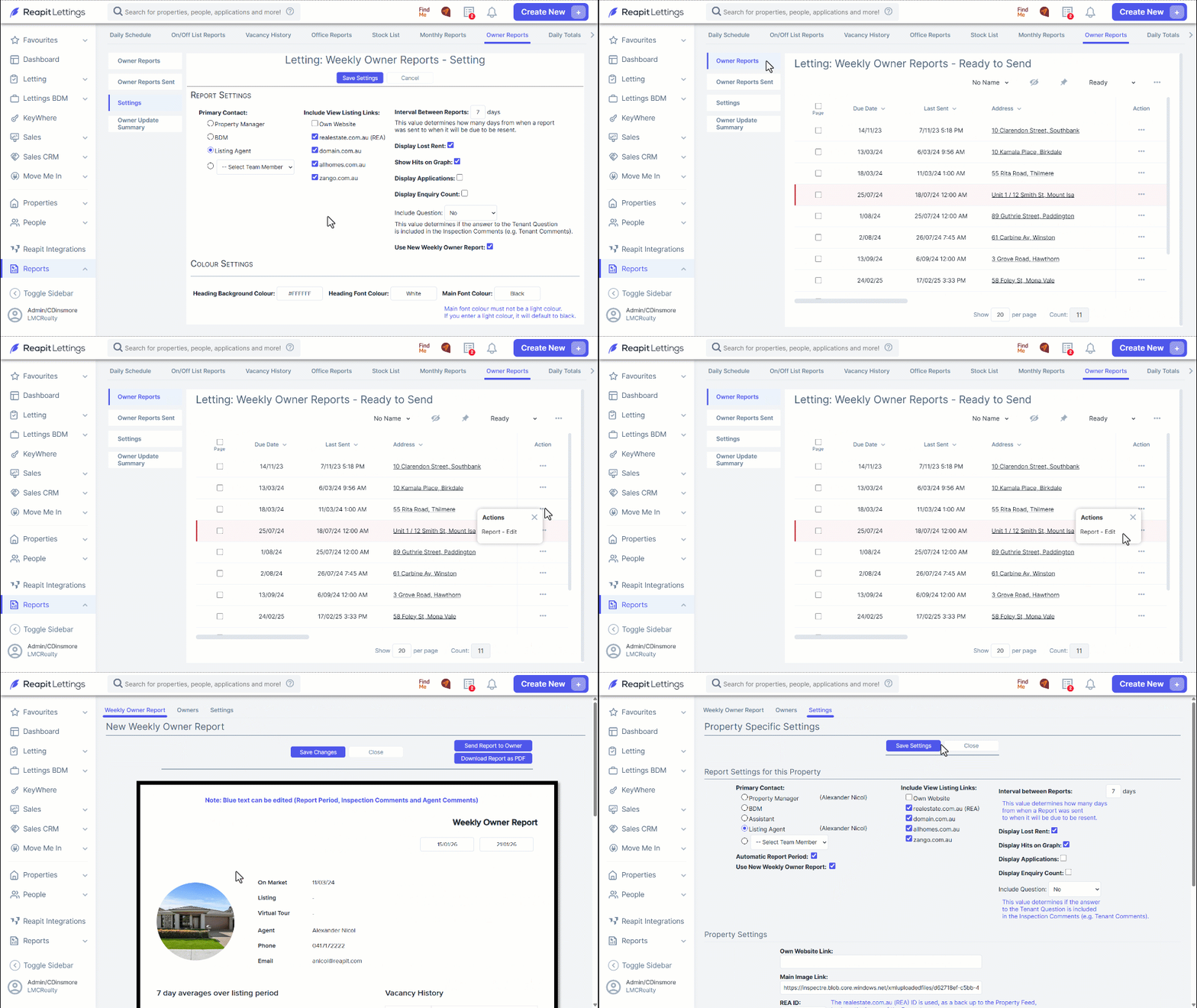
- In the Owner Reports tab, click on the 3 Action Dots against the desired property.
- Navigate to Settings to configure the settings according to your preferences.
Note: Any alterations made will be applied exclusively to the specified property.
- Click Save Settings after completion to apply the changes.
How To Access & Send The Weekly Owner Report
- Navigate to Reports >
- Click Letting.
- Click Owner Reports.
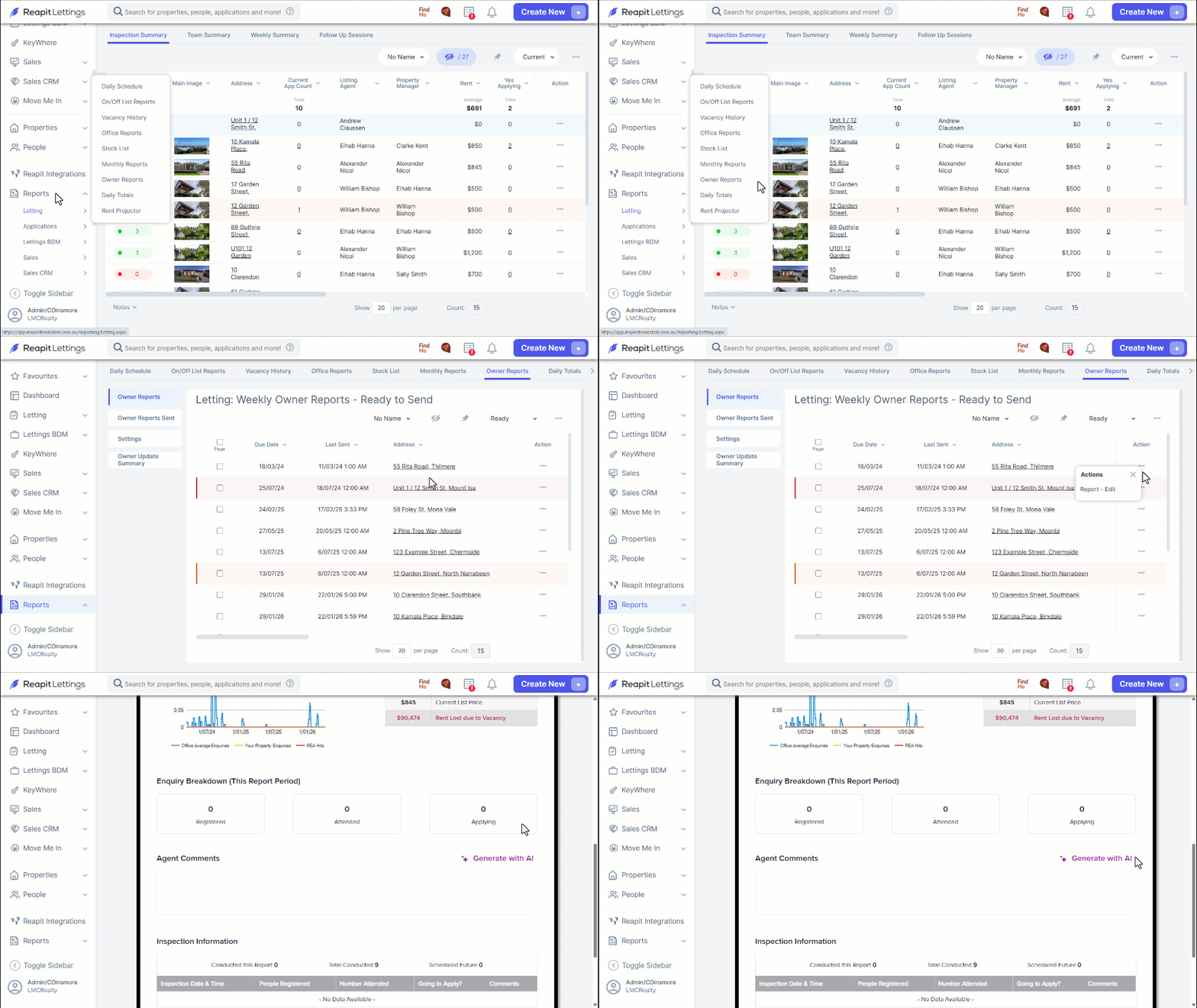
- Select the property report you want to access, then click the 3 Action Dots located on the right-hand side, select Report – Edit.
- In the Weekly Owner Report, scroll down to Agent Comments to add comments.
- Click Save Changes.
- Click Send Report to Owner.
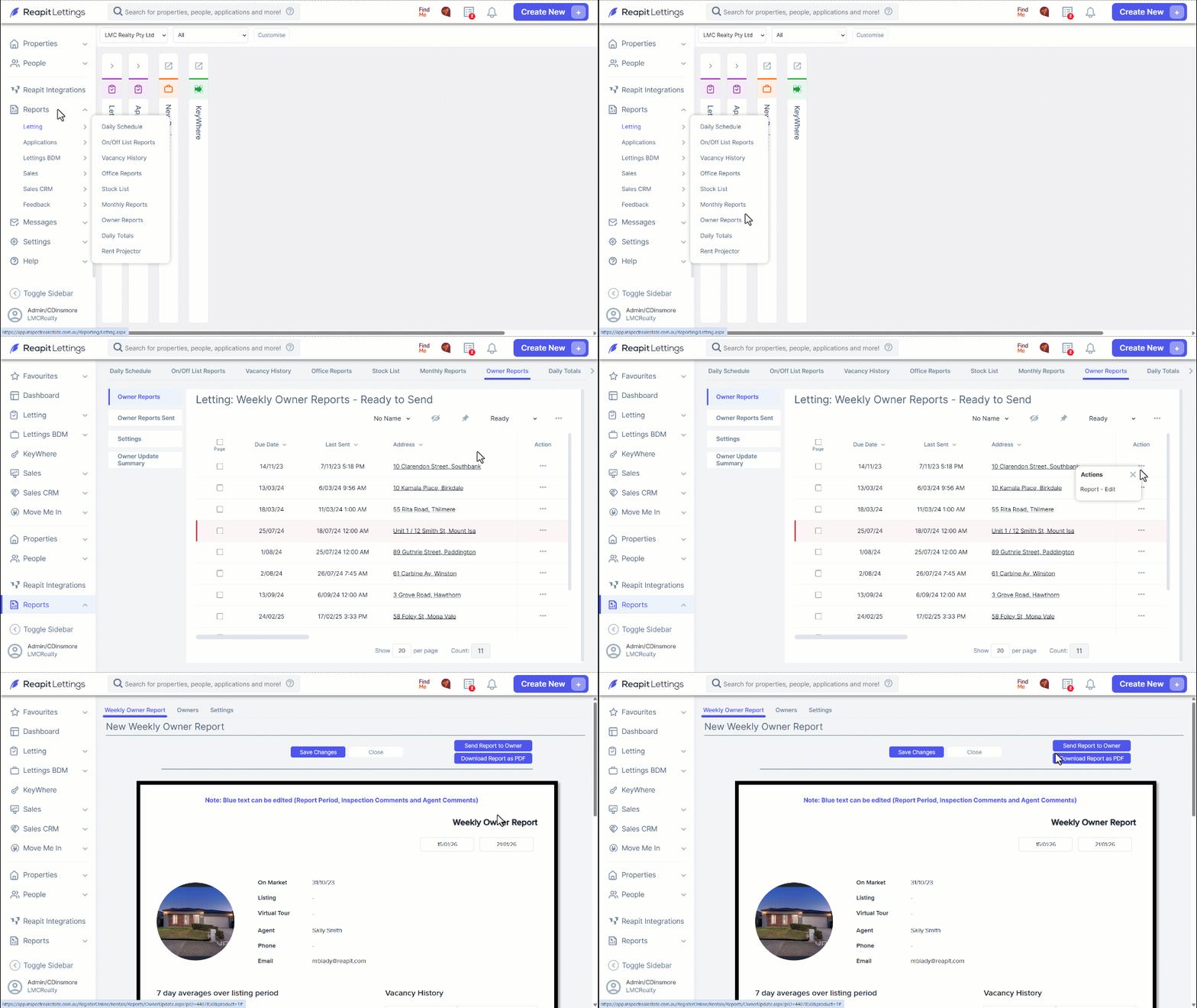
Note: Optionally, you can select Download Report as PDF if required.
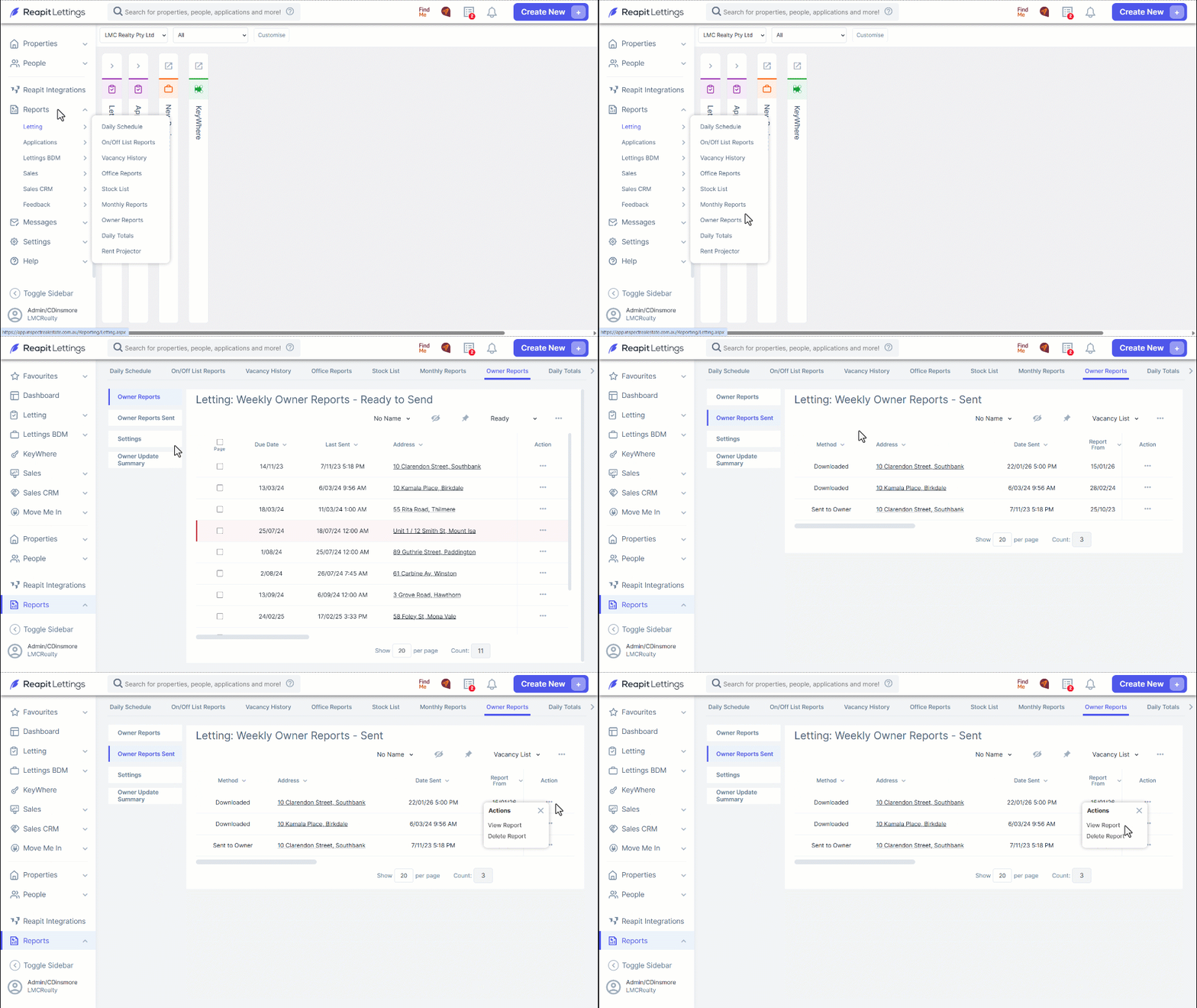
- To view sent reports, navigate to Reports.
- Click Letting
- Click Owner Reports.
- Click Owner Reports Sent
- Click the three dots.
- Click View Report.
How to Action Multiple Owner Reports
- Navigate to Reports.
- Click Letting.
- Owner Reports.
- Select the reports you wish to process in bulk.
- After making your selections, proceed to the action bar at the bottom of the page to either Review & Send, Send, or Download the reports.
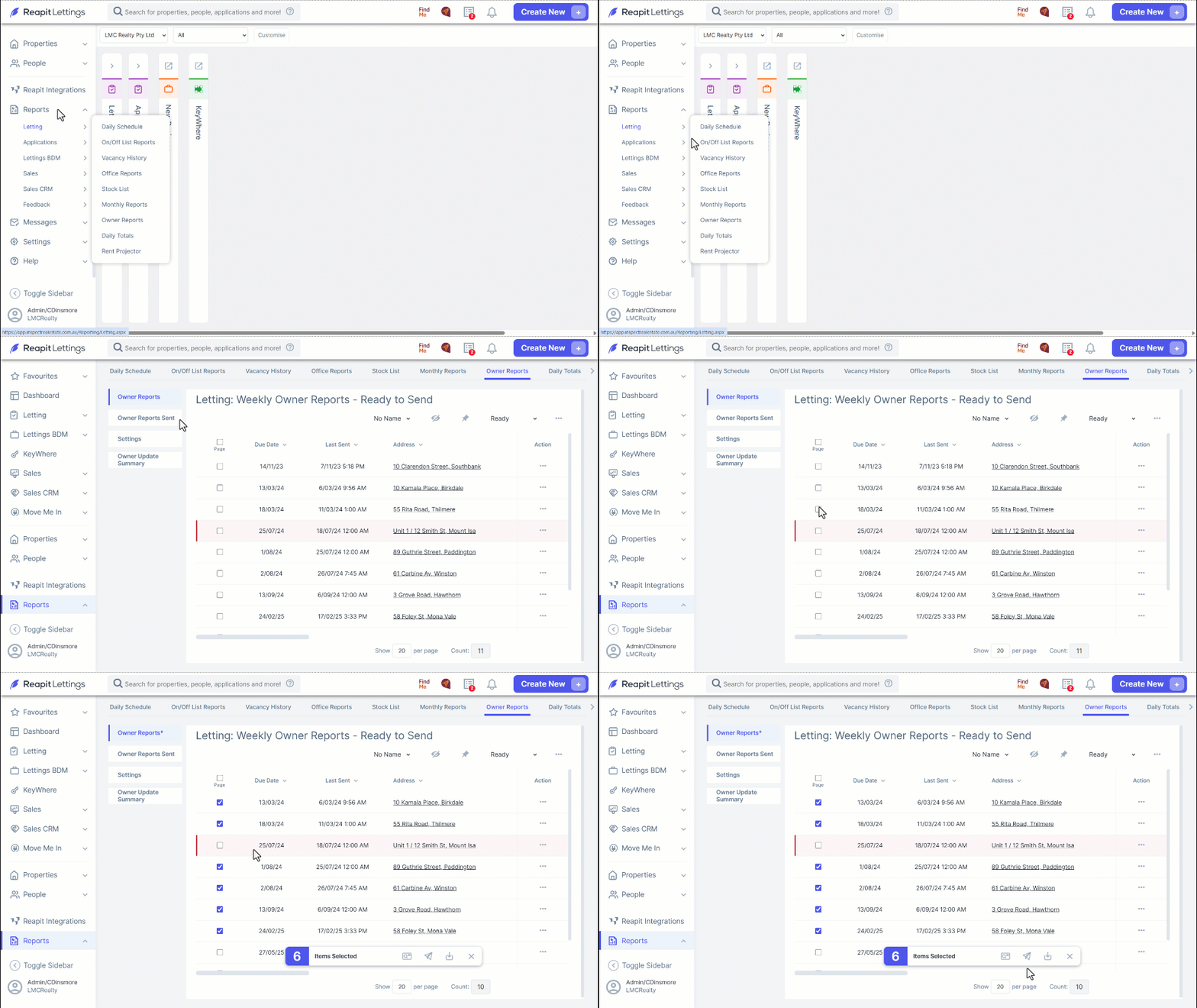
Note: Hover over these icons to see their functions (review & send, send and download).
- If you select Review & Send, you can edit the report before sending.
- Once you have completed editing the report, click Save Changes.
- Review the report for each owner. Download or Send individually from this screen.
- ****Click Next or Finalise to review any additional owner reports.

Note: Upon selecting the Send Report to Owner option, you will be prompted to confirm your intention to proceed with this action.
- Select the Settings tab to modify both Report, Property settings, as well as scroll down for modifying Other Report settings. Click Save Settings when completed.
Using AI in the Owner Reports
The Owner Report can generate an AI summary to go along with the report
- Navigate to Reports.
- Navigate to Letting.
- Click Owner Reports.
- Click the three dots to the right of the Owner Report to send
- Click Report – Edit.
- Click Generate with AI.
- Select the tone of the description along with the length.
Tone
Professional – neutral, factual, compliant.
Casual – clear, plain language with light warmth.
Polished – refined, confident wording.
Length
Concise – 1–2 sentences
Standard – short paragraph (default)
Detailed – multiple sentences/paragraphs
Recommendations can be added but are optional.
- Click Generate.
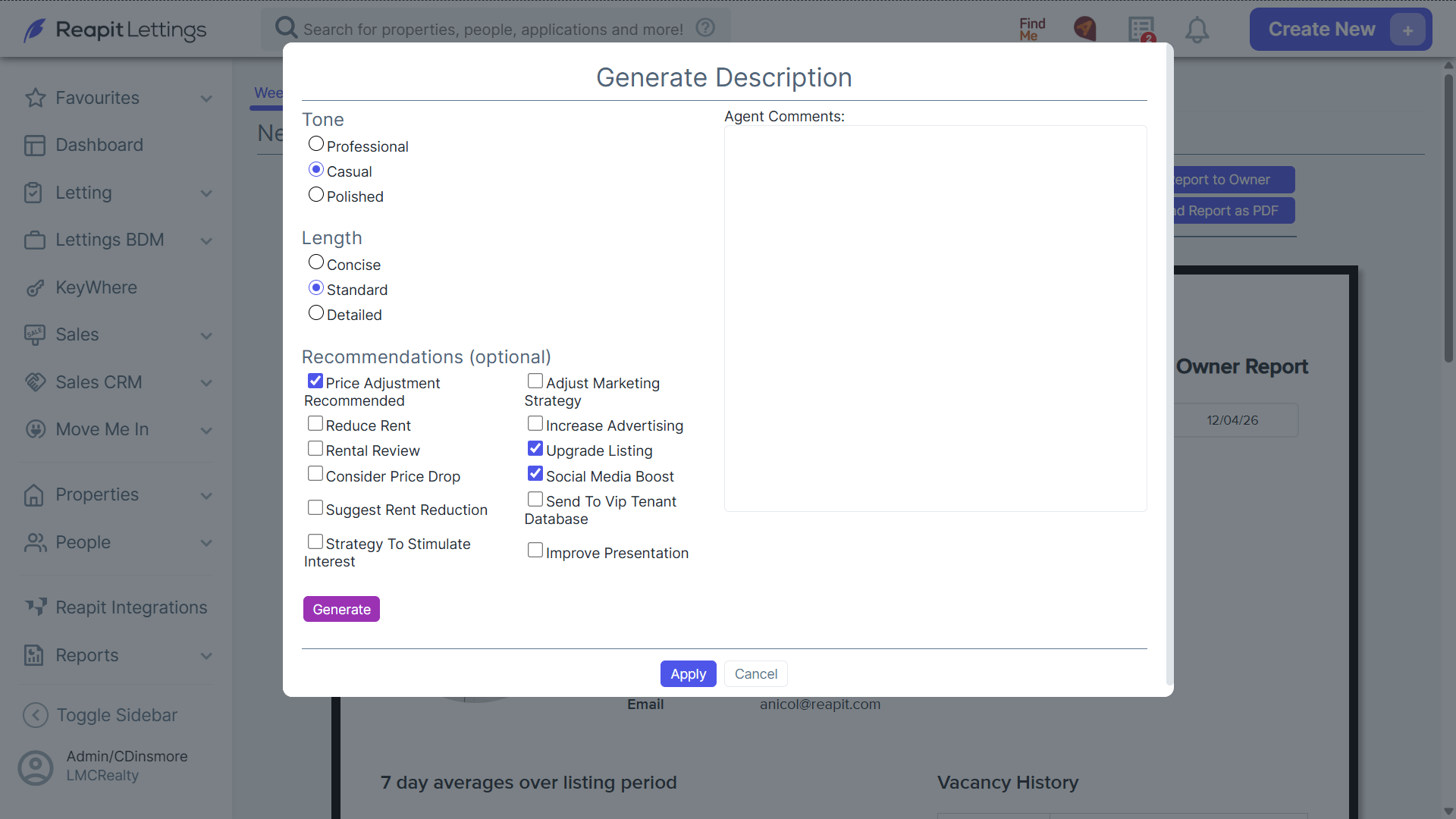
- The summary to be automatically created and shown in Agent Comments. You change options and repeat pressing generate as required. The comments can be edited, and once ready press “apply” or “cancel” to return to the Edit report page.
- Click Send Report to Owner when ready.