'%20d='M0%208a8%208%200%200%201%208-8h24a8%208%200%200%201%208%208v24a8%208%200%200%201-8%208H8a8%208%200%200%201-8-8V8Z'/%3e%3cpath%20fill='%23fff'%20d='M32.576%206C12.293%206%208.776%2025.887%207.424%2034H9.1c.45-2.977%203.493-14.748%2010.899-20.287%200%200-5.633%206.976-6.572%2015.051%203.426-.652%2013.845-3.372%2016.056-12.927l-3.84-.61c1.352-1.351%204.909-5.17%206.931-9.226V6Z'/%3e%3cdefs%3e%3clinearGradient%20id='reapit-lettings__a'%20x1='20.702'%20x2='20.702'%20y1='.351'%20y2='31.228'%20gradientUnits='userSpaceOnUse'%3e%3cstop%20stop-color='%235573FD'/%3e%3cstop%20offset='.575'%20stop-color='%234E56EA'/%3e%3c/linearGradient%3e%3c/defs%3e%3c/svg%3e)
Set Up a New Lettings BDM Message Template
This article will cover the steps of creating a new Lettings BDM message template within Reapit Lettings.
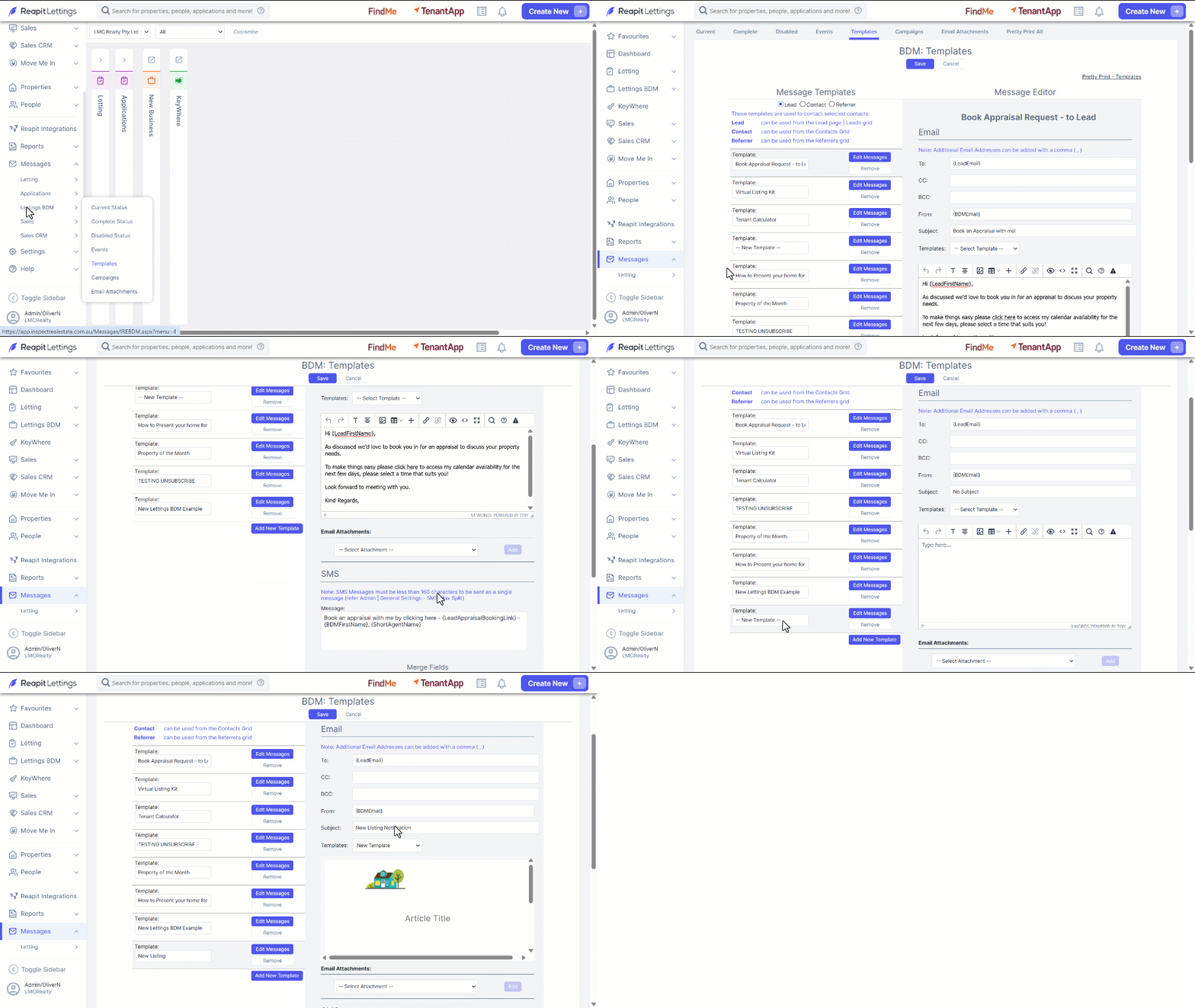
1. Click on Messages.
2. Click on Lettings BDM.
3. Click on Templates.
4. Navigate to the bottom of the current Templates list and click on Add New Template.
5. Enter a new template name. Include a subject for the new template. Use an already existing template to populate it with that template data and make the amendments as required. Once you've made your desired changes, click Save.
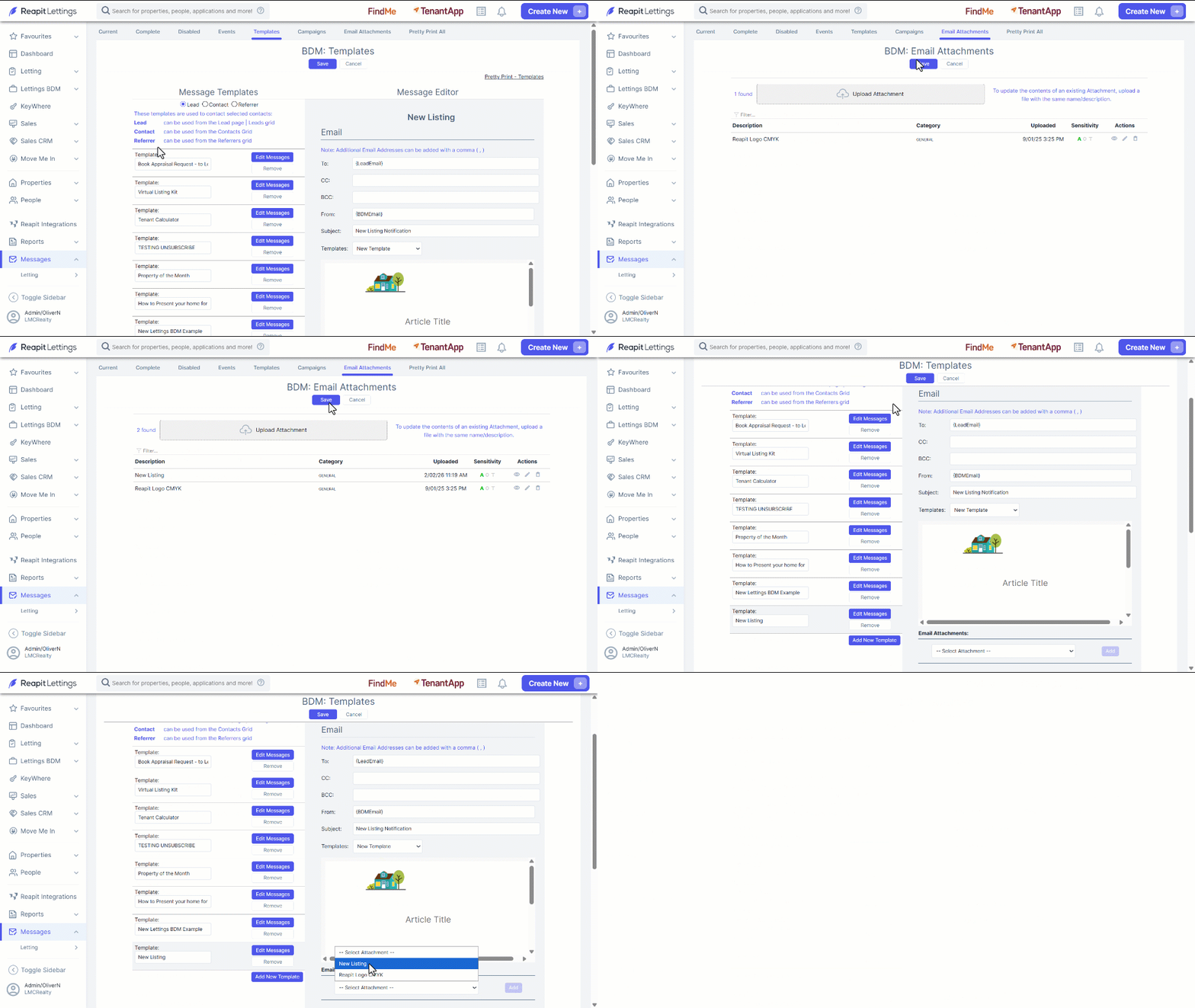
6. To add an email attachment to the template, navigate to Email Attachments.
7. Click Upload Attachment, or drag the desired attachment into the box to import the file.
8. To attach the newly uploaded attachment, return to Templates and click Edit Messages on the template you need to update.7. Navigate to the Email Attachments drop-down. Located under the body of the template. Select the Attachment, and click Add.