'%20d='M0%208a8%208%200%200%201%208-8h24a8%208%200%200%201%208%208v24a8%208%200%200%201-8%208H8a8%208%200%200%201-8-8V8Z'/%3e%3cpath%20fill='%23fff'%20d='M32.576%206C12.293%206%208.776%2025.887%207.424%2034H9.1c.45-2.977%203.493-14.748%2010.899-20.287%200%200-5.633%206.976-6.572%2015.051%203.426-.652%2013.845-3.372%2016.056-12.927l-3.84-.61c1.352-1.351%204.909-5.17%206.931-9.226V6Z'/%3e%3cdefs%3e%3clinearGradient%20id='reapit-lettings__a'%20x1='20.702'%20x2='20.702'%20y1='.351'%20y2='31.228'%20gradientUnits='userSpaceOnUse'%3e%3cstop%20stop-color='%235573FD'/%3e%3cstop%20offset='.575'%20stop-color='%234E56EA'/%3e%3c/linearGradient%3e%3c/defs%3e%3c/svg%3e)
Create New Team Members in KeyWhere
This article will guide you through creating a new team member in KeyWhere.
Create Team Members in KeyWhere
This article will guide you through creating a new team member in KeyWhere.
Note: The information found in this article relates to only having the KeyWhere system active with no Reapit Lettings services linked.
- Navigate to Team.
- Select New Member.
- This will open the New Team Member page. Fill in the relevant details and preferences, and follow the on-screen prompts to complete the process.
- To save the new user, click 'Create' at the bottom left of the screen. If you are creating multiple users in one session, it may be useful to check 'Create another' at the bottom right before clicking 'Create.'
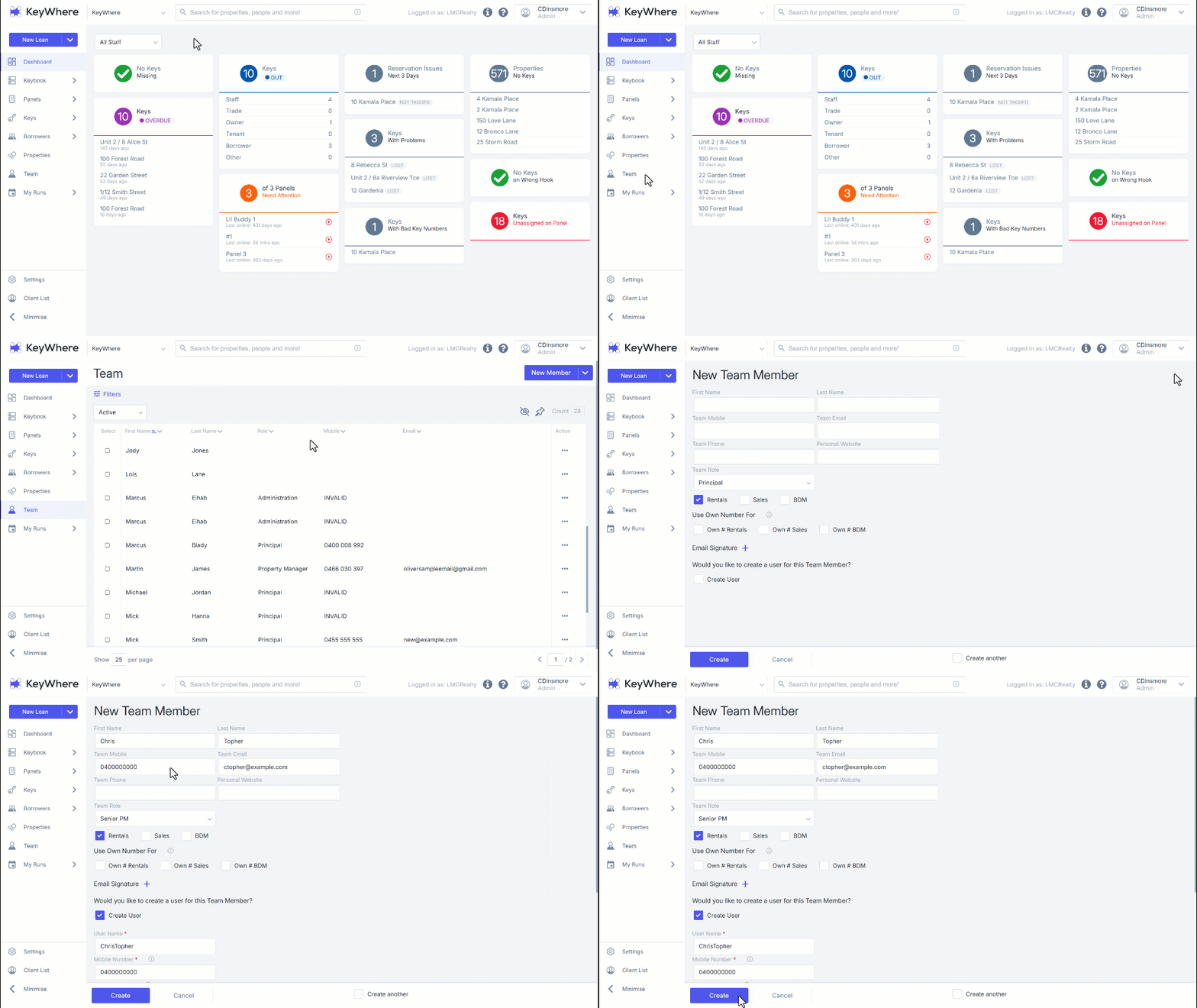
Enabling this option will ensure that after clicking 'Create,' you are taken directly to a new 'Create User' screen, rather than back to the Settings page.