'%20d='M0%208a8%208%200%200%201%208-8h24a8%208%200%200%201%208%208v24a8%208%200%200%201-8%208H8a8%208%200%200%201-8-8V8Z'/%3e%3cpath%20fill='%23fff'%20d='M32.576%206C12.293%206%208.776%2025.887%207.424%2034H9.1c.45-2.977%203.493-14.748%2010.899-20.287%200%200-5.633%206.976-6.572%2015.051%203.426-.652%2013.845-3.372%2016.056-12.927l-3.84-.61c1.352-1.351%204.909-5.17%206.931-9.226V6Z'/%3e%3cdefs%3e%3clinearGradient%20id='reapit-lettings__a'%20x1='20.702'%20x2='20.702'%20y1='.351'%20y2='31.228'%20gradientUnits='userSpaceOnUse'%3e%3cstop%20stop-color='%235573FD'/%3e%3cstop%20offset='.575'%20stop-color='%234E56EA'/%3e%3c/linearGradient%3e%3c/defs%3e%3c/svg%3e)
Keybook - Loans and Reservations
This article will run through loans and reservations within Keywhere
Keybook - Loans and Reservations
This article will run through loans and reservations within Keywhere.
The processes in this article includes:
Loans
How to Loan out a key in Keywhere
Reservations
Creating & Issuing a Key Reservation
Indefinite Reservations
Recurring Reservations
Cancelling a Recurring Reservation
Bulk Reservation Actions
Issue Reservations
Edit Reservations
Cancel Reservations
Loans
- Click on Keybook.
- Click on Loans.
- Filter results utilising the dropdown fields. Filters can be by current, completed or all loans. You can also filter loans by borrower or property type.
- Each column header can also be used to filter or search the displayed results.
- Clicking on an individual loan opens the View Loan page.
This page displays more detailed information on a specific loan, and is used for four main functions:
- Extending the duration of a loan
- Reminding a borrower that their loan is overdue
- Returning a loan with no issues
- Flagging a key as lost or broken
How to Loan out a key in Keywhere
This process outlines how to loan out keys.
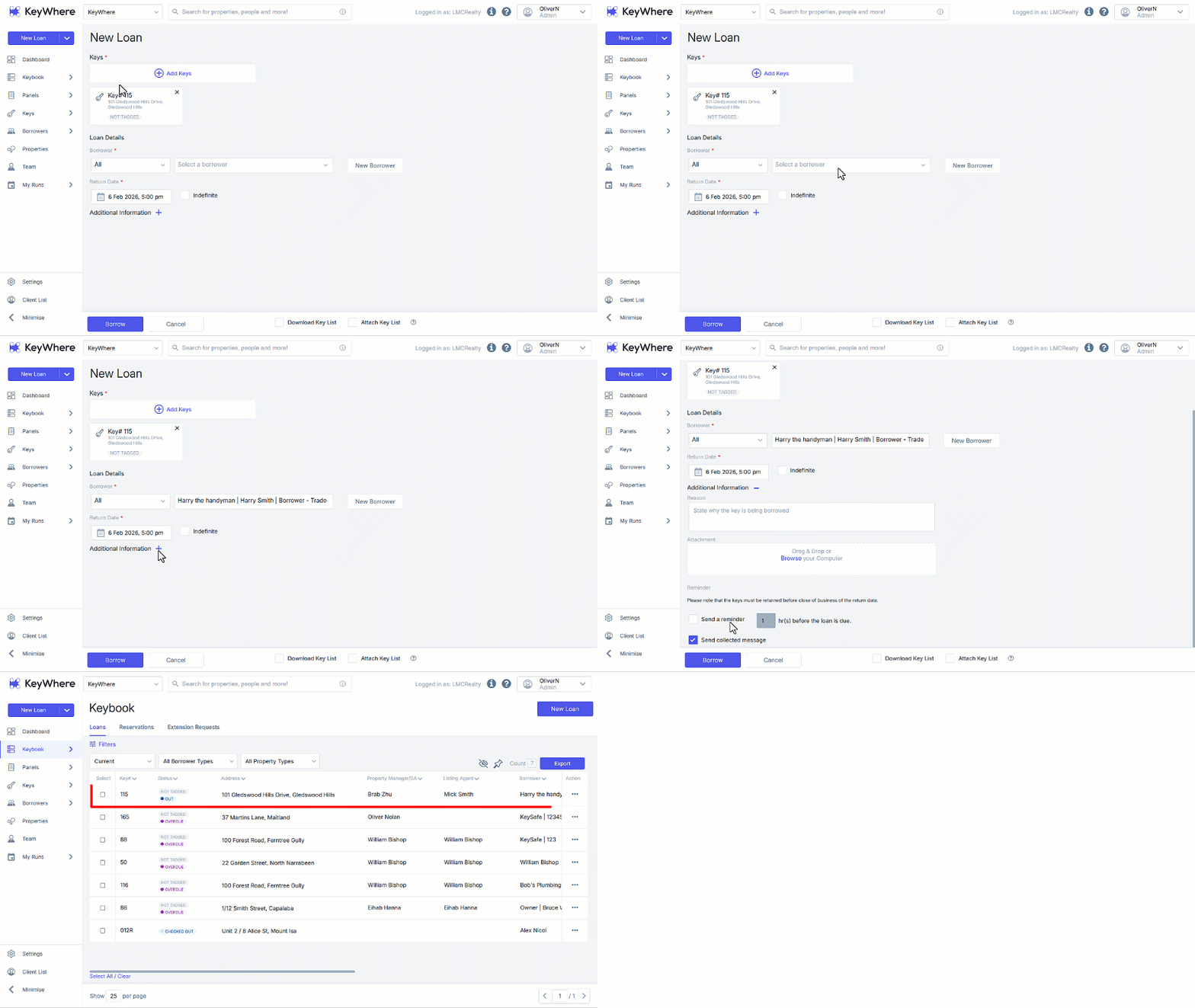
- Click on New Loan.
- Enter the key number or property address into the search bar.
- Check the box next to the key(s) you wish to loan. Multiple keys can be selected if necessary.
- After selecting all required keys, click on Add Selected Keys.
- On the New Loan screen, select the borrower from the dropdown menu (or add a new borrower if necessary.)
- Set a return date.
- Add any additional details relevant to the loan by selecting the designated button (+ Icon) as required.
- Confirm the loan by clicking on Borrow.
Note: After the loan is processed, the keys will flash blue until removed from their location and then display a solid blue to indicate a successful transaction.
Reservations
The Reservations tab is used to view, filter, and edit reservations.
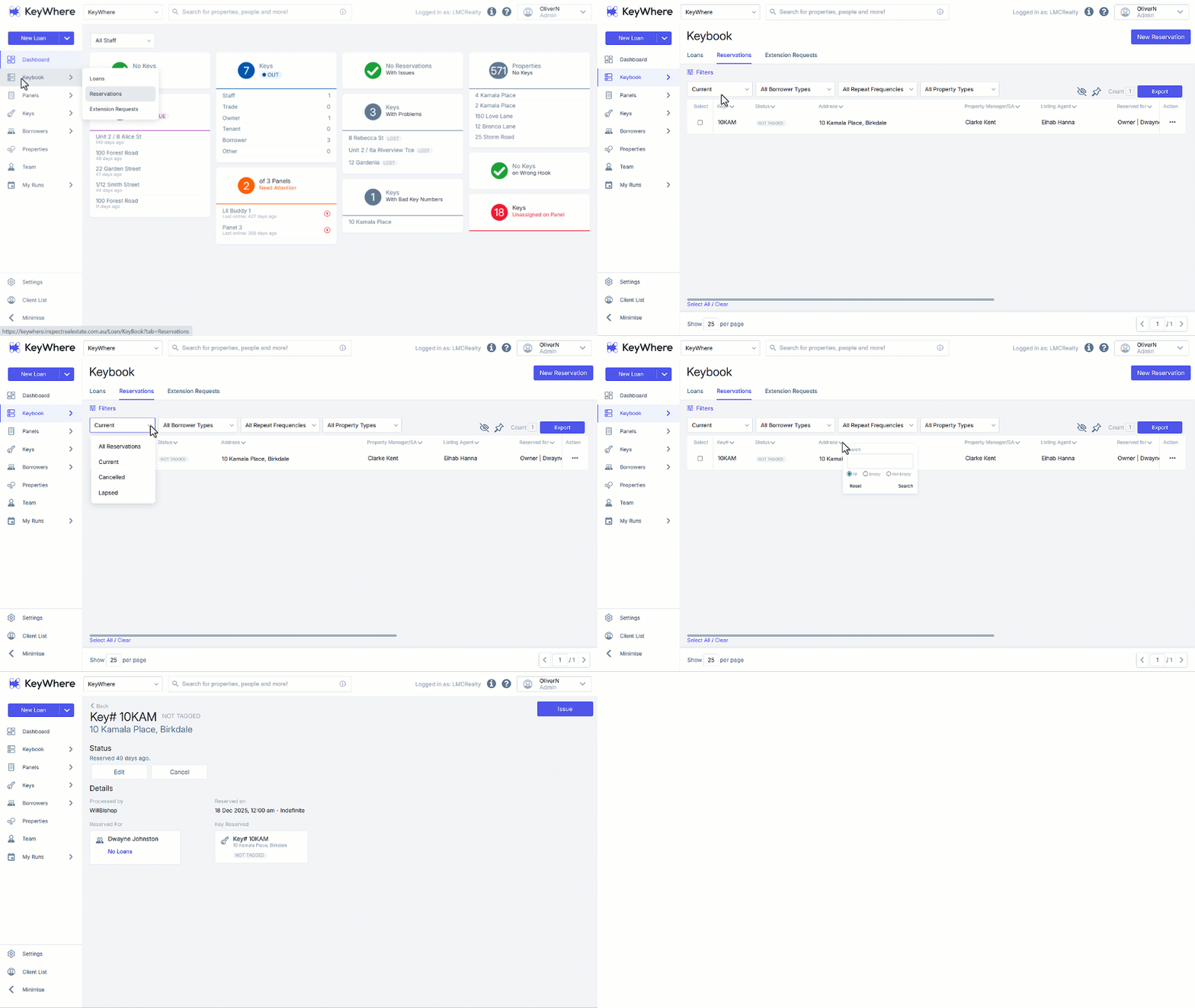
- Click on Keybook.
- Click on Reservations.
- Filter results utilising the dropdown fields. Filters can be by current, cancelled, Lapsed or all loans. You can also filter reservations by borrower type, repeat frequency or property type.
- Each column header can also be used to filter or search the displayed results.
- Clicking on an individual reservation opens the Reservation page.
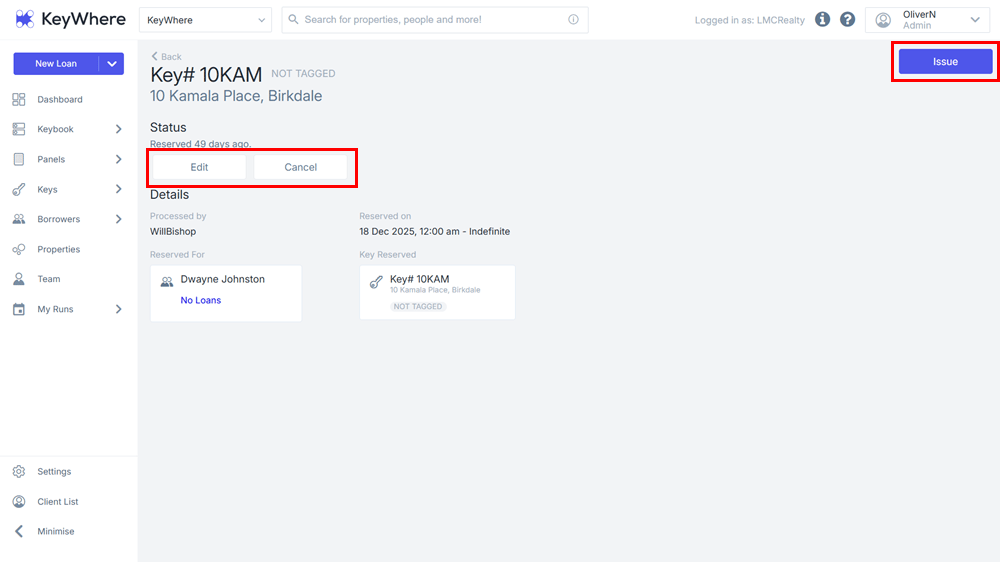
This page displays more detailed information on a specific reservation, and is used for four main functions:
- Issuing the reservation as a new loan
- Editing the details of the reservation
- Cancelling the reservation
Creating & Issuing a Key Reservation
- Click on Keybook.
- Click on Reservations
- Click on New Reservation.
- Search for the key number or property address/asset name in the search bar, select the property then click Add Selected Keys. (Note, multiple keys can be selected).
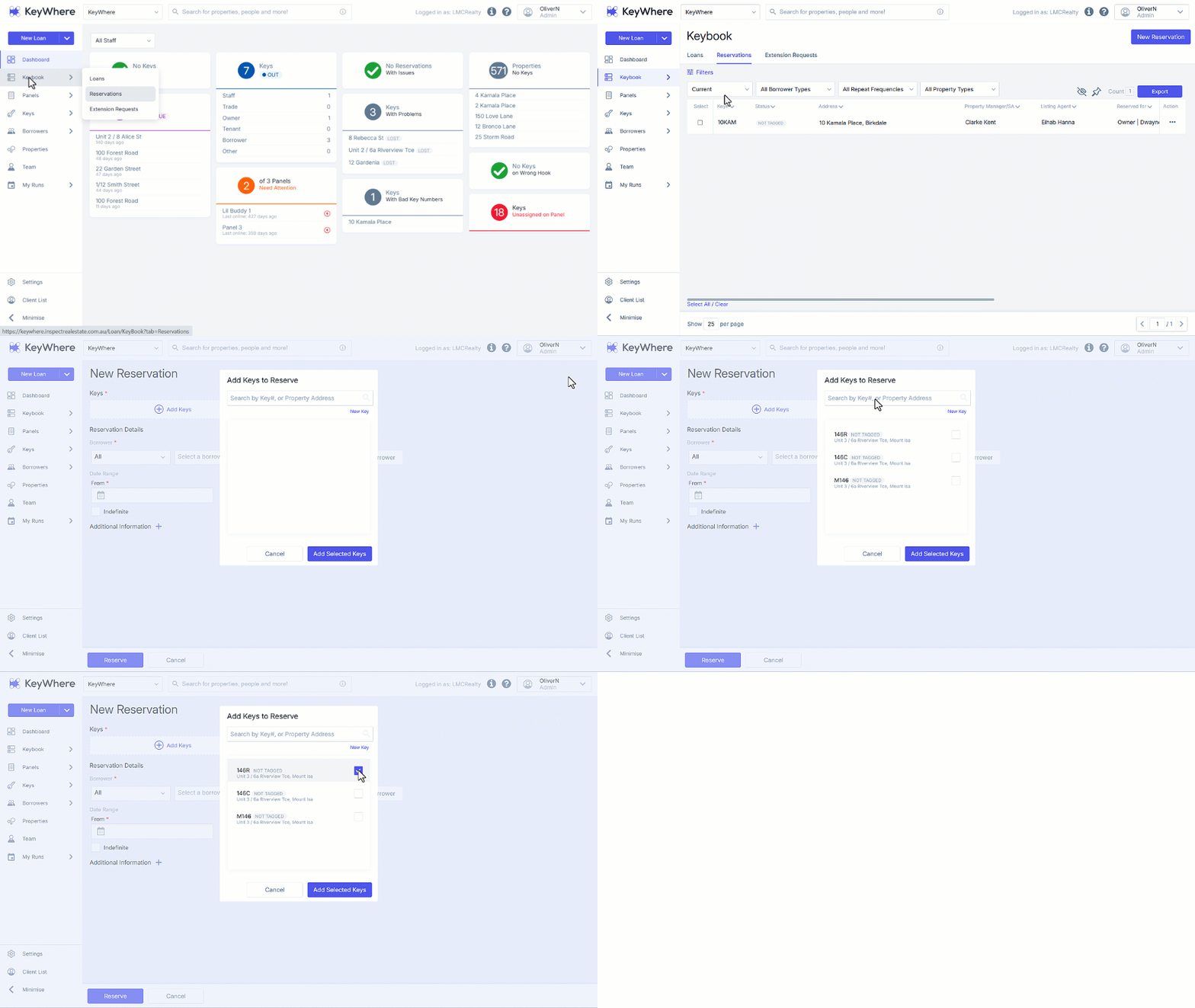
- Select or add a new borrower.
- Set the Date Range From and To fields.
- Select Additional Information+ to add addition notes, attachments, set up an automatic reminder or add a Repeat Frequency.
- Click Reserve to create the reservation.
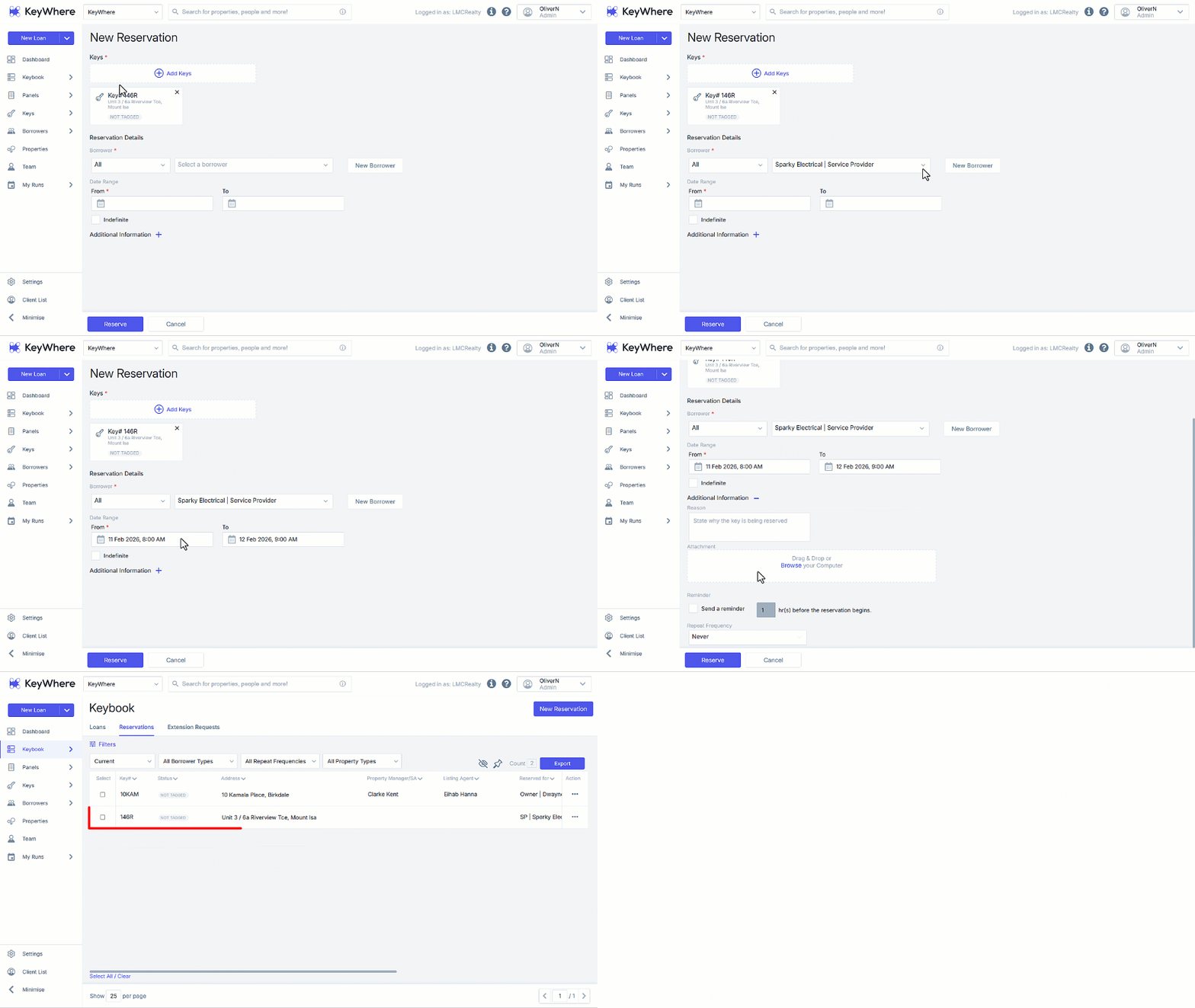
Pending reservations will appear in the Reservations screen as below. They can then be issued or cancelled from this page by selecting as below.
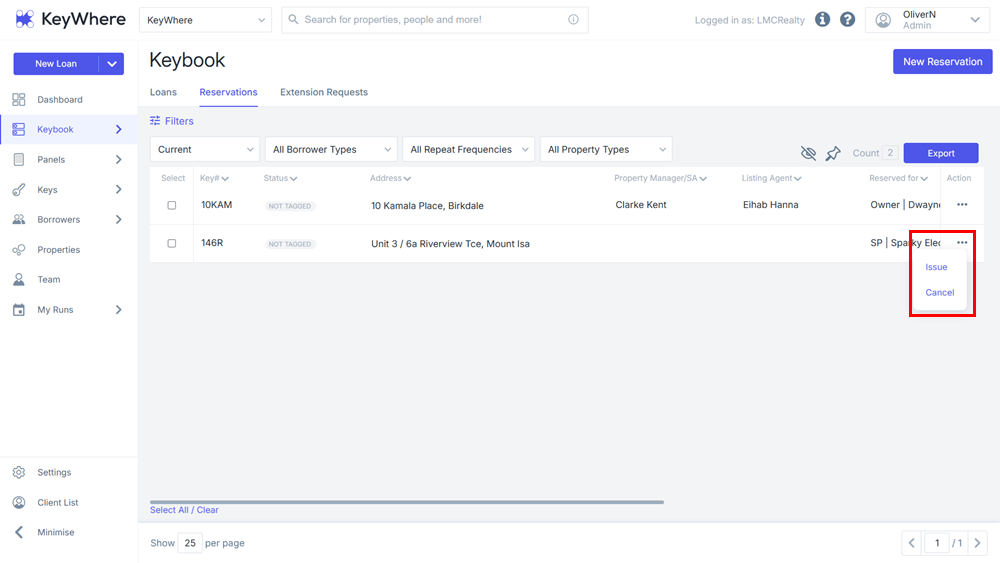
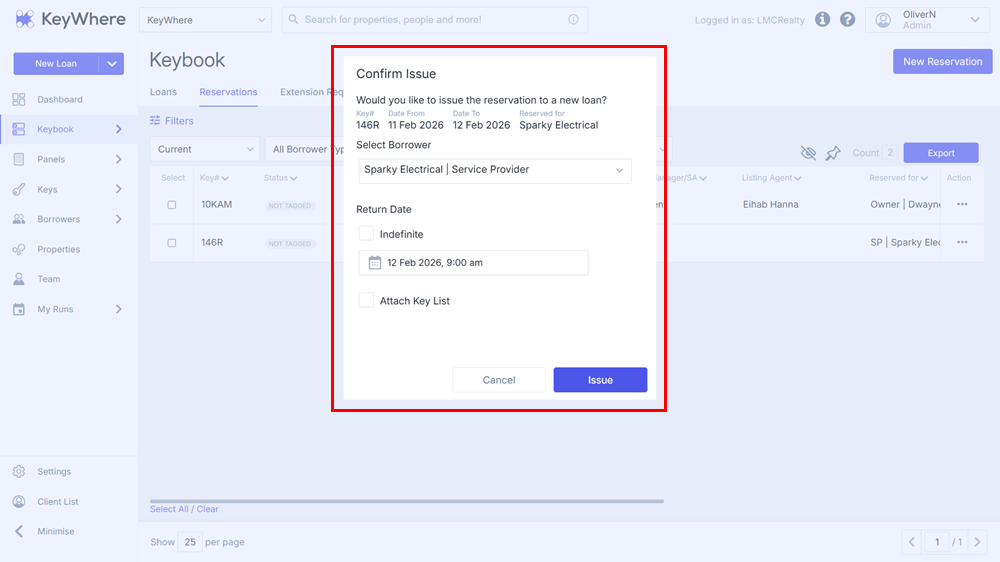
Selecting Issue will issue the loan for the reservation with the return date that was marked on the reservation.
Indefinite Reservations
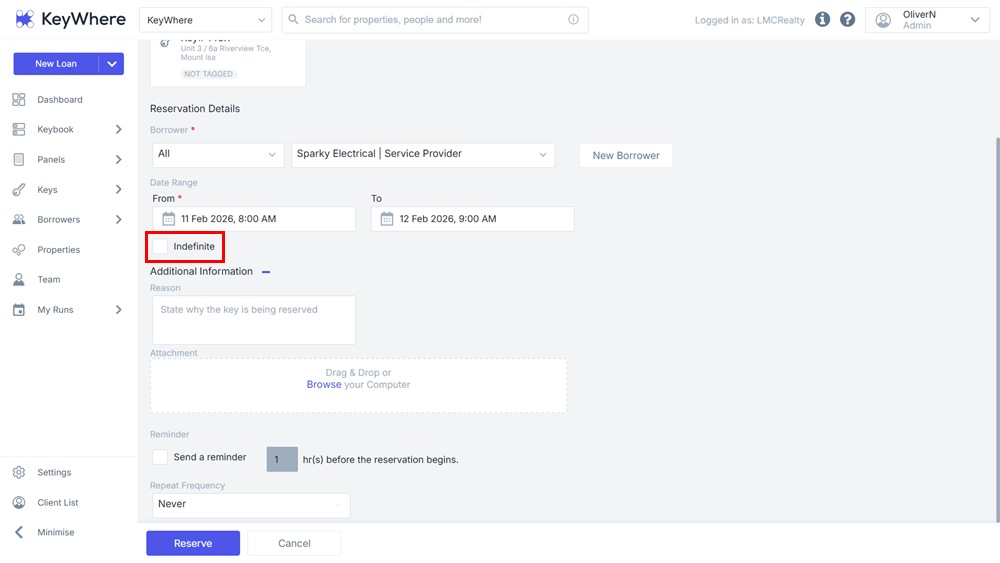
A reservation can be created to reserve a Key indefinitely. This allows the Key to be reserved indefinitely for clients that are expecting that Key to be reserved with no end date. Firstly, follow the steps to create a reservation and then select the Reserve Indefinitely checkbox. Once the information on the reservation is correct then select the Reserve button to create the reservation.
Recurring Reservations
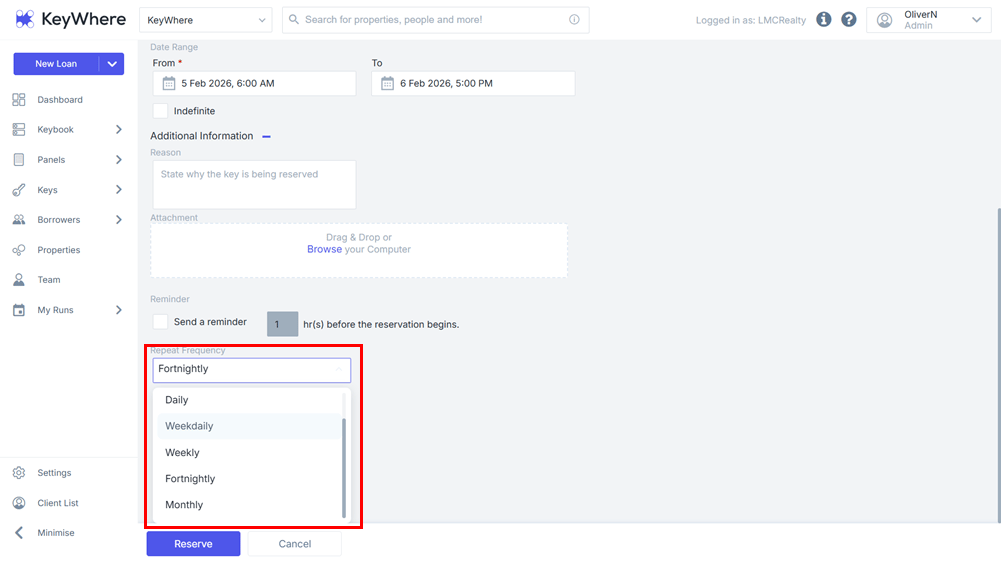
Reservations can be made to repeat automatically on a fixed schedule, without having to re-create the reservation every time. To create a recurring reservation, follow the steps in Creating a Key Reservation and make sure to choose the repeat frequency in the Additional Information section. Recurring reservations will repeat indefinitely, or until cancelled, but only the next 5 reservations will be visible in the Reservations tab. If the reservation is not issued 5 times in a row, it will be cancelled automatically.
Cancelling a Recurring Reservation
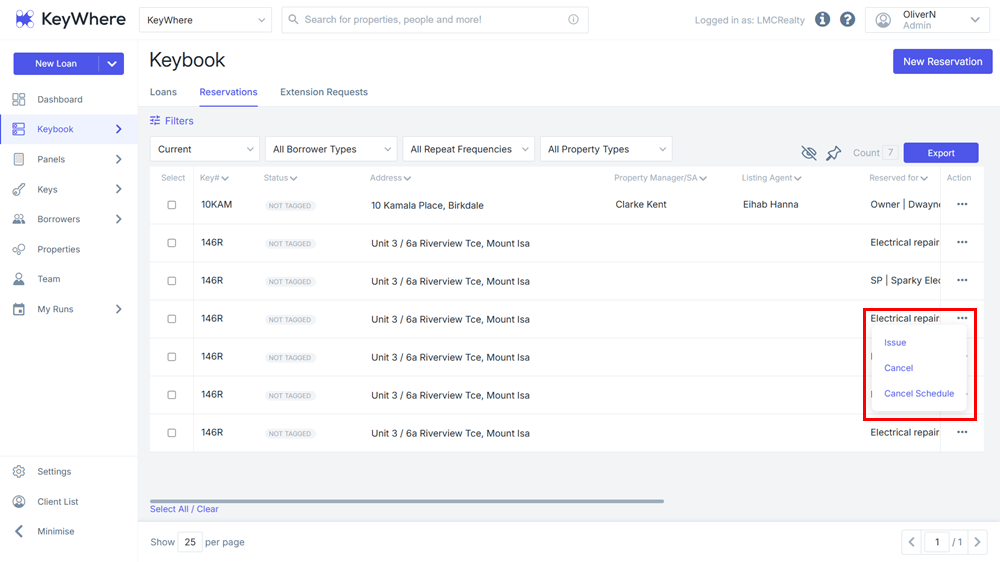
Instances of a recurring reservation can be cancelled the same way regular reservations can - locate the reservation you wish to cancel in the Reservations tab, click on the 3-dots and select Cancel.
The entire recurring reservation can also be cancelled from the details page of any occurrence of the reservation by clicking Cancel Schedule. Please note that this will cancel all the occurrences of the reservation, not just the ones after the one cancelled.
Bulk Reservation Actions
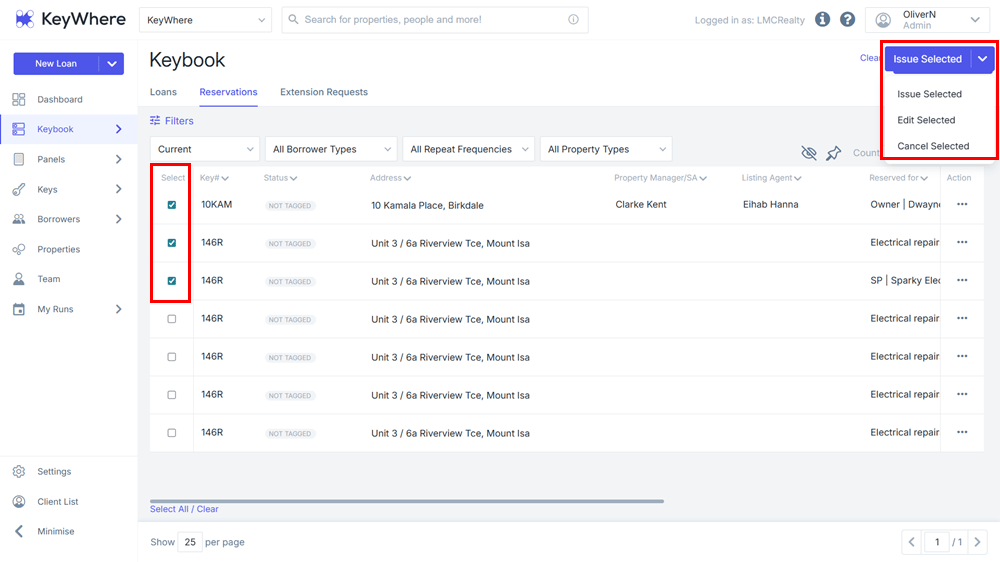
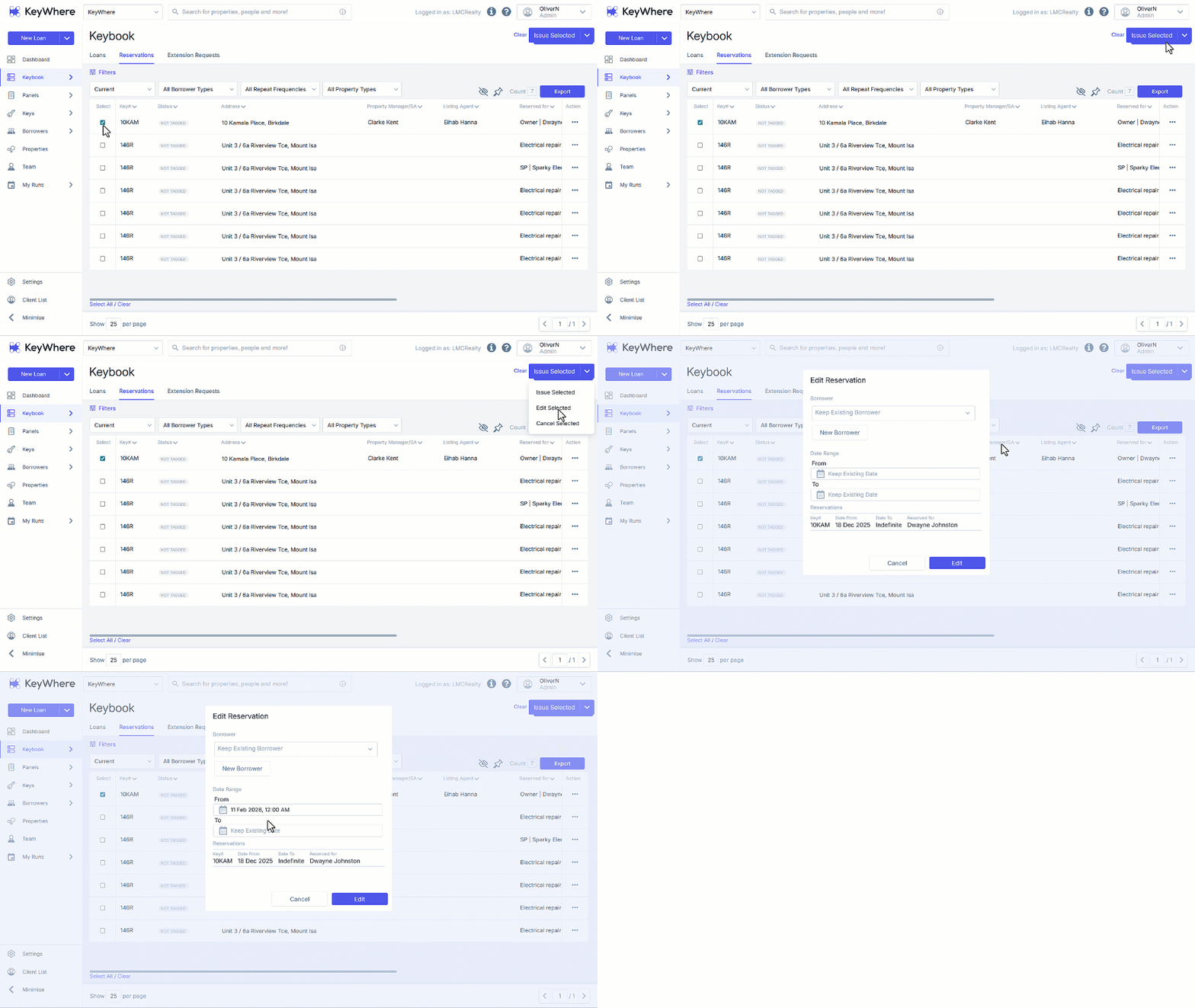
You can Issue, Edit or Cancel reservations in bulk. First, go to your reservations and select the reservations you would like to issue, edit or cancel. Then click the dropdown and select your required action.
Issue Reservations
- Click on Keybook.
- Click on Reservations.
- Filter results utilising the dropdown fields. Filters can be by current, cancelled, Lapsed or all loans. You can also filter reservations by borrower type, repeat frequency or property type.
- Each column header can also be used to filter or search the displayed results.
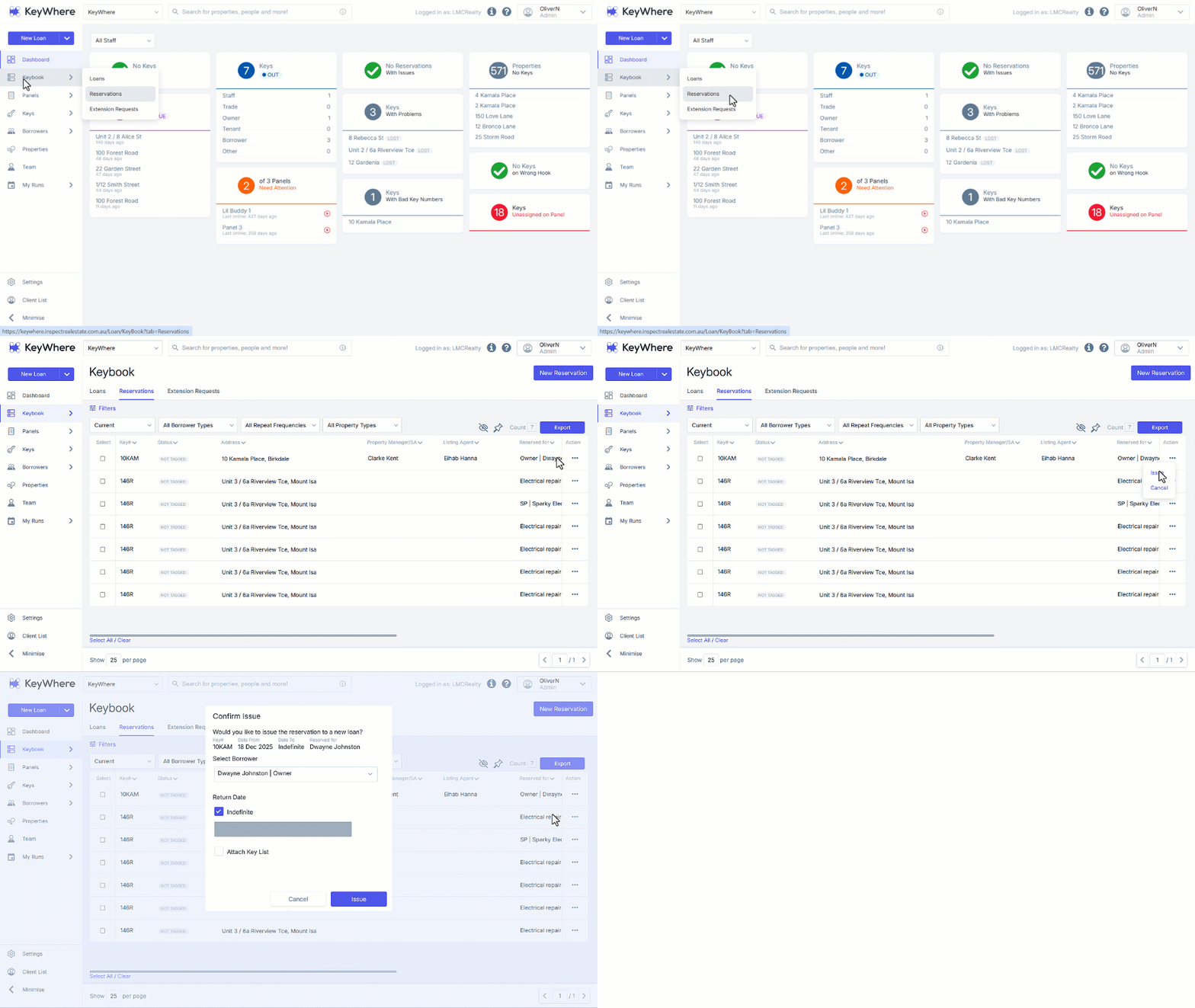
- Locate the required reservation, click on the 3-dots and select Issue.
- Review the Confirm Issue pop-up and Click on Issue.
Edit Reservations
- Use the Tickbox to select the reservation to be edited.
- Click on the dropdown arrow at the top right of the screen and select Edit Selected.
- Make the required changes to the reservation.
- Click on Edit.
Note: If you have selected multiple reservations, changes you make will apply to all selected reservations.
Cancel Reservations
- Click on Keybook.
- Click on Reservations.
- Filter results utilising the dropdown fields. Filters can be by current, cancelled, Lapsed or all loans. You can also filter reservations by borrower type, repeat frequency or property type.
- Each column header can also be used to filter or search the displayed results.
- Locate the required reservation, click on the 3-dots and select Cancel.
- Confirm the cancellation by clicking on Yes.