'%20d='M0%208a8%208%200%200%201%208-8h24a8%208%200%200%201%208%208v24a8%208%200%200%201-8%208H8a8%208%200%200%201-8-8V8Z'/%3e%3cpath%20fill='%23fff'%20d='M32.576%206C12.293%206%208.776%2025.887%207.424%2034H9.1c.45-2.977%203.493-14.748%2010.899-20.287%200%200-5.633%206.976-6.572%2015.051%203.426-.652%2013.845-3.372%2016.056-12.927l-3.84-.61c1.352-1.351%204.909-5.17%206.931-9.226V6Z'/%3e%3cdefs%3e%3clinearGradient%20id='reapit-lettings__a'%20x1='20.702'%20x2='20.702'%20y1='.351'%20y2='31.228'%20gradientUnits='userSpaceOnUse'%3e%3cstop%20stop-color='%235573FD'/%3e%3cstop%20offset='.575'%20stop-color='%234E56EA'/%3e%3c/linearGradient%3e%3c/defs%3e%3c/svg%3e)
What are Smart Replies
This article will run through an overview of smart replies and how to enable them within your account in Reapit Lettings.
Overview
What are Smart Replies
This article will run through an overview of smart replies and how to enable them within your account in Reapit Lettings.
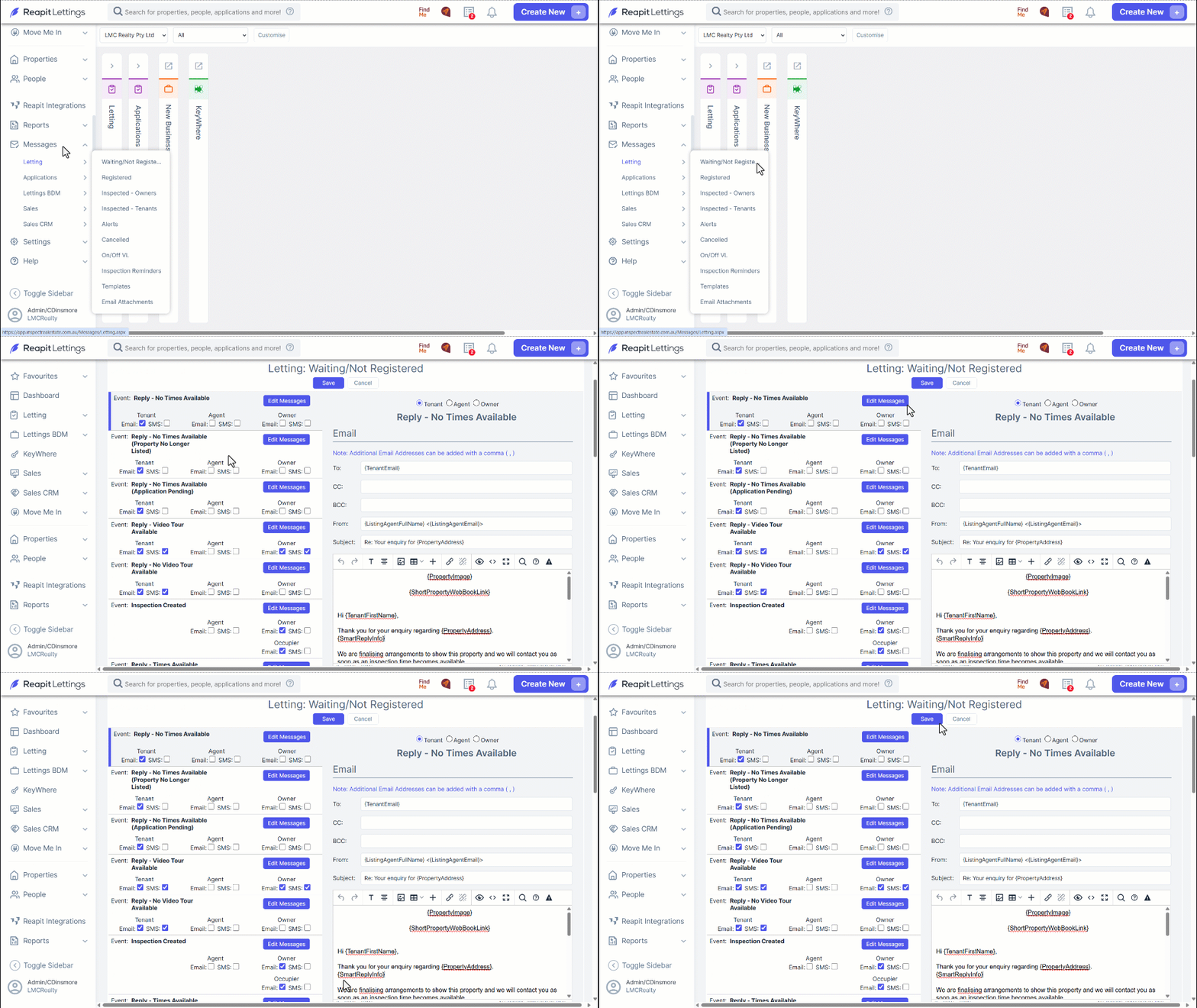
- Navigate to Settings.
- Click Letting.
- Click General.
- Navigate to Smart Replies.
- Select to enable the Enable Smart Replies checkbox.
- Click Save.
The feature enables you to tailor the responses according to specific property requirements, ensuring that considerations such as pet-friendliness and the types of pets permitted are considered.
At present, smart replies are exclusively accessible for two automated events: "Reply - Times Available" and "Reply - No Times Available."
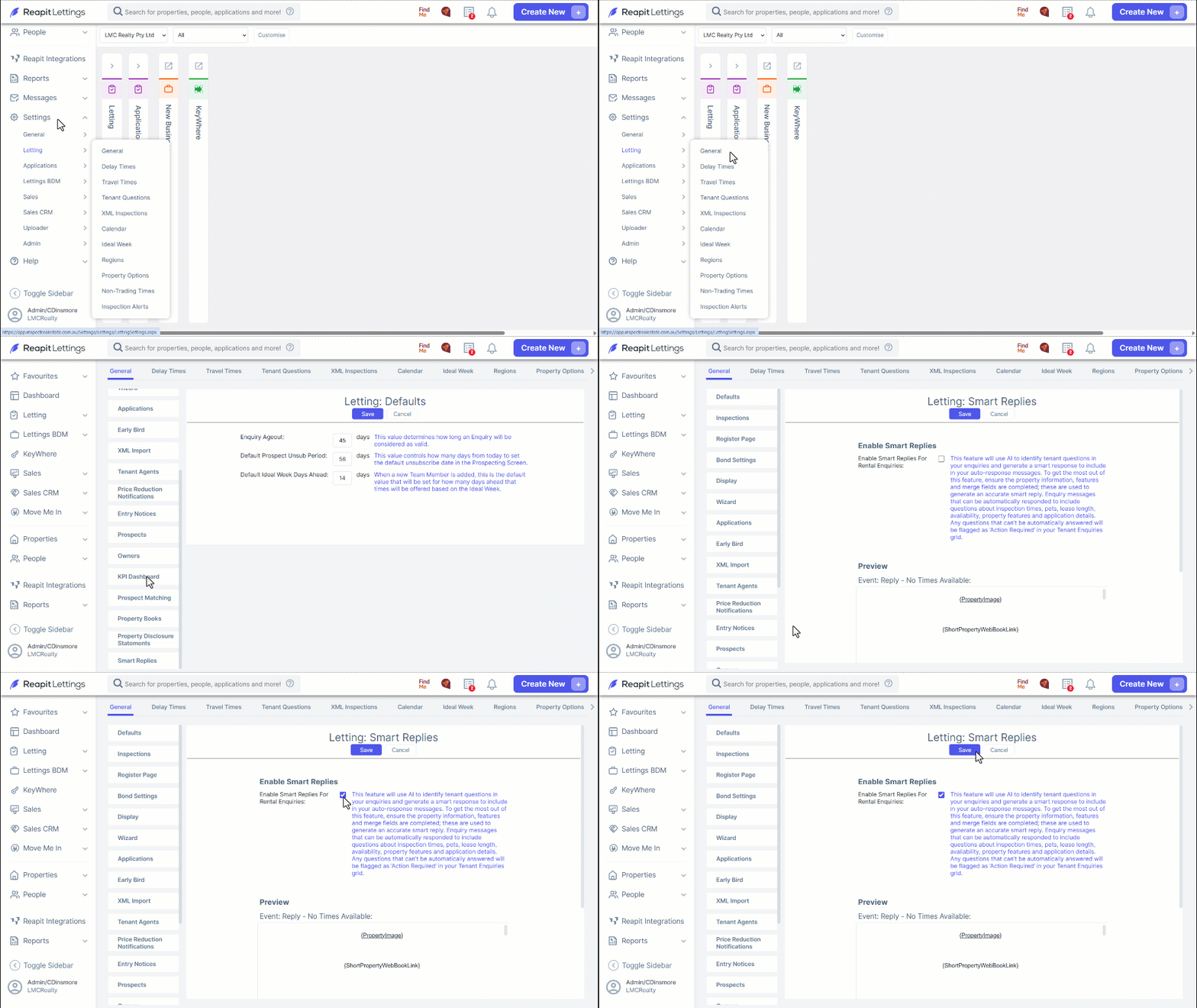
- Navigate to Letting.
- Click Summary.
- Click Inspection Summary,
- Select the appropriate property.
- In the Marketing tab, select Merge Fields, enter specific property details within the Pet Info, Property Specific Info or Recommended Lease Term sections.
- Click Save and Close once completed.
Note: Smart Replies functionality will not work on the SMS Property Specific Info section.
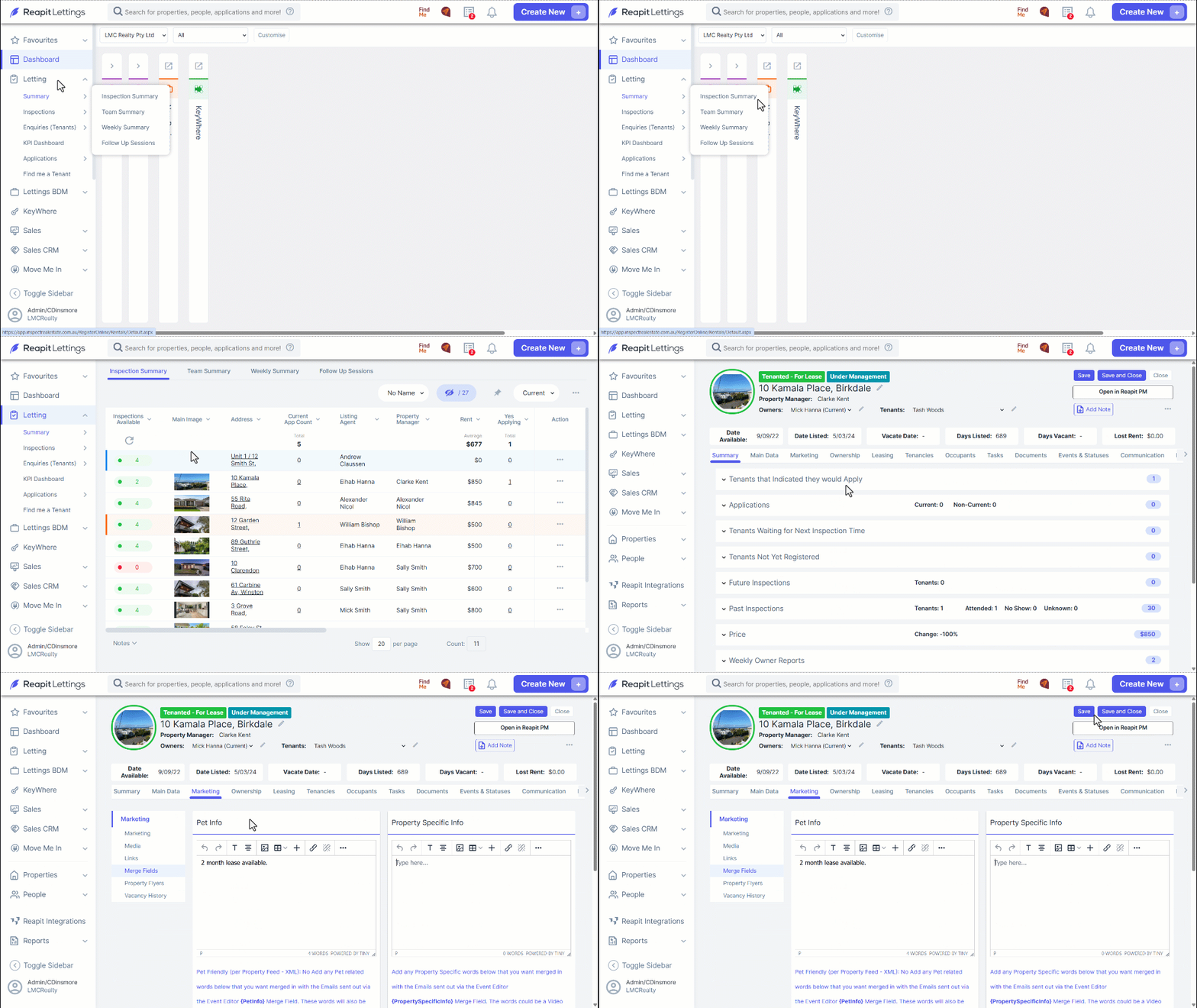
- Proceed to the Messages.
- Click Letting.
- Click Waiting/Not Registered.
- Navigate to the Event: Reply - No Times Available and Event: Reply - Times Available templates. Position your cursor beneath the phrase, "Thank you for your enquiry regarding {PropertyAddress}," as this is the designated location for inserting the merge field.
Next, scroll down to Merge Fields, select {SmartReplyInfo}, and it will be seamlessly incorporated into the template, activating when a tenant’s email is initiated.
- Click Save.