'%20d='M0%208a8%208%200%200%201%208-8h24a8%208%200%200%201%208%208v24a8%208%200%200%201-8%208H8a8%208%200%200%201-8-8V8Z'/%3e%3cpath%20fill='%23fff'%20d='M32.576%206C12.293%206%208.776%2025.887%207.424%2034H9.1c.45-2.977%203.493-14.748%2010.899-20.287%200%200-5.633%206.976-6.572%2015.051%203.426-.652%2013.845-3.372%2016.056-12.927l-3.84-.61c1.352-1.351%204.909-5.17%206.931-9.226V6Z'/%3e%3cdefs%3e%3clinearGradient%20id='reapit-lettings__a'%20x1='20.702'%20x2='20.702'%20y1='.351'%20y2='31.228'%20gradientUnits='userSpaceOnUse'%3e%3cstop%20stop-color='%235573FD'/%3e%3cstop%20offset='.575'%20stop-color='%234E56EA'/%3e%3c/linearGradient%3e%3c/defs%3e%3c/svg%3e)
How to Manually Change Ownership of a Property
This article explains how to manually change the owner of a property within Reapit Lettings.
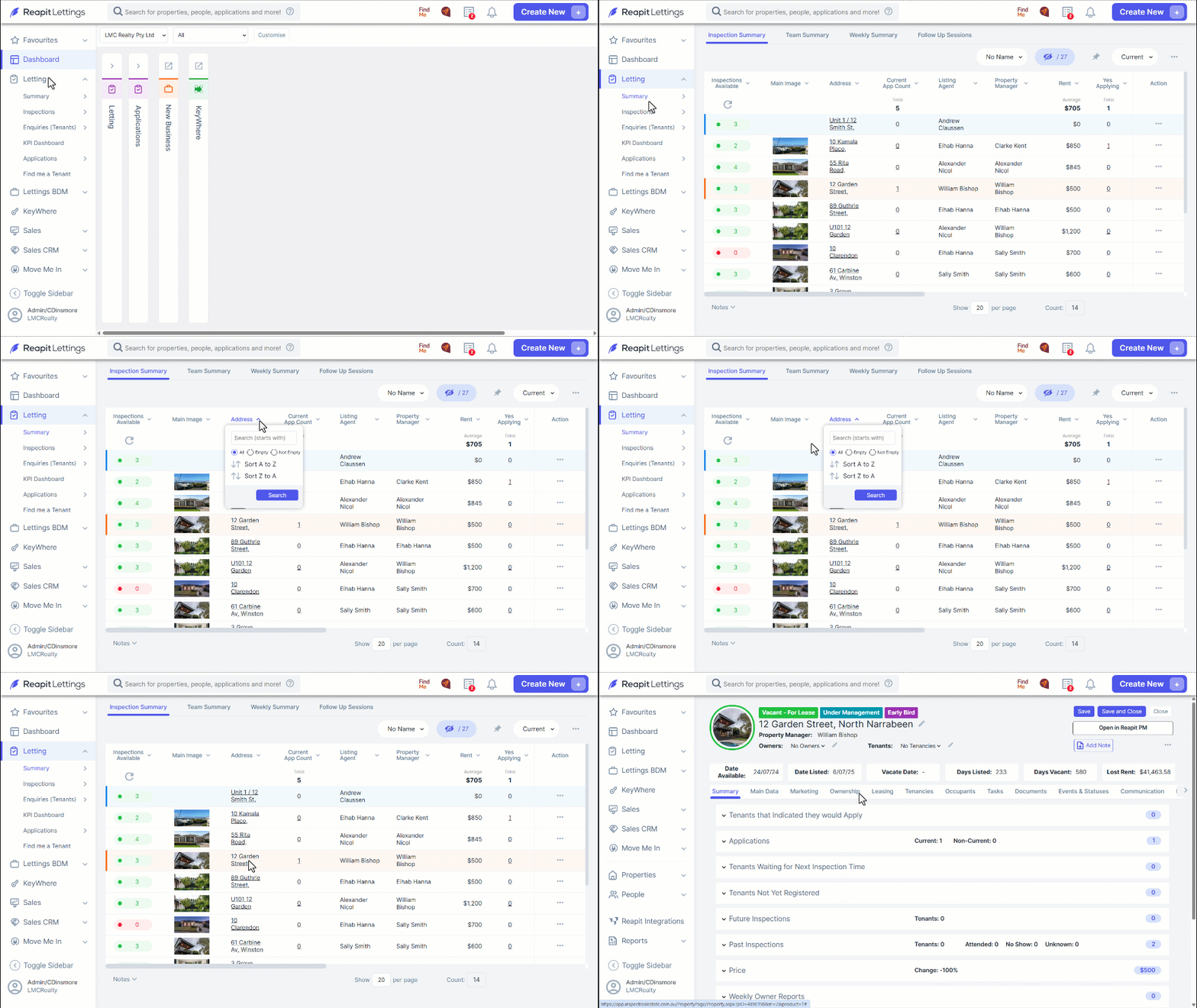
Click on Letting.
Click on Summary.
Select the property from the list.
Alternatively, enter the address in the search bar and select from the displayed options.
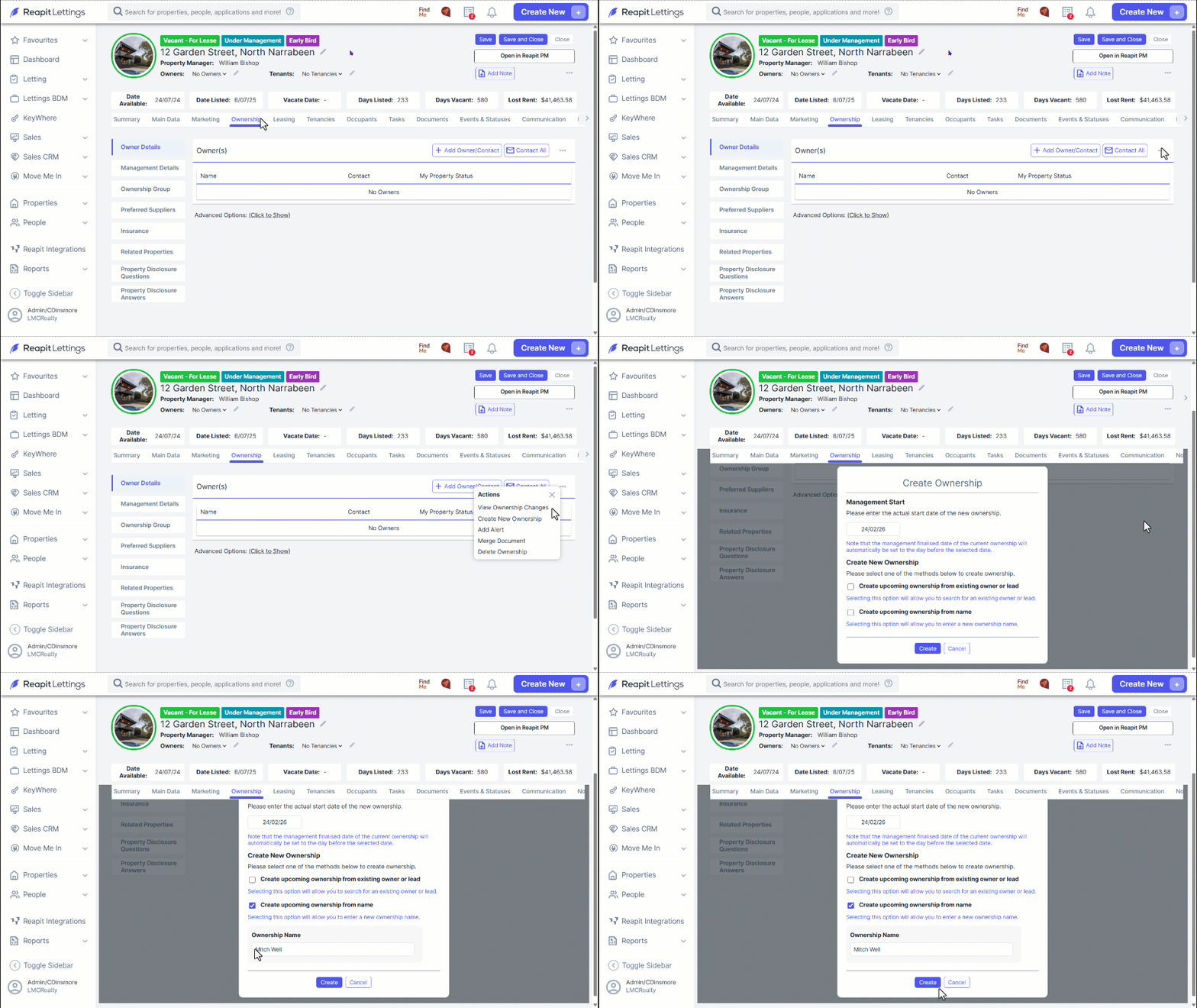
Select the Ownership tab. The current owner/s will be displayed.
Click the 3-dots in the top-right corner (next to the Contact All button).
Select Create New Ownership.
Enter the start date of the new ownership.
Select the Create New Ownership option as needed. Choose from an existing owner or lead, or from a new name.
Enter the requested information in the additional field.
Click on Create.
If Create upcoming ownership from name is selected, you will need to add further information. Click on Add Owner/Contact and complete the owner’s name, email address, and mobile number then click Save.
If Create upcoming ownership from existing owner or lead is selected, the Owners contact information will populate what is exiting in the system. Use the pencil icon next to the name to update if required.
The (current) owner will now display at the top. Future emails and reports will go to this owner.
You can still view previous owners by clicking their name under Owners.