'%20d='M0%208a8%208%200%200%201%208-8h24a8%208%200%200%201%208%208v24a8%208%200%200%201-8%208H8a8%208%200%200%201-8-8V8Z'/%3e%3cpath%20fill='%23fff'%20d='M32.576%206C12.293%206%208.776%2025.887%207.424%2034H9.1c.45-2.977%203.493-14.748%2010.899-20.287%200%200-5.633%206.976-6.572%2015.051%203.426-.652%2013.845-3.372%2016.056-12.927l-3.84-.61c1.352-1.351%204.909-5.17%206.931-9.226V6Z'/%3e%3cdefs%3e%3clinearGradient%20id='reapit-lettings__a'%20x1='20.702'%20x2='20.702'%20y1='.351'%20y2='31.228'%20gradientUnits='userSpaceOnUse'%3e%3cstop%20stop-color='%235573FD'/%3e%3cstop%20offset='.575'%20stop-color='%234E56EA'/%3e%3c/linearGradient%3e%3c/defs%3e%3c/svg%3e)
How To Create a One-off Calendar Time
This article will run through how to create a one off calendar time in in Reapit Lettings - Sales.
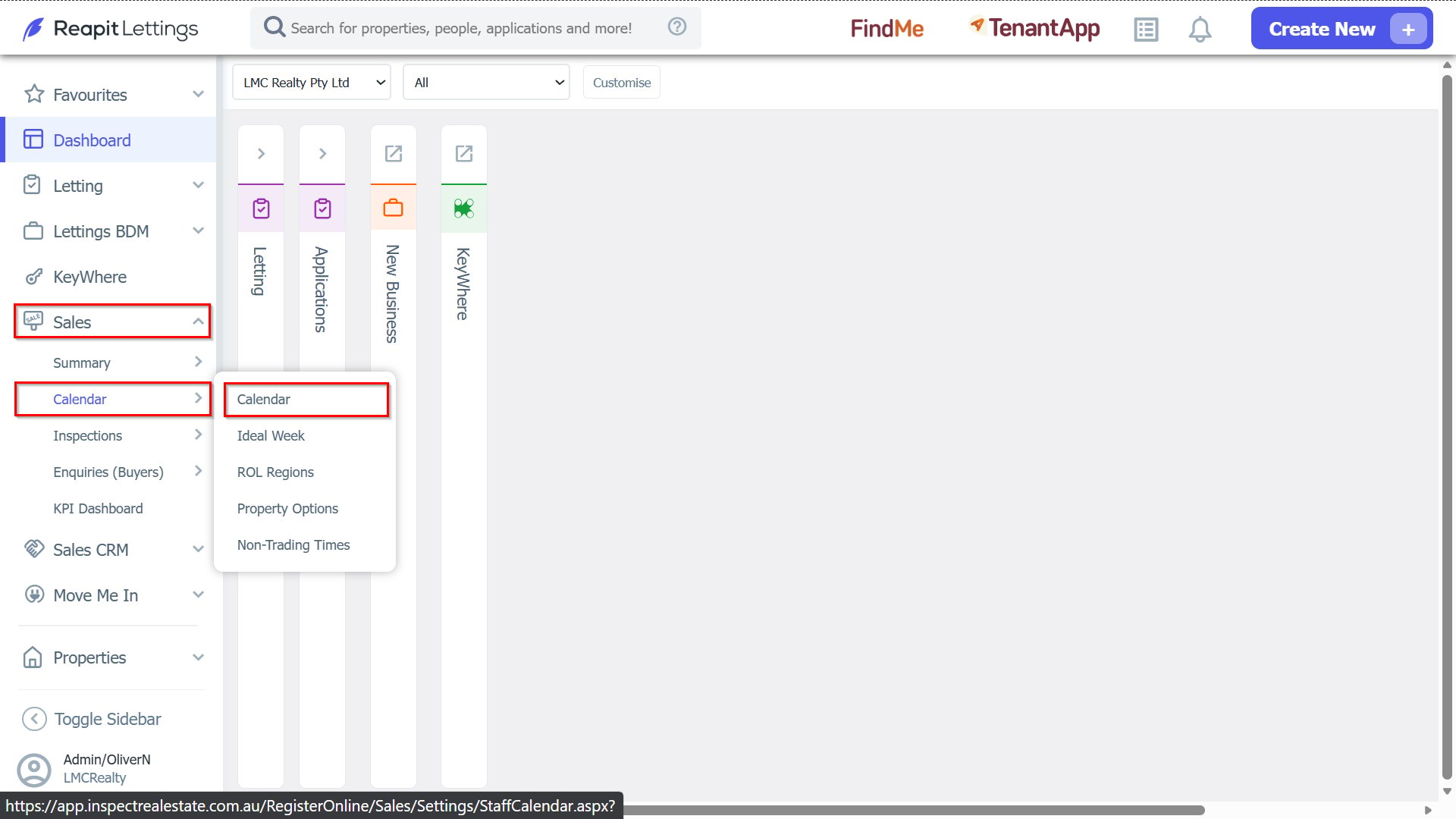
1. Navigate to Sales > Calendar > Calendar.
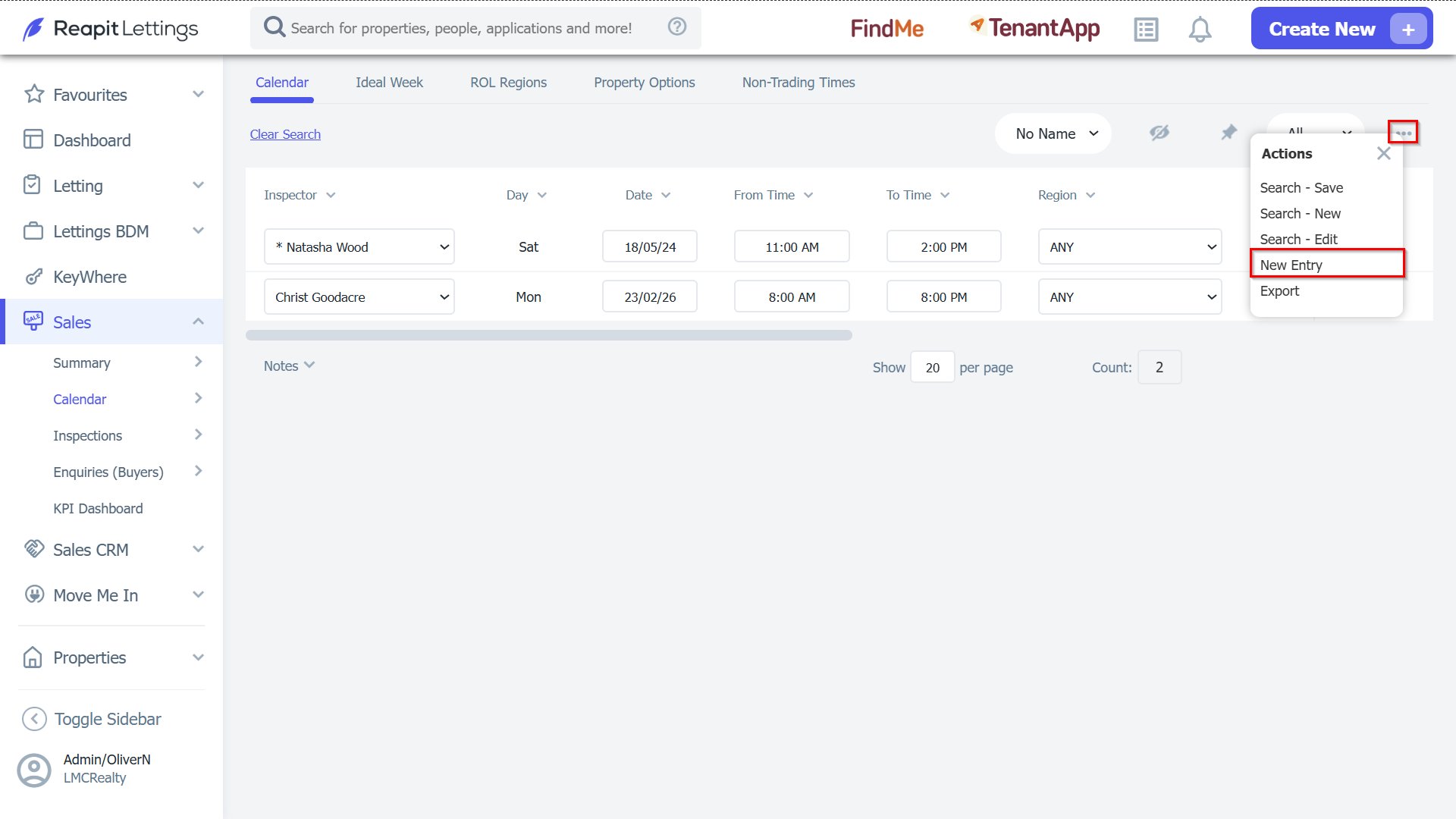
2. Click the New Entry button on the right-hand side.
3. Enter in the details for this calendar entry.
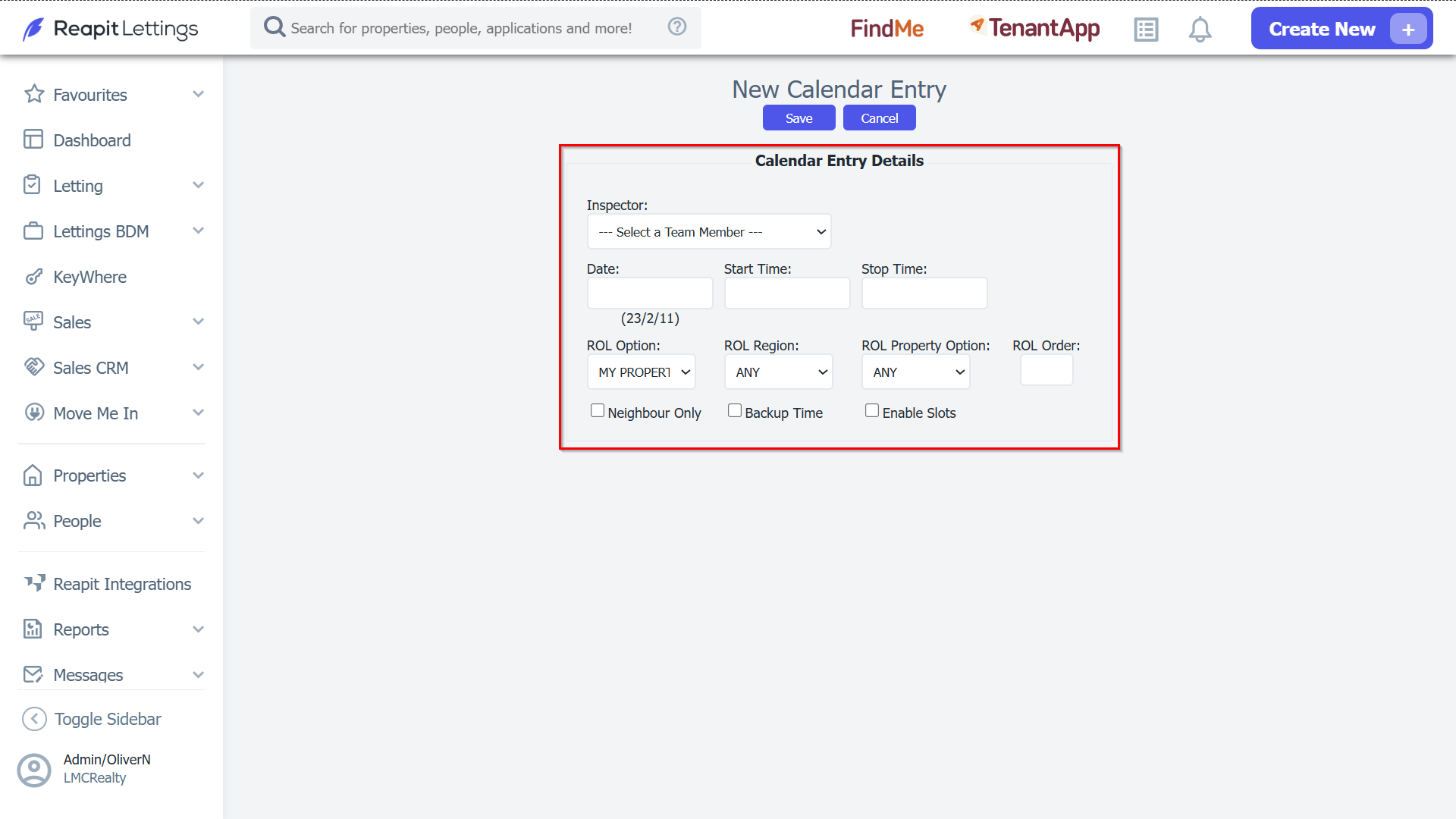
4. Click the Save button at the top of the screen.
- Start Time: This is when the first inspection will begin
- Stop Time: The last inspection must finish before this time
ROL Option: Choose whose properties this time applies to;
ANY – Applies to all team member properties
MY PROPERTIES - Only applies Inspectors properties
LISTING AGENT - Only applies to properties the Inspector is the LA for
SALES AGENT - Only applies to properties the Inspector is the SA for
ROL Region: This calendar time will only be made available for properties in this area. You can setup regions from the ROL Regions tab
ROL Property Option: This calendar time will only be made available for properties that meet certain criteria you can setup the required criteria from the ROL Property Option tab.
ROL Order: If two people are available to show the same property at the same time, when the inspection is created, it will be assigned to the person with the lowest order.