'%20d='M0%208a8%208%200%200%201%208-8h24a8%208%200%200%201%208%208v24a8%208%200%200%201-8%208H8a8%208%200%200%201-8-8V8Z'/%3e%3cpath%20fill='%23fff'%20d='M32.576%206C12.293%206%208.776%2025.887%207.424%2034H9.1c.45-2.977%203.493-14.748%2010.899-20.287%200%200-5.633%206.976-6.572%2015.051%203.426-.652%2013.845-3.372%2016.056-12.927l-3.84-.61c1.352-1.351%204.909-5.17%206.931-9.226V6Z'/%3e%3cdefs%3e%3clinearGradient%20id='reapit-lettings__a'%20x1='20.702'%20x2='20.702'%20y1='.351'%20y2='31.228'%20gradientUnits='userSpaceOnUse'%3e%3cstop%20stop-color='%235573FD'/%3e%3cstop%20offset='.575'%20stop-color='%234E56EA'/%3e%3c/linearGradient%3e%3c/defs%3e%3c/svg%3e)
Mobile Dashboard
This article will run through the KeyWhere Mobile dashboard.
Mobile Dashboard
This article will run through the KeyWhere Mobile dashboard.
The KeyWhere mobile app dashboard provides a comprehensive summary of your keys and panels. It offers quick access to keybook functions and displays information under several key headings based on the status of the keys.
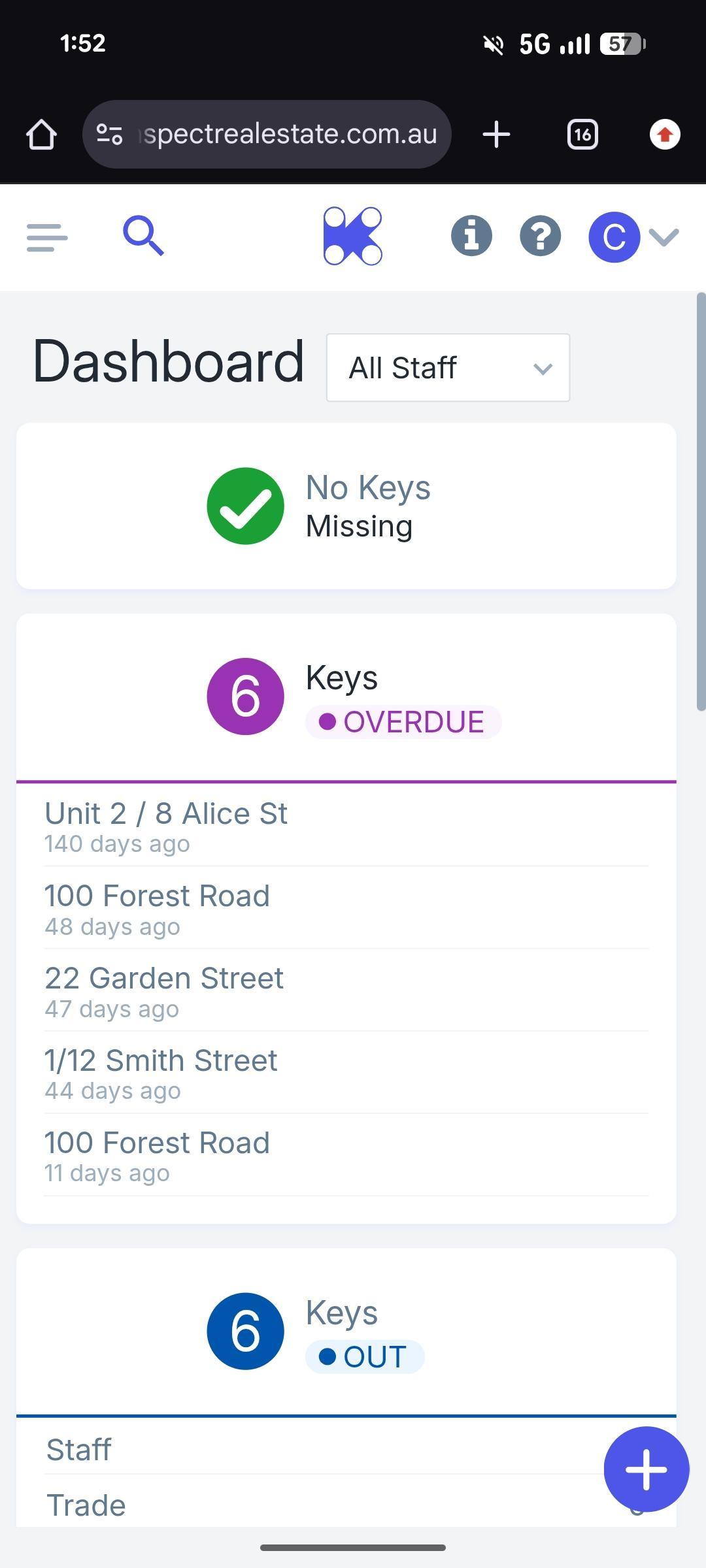
The dashboard automatically loads when you log in to the KeyWhere app. You can also access it by tapping the 'Hamburger' button in the top left corner of the screen and selecting 'Dashboard'.
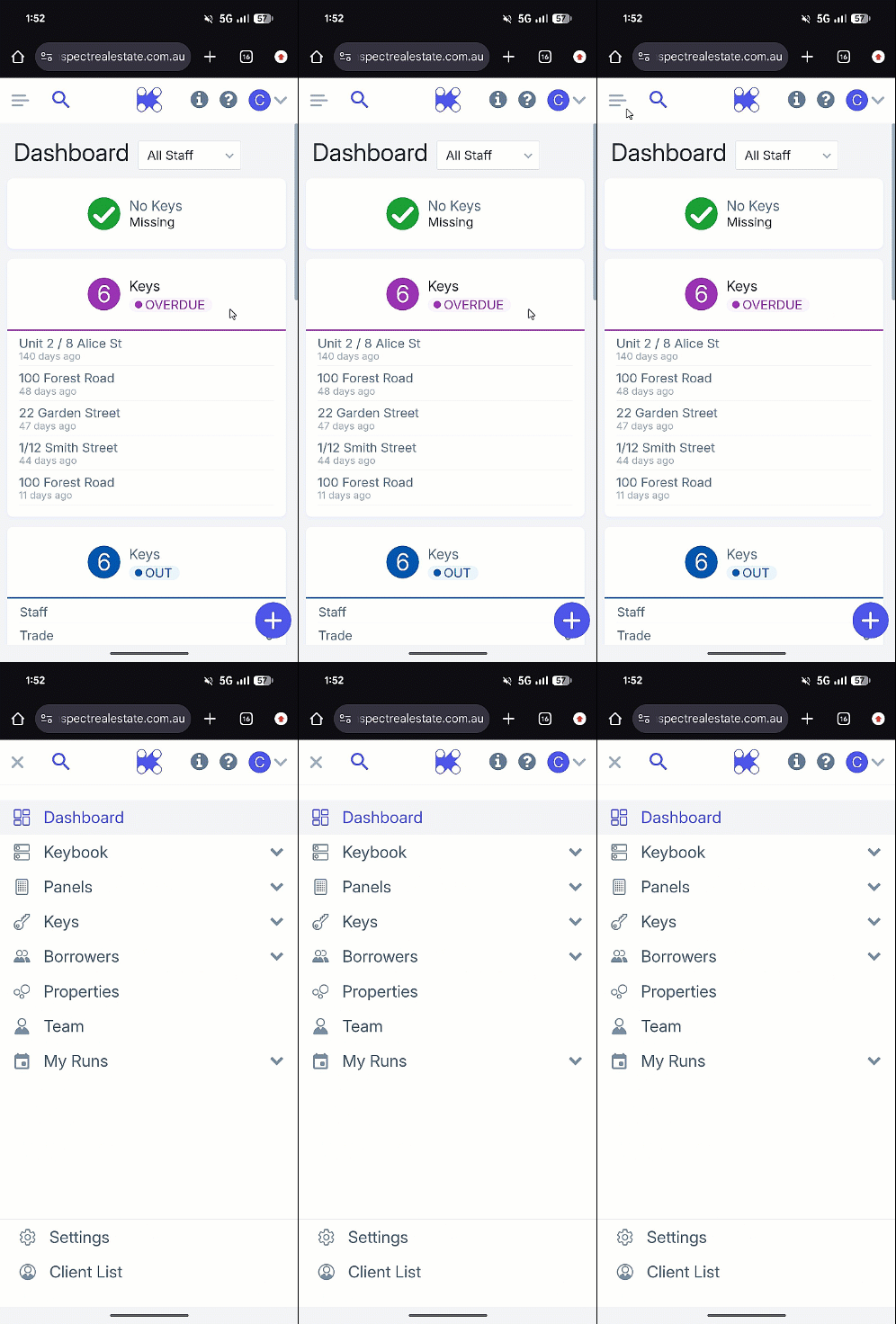
Dashboard Tiles and Their Functions
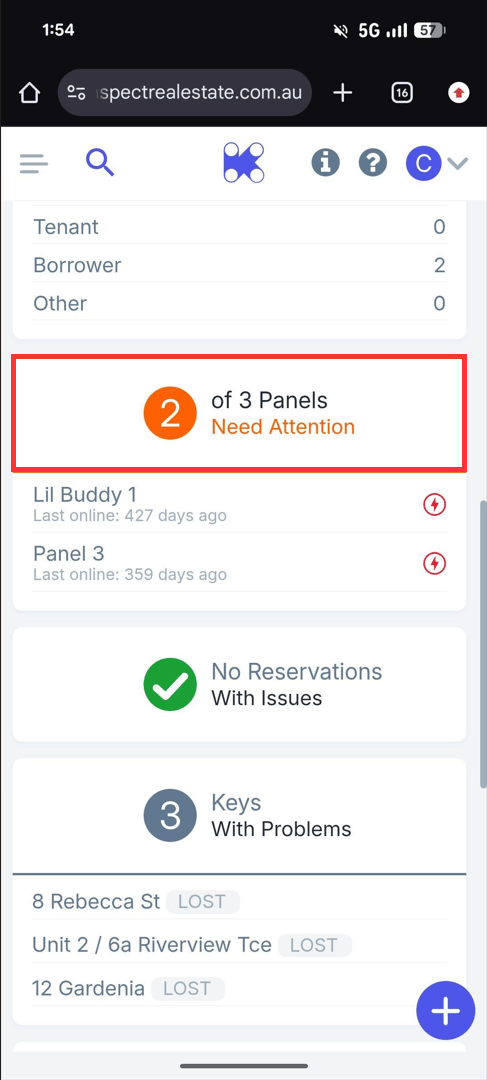
Panels Online
This tile indicates how many of your previously set up panels are online.
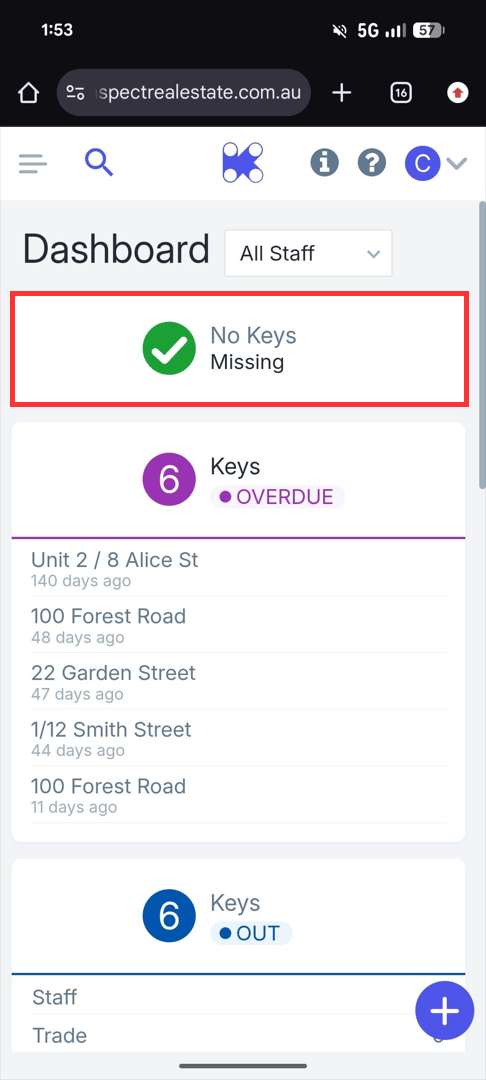
Missing Keys
Shows if any keys are missing from the panel, meaning they have not been loaned or reserved but have been removed from their hooks.
A flashing red light on the KeyWhere panel indicates the missing key.
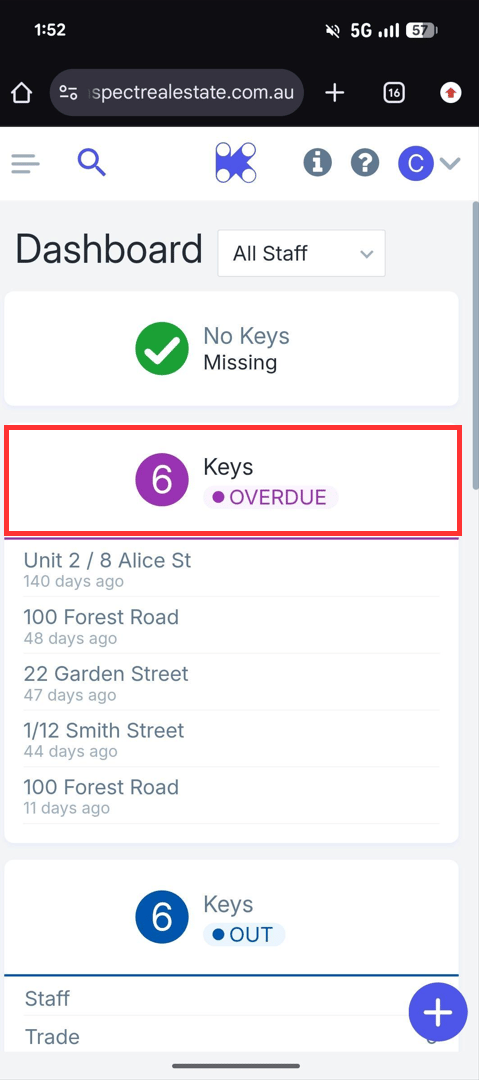
Overdue Keys
The Overdue Keys tile indicates if there are any keys that have passed the return date on their loans, and by how many days.
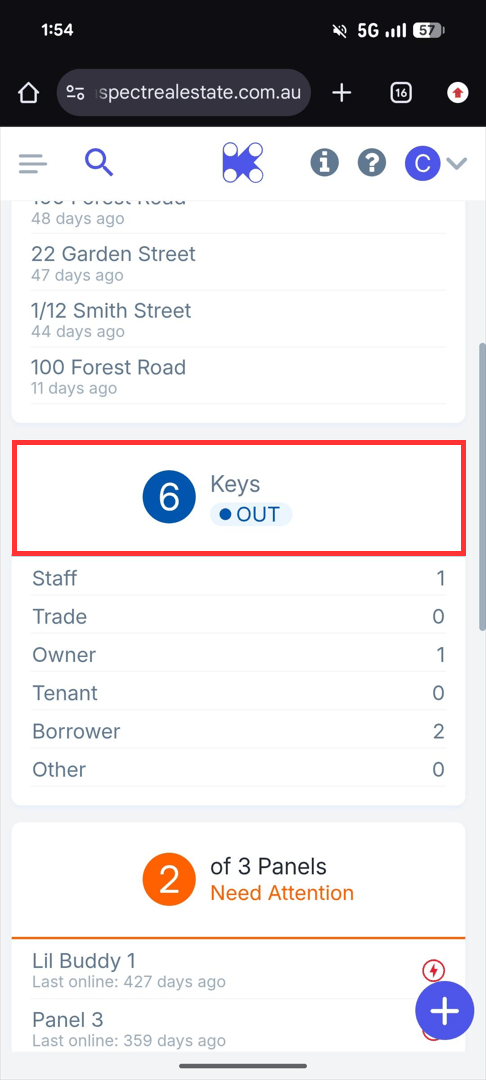
Out Keys
- The Keys Out tile indicates how many keys are loaned out and to which type of borrower. This total also includes keys that are overdue. The position of loaned keys on the panel is indicated by a constant blue light for current loans and a constant purple light for overdue loans, as per the KeyWhere colour legend.
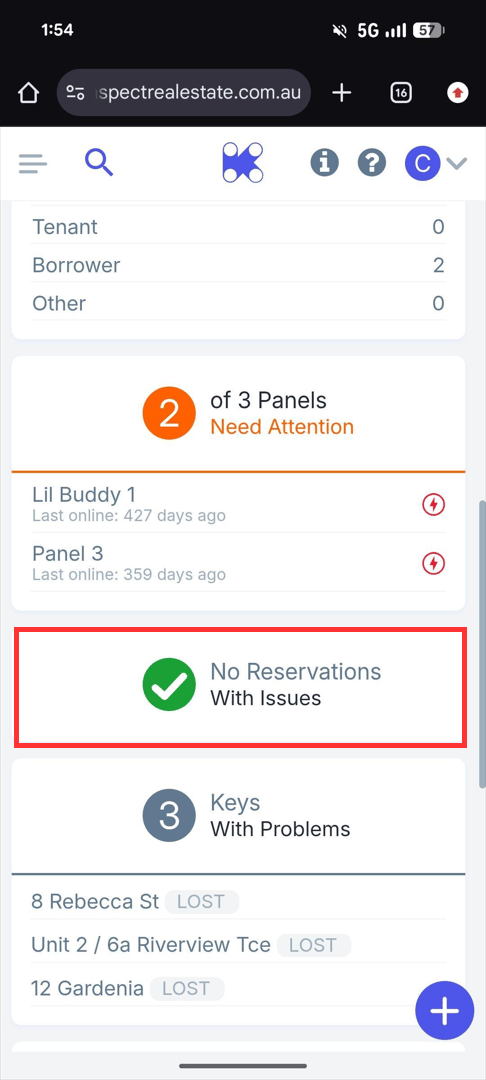
Reserved Key Issues
Shows reservation issues caused by having a reservation on a loaned, overdue, or missing key. These issues are displayed based on the user selected at the top of the page. By default, this is set to all users.
Keys with Problems
Indicates an issue with the set of keys. This could be a faulty set of keys or keys lost. You can click this tile to find out more information.
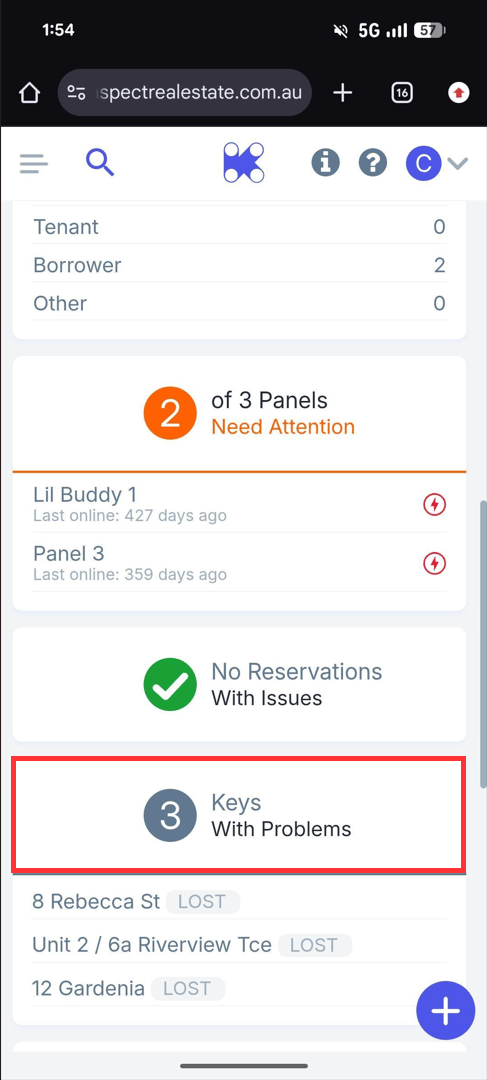
Note: You can edit the key status if the problem needs to be modified or has been resolved.