'%20d='M0%208a8%208%200%200%201%208-8h24a8%208%200%200%201%208%208v24a8%208%200%200%201-8%208H8a8%208%200%200%201-8-8V8Z'/%3e%3cpath%20fill='%23fff'%20d='M32.576%206C12.293%206%208.776%2025.887%207.424%2034H9.1c.45-2.977%203.493-14.748%2010.899-20.287%200%200-5.633%206.976-6.572%2015.051%203.426-.652%2013.845-3.372%2016.056-12.927l-3.84-.61c1.352-1.351%204.909-5.17%206.931-9.226V6Z'/%3e%3cdefs%3e%3clinearGradient%20id='reapit-lettings__a'%20x1='20.702'%20x2='20.702'%20y1='.351'%20y2='31.228'%20gradientUnits='userSpaceOnUse'%3e%3cstop%20stop-color='%235573FD'/%3e%3cstop%20offset='.575'%20stop-color='%234E56EA'/%3e%3c/linearGradient%3e%3c/defs%3e%3c/svg%3e)
Displaying External Statuses on 2Apply Dashboard
This Reapit Lettings article will run through how to choose what statuses will display externally on the 2Apply dashboard. Once External Statuses are set up, the tenant dashboard will reflect these, providing applicants clear indication of the progress.
Displaying External Statuses on 2Apply Dashboard
This Reapit Lettings article will run through how to choose what statuses will display externally on the 2Apply dashboard.
Once External Statuses are set up, the tenant dashboard will reflect these, providing applicants clear indication of the progress.
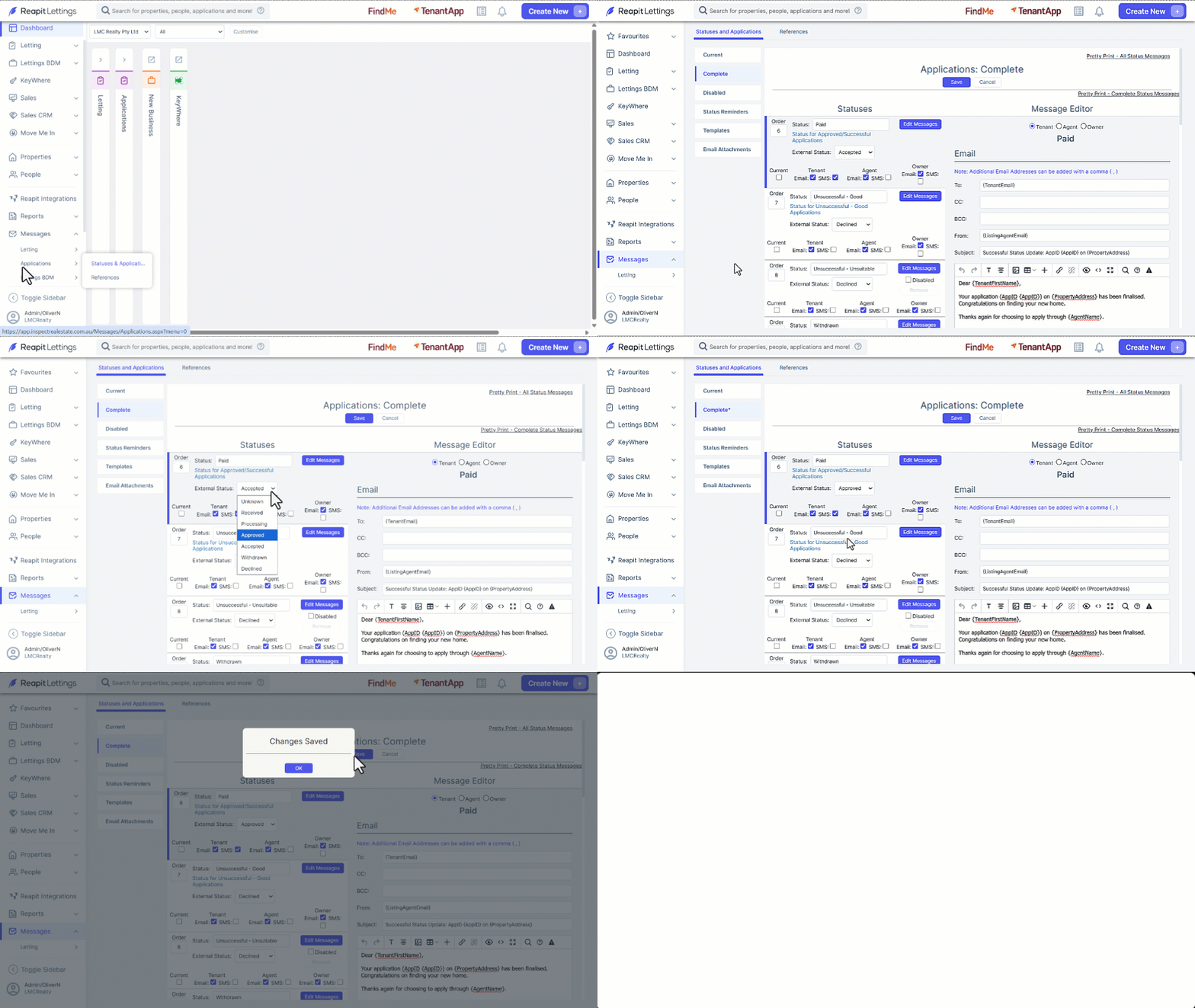
- Click on Messages.
- Click on Applications.
- Click on Statuses & Applications.
- Select the required Category tab.
- Navigate to the Status to be updated.
- Click on the External Status drop down and select your desired status.
- Click on Save then OK.
Note: If your system has an active integration with Ignite, take care in your selection of an External Status. As it may impact the integration and messages sent. Contact Support for further assistance.