'%20d='M0%208a8%208%200%200%201%208-8h24a8%208%200%200%201%208%208v24a8%208%200%200%201-8%208H8a8%208%200%200%201-8-8V8Z'/%3e%3cpath%20fill='%23fff'%20d='M32.576%206C12.293%206%208.776%2025.887%207.424%2034H9.1c.45-2.977%203.493-14.748%2010.899-20.287%200%200-5.633%206.976-6.572%2015.051%203.426-.652%2013.845-3.372%2016.056-12.927l-3.84-.61c1.352-1.351%204.909-5.17%206.931-9.226V6Z'/%3e%3cdefs%3e%3clinearGradient%20id='reapit-lettings__a'%20x1='20.702'%20x2='20.702'%20y1='.351'%20y2='31.228'%20gradientUnits='userSpaceOnUse'%3e%3cstop%20stop-color='%235573FD'/%3e%3cstop%20offset='.575'%20stop-color='%234E56EA'/%3e%3c/linearGradient%3e%3c/defs%3e%3c/svg%3e)
Searching for a Key in KeyWhere
This article will run through how to search for a key in KeyWhere. The processes in this article include: Universal Search - Address Universal Search - Key Number Searching by Filtering Columns
Searching for a Key in KeyWhere
This article will run through how to search for a key in KeyWhere.
The processes in this article include:
- Universal Search - Address
- Universal Search - Key Number
- Searching by Filtering Columns
Universal Search
The universal search bar can be used to search by an address, name, email, mobile or key number. To search for a key, enter the address or key number.
Search by Address
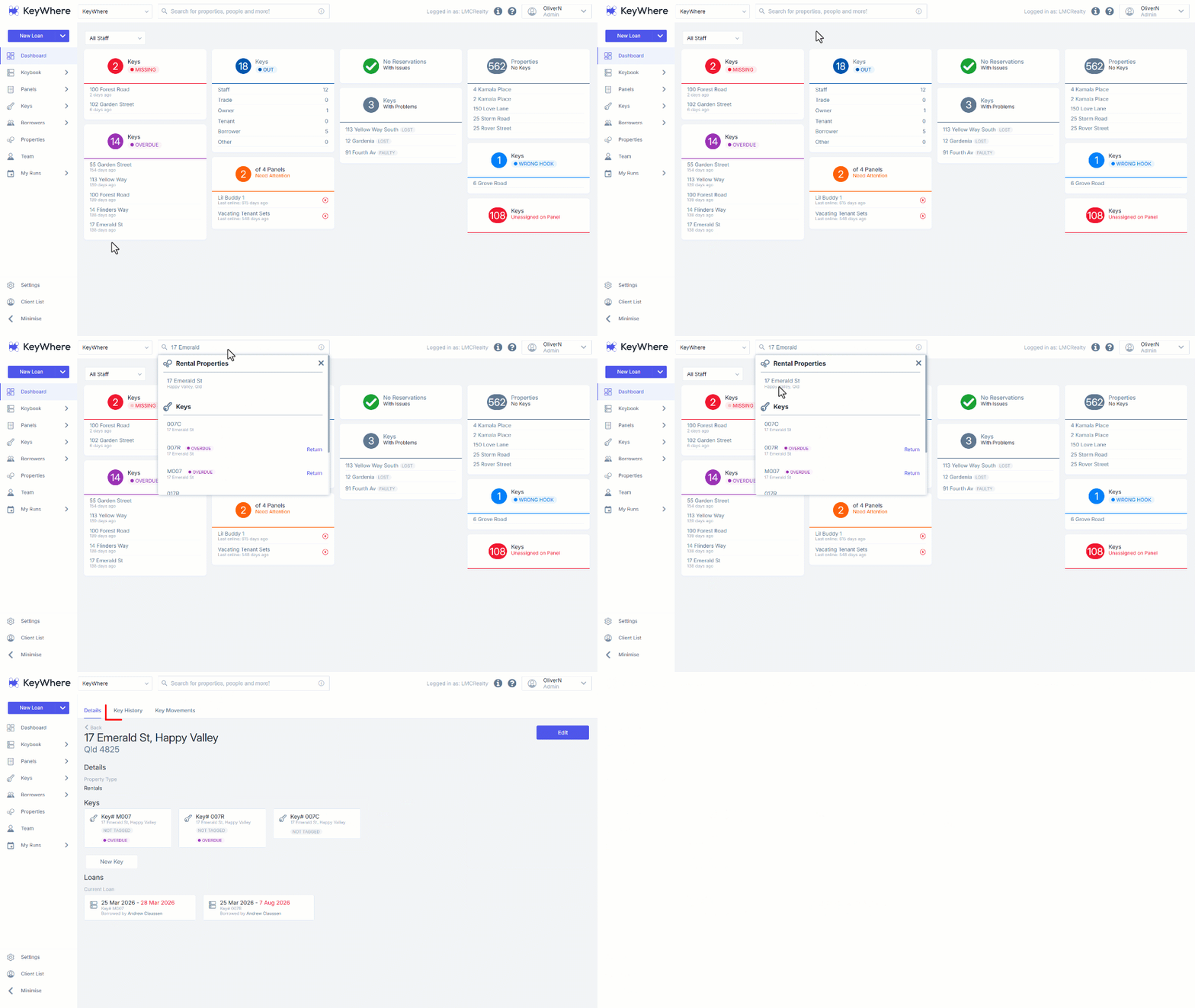
- Enter an address into the universal search bar at the top of the screen.
- Select the address from the displayed list.
- The assigned keys will be displayed in the Keys section with the status.
- You can view Key History or Key Movements by selecting the desired tab.
Search by Key Number
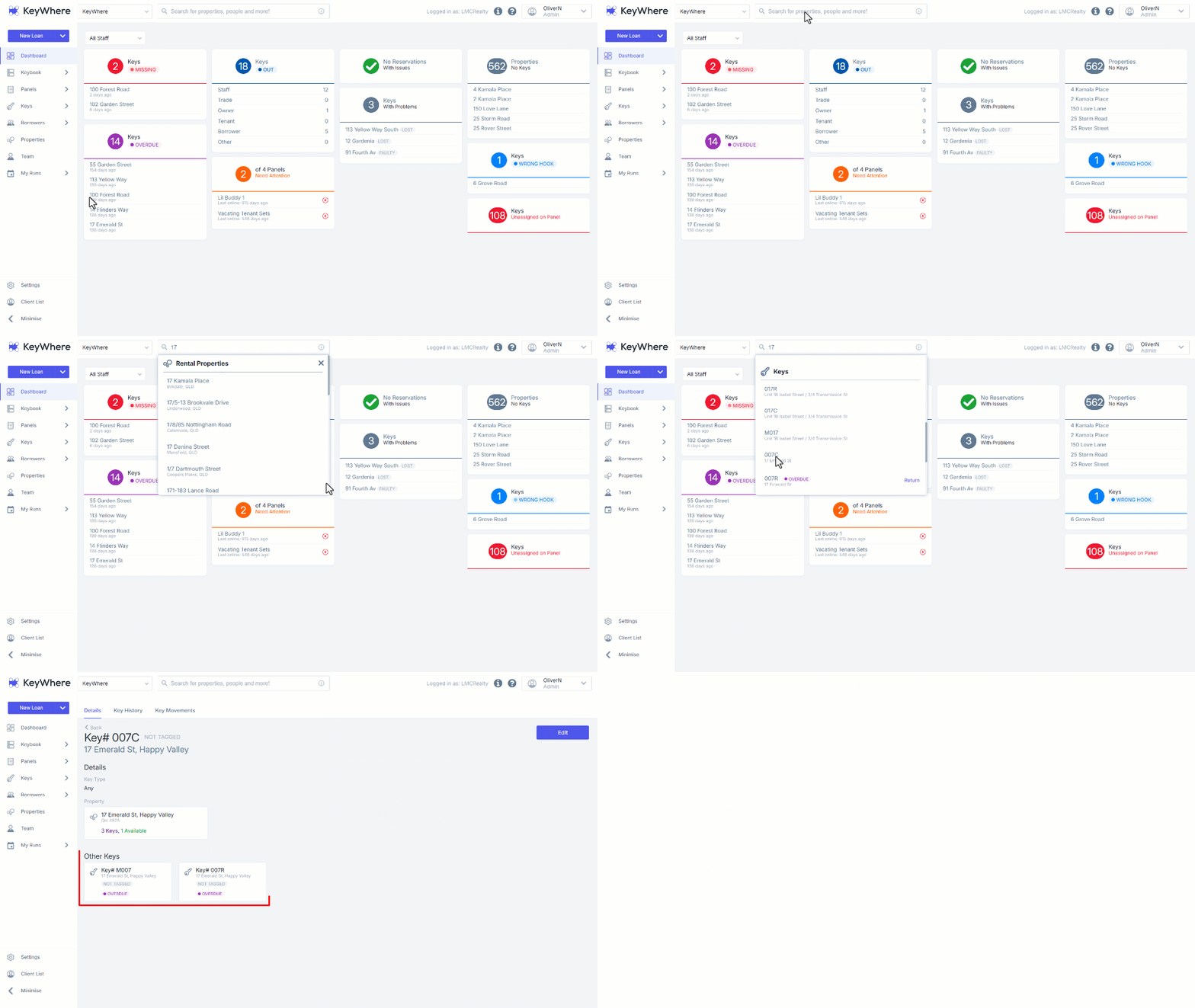
- Enter the key number into the universal search bar and press Enter.
- Scroll down to the Key search results and select the desired key number.
- The key Details will be displayed along with Other Keys related to the set being viewed.
- You can view Key History or Key Movements by selecting the desired tab.
Searching by Filtering Columns
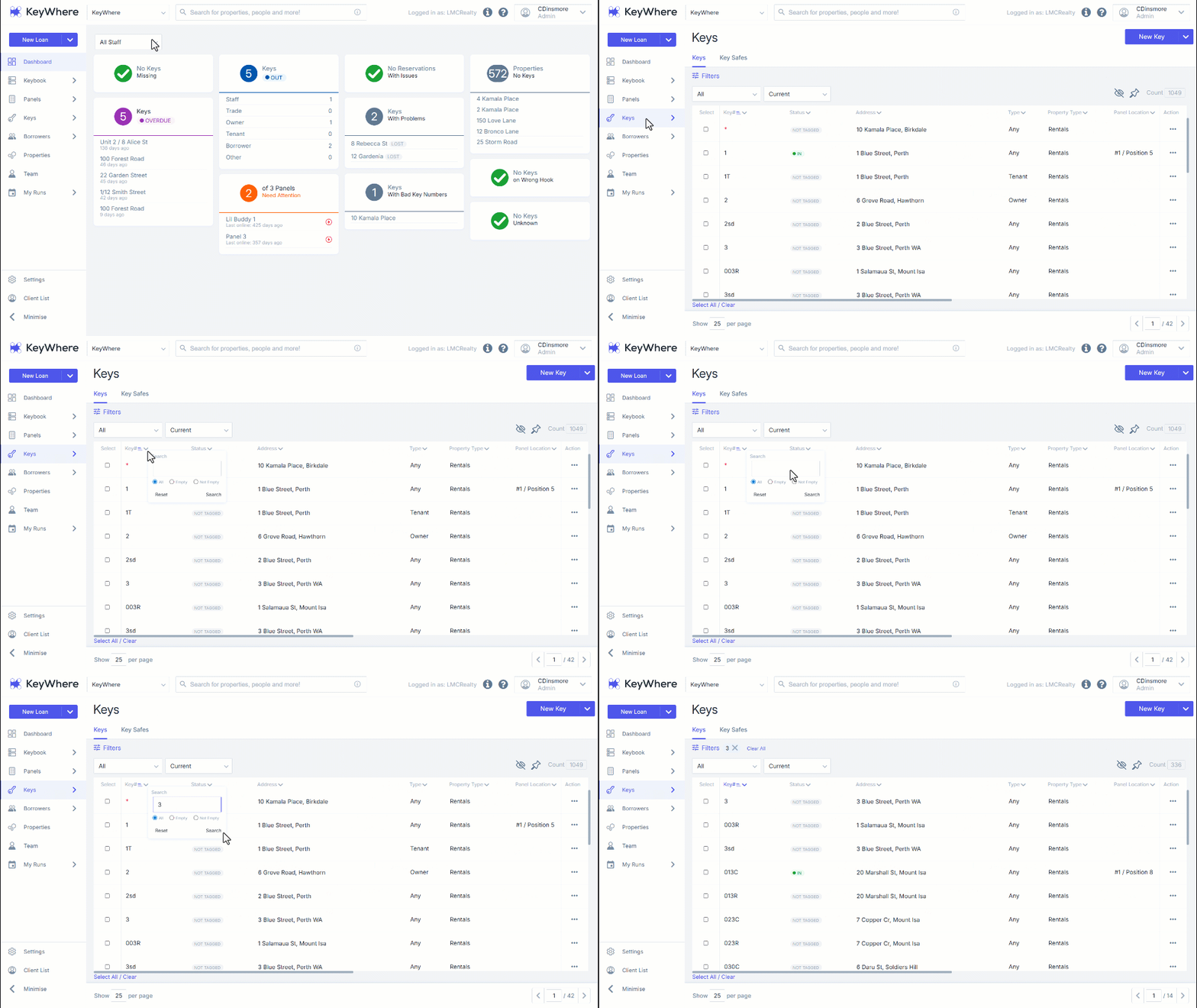
- To search for a key in KeyWhere, navigate to Keys.
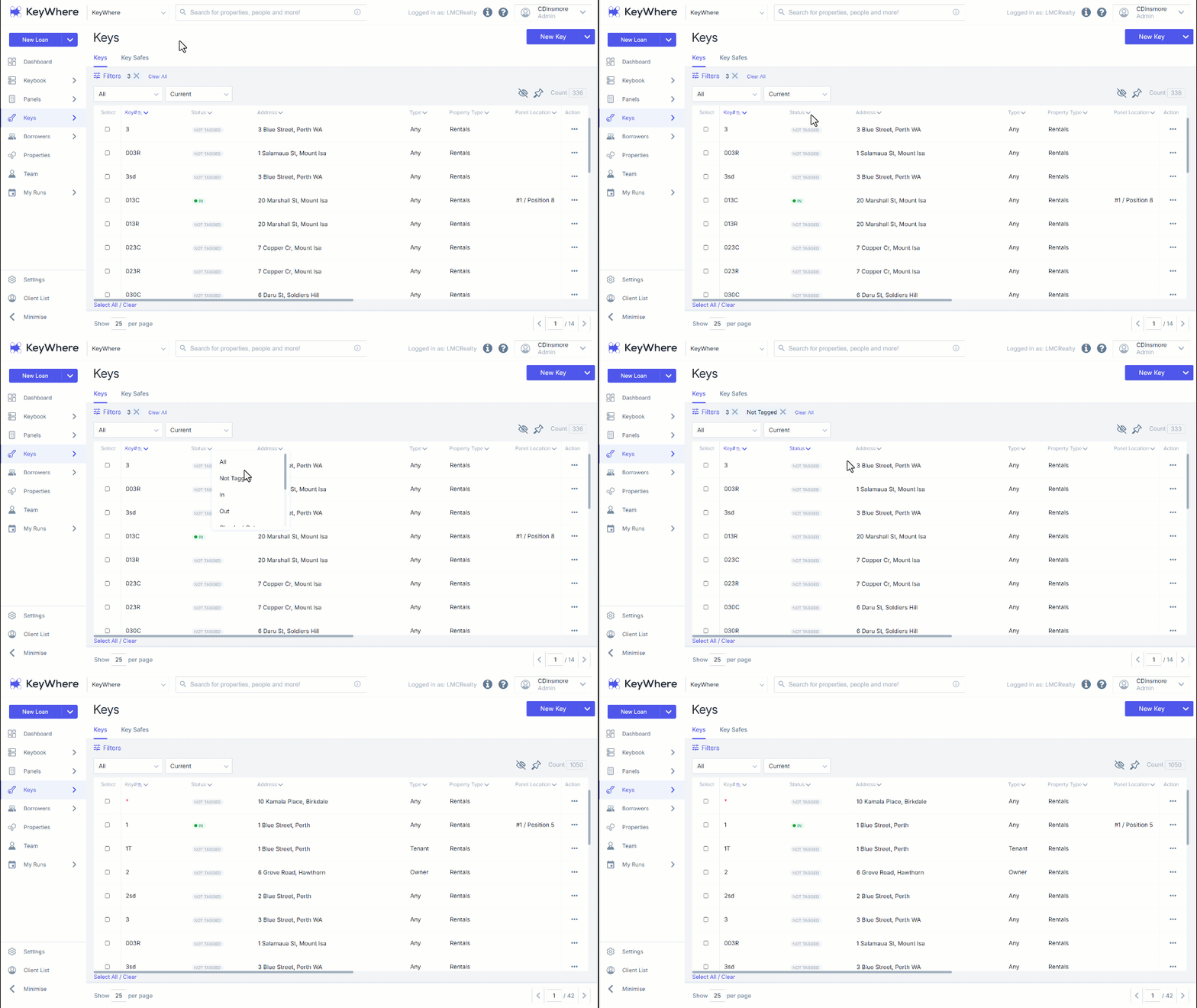
- Click Filter options next to the column heading on every page.
- Clicking on the arrow next to the column heading you want to search will either reveal the search text box or a drop-down of options that can be used to filter the search results.
- To search for a key number or address enter the relevant details into the search text box and hit Enter. The results matching the key number will appear, and the number you searched for will appear next to the 'Filters' heading:
- The search text box will appear when clicking on the arrow next to the Key#, Address and Description column headings.
- When filtering information, select an option from the drop-down.
- Selecting an option will filter your key list to only show the keys for the selected status.
- The selected status will appear next to the 'Filters' heading:
- If you would like to clear your search or filter, click the Clear All button.
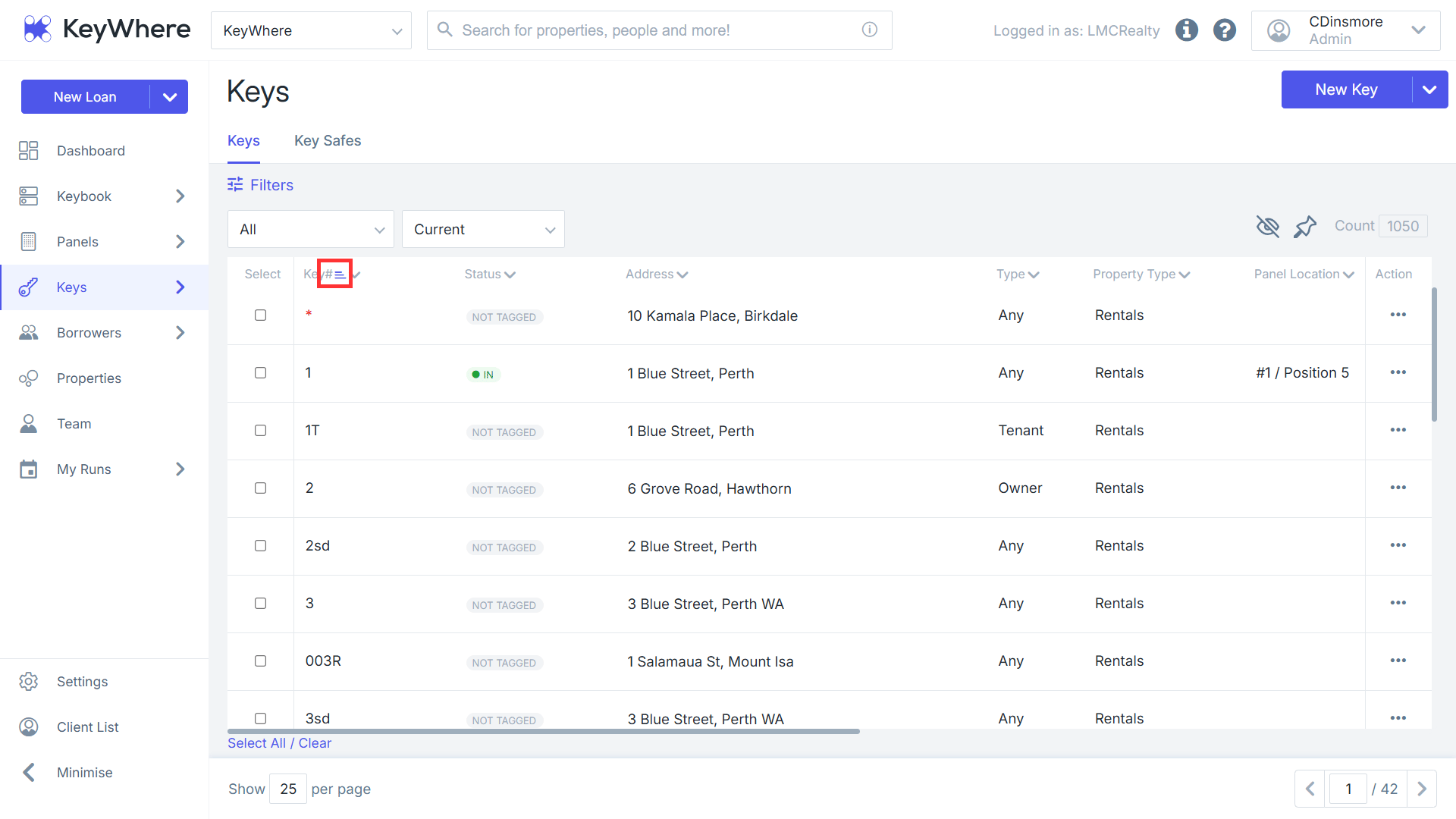
- Details on a page can also be sorted by clicking on the column headings. The three lines next to the column heading will indicate which column the page is being sorted on: