'%20d='M0%208a8%208%200%200%201%208-8h24a8%208%200%200%201%208%208v24a8%208%200%200%201-8%208H8a8%208%200%200%201-8-8V8Z'/%3e%3cpath%20fill='%23fff'%20d='M32.576%206C12.293%206%208.776%2025.887%207.424%2034H9.1c.45-2.977%203.493-14.748%2010.899-20.287%200%200-5.633%206.976-6.572%2015.051%203.426-.652%2013.845-3.372%2016.056-12.927l-3.84-.61c1.352-1.351%204.909-5.17%206.931-9.226V6Z'/%3e%3cdefs%3e%3clinearGradient%20id='reapit-lettings__a'%20x1='20.702'%20x2='20.702'%20y1='.351'%20y2='31.228'%20gradientUnits='userSpaceOnUse'%3e%3cstop%20stop-color='%235573FD'/%3e%3cstop%20offset='.575'%20stop-color='%234E56EA'/%3e%3c/linearGradient%3e%3c/defs%3e%3c/svg%3e)
What is Facebook Pixel and How To Set It Up
This article will run through what Facebook Pixel is and how to set it up in Reapit Lettings.
Overview
What is Facebook Pixel and How to Set Up
This article will run through what Facebook Pixel is and how to set it up in Reapit Lettings.
If you use Facebook advertising, you can enable the Facebook pixel to track the actions that prospective tenants take on your register page. It tracks events such as someone loading the page, someone booking an inspection and someone cancelling out of an inspection on that page for example.
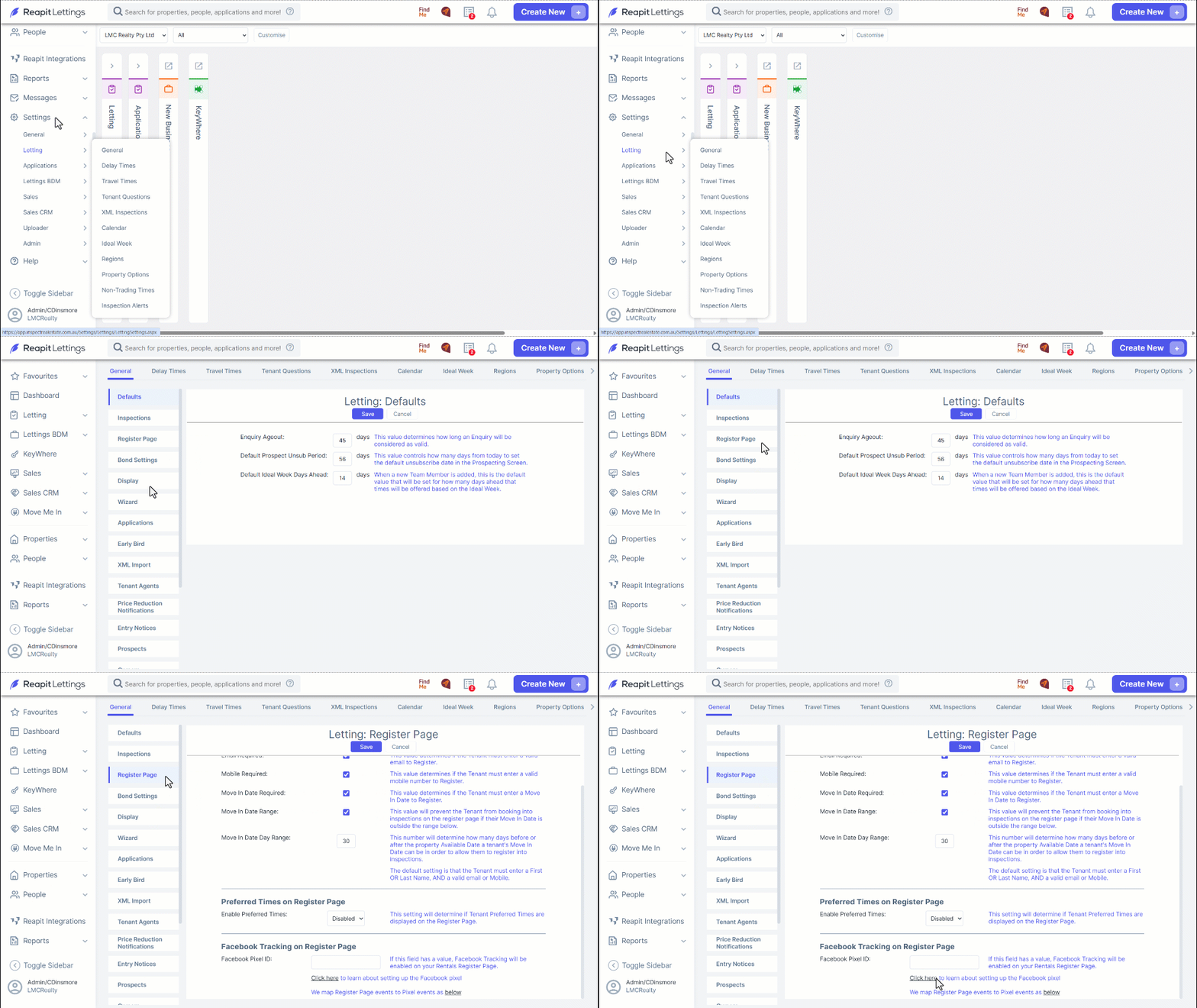
- Navigate to Settings.
- Click Letting.
- Click General.
- Navigate to the Register Page section.
- Click the Click here link in the ‘Facebook Tracking on Register Page’ section.
Getting a Pixel ID (Facebook)
- Go to the Facebook page that your marketing is done on and click the … below the cover photo, then click Ads Manager.
- On this page, click the Facebook Ads button in the top left-hand corner of the screen and then the Pixels button.
- On this page, click the Create a Pixel button.
- Type in the name you’d like to call your pixel, then click Next.
- Your Pixel ID will be created.
- The next step will prompt you to install the pixel code on your website. You don’t need to do this to track Reapit Lettings activity.
- Hit the cancel button if you don’t want to install the pixel code on your website.
- Your Pixel ID will be located in the top left of the screen, below your Pixel Name.
- Make sure you have this code before you move on to the next step.
Adding your Pixel Code to Reapit Lettings
- While logged into Reapit Lettings, navigate back to the same Register Page.
- Navigate to the ‘Facebook Tracking on Register Page’ section and enter your Pixel ID into the ‘Facebook Pixel ID’ text box.
- Press the Save button at the top of the screen to apply the change.
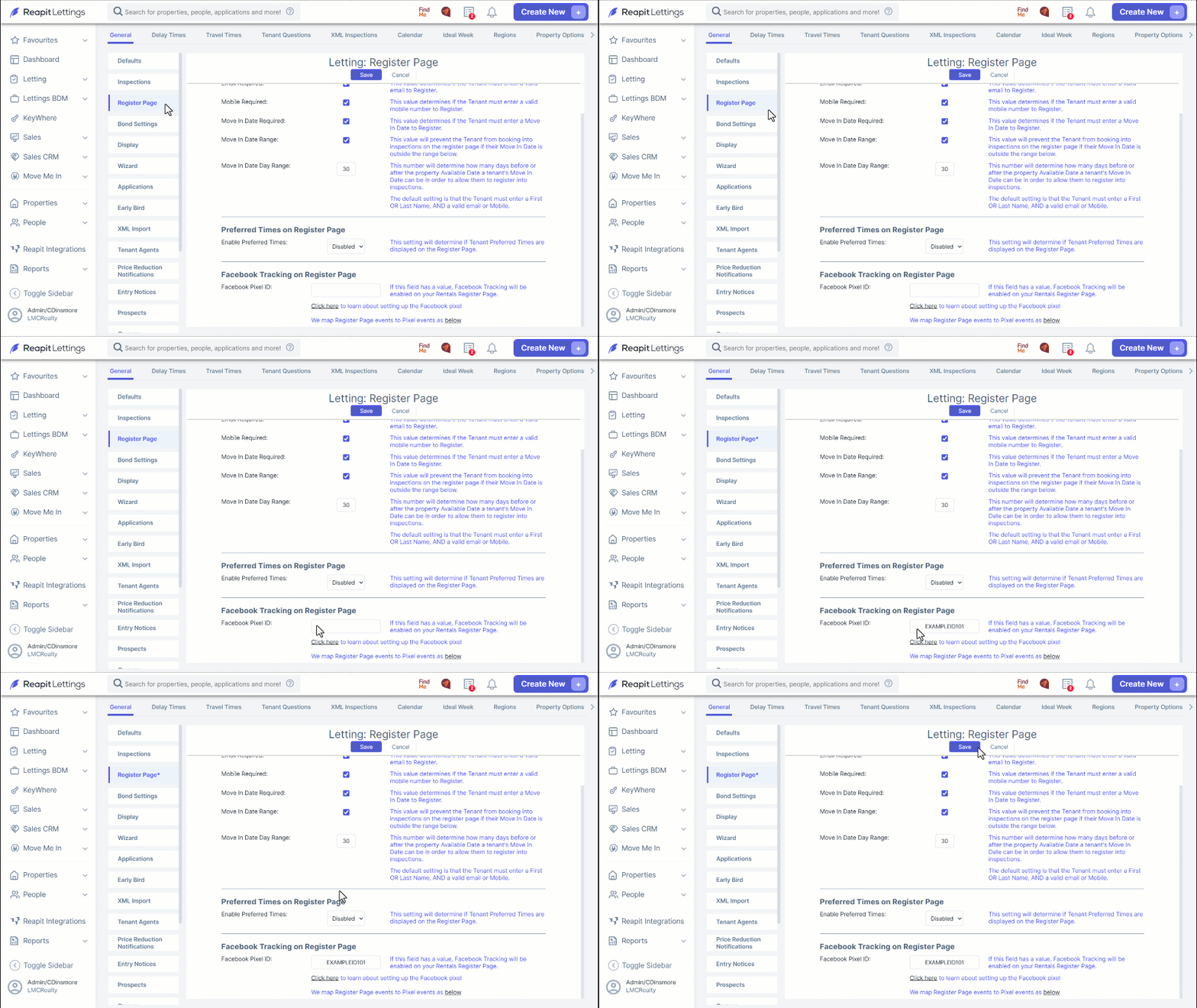
Facebook tracking will now be enabled on your register page and sent to your Facebook advertising account.