'%20d='M0%208a8%208%200%200%201%208-8h24a8%208%200%200%201%208%208v24a8%208%200%200%201-8%208H8a8%208%200%200%201-8-8V8Z'/%3e%3cpath%20fill='%23fff'%20d='M32.576%206C12.293%206%208.776%2025.887%207.424%2034H9.1c.45-2.977%203.493-14.748%2010.899-20.287%200%200-5.633%206.976-6.572%2015.051%203.426-.652%2013.845-3.372%2016.056-12.927l-3.84-.61c1.352-1.351%204.909-5.17%206.931-9.226V6Z'/%3e%3cdefs%3e%3clinearGradient%20id='reapit-lettings__a'%20x1='20.702'%20x2='20.702'%20y1='.351'%20y2='31.228'%20gradientUnits='userSpaceOnUse'%3e%3cstop%20stop-color='%235573FD'/%3e%3cstop%20offset='.575'%20stop-color='%234E56EA'/%3e%3c/linearGradient%3e%3c/defs%3e%3c/svg%3e)
Applications Settings - 2Apply
This article will run through the settings behind 2Apply
Applications Settings - 2Apply
This article will run through the settings behind 2Apply.
Note: This process outlines generic Settings, for State Specific, refer to the General Settings page.
- Click on Settings.
- Click on Applications
- Click on 2Apply.
- Click on the General category.
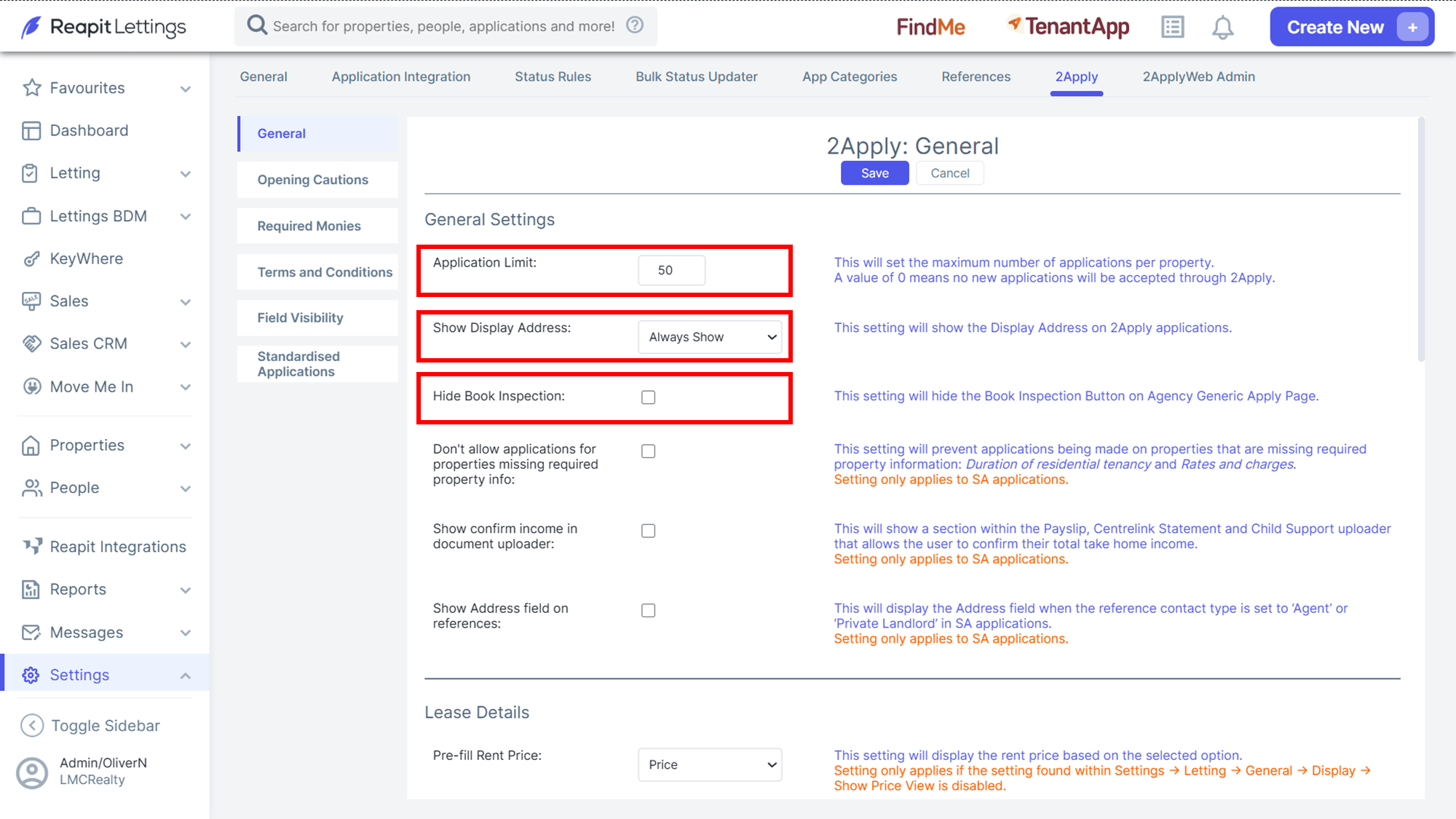
General Settings
| Application Limit | This will set the maximum number of applications per property. A value of 0 means no new applications will be accepted through 2Apply. |
| Show Display Address | This setting will show the Display Address on 2Apply applications. |
| Hide Book Inspection | This Setting will hide the Book Inspection Button on the Agency Generic Apply Page |
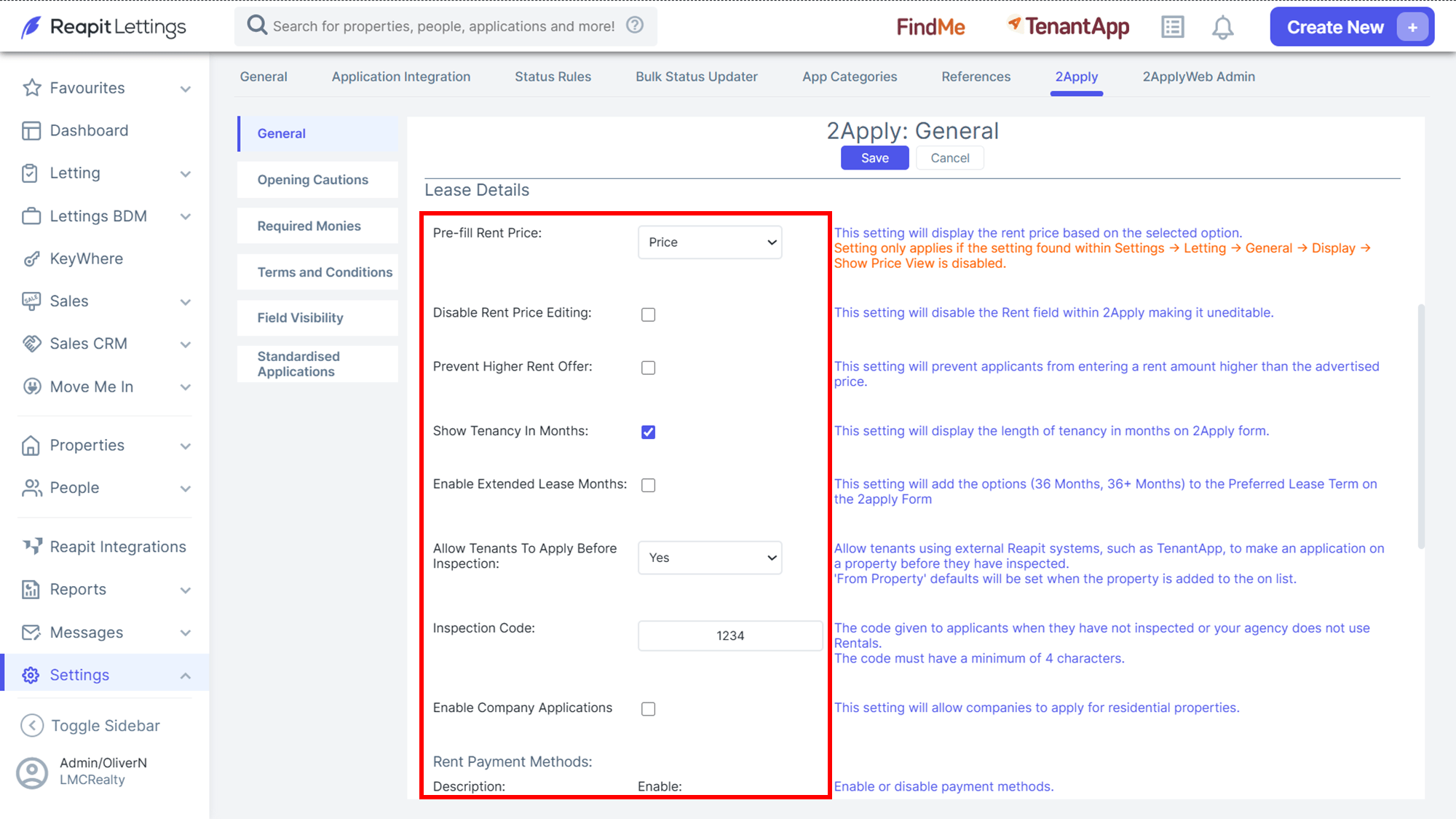
Lease Details
| Pre-fill Rent Price | This setting will display the rent price based on the selected option. |
| Disable Rent Price Editing | This setting will disable the Rent field within 2Apply making it not editable. |
| Prevent Higher Rent Offer | This setting will prevent applicants from entering a rent amount higher than the advertised price. |
| Show Tenancy in months | This setting will display the length of tenancy in months on 2Apply form. |
| Enable Extended Lease Months | This setting will add the options of 36 Months & 36+ Months to the Preferred Lease Term on the 2Apply Form. |
| Allow Tenants to Apply Before Inspection | Allows tenants using external IRE systems, such as TenantApp, to make an application based on a property before they have inspected. From Property defaults will be set when the property is added to the on list. |
| Inspection Code | The code given to applicants when they have not inspected, or your agency does not use Rentals. The code must have a minimum of 4 characters. |
| Enabled Company Applications | This setting will allow companies to apply for residential properties. |
| Rent Payment Methods | Enable or disable payment methods. |
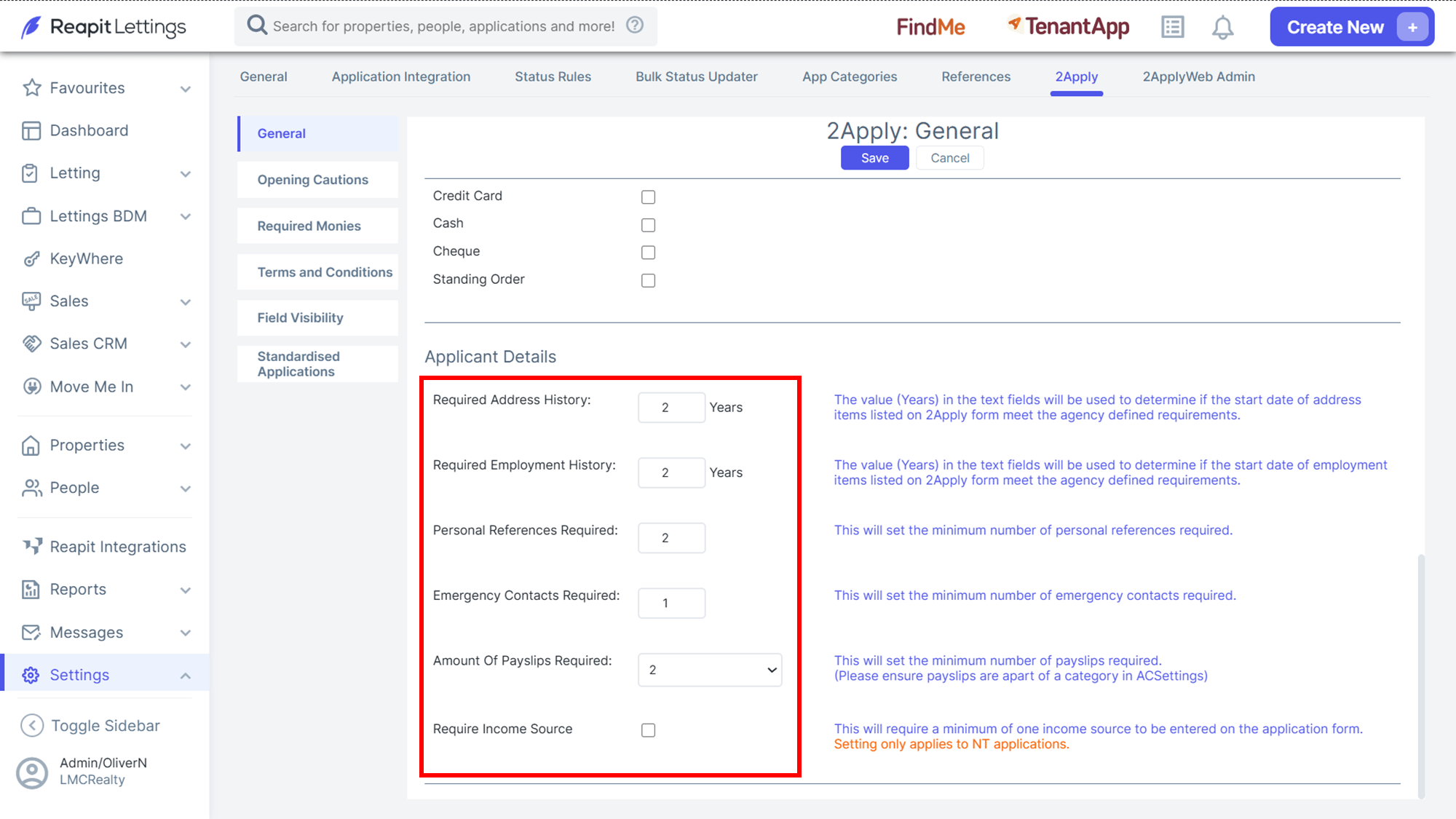
Applicant Details
| Required Address History | The value (years) in the fields will be used to determine if the start date of address items listed on 2Apply form meet the agency defined requirements. |
| Required Employment History | The value (years) in the fields will be used to determine if the start date of employment items listed on 2Apply form meet the agency defined requirements. |
| Personal Reference Required | This will set the minimum number of personal references required. |
| Emergency Contacts Required | This will set the minimum number of emergency contacts required. |
| Amount of Payslips Required | This will set the minimum number of payslips required. |
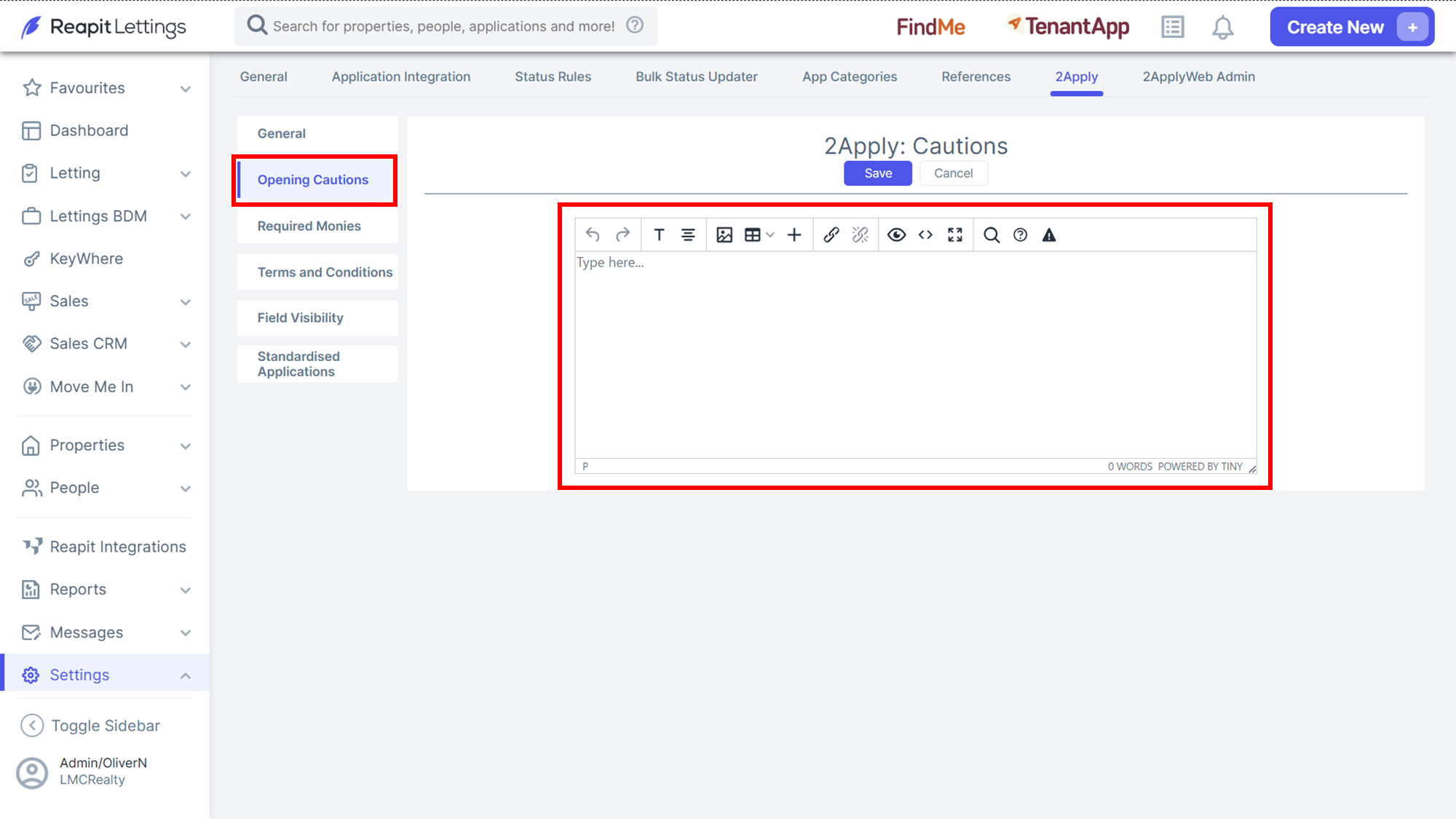
- On the left-hand side, click Opening Cautions.
This section will allow you to include cautions for an application.
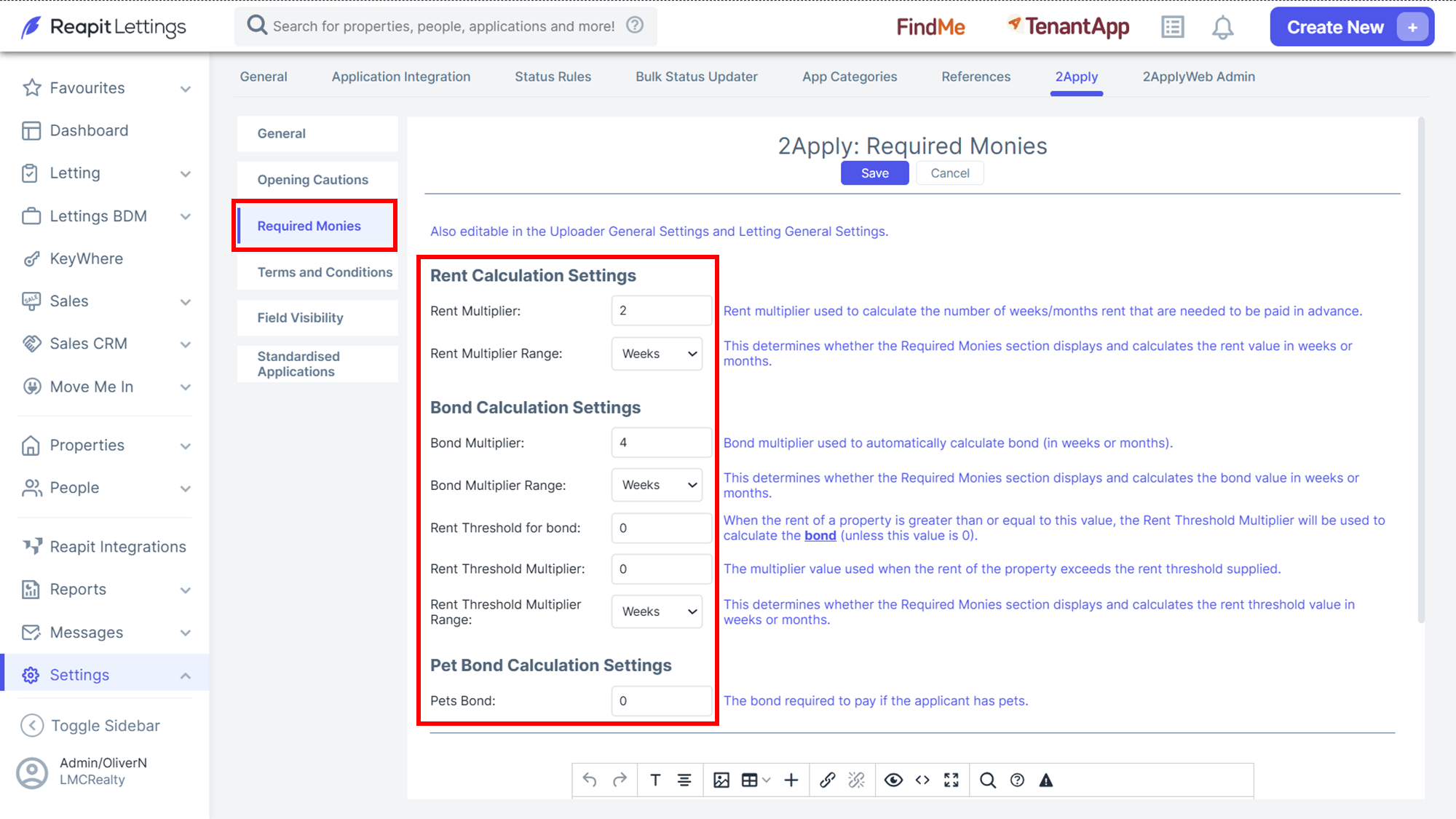
- On the left-hand side, click Required Monies.
| Rent Multiplier | Rent multiplier used to calculate the number of weeks/ months rent that are needed to be paid in advance. |
| Rent Multiplier Range | This determines whether the required monies section displays and calculates the rent value in weeks or months. |
| Bond Multiplier | Bond multiplier used to automatically calculate bond (in weeks or months). |
| Bond Multiplier Range | This determines whether the required monies section displays and calculates the bond value in weeks or months. |
| Rent Threshold for bond | When the rent of a property is greater than or equal to this value, the Rent Threshold Multiplier will be used to calculate the bond (unless this value is 0). |
| Rent Threshold Multiplier | This multiplier value is used when the rent of the property exceeds the rent threshold supplied. |
| Rent Threshold Multiplier Range | This determines whether the required monies section displays and calculates the rent threshold value in weeks or months. |
| Pets Bond | The bond required to pay if the applicant has pets. |
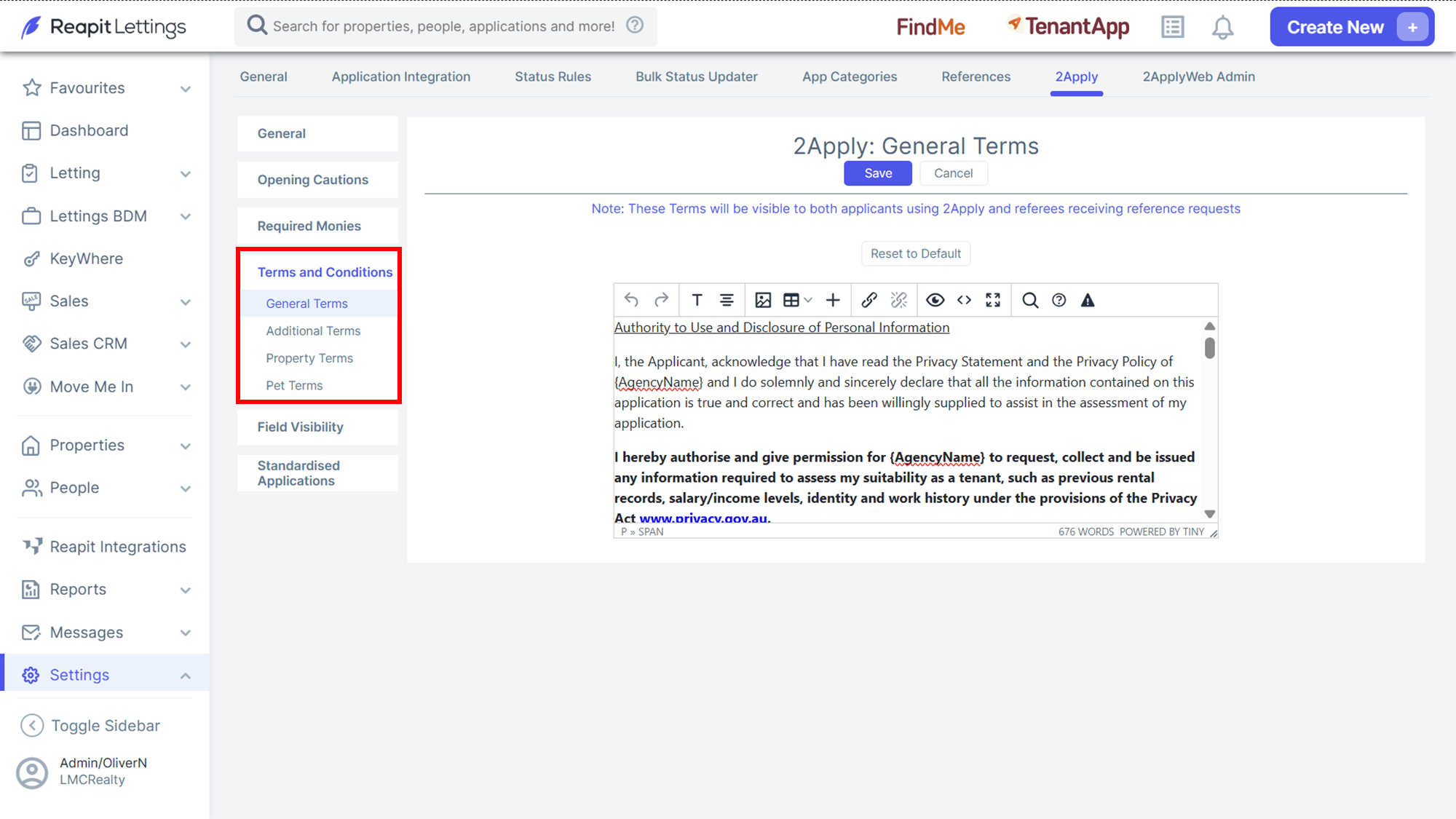
- On the left-hand side, click Terms and Conditions.
This section will show the Terms and Conditions for all applications within 2Apply that the applicant must accept to be able to submit their application.
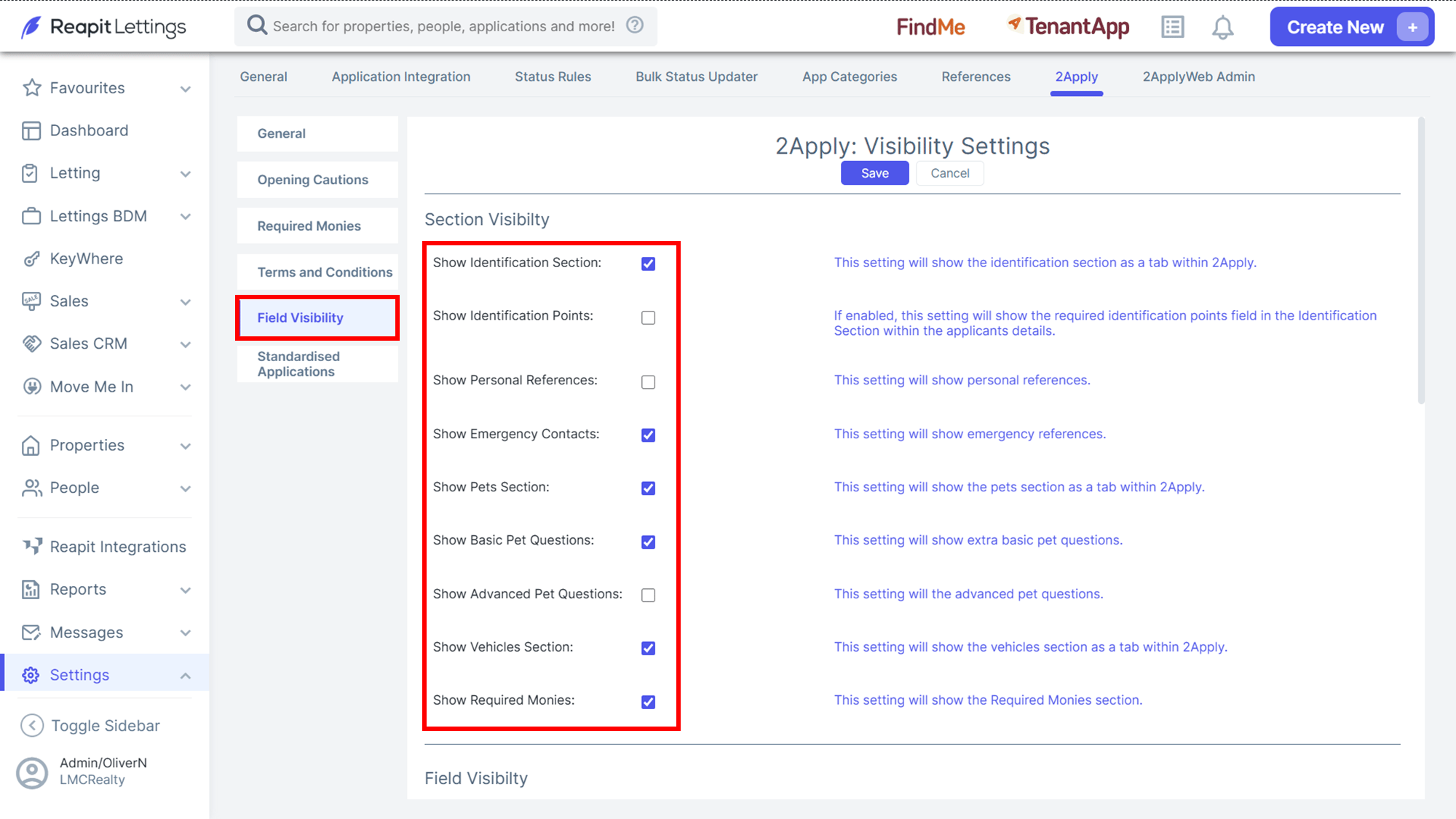
- On the left-hand side, click Field Visibility.
Section Visibility
| Show Identification Section | This setting will show the identification as a tab within 2Apply. |
| Show Identification Points | If enabled, this setting will show the required identification points field in the identification section within the applicant details. |
| Show Personal References | This setting will show personal references. |
| Show Emergency Contacts | This setting will show emergency references. |
| Show Pet's Section | This setting will show the pets section as a tab within 2Apply |
| Show basic Pet Questions | This setting will show extra basic pet questions. |
| Show Advanced Pet Questions | This setting will show advanced pet questions. |
| Show Vehicles Section | This setting will show the vehicles section as a tab within 2Apply. |
| Show Required Monies | This setting will show the required monies section. |
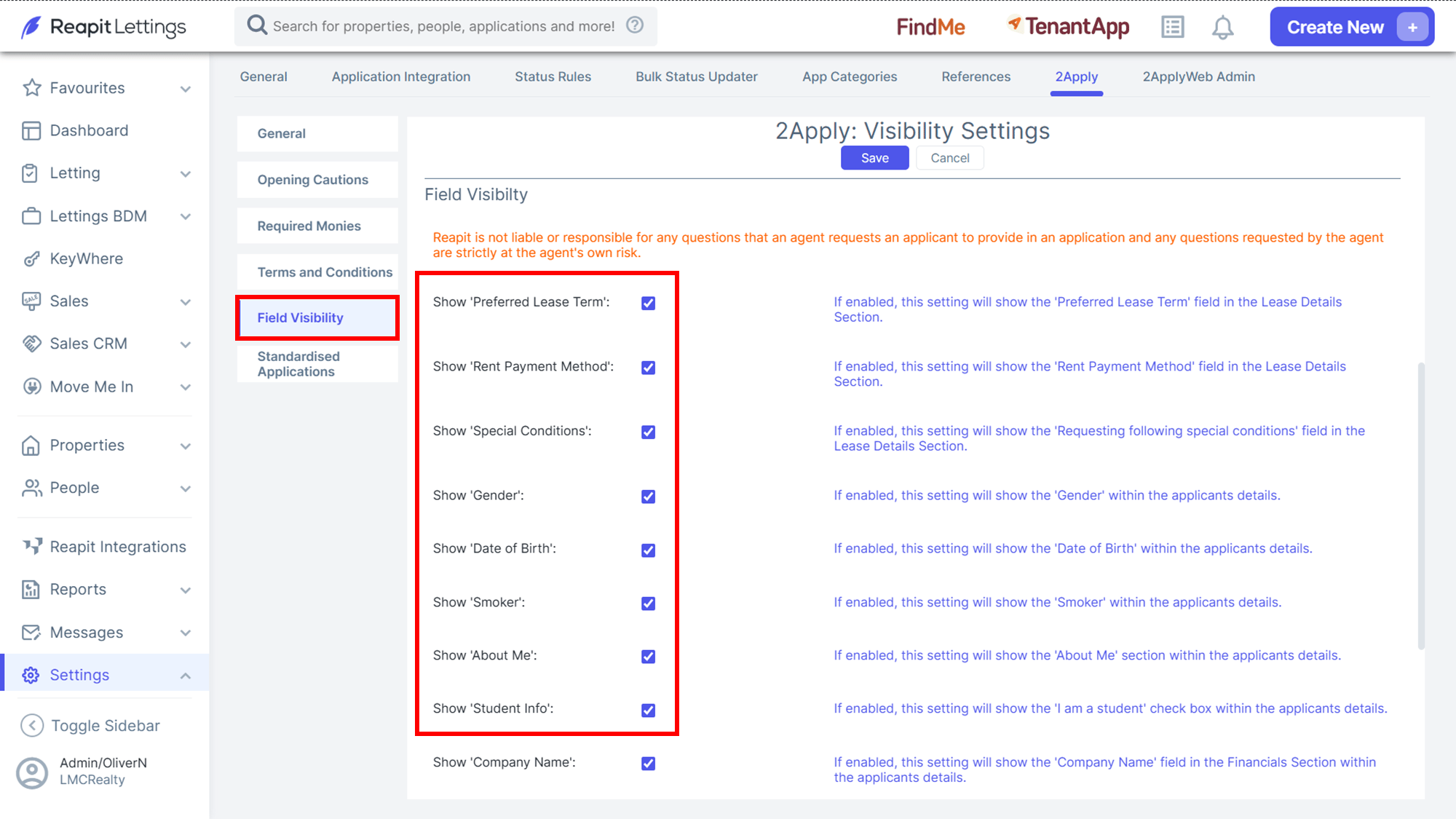
Field Visibility
| Show Preferred Lease Term | If enabled, this setting will show the preferred Lease Term field in the Lease Details Section. |
| Show Rent Payment Method | If enabled, this setting will show the Rent Payment Method field in the LEASE Details Section. |
| Show 'Special Conditions' | If enabled, this setting will show the 'Requesting following special conditions' field int he Lease Details Section. |
| Show Gender | If enabled, this setting will show the gender within the applicant details. |
| Show Date of Birth | If enabled, this setting will show the Date of Birth within the applicant's details. |
| Show Smoker | If enabled, this setting will show the Smoker within the applicants' details. |
| Show About Me | If enabled, this setting will show the About Me section within the applicants' details. |
| Show Student Info | If enabled, this setting will show the I am a Student Tick Box within the applicants' details. |
| Show Company Name | If enabled, this setting will show the Smoker within the applicant's details. |
| Show Occupation Title | If enabled, this setting will show the Occupation Title field in the financial section within the applicant's details. |
| Show Company Address | If enabled, this setting will show the Company Address field within the applicants' details. |
| Show Passport Nationality | If enabled, this setting will show the Passport Nationality field in the identification section within the applicant's details. |