'%20d='M0%208a8%208%200%200%201%208-8h24a8%208%200%200%201%208%208v24a8%208%200%200%201-8%208H8a8%208%200%200%201-8-8V8Z'/%3e%3cpath%20fill='%23fff'%20d='M32.576%206C12.293%206%208.776%2025.887%207.424%2034H9.1c.45-2.977%203.493-14.748%2010.899-20.287%200%200-5.633%206.976-6.572%2015.051%203.426-.652%2013.845-3.372%2016.056-12.927l-3.84-.61c1.352-1.351%204.909-5.17%206.931-9.226V6Z'/%3e%3cdefs%3e%3clinearGradient%20id='reapit-lettings__a'%20x1='20.702'%20x2='20.702'%20y1='.351'%20y2='31.228'%20gradientUnits='userSpaceOnUse'%3e%3cstop%20stop-color='%235573FD'/%3e%3cstop%20offset='.575'%20stop-color='%234E56EA'/%3e%3c/linearGradient%3e%3c/defs%3e%3c/svg%3e)
How To Check An Applicant has Inspected A Property
This article will run through how to check if an applicant has inspected a property in Reapit Lettings. The processes in this article include: Checking for Inspection via Applications. Checking for Inspections via Properties.
Overview
How to Check an Applicant has Inspected a Property
This article will run through how to check if an applicant has inspected a property in Reapit Lettings.
The processes in this article include:
- Checking for Inspection via Applications.
- Checking for Inspections via Properties.
There are 2 ways depending on which page you use to view all Applications.
Checking for Inspection via Applications
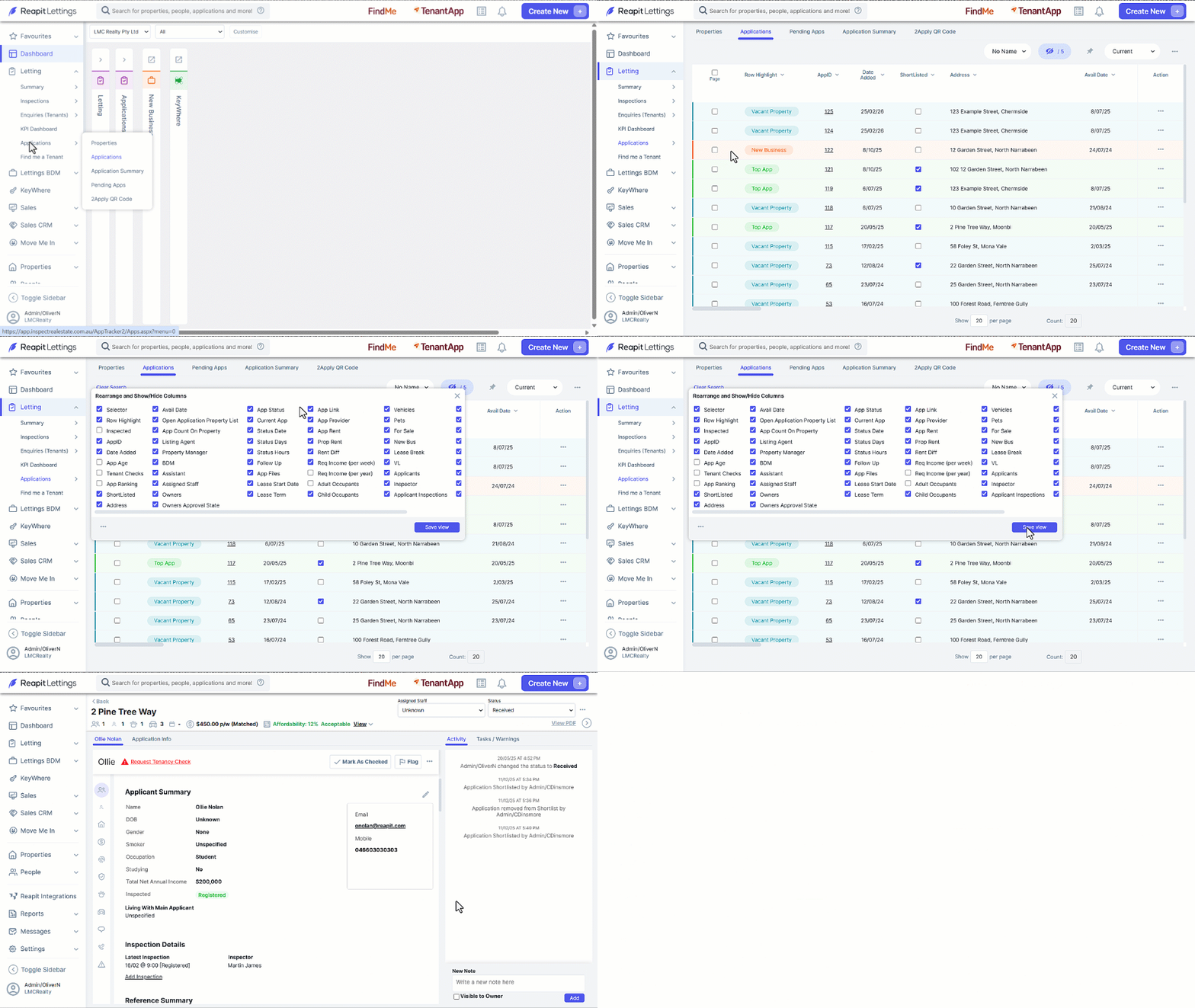
- Click on Letting.
- Click on Applications.
- Click on Applications.
- Click on the Column Chooser (eye icon) and ensure you have the Inspected column selected and easily visible on your screen.
- If an applicant has inspected, there will be a tick in the box in that column.
- To view further details of the inspection attended, click on the AppID.
- Select the Applicants tab and scroll down to the Inspection Details section. This section will show the date and time that the Applicant inspected the property.
- If the applicant has not viewed the property, the screen will show No Inspections Connected. You can also select Add Inspection from this section, which will take you to the Quick Register page to book an inspection in for the applicant.
Checking for Inspections via Properties
- Click on Letting.
- Click on Applications.
- Click on Properties.
- Select the required property.
- You will see a green Inspected note if an applicant has inspected the property.
- To view further details of the inspection attended, click View.
- Select the Applicant and scroll down to the Inspection Details section. This section will show the date and time that the Applicant inspected the property.