'%20d='M0%208a8%208%200%200%201%208-8h24a8%208%200%200%201%208%208v24a8%208%200%200%201-8%208H8a8%208%200%200%201-8-8V8Z'/%3e%3cpath%20fill='%23fff'%20d='M32.576%206C12.293%206%208.776%2025.887%207.424%2034H9.1c.45-2.977%203.493-14.748%2010.899-20.287%200%200-5.633%206.976-6.572%2015.051%203.426-.652%2013.845-3.372%2016.056-12.927l-3.84-.61c1.352-1.351%204.909-5.17%206.931-9.226V6Z'/%3e%3cdefs%3e%3clinearGradient%20id='reapit-lettings__a'%20x1='20.702'%20x2='20.702'%20y1='.351'%20y2='31.228'%20gradientUnits='userSpaceOnUse'%3e%3cstop%20stop-color='%235573FD'/%3e%3cstop%20offset='.575'%20stop-color='%234E56EA'/%3e%3c/linearGradient%3e%3c/defs%3e%3c/svg%3e)
Tenants Confirming Inspection Attendance
This article covers the steps to follow to set up tenants to be able to confirm their attendance prior to attending an inspection and how to use this functionality in Reapit Lettings. The processes in this article include: How to Enable Inspection Reminders Manually Marking a Tenant as Confirmed What does a confirmed tenant look like? Checking if Tenant has Confirmed Attendance
This article covers the steps to follow to set up tenants to be able to confirm their attendance prior to attending an inspection and how to use this functionality in Reapit Lettings.
The processes in this article include:
- How to Enable Inspection Reminders
- Manually Marking a Tenant as Confirmed
- What does a confirmed tenant look like?
- Checking if Tenant has Confirmed Attendance
There are two ways tenants can confirm their attendance prior to inspecting a property, via the inspection reminders or if they contact the agent - the agent can manually mark them as Confirmed. This assists agents in knowing in advance whether to expect attendees at their inspection.
How to Enable Inspection Reminders
Inspection reminders go out automatically from the system if enabled. You must allow SMS replies if you wish to have tenants confirm as this is how we get the tenant’s response.
Click on Messages.
Click on Letting.
Click on Inspection Reminders.
Confirm the Reminder settings include SMS in the left-hand column. Click Add Reminder and set as required.
Select either Inspection Reminder (e.g. Days or Hours Before) in the Message Editor on the right
Navigate the SMS section.
Select Yes under Allow SMS Reply
Additionally, you can indicate who you want SMS replies that do not match YES or NO to get via email below this section by selecting Other.
Note: charges apply per SMS reply at the usual SMS cost.**
Manually Marking a Tenant as Confirmed
If the agent makes contact with the tenant to confirm the inspection attendance they may manually confirm the attendance.
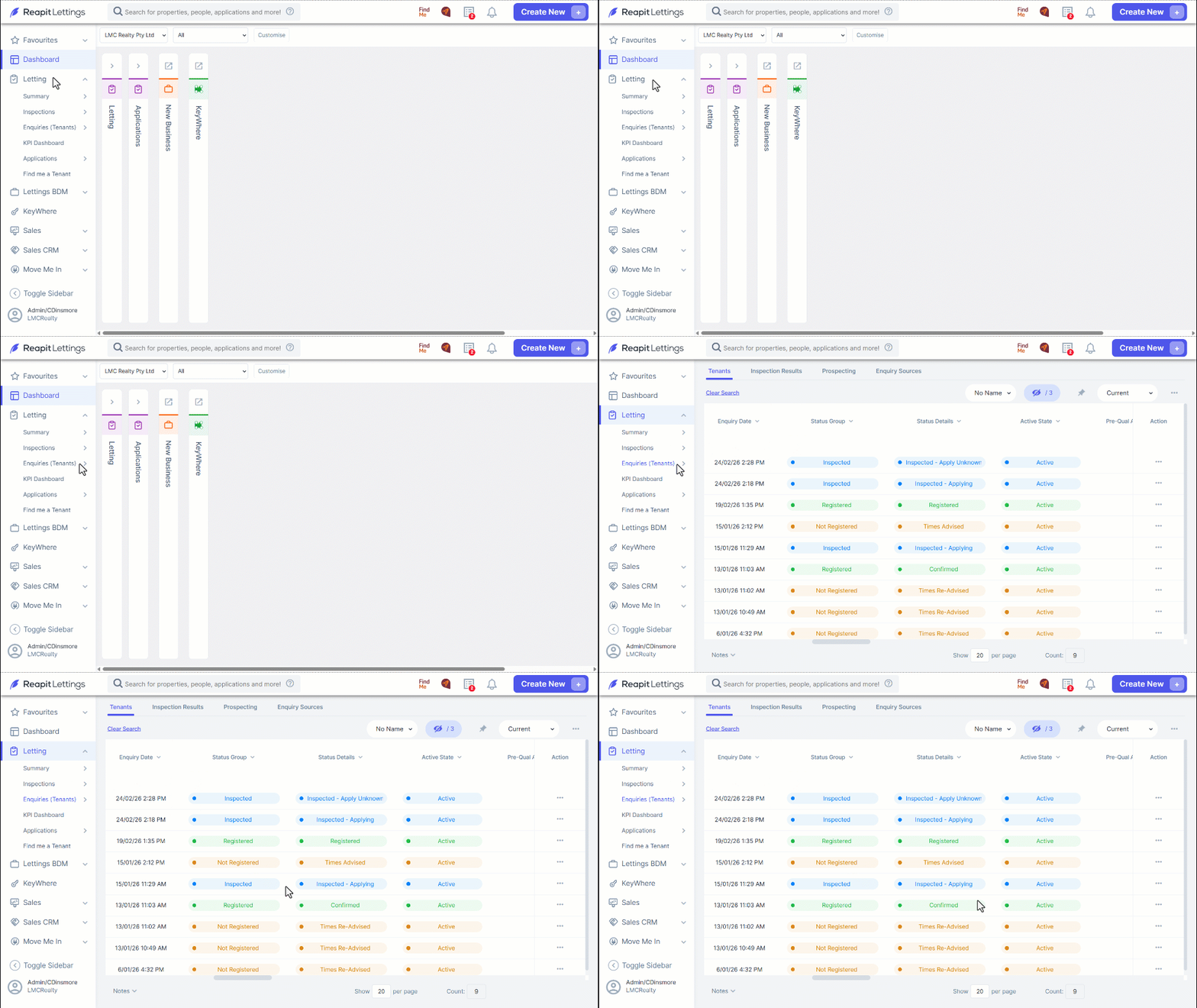
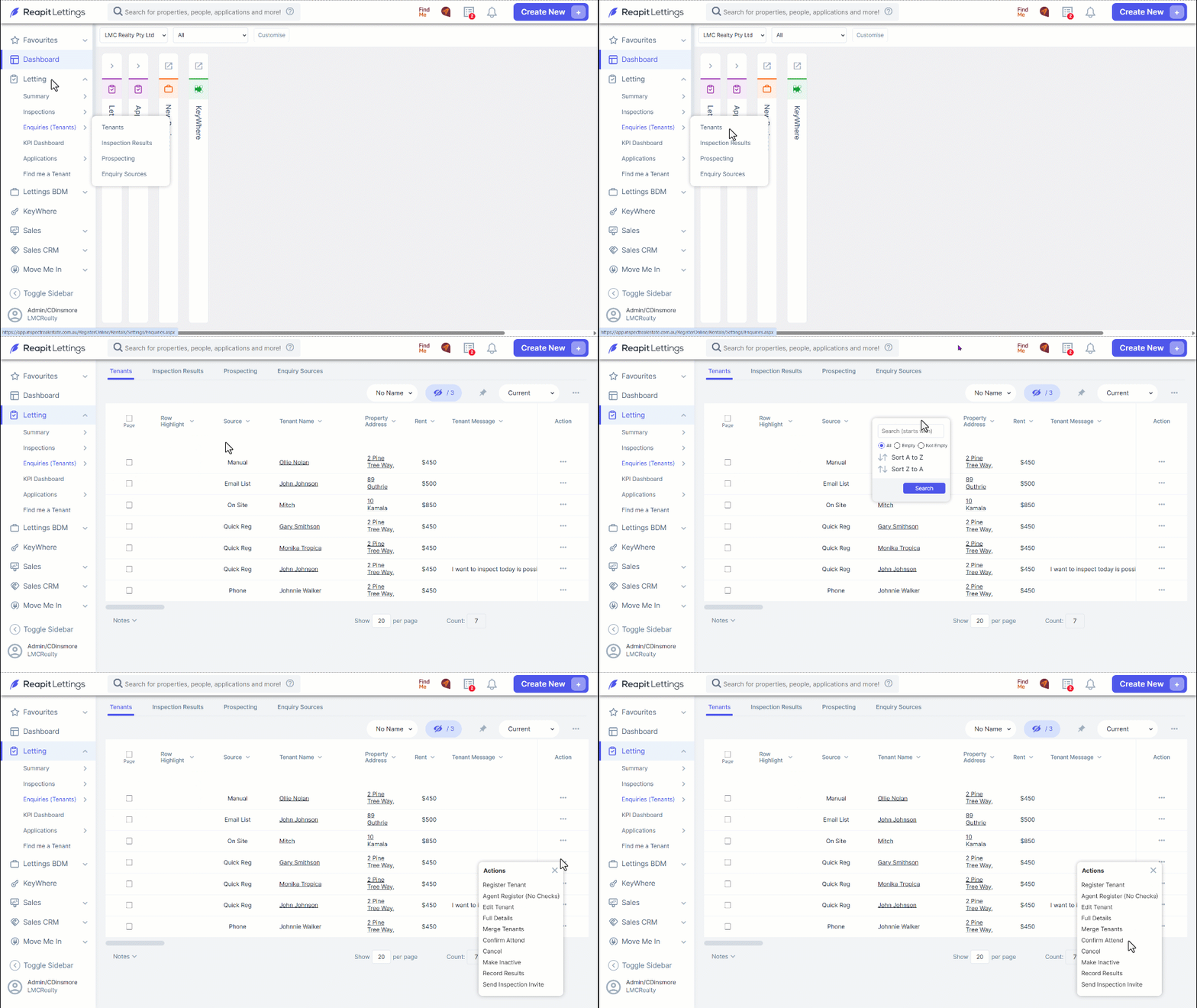
Click on Letting.
Click on Enquiries (Tenants).
Click on Tenants.
Search by the Tenant Name header to locate the required tenant.
Click the 3-dots to the right of their name.
Click Confirm Attend.
What does a confirmed tenant look like?
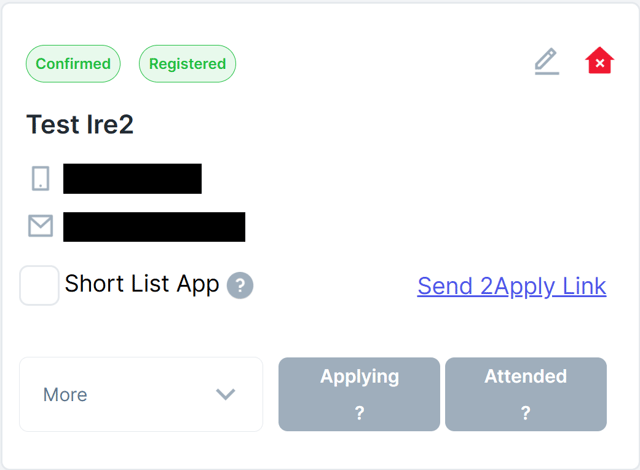
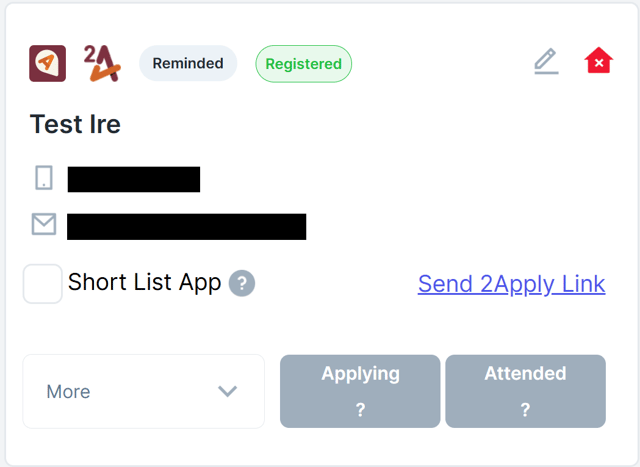
Once this is complete and a tenant replies to confirm their registration you should see the tenant has a green bubble that says “Confirmed” above their name on Reapit Lettings. If they have not confirmed but they have reminders on, it will just show as “Reminded”.
Checking if tenant has confirmed attendance
Click on Letting.
Click on Inspections.
Click on Reapit Viewings.
Click on Inspections.
Select the inspection.
Scroll down to the tenants and see if they have a green “Confirmed” bubble against their name.
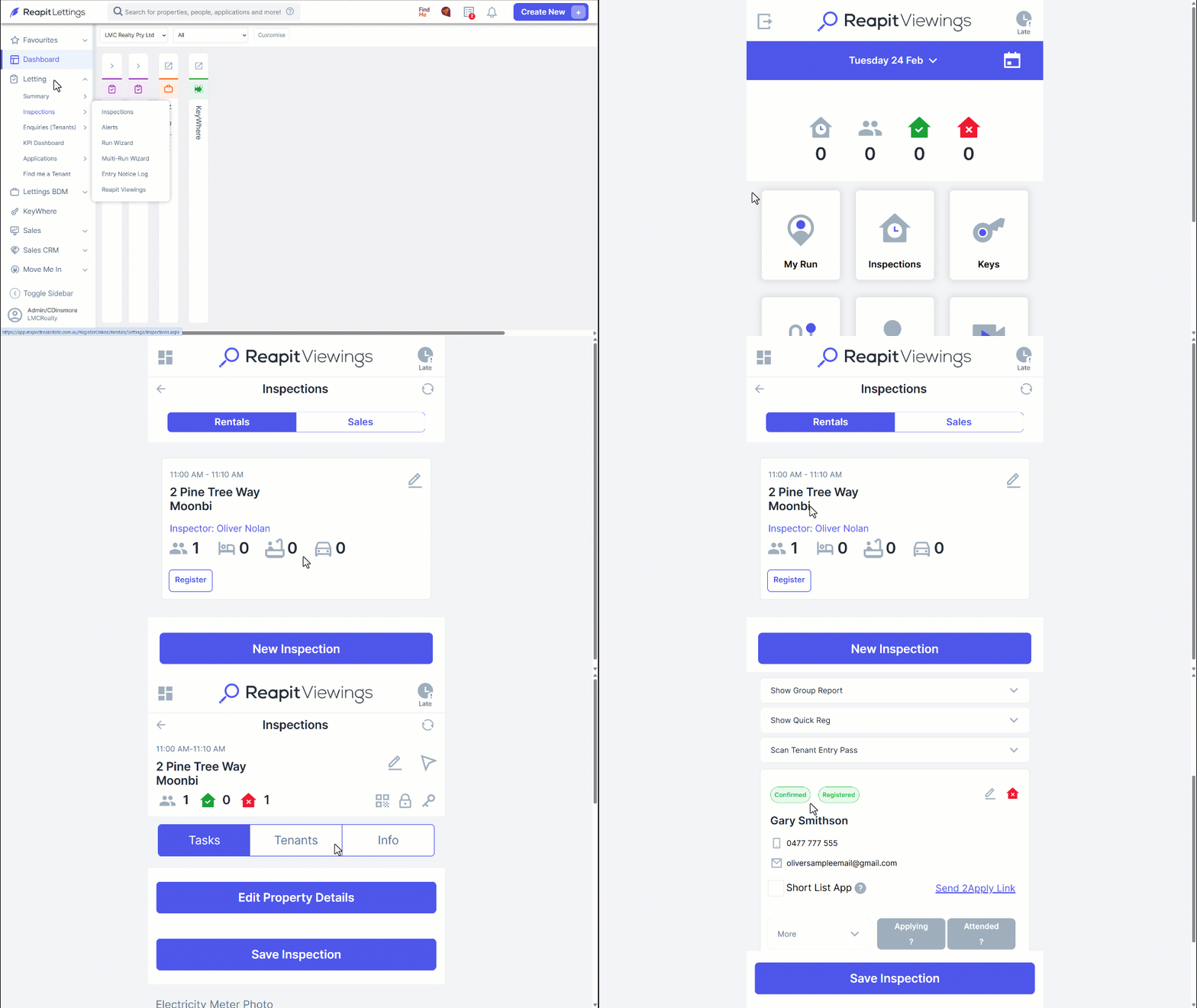
OR
- On the desktop, Click on Lettings then Enquiries (Tenants).
- Search by the property address column in question (or inspection)
- Search by the Status Details column for Confirmed