'%20d='M0%208a8%208%200%200%201%208-8h24a8%208%200%200%201%208%208v24a8%208%200%200%201-8%208H8a8%208%200%200%201-8-8V8Z'/%3e%3cpath%20fill='%23fff'%20d='M32.576%206C12.293%206%208.776%2025.887%207.424%2034H9.1c.45-2.977%203.493-14.748%2010.899-20.287%200%200-5.633%206.976-6.572%2015.051%203.426-.652%2013.845-3.372%2016.056-12.927l-3.84-.61c1.352-1.351%204.909-5.17%206.931-9.226V6Z'/%3e%3cdefs%3e%3clinearGradient%20id='reapit-lettings__a'%20x1='20.702'%20x2='20.702'%20y1='.351'%20y2='31.228'%20gradientUnits='userSpaceOnUse'%3e%3cstop%20stop-color='%235573FD'/%3e%3cstop%20offset='.575'%20stop-color='%234E56EA'/%3e%3c/linearGradient%3e%3c/defs%3e%3c/svg%3e)
How To Record Answers For Inspection Tasks In MobileROL
This article will run through how to record answers for inspection tasks in MobileROL
How to Record Answers for Inspection Tasks In Reapit Viewings
This article will run through how to record answers for inspection tasks in Reapit Viewings.
The processes in this article include:
- How to Record Answers for Inspection Tasks in Reapit Viewings
- How To Record Results for Unregistered Tenants in Reapit Viewings
- How To Save Your Inspection Results In Reapit Viewings
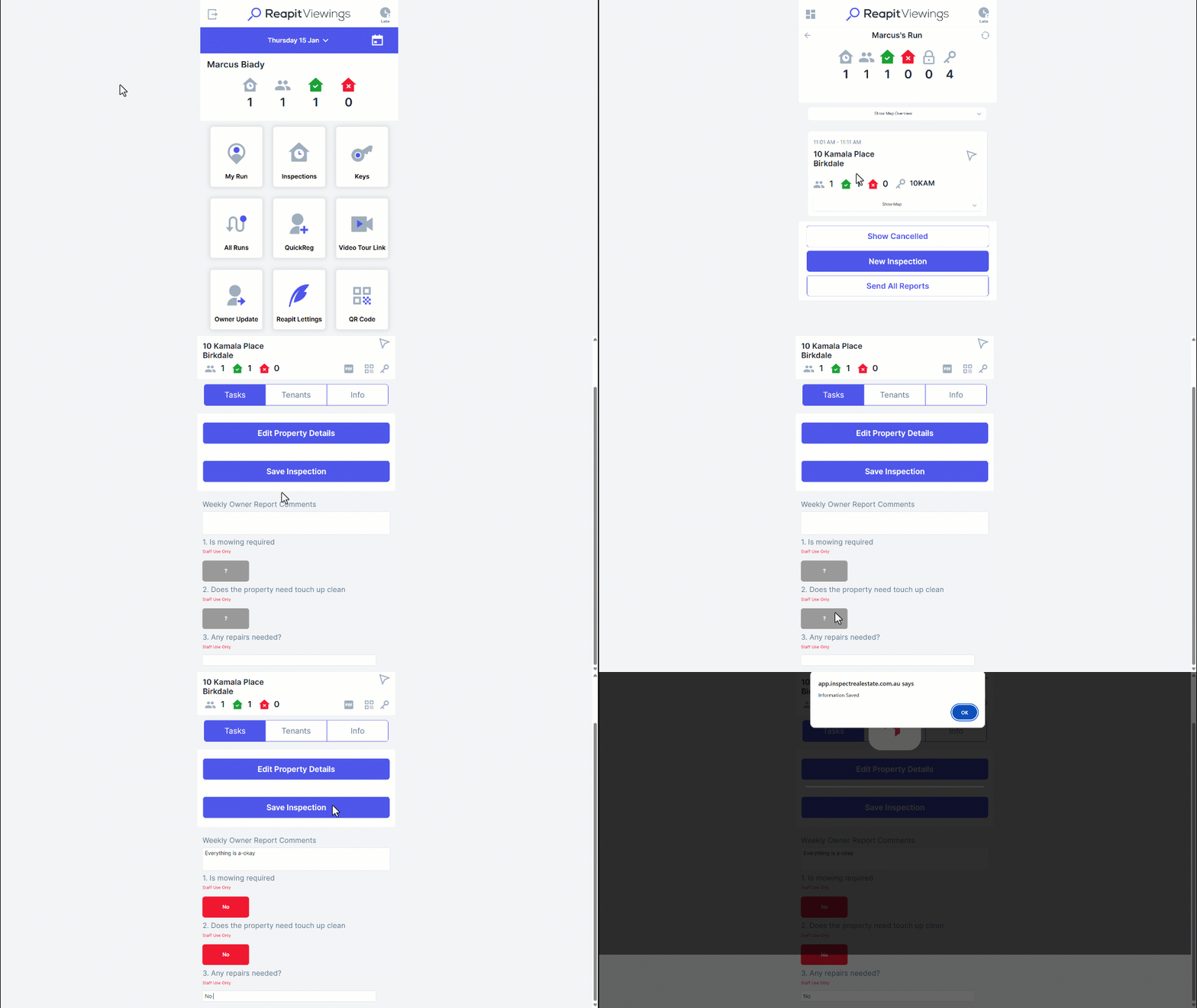
How to Record Answers for Inspection Tasks In Reapit Viewing
- Navigate to My Run.
- Tap on the Property address.
- Select Tasks tab.
- You will then see a list of inspection tasks that you can complete. You can complete these using the answer space provided. This will either be a button, text entry box, or a drop-down list of possible answers.
- Photos can be taken from your mobile device or tablet while at the property by clicking on the camera symbol (mobile only).
- You can select if the owner sees the photo in the Owner Full Report or if they only show in the Full Agent Report.
- You are also able to put any notes you would like against the photos.
- Click Save Inspection button once you have recorded your inspection tasks.
How to Record Results for Unregistered Tenants in Reapit Viewings
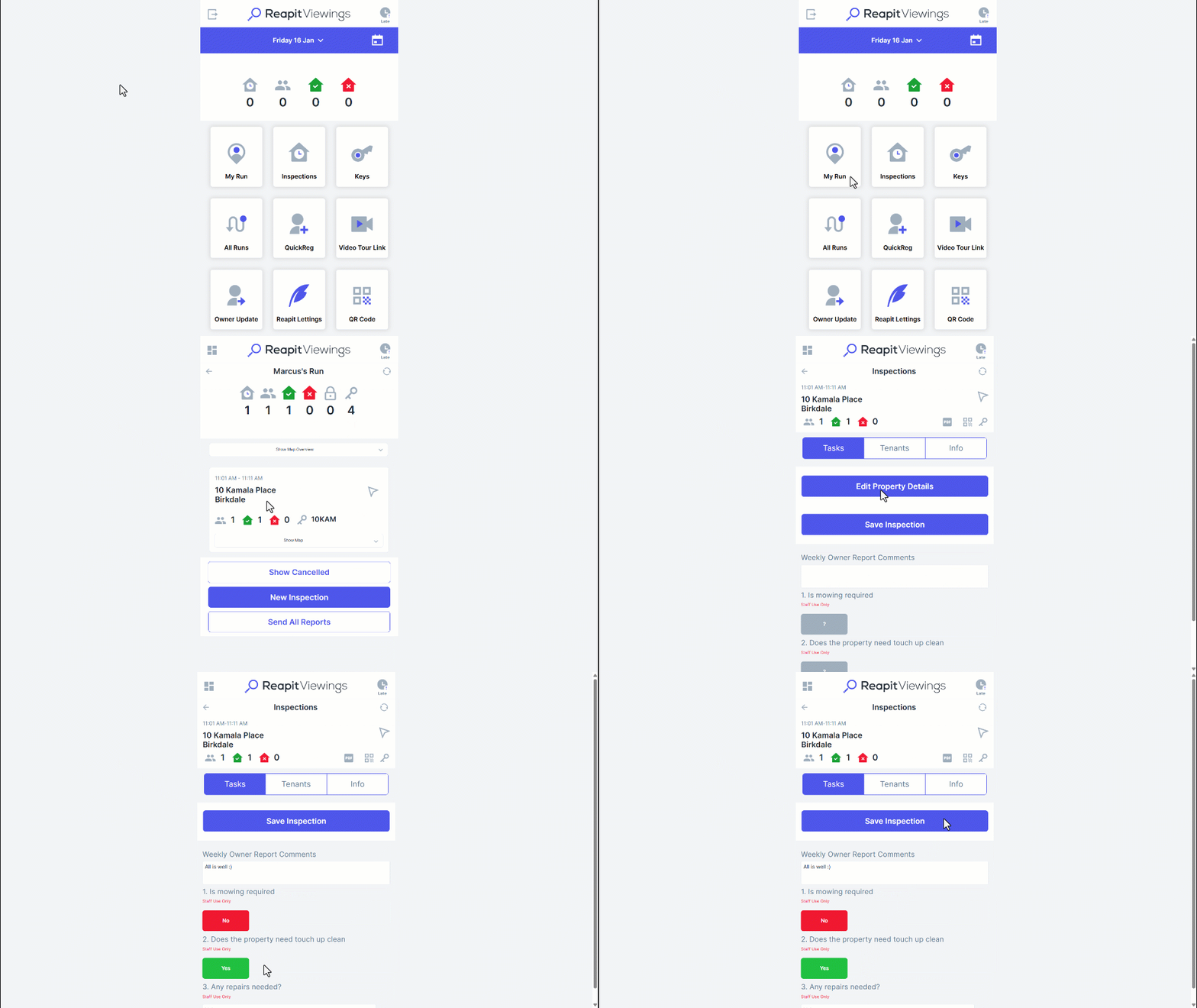
- Navigate to My Run.
- Press the property address, select the Tenants button, and then press the Show Quick Reg drop down.
- Enter in their mobile number, then press the swirl arrow to check if they are in your database.
- If they EXIST in the system, their name and/or email address will populate – press Attended.
- If they ARE NOT in the system, their name and email will be blank.
- If they don’t exist in your database, you can then either:
- Fill out their details and then press the “Attended” button or leave their details blank and press the “SMS Link” button – this will SMS the tenant asking them to complete their name/email address for you.
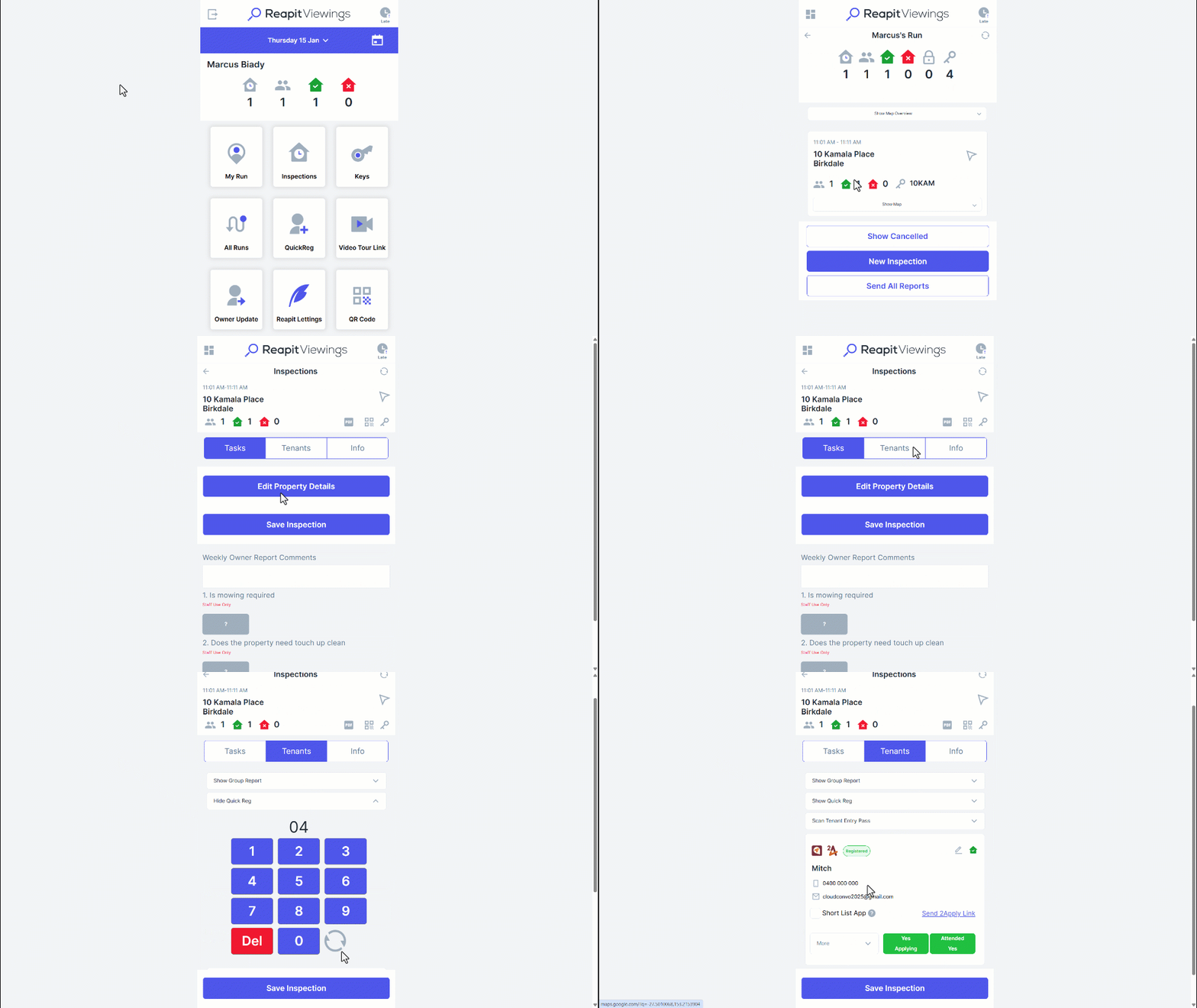
- Once they have been registered into the inspection – scroll down. For each registered tenant:
Use the “Applying” button to indicate whether they will apply.
Use the “More” button to record additional feedback about that tenant.
- Once you have recorded your results, press the Save Inspection button. This will load your inspection results into the system.
How to Save Your Inspection Results in Reapit Viewings
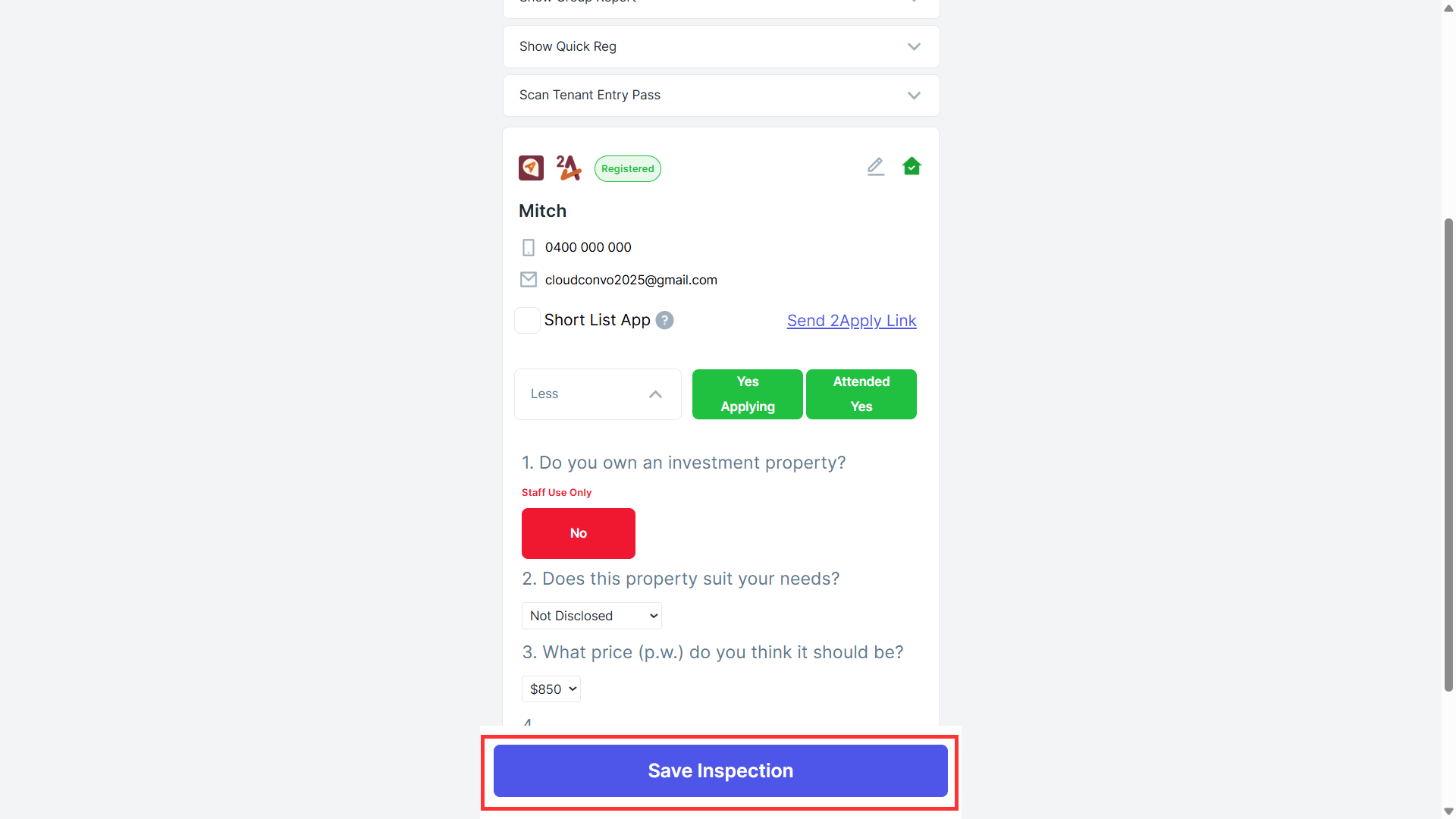
- Navigate to My Run.
- Tap on the Property address.
- Once you have recorded information about that inspection, you can save these results.
- Click Save Inspection.
A prompt will appear confirming that your inspection information has been saved.