'%20d='M0%208a8%208%200%200%201%208-8h24a8%208%200%200%201%208%208v24a8%208%200%200%201-8%208H8a8%208%200%200%201-8-8V8Z'/%3e%3cpath%20fill='%23fff'%20d='M32.576%206C12.293%206%208.776%2025.887%207.424%2034H9.1c.45-2.977%203.493-14.748%2010.899-20.287%200%200-5.633%206.976-6.572%2015.051%203.426-.652%2013.845-3.372%2016.056-12.927l-3.84-.61c1.352-1.351%204.909-5.17%206.931-9.226V6Z'/%3e%3cdefs%3e%3clinearGradient%20id='reapit-lettings__a'%20x1='20.702'%20x2='20.702'%20y1='.351'%20y2='31.228'%20gradientUnits='userSpaceOnUse'%3e%3cstop%20stop-color='%235573FD'/%3e%3cstop%20offset='.575'%20stop-color='%234E56EA'/%3e%3c/linearGradient%3e%3c/defs%3e%3c/svg%3e)
Capturing Enquiries from Outlook (All Homes, Home Sales, Homely, Rent.com.au and others)
This article will run through how to capture enquiries from outlook
Capturing Enquiries from Outlook (All Homes, Home Sales, Homely, Rent.com.au and others)
This article will run through how to capture enquiries from Outlook.
- Check your IRE Account Name & Email Address prior to actioning the below.
- Login to your Outlook account. Navigate to Settings on the top right of your screen.
- Navigate to Email > Rules.
- You will now be able to add new inbox rules by clicking +Add New Rule.
- Name the rule based on the portal you are setting the rule up for i.e., realestate.com.au. Add a Condition and Add an Action.
- Click Save.
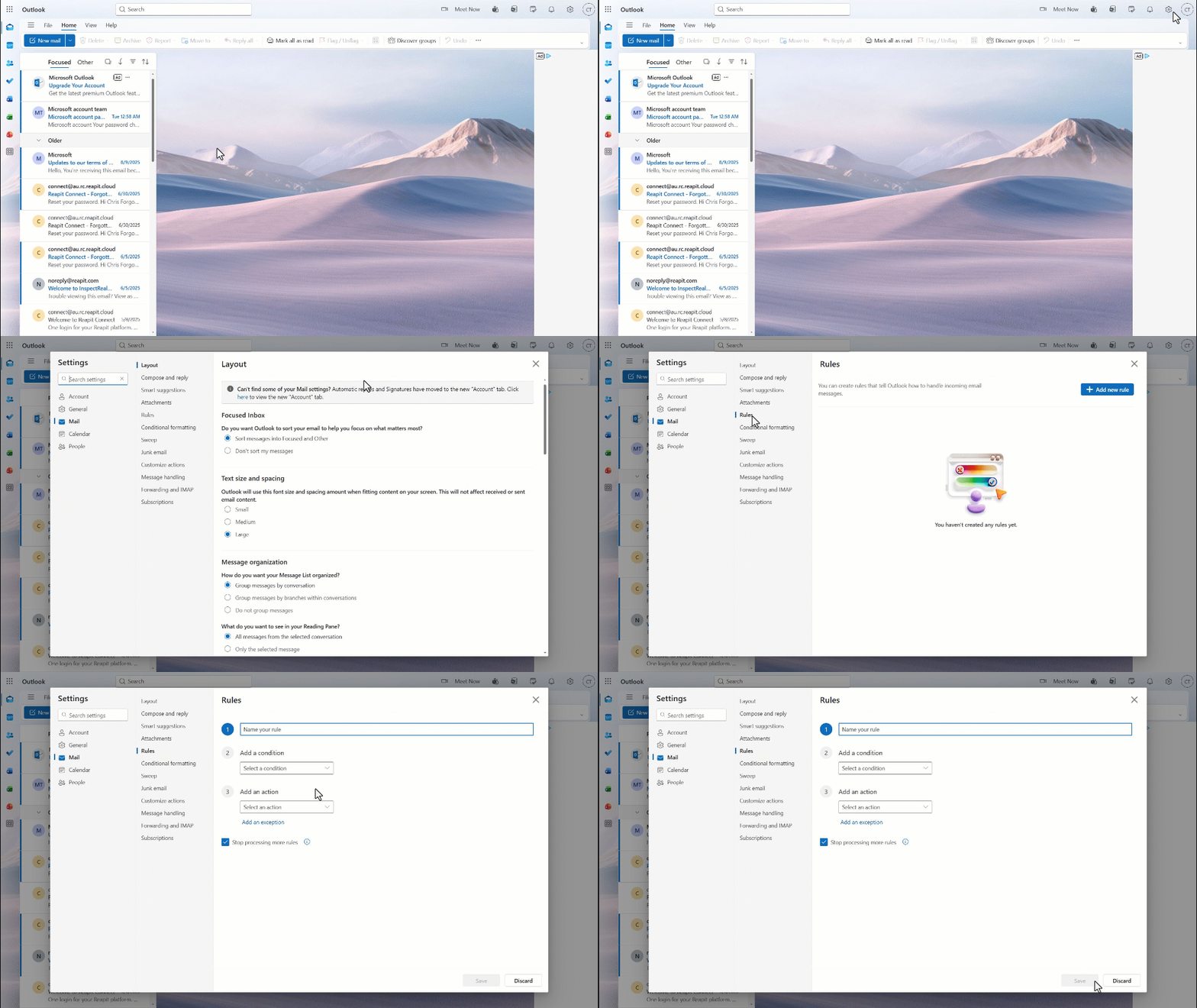
- We recommend adding an additional step to this rule to file these enquiries into a specific folder in your inbox to avoid them constantly popping up.
- Repeat the above steps for each of the portals you receive enquiries from. Below are some examples:
All Homes = noreply@allhomes.com.au
RealEstateView = no-reply@view.com.au; leads@email.realestateview.com.au
Rent.com.au = tenantenquiries@rent.com.au
Homely = enquiries@homely.com.au
Realestate.com.au = realestate.com.au@realestate.com.au
Domain = enquiries@domain.com.au
Review Property = enquiries@reviewproperty.com.au
Rent.com.au = no-reply@rent.com.au;tenantenquiries@rent.com.au
TradeMe = mailer@trademe.co.nz
Viewing Tracker = notifications@viewingtracker.com
Real Commercial = info@realcommercial.com.au
Realestate.co.nz = info@realestate.co.nz