'%20d='M0%208a8%208%200%200%201%208-8h24a8%208%200%200%201%208%208v24a8%208%200%200%201-8%208H8a8%208%200%200%201-8-8V8Z'/%3e%3cpath%20fill='%23fff'%20d='M32.576%206C12.293%206%208.776%2025.887%207.424%2034H9.1c.45-2.977%203.493-14.748%2010.899-20.287%200%200-5.633%206.976-6.572%2015.051%203.426-.652%2013.845-3.372%2016.056-12.927l-3.84-.61c1.352-1.351%204.909-5.17%206.931-9.226V6Z'/%3e%3cdefs%3e%3clinearGradient%20id='reapit-lettings__a'%20x1='20.702'%20x2='20.702'%20y1='.351'%20y2='31.228'%20gradientUnits='userSpaceOnUse'%3e%3cstop%20stop-color='%235573FD'/%3e%3cstop%20offset='.575'%20stop-color='%234E56EA'/%3e%3c/linearGradient%3e%3c/defs%3e%3c/svg%3e)
Importing Leads into BDM
This Reapit Lettings article will run through how to use the Lead Importer in import leads into Lettings BDM.
Importing Leads into BDM
This Reapit Lettings article will run through how to use the Lead Importer in import leads into Lettings BDM.
Note: During the import process, any duplicate leads will be merged, and a corresponding note will be added to the contact/history. It is crucial to review all lead data thoroughly to ensure accuracy and completeness, as specific information, such as email addresses, will be overwritten.
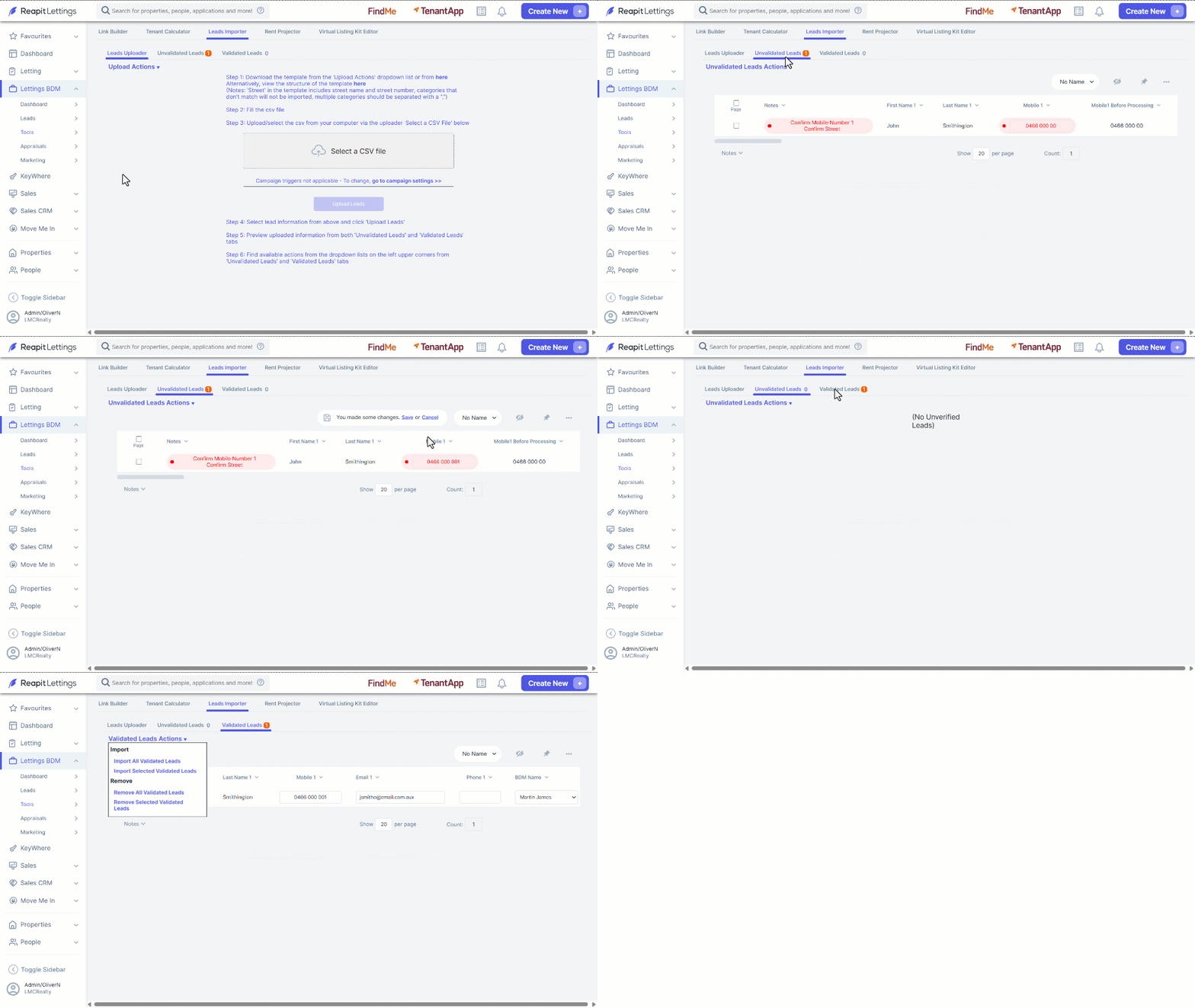
- Click on Lettings BDM.
- Click on Tools.
- Click on Leads Importer.
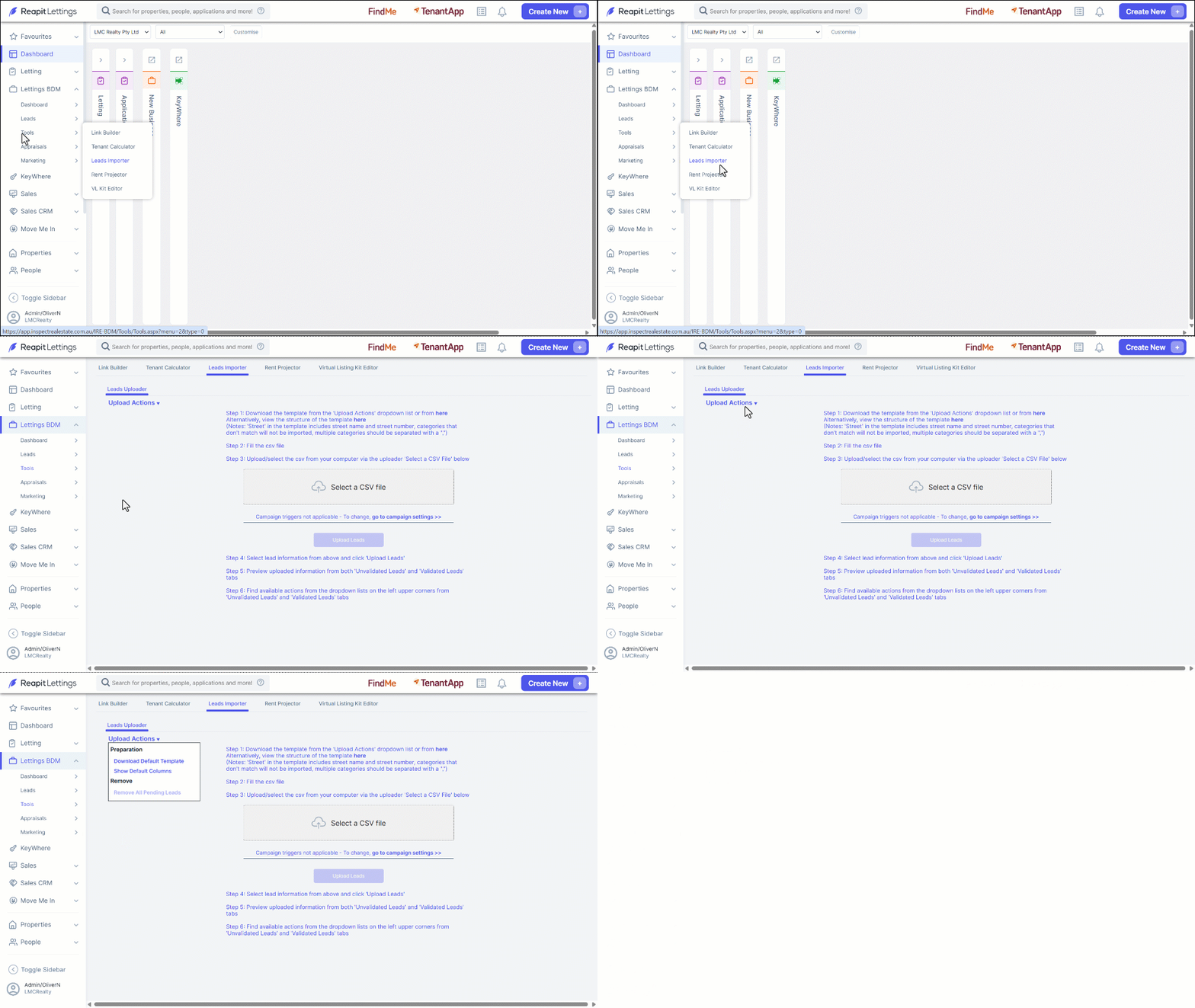
The Upload Actions menu helps you navigate through the import process.
| Download the Default Template | Provides a template to use to organise your leads. Please note to import your leads they must be in the order of this template and saved as a CSV file. |
| Show Default Columns | Displays what order leads are imported in. |
| Remove All Pending Leads | Allows you to delete all leads pending verification. |
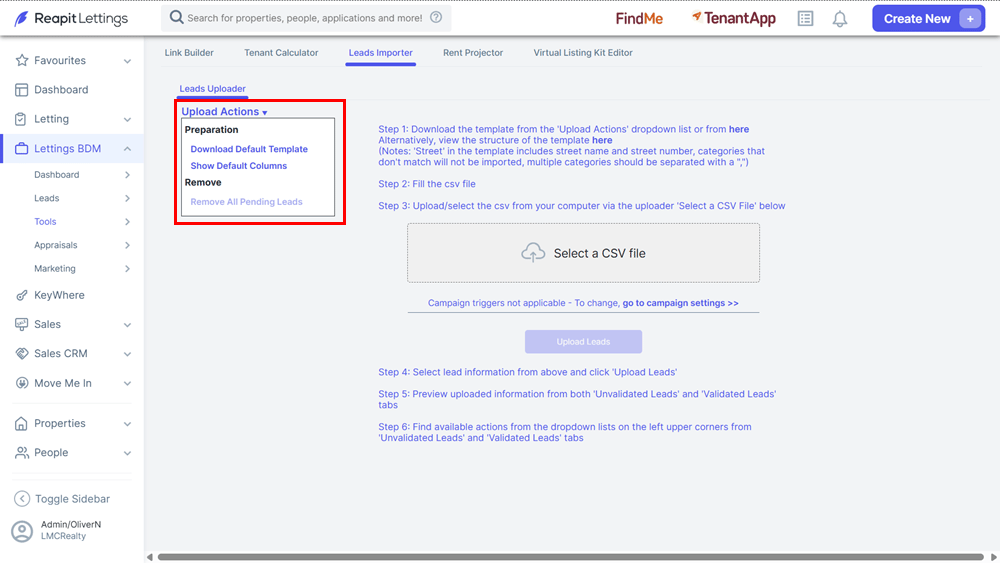
- To upload your lead template, click on the Select a CSV File or drag and drop the file into the grey box.
- Click on OK.
- Once Uploaded allocate the following,
- BDM
- Source
- Initial Status
- Referrer
- Add follow up dates
- Click on Upload Leads.
- Click on OK.
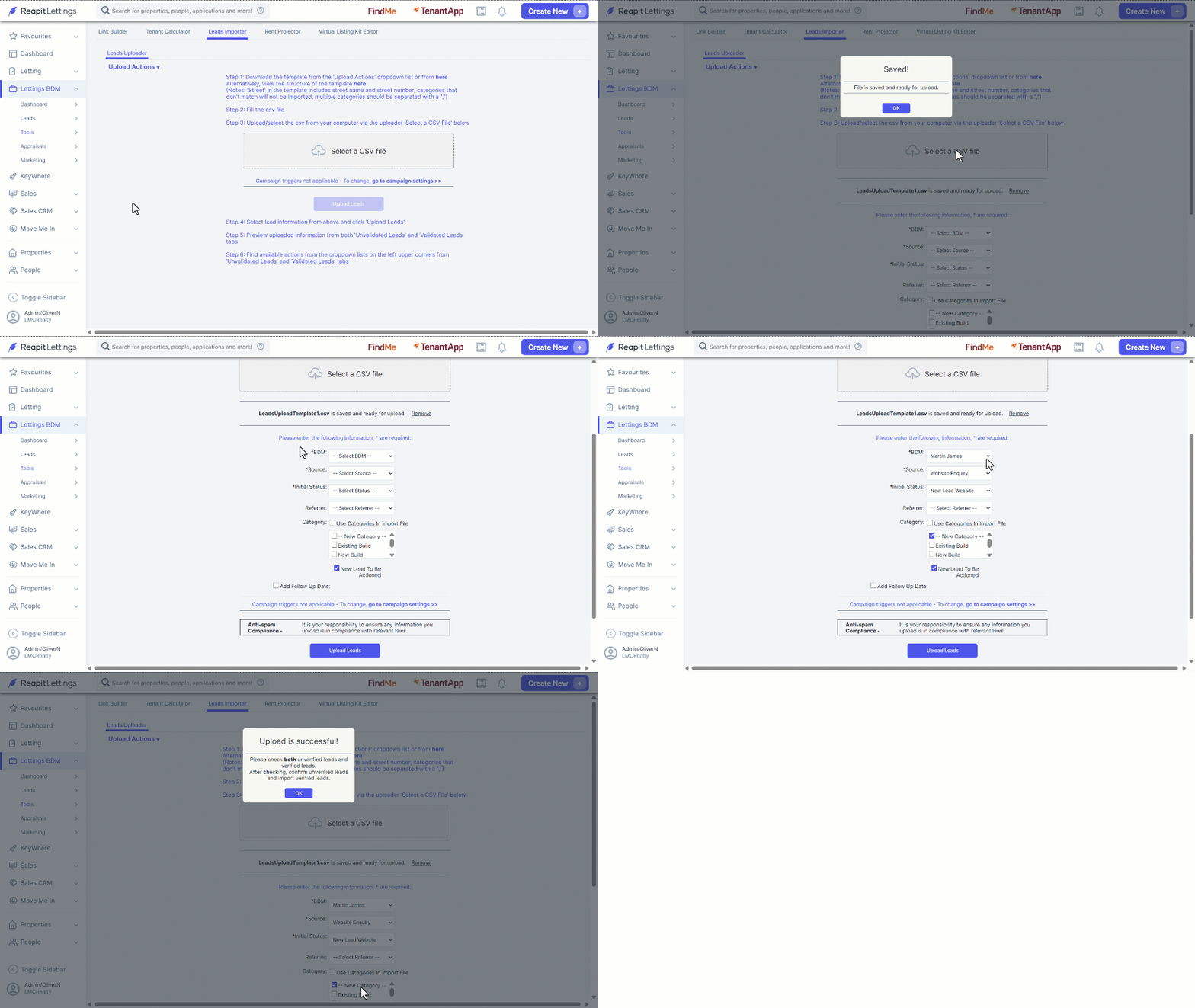
- Select the Unvalidated Leads Tab.
- Review any Unvalidated Leads issues highlighted in Red.
- Click on Save. Unvalidated leads will now move to Validated Leads
Unvalidated Leads ****
The Unvalidated Leads Action Menu lets you select the following:
After the leads are uploaded, you need to check your Unvalidated Leads. This will help you ensure for example the mobile numbers and emails are correct. You are also able to edit the lead in this section before the final upload. Once the information is valid and you save, this will take them to the Validated Leads Tab.
- Select the Validated Leads tab.
Validated Leads ****
The Validated Leads Action Menu allows you to do the below.
You can review and edit all the information on the Validated Leads Page before you complete the upload.
- Click on the Validated Leads Actions menu.
- Select to Import or Remove and between All or Selected.