'%20d='M0%208a8%208%200%200%201%208-8h24a8%208%200%200%201%208%208v24a8%208%200%200%201-8%208H8a8%208%200%200%201-8-8V8Z'/%3e%3cpath%20fill='%23fff'%20d='M32.576%206C12.293%206%208.776%2025.887%207.424%2034H9.1c.45-2.977%203.493-14.748%2010.899-20.287%200%200-5.633%206.976-6.572%2015.051%203.426-.652%2013.845-3.372%2016.056-12.927l-3.84-.61c1.352-1.351%204.909-5.17%206.931-9.226V6Z'/%3e%3cdefs%3e%3clinearGradient%20id='reapit-lettings__a'%20x1='20.702'%20x2='20.702'%20y1='.351'%20y2='31.228'%20gradientUnits='userSpaceOnUse'%3e%3cstop%20stop-color='%235573FD'/%3e%3cstop%20offset='.575'%20stop-color='%234E56EA'/%3e%3c/linearGradient%3e%3c/defs%3e%3c/svg%3e)
How to Add an Inspection into Reapit Viewings
This article will run through how add an inspection in Mobile ROL within your account on your mobile device
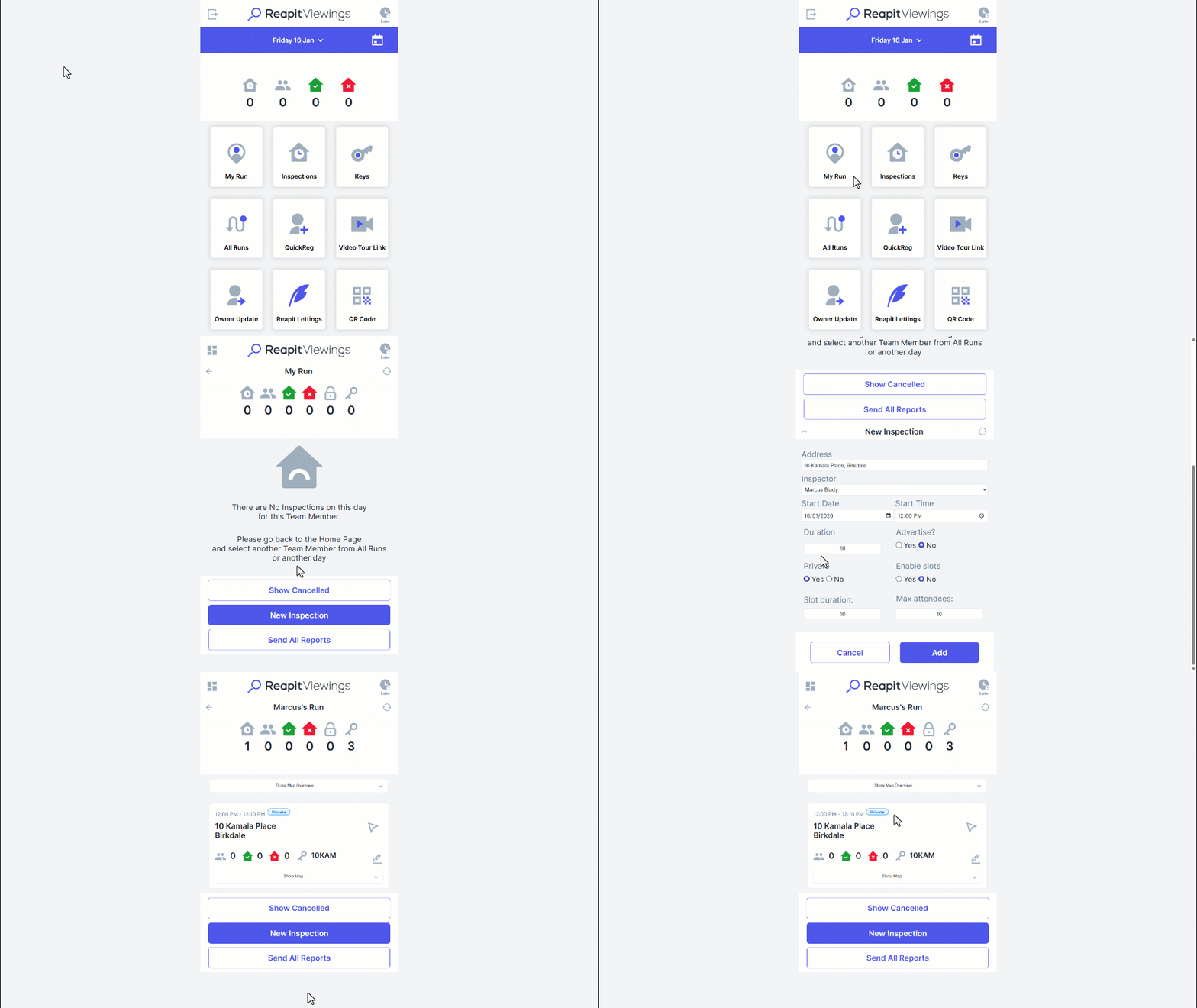
How to Add an Inspection in Reapit Viewings
This article will run through how add an inspection in Mobile ROL within your account on your mobile device.
The processes in this article include:
- How to Add an Inspection in Reapit Viewings
- How To Load Inspection Runs For A Particular Date In Reapit Viewings
- How To Load A Different Inspection Run In Reapit Viewings
- Creating Private Inspections in Reapit Viewings for Rentals
How to Add an Inspection in Reapit Viewings
- Click the Calendar selection**.**
- Click the desired date.
- Click Open.
- Click Inspections.
- Click New Inspection.
- Enter the address and choose an inspector. Then, select a date by clicking the calendar checkbox when it appears. Additionally, click on the clock icon to select a time, input the duration, and specify whether the inspection is private.
- Click Add.
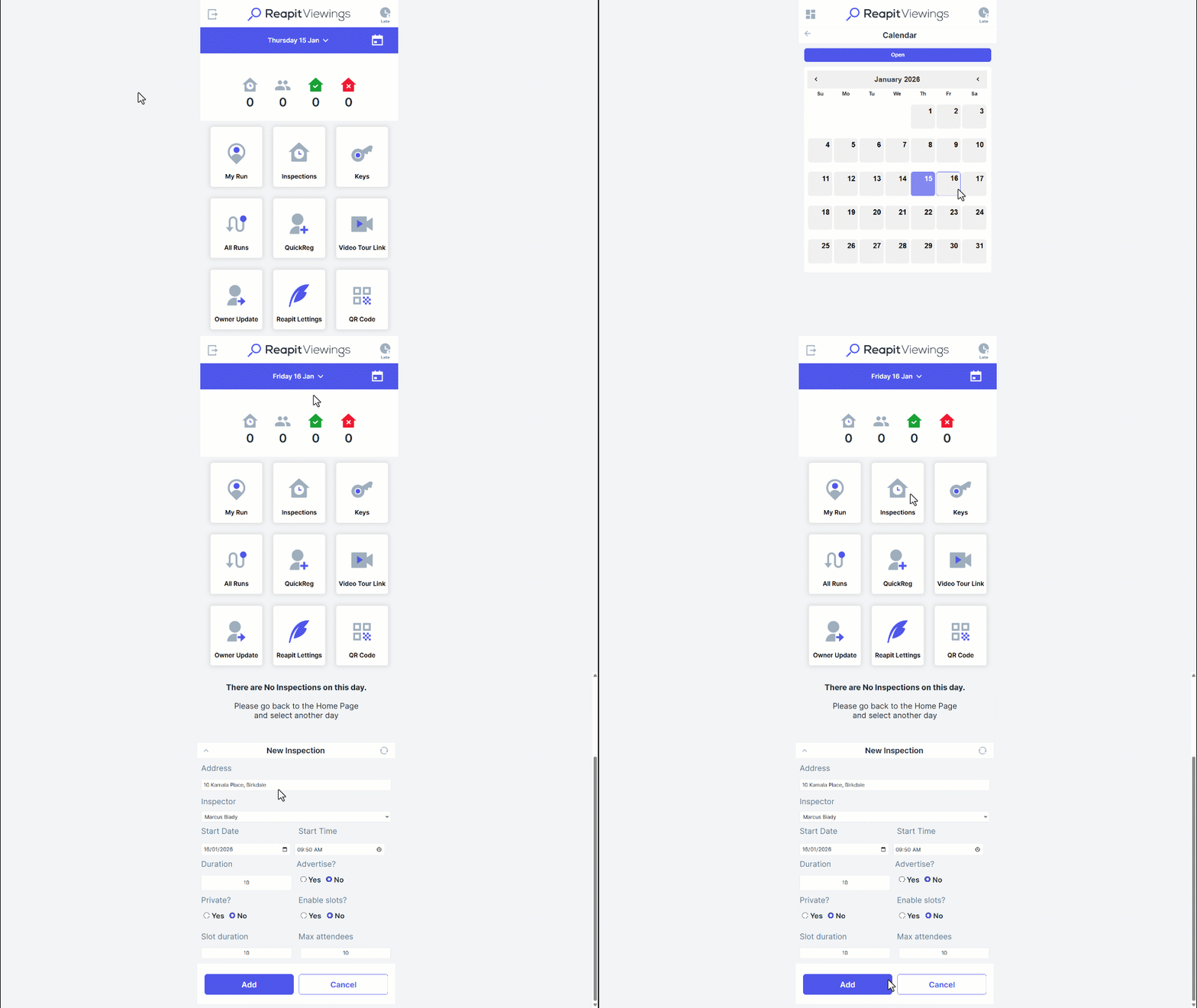
How to Load Inspection Runs for a Particular Date in Reapit Viewings
- Click the Calendar selection**.**
- Click the desired date.
- Click Open.
- This will load up the runs for the new date.
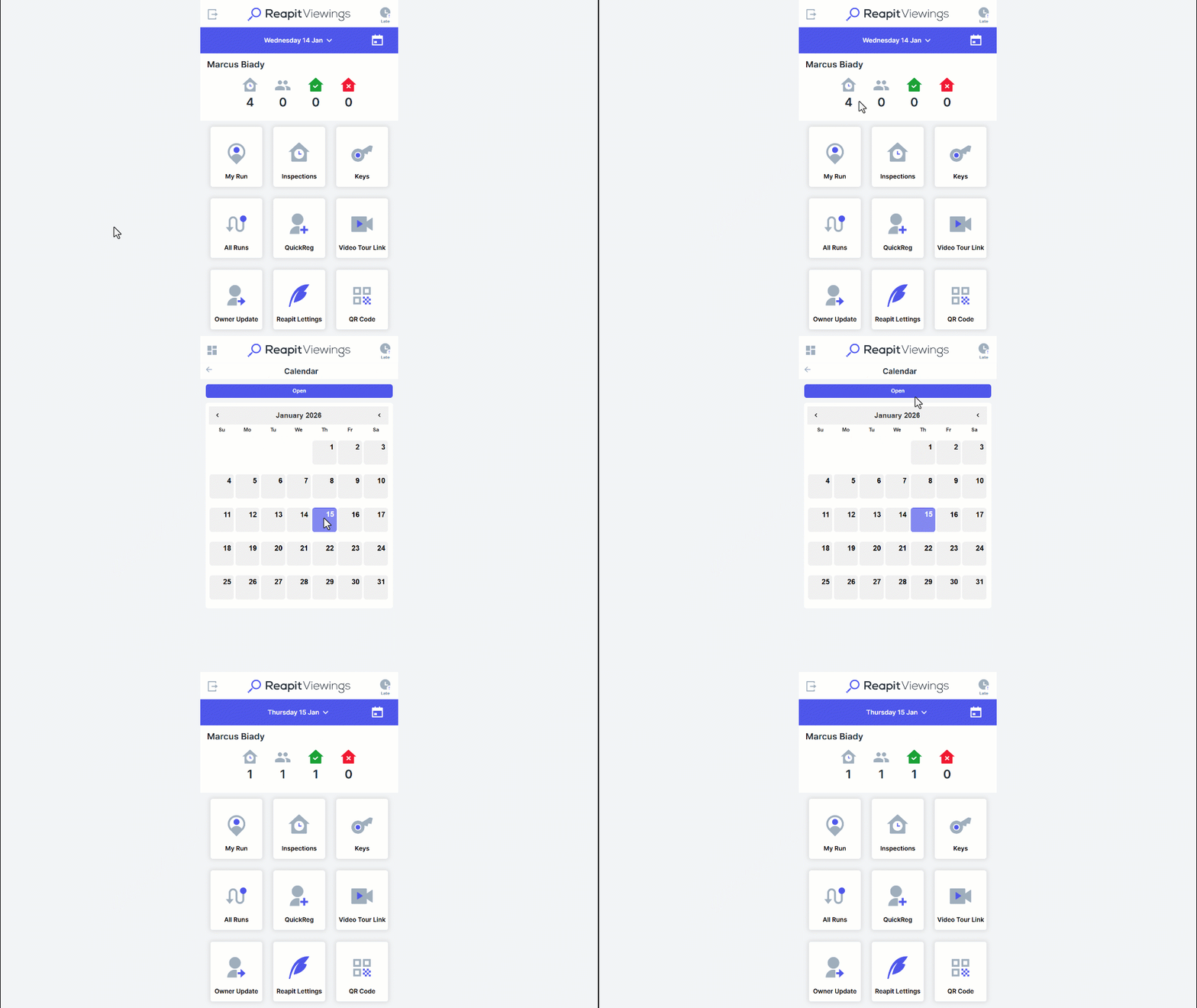
How to Load a Different Inspection Run in Reapit Viewings
When you log into Reapit Viewings, the Inspection run for the team member associated with your account will load automatically.
- Navigate to All Runs.
- This will display other team members who have inspections on the selected date.
- Click Open to load their run.
- Click My Run to continue.
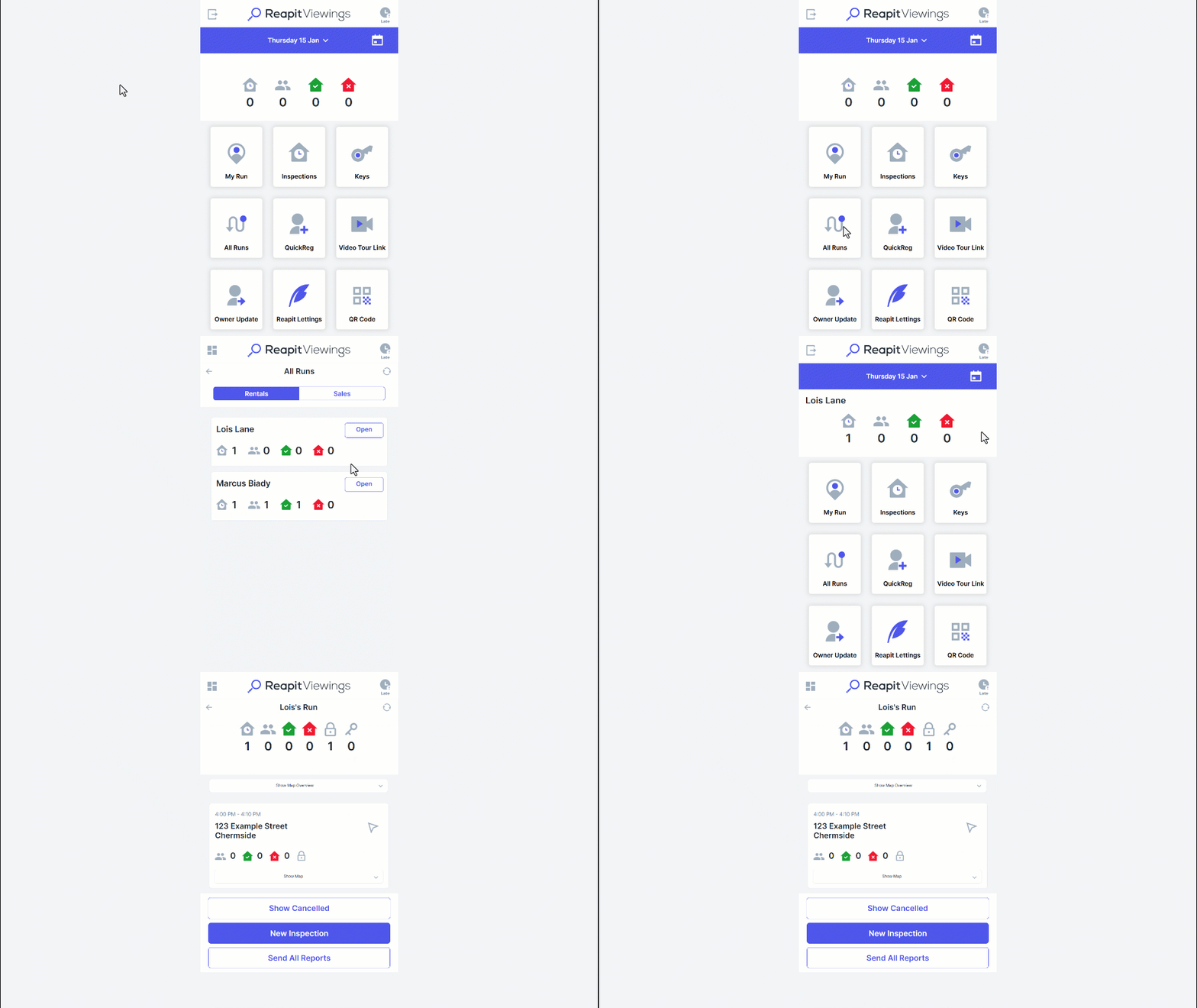
Creating Private Inspections in Reapit Viewings for Rentals
When you log into Reapit Viewings, the Inspection run for the team member associated with your account will load automatically.
- Navigate to All Runs.
- Click New Inspection.
- Select the Address, Inspector, Date and Time, and Duration.
- Click Yes for Private Inspection.
- Click Add.
- The inspection will be shown in your run for the day, but marked as private.